
1. Introduction
The ASHATA 3.5-inch IPS USB Mini Screen is designed to provide real-time monitoring of your PC's vital statistics. This compact display can show CPU, GPU, RAM, and HDD usage and temperature, as well as internet speed, date, time, volume, and weather forecasts. Its 3.5-inch IPS panel offers a clear picture and supports 360° rotation for flexible placement inside or outside your computer case. The screen is energy-efficient, automatically shutting down with your PC, and features adjustable brightness for comfortable viewing. It comes with multiple built-in themes and is compatible with Windows operating systems.
2. What's in the Box
- 1 x ASHATA 3.5-inch IPS USB Mini Screen Display
- 1 x USB Power Cable
- 1 x Mainboard Adapter Cable
- 1 x Special Data Cable
- 1 x Bracket
- 1 x User Manual
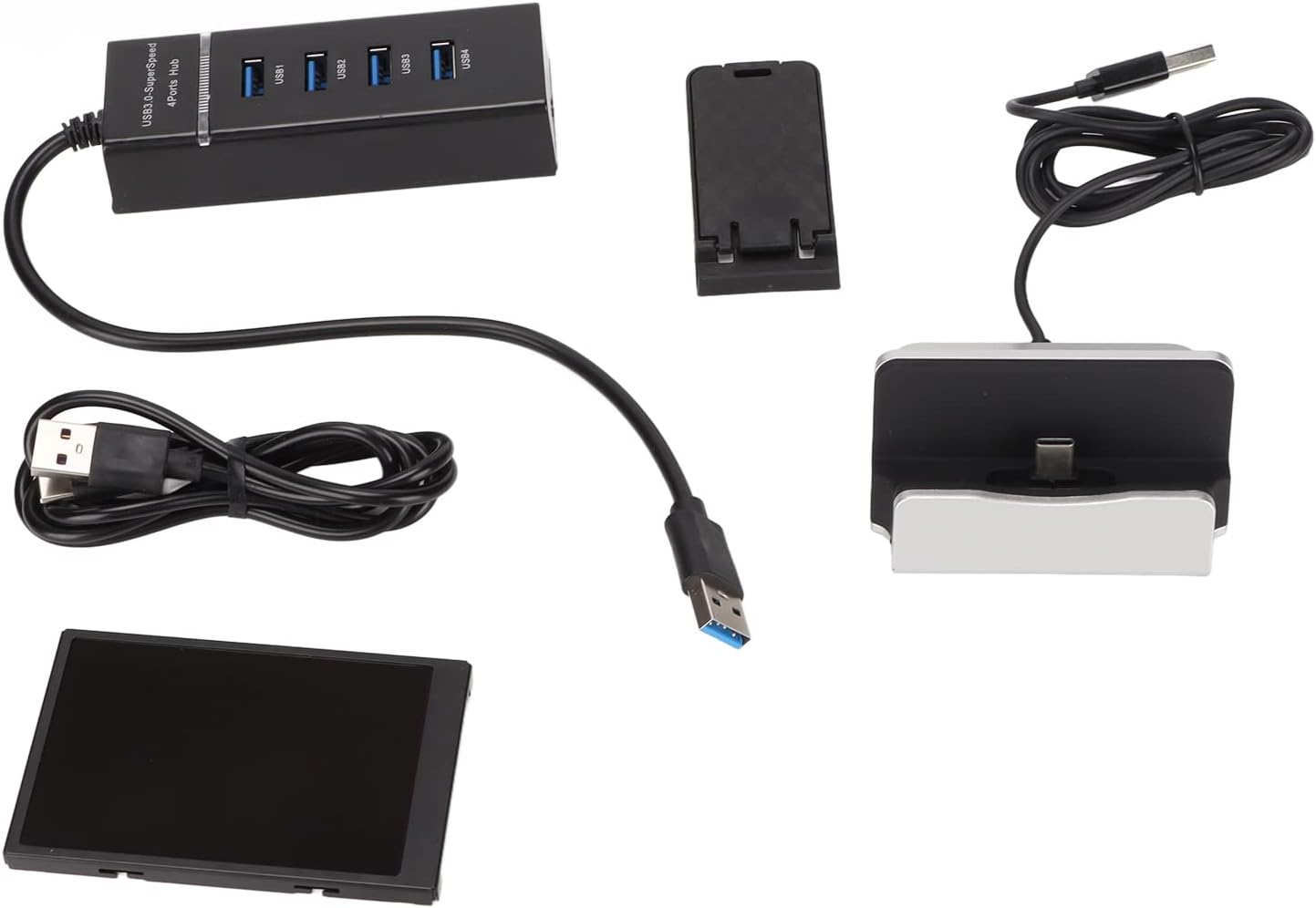
Image: All components included in the product package.
3. Setup Instructions
- Unpack Components: Carefully remove all items from the packaging. Verify that all listed components in 'What's in the Box' are present.
- Assemble the Screen and Bracket: Attach the provided bracket to the back of the mini screen. The bracket allows for stable placement and adjustment of the screen's angle.
- Connect to PC: Connect the mini screen to your computer using the USB cable. The screen requires a USB connection for both power and data transfer.
- Software Installation:
- Download the 'Turing Smart Screen' software from the official website (refer to the included user manual for the specific URL).
- Install the software on your Windows PC. Follow the on-screen prompts to complete the installation.
- Launch the 'Turing Smart Screen' application.
- Initial Configuration: Once the software is running and the screen is connected, it should automatically detect the display. You can then select a theme and adjust settings like screen orientation (horizontal/vertical) and brightness within the software interface.
Video: Demonstrates the unboxing and assembly process of the ASHATA 3.5-inch IPS USB Mini Screen, including connecting the cables and attaching the stand.
Video: Illustrates the software setup and theme selection process for the ASHATA 3.5-inch IPS USB Mini Screen, showing how to apply different display layouts.
4. Operating Instructions
The ASHATA 3.5-inch IPS USB Mini Screen operates in conjunction with the 'Turing Smart Screen' software installed on your Windows PC. Once connected and the software is running, the screen will automatically display the selected monitoring theme.
4.1 Display Functions
The screen can display a variety of system information:
- CPU: Usage percentage, temperature, frequency.
- GPU: Usage percentage, temperature, VRAM usage.
- RAM: Used memory, usage percentage.
- HDD/SSD: Disk usage, temperature.
- Network: Upload and download speeds.
- Other: Date, time, volume, weather forecast.

Image: A detailed view of the mini screen displaying various system parameters like CPU temperature, network speeds, and memory usage.
4.2 Theme Customization
The 'Turing Smart Screen' software offers numerous themes to personalize your display. You can switch themes, adjust screen orientation (horizontal or vertical), and modify brightness settings directly from the software interface.
- To change themes, click 'Stop' in the software, select a new theme from the dropdown menu, and then click 'Run'.
- The screen supports 360° rotation, allowing you to orient the display as needed. This can be adjusted in the software settings.
- Brightness can be adjusted using the slider in the software to suit your environment and preference.

Image: Various customizable screen layouts and themes available for the mini screen, showcasing different data visualizations.
5. Maintenance
To ensure the longevity and optimal performance of your ASHATA 3.5-inch IPS USB Mini Screen, follow these maintenance guidelines:
- Cleaning: Use a soft, dry, lint-free cloth to gently wipe the screen surface. For stubborn smudges, slightly dampen the cloth with water or a screen-safe cleaning solution. Avoid harsh chemicals or abrasive materials.
- Handling: Handle the screen by its edges to avoid touching the display surface directly.
- Storage: When not in use for extended periods, store the screen in a cool, dry place away from direct sunlight and extreme temperatures.
- Cable Care: Avoid bending or crimping the USB cable excessively to prevent damage.
6. Troubleshooting
If you encounter any issues with your ASHATA 3.5-inch IPS USB Mini Screen, refer to the following troubleshooting tips:
- Screen Not Turning On:
- Ensure the USB cable is securely connected to both the screen and a powered USB port on your PC.
- Verify that your PC is turned on and the 'Turing Smart Screen' software is running.
- Try connecting the screen to a different USB port or using a different USB cable.
- Incorrect or No Data Displayed:
- Confirm that the 'Turing Smart Screen' software is installed correctly and running.
- Restart the 'Turing Smart Screen' software and/or your PC.
- Check for software updates for 'Turing Smart Screen' on the official website.
- Ensure your PC's system monitoring services are active and not blocked by antivirus or firewall software.
- Screen Orientation Issues:
- Adjust the 'Screen Flip' setting within the 'Turing Smart Screen' software to correct the orientation.
- Brightness Adjustment Not Working:
- Ensure the 'Turing Smart Screen' software is the active application controlling the display.
- Adjust the brightness slider in the software.
7. Specifications
| Product Dimensions | 0.3 x 3.3 x 2.2 inches |
| Item Weight | 10.2 ounces |
| Screen Size | 3.5 Inches |
| Resolution | 320 x 480 |
| Aspect Ratio | 16:9 |
| Voltage | 5 Volts |
| Total USB Ports | 1 |
| Screen Surface Description | Glossy |
| Model Number | ASHATAsfmn2kyvwo364 |
8. Warranty and Support
For warranty information and technical support, please refer to the documentation provided with your purchase or contact ASHATA customer service through their official channels. Keep your proof of purchase for warranty claims.