
1. Introduction
The Inateck USB C Hub HB2026 is a versatile 10-in-1 docking solution designed to expand the connectivity of your USB-C enabled devices. This manual provides essential information for setting up, operating, and maintaining your hub to ensure optimal performance and longevity.
2. Product Features
The Inateck HB2026 hub integrates multiple essential ports into a single compact device, offering enhanced functionality for your laptop or desktop.
- 10-in-1 Connectivity: Equipped with 3 USB 3.2 Gen 2 data ports, a 4K HDMI port, a 100W Power Delivery charging port, 2 dedicated interfaces for keyboard/mouse, 2 SD/TF card slots, and an Ethernet port.
- High-Speed Data Transfer: Utilizes USB 3.2 Gen 2 protocol, achieving data rates up to 10 Gbps, which is twice the speed of USB 3.0 hubs.
- 4K Video Output: The HDMI port supports up to 4K resolution at 60Hz, allowing you to output high-definition video to external displays such as monitors, TVs, or projectors.
- Power Delivery: Supports up to 100W Power Delivery input, providing up to 85W charging power to your host device (the hub itself consumes up to 15W).
- Dedicated Keyboard/Mouse Interfaces: Two specific USB-A ports are designed to prevent wireless keyboard/mouse signal interference from other USB devices.
- Extended Cable: Features a 1.6ft (50cm) integrated cable for flexible placement and improved cable management.
- Wide Compatibility: Compatible with Windows (11/10/8/7), macOS, and Linux operating systems.
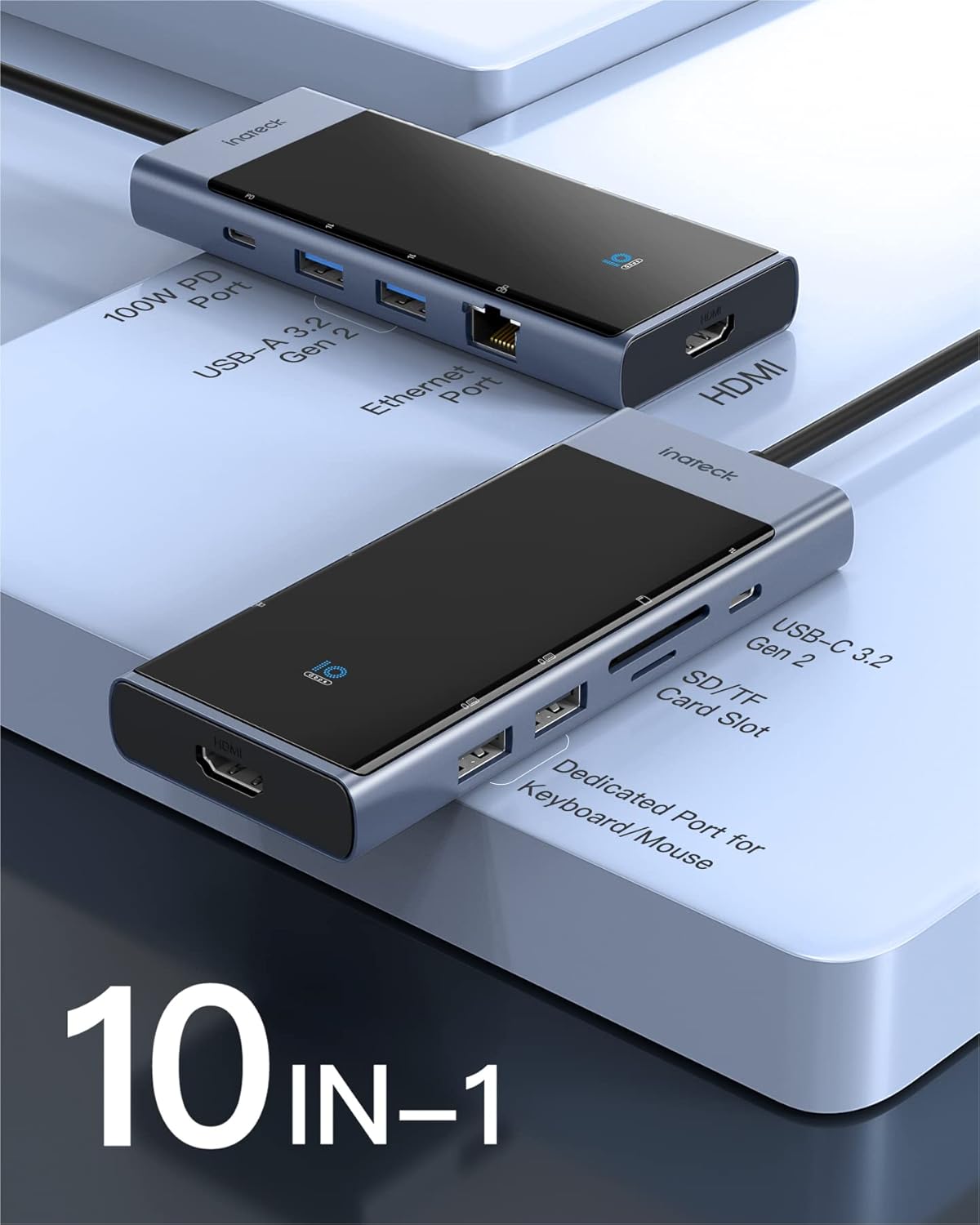
Image: Overview of the Inateck USB C Hub HB2026 with all 10 ports clearly labeled.

Image: Visual comparison demonstrating the faster data transfer speeds of USB 3.2 Gen 2 compared to USB 3.0.

Image: A laptop connected to an external monitor via the hub's HDMI port, displaying a 4K resolution image.
3. Setup Instructions
The Inateck HB2026 is a plug-and-play device, requiring no additional drivers for most operating systems.
- Connect to Host Device: Plug the integrated USB-C cable of the hub into an available USB-C port on your laptop or desktop computer.
- Power Connection (Optional but Recommended): For stable performance, especially when connecting multiple power-hungry devices or using Power Delivery, connect a USB-C power adapter (up to 100W) to the hub's PD charging port.
- Device Recognition: Your operating system should automatically detect and configure the hub. A blue LED indicator on the hub will illuminate when it is powered and connected.

Image: The Inateck USB C Hub HB2026 connected to a laptop, illustrating its compatibility with various operating systems.
4. Operating Instructions
4.1. USB Data Transfer
Connect your USB devices (e.g., flash drives, external hard drives) to the USB 3.2 Gen 2 ports for high-speed data transfer up to 10 Gbps. The dedicated keyboard/mouse ports are ideal for peripherals to avoid signal interference.
4.2. Video Output (HDMI)
Connect an HDMI cable from the hub's HDMI port to your external monitor, TV, or projector. The hub supports resolutions up to 4K at 60Hz for a clear visual experience.
4.3. Power Delivery
If your host device supports USB-C Power Delivery, connect a compatible USB-C power adapter to the hub's PD port. This allows you to charge your laptop while using the hub's other functionalities.

Image: The hub connected to a laptop and a 100W power adapter, illustrating the Power Delivery function with 85W output to the laptop.
4.4. Dedicated Keyboard/Mouse Ports
Utilize the two dedicated USB-A ports for your wireless keyboard and mouse receivers. These ports are engineered to minimize interference, ensuring smooth and responsive input.

Image: The hub connected to a laptop, with a wireless keyboard and mouse connected to the dedicated USB ports.
4.5. SD/TF Card Slots
Insert your SD or TF (microSD) cards into the respective slots for quick access to your media files. Both slots can be used simultaneously.
4.6. Ethernet Port
Connect an Ethernet cable to the RJ45 port for a stable and reliable wired network connection, ideal for environments where Wi-Fi is unreliable or unavailable.
5. Specifications
| Feature | Detail |
|---|---|
| Model Number | HB2026 |
| Ports | 3x USB 3.2 Gen 2 (10Gbps), 1x 4K HDMI, 1x 100W PD USB-C, 2x Dedicated USB-A (Keyboard/Mouse), 1x SD Card Slot, 1x TF Card Slot, 1x Ethernet (RJ45) |
| Data Transfer Speed | Up to 10 Gbps (USB 3.2 Gen 2) |
| HDMI Resolution | Up to 4K@60Hz |
| Power Delivery | 100W input, up to 85W output to host (hub consumes 15W) |
| Cable Length | 1.6 ft (50 cm) |
| Operating System Compatibility | Linux, Windows 10, macOS |
| Special Feature | Plug and Play |
| Dimensions (LxWxH) | 4.92 x 2.09 x 0.59 inches |
| Weight | 3.84 ounces |
6. Troubleshooting
- Device Not Recognized: Ensure the hub's USB-C cable is securely connected to your host device. Try connecting to a different USB-C port on your computer. Restart your computer.
- HDMI Output Issues: Verify that the HDMI cable is correctly connected to both the hub and the display. Check your display settings on your computer to ensure the external monitor is detected and configured correctly. Try a different HDMI cable or monitor if possible.
- Power Delivery Not Working: Ensure your USB-C power adapter is connected to the hub's PD port and is capable of delivering sufficient wattage (up to 100W). The hub consumes up to 15W, so the actual charging power to your laptop will be less than the adapter's rated power.
- Slow Data Transfer: Ensure you are using the USB 3.2 Gen 2 ports for high-speed devices. Performance may vary depending on the connected device and the host computer's capabilities.
- Wireless Interference (Keyboard/Mouse): Use the dedicated keyboard/mouse USB-A ports to minimize potential signal interference from other connected USB devices.
7. Maintenance
To ensure the longevity and optimal performance of your Inateck USB C Hub, follow these maintenance guidelines:
- Keep the hub clean by wiping it with a soft, dry cloth. Avoid using liquid cleaners or abrasive materials.
- Store the hub in a cool, dry place away from direct sunlight and extreme temperatures.
- Avoid bending or straining the integrated USB-C cable excessively.
- Do not attempt to disassemble or repair the hub yourself, as this may void the warranty and cause damage.
8. Warranty and Support
Inateck products are designed for reliability and performance. For warranty information, technical support, or any inquiries regarding your HB2026 USB C Hub, please refer to the official Inateck website or contact their customer service directly. Keep your purchase receipt for warranty claims.
9. Official Product Video
Video: An official overview of the Inateck USB C Hub with 10 Ports HB2026, showcasing its design and features.


