
1. Introduction
This manual provides essential information for the safe and efficient operation of your Coocaa 43Y72 4K Ultra HD Smart IPS Google LED TV. Please read it thoroughly before using the television and retain it for future reference. This television features a 108 cm (43 inches) frameless 4K Ultra HD IPS display, powered by Google TV, offering a comprehensive entertainment experience.

Image: The Coocaa 43Y72 TV showcasing its Google TV interface with personalized content and app recommendations.
2. What's in the Box
Upon unpacking, please ensure all the following items are present:
- 1 x Coocaa 43Y72 LED TV
- 1 x Remote Control
- 1 x Power Cord
- 1 x Start Guide
- 1 x Warranty Card
- 2 x AAA Batteries (for remote control)
- 1 x Set of Base Stands
- 4 x Screws (for base stands)
3. Setup
3.1 Physical Setup
- Unpacking: Carefully remove the TV from its packaging. It is recommended to have two people for this process.
- Stand Installation: If using the included base stands, align them with the mounting holes on the bottom of the TV. Secure them using the provided screws. Ensure the TV is placed on a stable, flat surface.
- Wall Mounting (Optional): If wall mounting, refer to the instructions provided with your wall mount kit. Ensure the wall mount is compatible with VESA standards for your TV model and installed by a qualified professional.
- Power Connection: Connect the power cord to the TV's power input and then to a suitable electrical outlet.
3.2 Initial Power On
- Press the power button on the TV or the remote control to turn on the TV.
- Follow the on-screen instructions to complete the initial setup, including language selection, network connection, and Google account sign-in.
4. Connectivity
Your Coocaa 43Y72 TV offers multiple connectivity options for various devices.

Image: A detailed view of the TV's side panel, illustrating the arrangement of USB, Digital Audio, AV, HDMI, and LAN ports.
4.1 Wired Connections
- HDMI Ports (3): Connect set-top boxes, Blu-ray players, gaming consoles, or other HDMI-enabled devices.
- USB Ports (2): Connect hard drives, USB flash drives, or other USB devices for media playback.
- LAN Port: For a stable wired internet connection.
- Digital Audio Output: Connect to external audio systems for enhanced sound.
- AV Input: For connecting older devices using composite video and stereo audio cables.
- IR Port: To control connected devices like DVD/STB players.
4.2 Wireless Connections
- Wi-Fi (Dual Band): Connect to your home network for internet access and streaming.
- Bluetooth: Pair with compatible devices such as headphones, speakers, or game controllers.
5. Operating the TV
5.1 Remote Control
The included remote control allows you to navigate the TV's features. It supports voice commands and has dedicated buttons for popular streaming services.

Image: The Coocaa remote control, highlighting its ergonomic design and dedicated buttons for smart features and streaming services.
- Power Button: Turns the TV on or off.
- Google Assistant Button: Activates voice control for searching content, controlling smart home devices, and more.
- Navigation Pad: Use the directional buttons and OK button to navigate menus.
- Volume/Channel Buttons: Adjust volume and change channels.
- Quick Access Buttons: Direct access to Netflix, Prime Video, and YouTube.
5.2 Google TV Interface
Google TV organizes movies, shows, live TV, and more from your apps and subscriptions into one personalized interface.
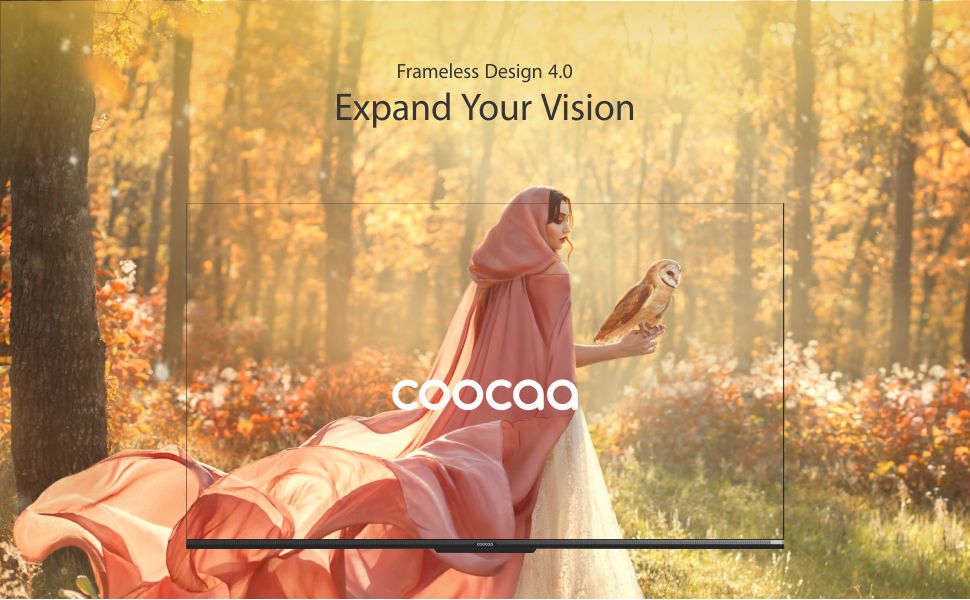
Image: The Google TV home screen, demonstrating personalized content suggestions and easy access to various applications.
- Personalized Homescreen: Content recommendations are tailored to your viewing habits.
- Content Catalog: Access a vast library of movies and TV shows from services like Prime Video, Netflix, Hotstar, Zee5, Sony LIV, YouTube, and more.
- Google Duo Support: Engage in video calls directly from your TV (requires compatible camera, sold separately).
- Swaiot Home Feature: Integrate and control compatible smart home devices.
- Chromecast Built-in: Cast content from your smartphone or tablet directly to the TV.
- Google Voice Assistant: Use voice commands for navigation, search, and control.
6. Display and Audio Features
6.1 Display Technology
- 4K HDR (3840 x 2160) Resolution: Delivers sharp, detailed images with vibrant colors.
- IPS Display: Provides wide viewing angles (178 degrees), ensuring consistent picture quality from various positions.
- Durable A+ Grade DLED Panel: Ensures reliability and consistent performance.
- Ultra Bright Screen: Maintains picture clarity even in well-lit rooms.
- Frameless Design: Maximizes screen space for an immersive viewing experience.
- Chameleon Extreme 2.0 Picture Engine: Enhances picture quality by optimizing color, contrast, and clarity.
- HDR 10 & HLG: Supports high dynamic range content for improved contrast and color accuracy.

Image: The Coocaa TV featuring its frameless design, designed to provide an expansive visual experience.
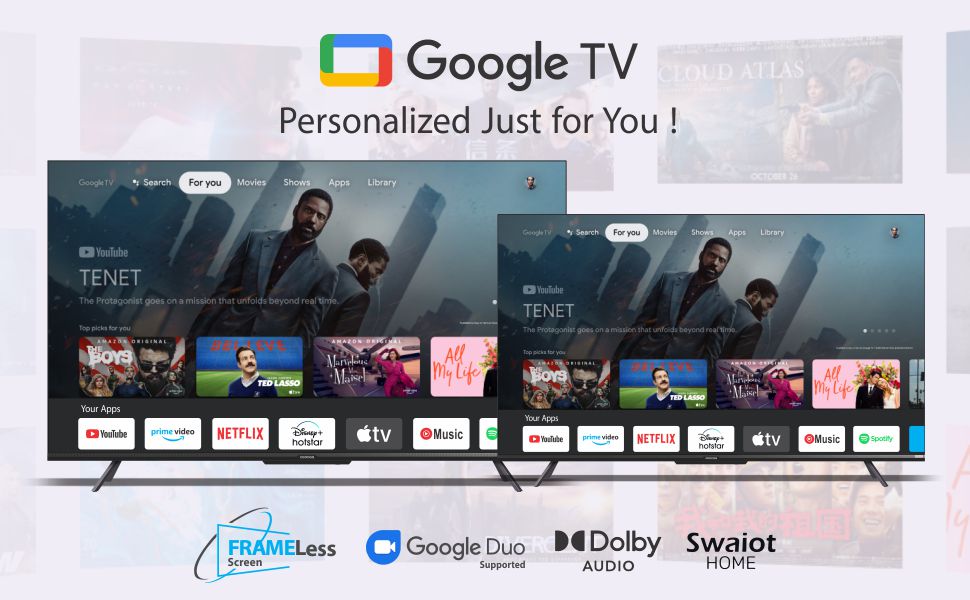
Image: Visual representation of the Chameleon Extreme 2.0 Picture Engine, highlighting its role in bringing out every detail.
6.2 Audio Technology
- 30 Watts Output: Provides clear and powerful sound.
- Dolby Audio: Delivers rich, clear, and powerful sound for an immersive audio experience.
- DTS Tru Surround: Enhances audio with virtual surround sound for remarkable sound quality.
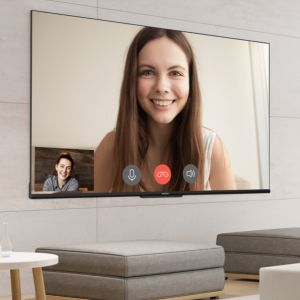
Image: Logos for Dolby Audio and DTS TruSurround, signifying advanced audio processing for superior sound.
7. Specifications
Detailed technical specifications for the Coocaa 43Y72 TV:

Image: Technical drawing illustrating the precise dimensions of the Coocaa 43Y72 TV, including screen size, width, height, and depth.
| Feature | Detail |
|---|---|
| Model | 43Y72 |
| Screen Size | 108 cm (43 inches) |
| Resolution | 4K HDR (3840 x 2160) |
| Refresh Rate | 60 Hertz |
| Viewing Angle | 178 Degrees |
| Display Type | IPS LED |
| Sound Output | 30 Watts |
| Audio Technology | Dolby Audio, DTS Tru Surround |
| Operating System | Google TV (Android) |
| RAM | 2 GB |
| Storage | 16 GB |
| HDMI Ports | 3 |
| USB Ports | 2 |
| Wireless Connectivity | Dual-band Wi-Fi, Bluetooth |
| Dimensions (LxWxH) | 95.07 x 19.09 x 56.06 cm |
| Item Weight | 6 kg |
| Power Source | AC 200 Volts, 100 Watts |
8. Troubleshooting
If you encounter issues with your TV, refer to the following common problems and solutions:
- No Power:
- Ensure the power cord is securely connected to both the TV and the electrical outlet.
- Check if the power outlet is functioning by plugging in another device.
- Press the power button on the TV itself, not just the remote.
- No Picture, But Sound:
- Verify the correct input source is selected (e.g., HDMI 1, AV).
- Check cable connections between the TV and external devices.
- No Sound, But Picture:
- Increase the volume.
- Check if the TV is muted.
- Ensure audio cables are correctly connected if using external speakers.
- Check audio output settings in the TV menu.
- Remote Control Not Working:
- Replace the batteries (2 AAA batteries).
- Ensure there are no obstructions between the remote and the TV's IR sensor.
- Re-pair the Bluetooth remote if it's a smart remote.
- Wi-Fi Connection Issues:
- Restart your router and modem.
- Check Wi-Fi password.
- Ensure the TV is within range of your Wi-Fi router.
For persistent issues, please contact Coocaa customer support.
9. Maintenance
Proper maintenance ensures the longevity and optimal performance of your TV:
- Cleaning the Screen: Use a soft, lint-free cloth specifically designed for electronics. Do not use harsh chemicals or abrasive materials. Lightly dampen the cloth with water if necessary, and wipe gently.
- Cleaning the Body: Wipe the TV's frame and stand with a soft, dry cloth.
- Ventilation: Ensure adequate airflow around the TV. Do not block ventilation openings.
- Power Off When Not in Use: Turn off the TV and unplug it during lightning storms or when leaving it unused for extended periods.
10. Warranty and Support
Your Coocaa 43Y72 TV comes with a standard brand warranty. Please refer to the included Warranty Card for specific terms, conditions, and duration of coverage.
- Warranty Coverage: Typically covers manufacturing defects and malfunctions under normal use.
- Contact Support: For warranty claims, technical assistance, or service requests, please refer to the contact information provided on your Warranty Card or the official Coocaa website.
- Proof of Purchase: Always retain your purchase receipt as proof of purchase for warranty validation.


