
1. Introduction
This manual provides essential instructions for setting up, operating, and maintaining your Coocaa 40S3U Pro 40-inch Full HD Smart IPS LED TV. Please read this manual thoroughly before using the television to ensure proper operation and to maximize your viewing experience. Keep this manual for future reference.

Image: The Coocaa 40S3U Pro TV showcasing its smart interface with popular applications.
2. Safety Information
Always follow basic safety precautions when using this television to reduce the risk of fire, electric shock, and injury.
- Do not expose the TV to rain or moisture.
- Do not block ventilation openings.
- Ensure the power cord is not pinched or walked on.
- Only use attachments/accessories specified by the manufacturer.
- Refer all servicing to qualified service personnel.
3. Package Contents
Verify that all items are present in the package:
- 1 x Coocaa LED TV
- 1 x Remote Control
- 1 x Power Cord
- 1 x Quick Start Guide
- 1 x Warranty Card
- 2 x AAA Batteries (for remote)
- 2 x Base Stands
- 4 x Screws (for base stands)
4. Setup
4.1 Physical Installation
Your Coocaa TV can be installed using the included base stands or mounted on a wall.
4.1.1 Attaching the Base Stands
- Carefully place the TV screen-down on a soft, flat surface to prevent damage.
- Align each base stand with the corresponding slots on the bottom of the TV.
- Secure each stand with the provided screws. Ensure they are tightened firmly.
4.1.2 Wall Mounting (Optional)
If you choose to wall mount your TV, ensure you use a compatible VESA wall mount kit (not included) and follow the instructions provided with the wall mount. Professional installation is recommended.
4.2 Connecting External Devices
The TV features multiple ports for connecting various devices.
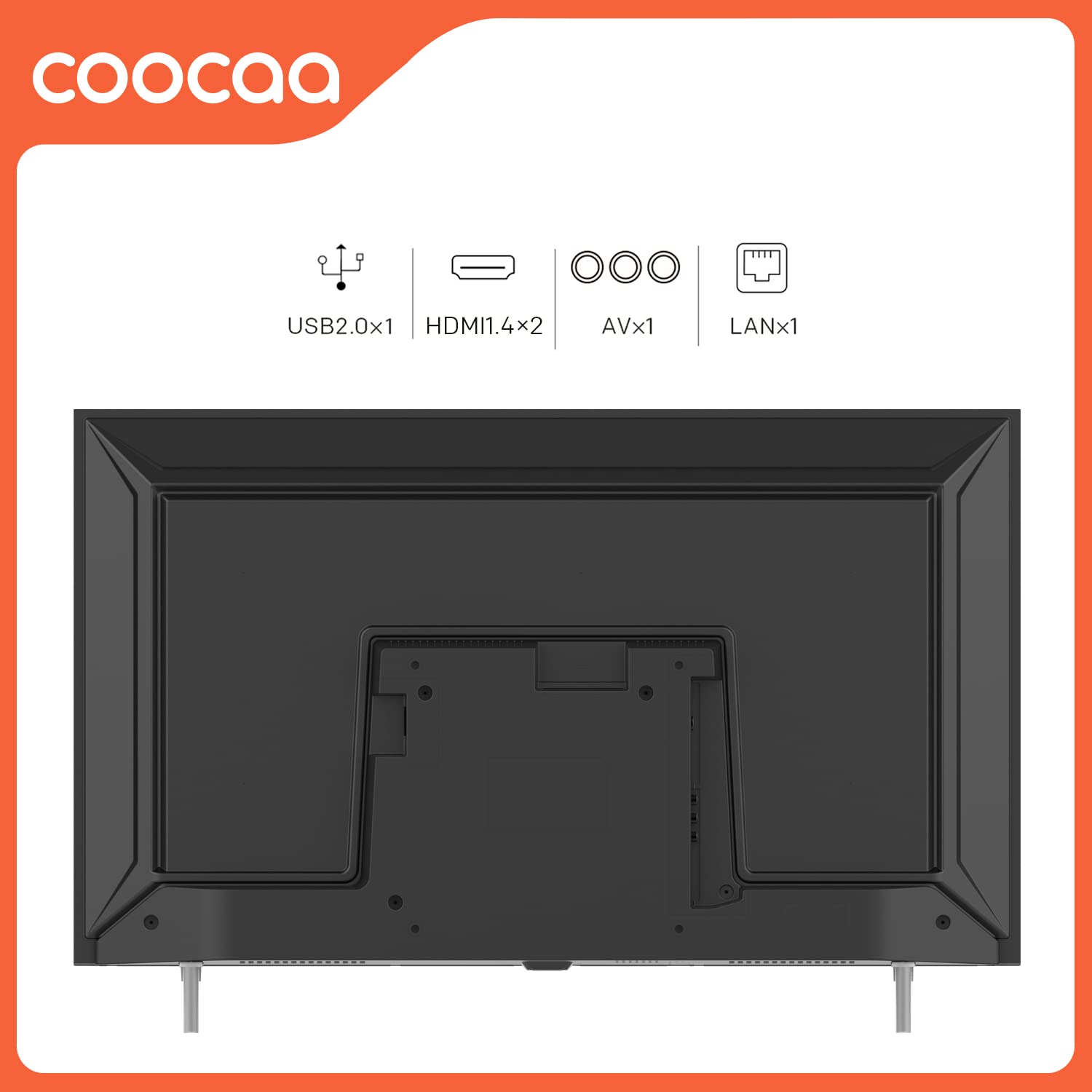
Image: Rear panel connectivity ports including USB, HDMI, AV, and LAN.
- HDMI Ports (x2): Connect set-top boxes, Blu-ray players, gaming consoles, or other HDMI-enabled devices.
- USB Port (x1): Connect USB storage devices for media playback.
- AV Input: For older devices using composite video and stereo audio.
- LAN Port: For a wired internet connection.
- Antenna/Cable Input: Connect an antenna or cable TV feed.
4.3 Initial Power On and First-Time Setup
- Connect the power cord to the TV and then to a power outlet.
- Press the power button on the remote control or on the TV.
- Follow the on-screen instructions to complete the initial setup, including language selection, network connection (Wi-Fi or Ethernet), and channel scanning.
5. Operating Your TV
5.1 Remote Control Functions
The included remote control allows you to navigate the TV's features and settings.

Image: The Coocaa remote control, highlighting quick access buttons.
- Power Button: Turns the TV on or off.
- Navigation Buttons (Up/Down/Left/Right/OK): Navigate menus and select options.
- Volume Up/Down: Adjust the sound level.
- Channel Up/Down: Change TV channels.
- Home Button: Access the Smart TV home screen.
- Back Button: Return to the previous screen.
- App Shortcut Buttons: Direct access to popular streaming services like YouTube.
5.2 Smart TV Features (Coolita 2.0 OS)
Your Coocaa TV runs on the Coolita 2.0 OS, providing access to a range of smart features and applications.
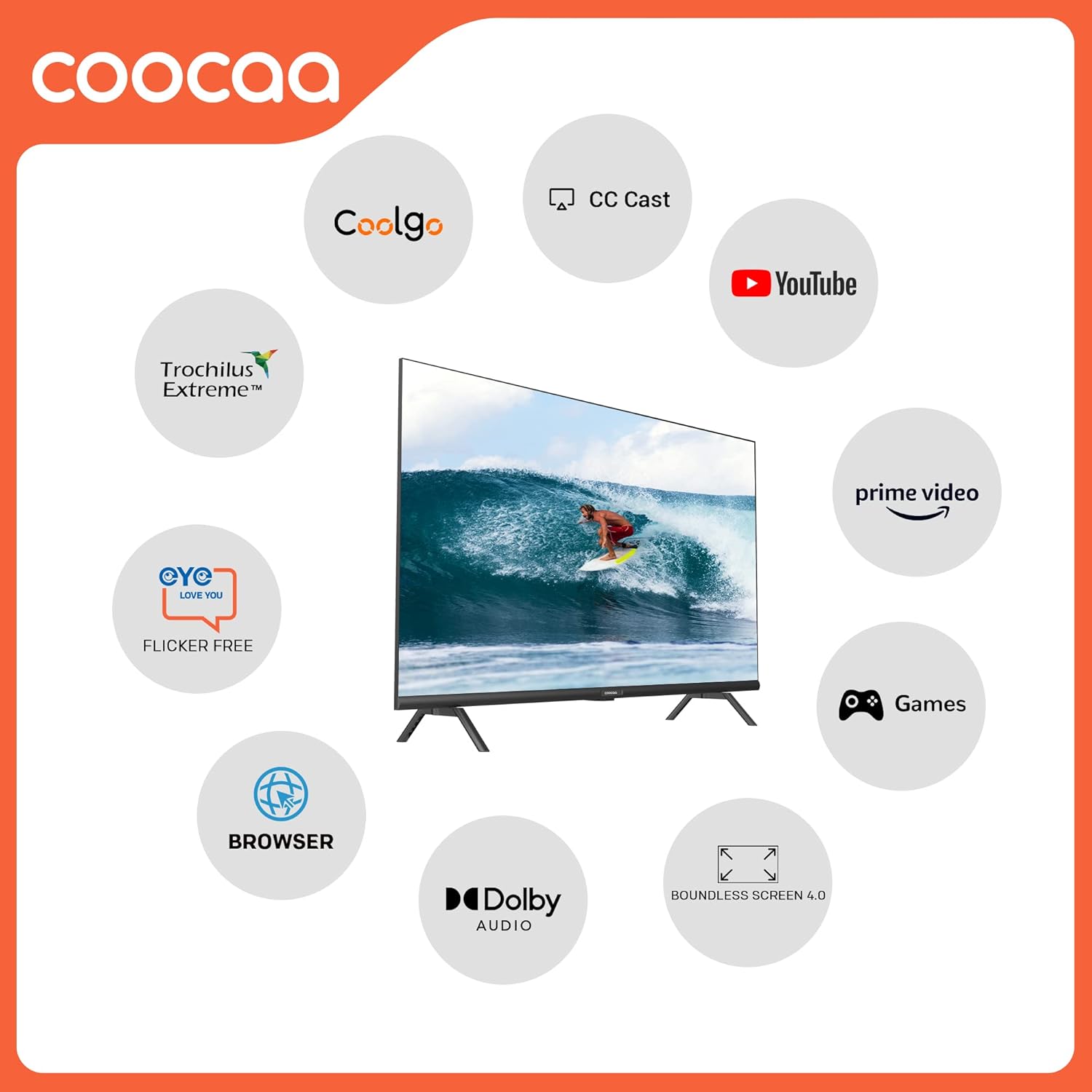
Image: Overview of key smart features available on Coocaa TVs.
5.2.1 Streaming Applications
Access a vast catalog of movies and TV shows from pre-installed applications such as Prime Video, YouTube, Zee5, and Sony LIV. Additional apps may be available for download.

Image: The TV's interface showing a wide selection of entertainment applications.
5.2.2 Web Browser
Use the built-in browser to surf the internet directly on your TV screen.
5.2.3 Screen Mirroring (CC Cast)
The CC Cast feature allows you to mirror content from compatible devices (Android, iPhone) to your TV screen.

Image: Screen sharing functionality (CC Cast) from a mobile device to the TV.
5.2.4 Data Saver
Optimize your network usage with the Data Saver feature, designed to help manage internet traffic efficiently.

Image: The Data Saver feature on the Coocaa TV interface.
5.3 Picture and Sound Settings
Adjust picture and sound settings to suit your preferences. Access these options through the TV's main menu.
- Picture Modes: Select from various preset modes (e.g., Standard, Vivid, Movie, Game) or customize brightness, contrast, color, and sharpness. The TV features an A+ Grade DLED panel and Trochilus Extreme Picture Engine for enhanced visuals.
- Sound Modes: Choose from preset sound modes (e.g., Standard, Music, Movie) or adjust bass and treble. The TV supports Dolby Audio and DTS Tru Surround for a rich audio experience.
- Eye Protection: This feature helps reduce eye strain during prolonged viewing.

Image: Visual representation of the Coolita 2.0 A+ Grade Panel's display quality.
6. Maintenance
6.1 Cleaning the TV
- Always unplug the TV before cleaning.
- Use a soft, dry cloth to wipe the screen and TV body.
- For stubborn marks, use a screen cleaner specifically designed for televisions, applied to the cloth, not directly to the screen.
- Avoid using abrasive cleaners, waxes, or solvents.
6.2 Software Updates
Your Coocaa Smart TV may receive software updates to improve performance and add new features. Ensure your TV is connected to the internet to receive these updates. You can usually check for updates in the TV's settings menu.
7. Troubleshooting
If you encounter issues with your TV, refer to the following common problems and solutions:
| Problem | Possible Solution |
|---|---|
| No power | Check if the power cord is securely connected and the power outlet is working. Try a different outlet. |
| No picture, but sound is present | Ensure the correct input source is selected. Check cable connections to external devices. |
| No sound, but picture is present | Check volume level and mute settings. Verify audio cable connections. |
| Remote control not working | Replace batteries. Ensure there are no obstructions between the remote and the TV's IR sensor. |
| Cannot connect to Wi-Fi | Check Wi-Fi password. Restart your router. Ensure the TV is within range of the Wi-Fi signal. |
| Smart features are slow or unresponsive | Restart the TV. Check your internet connection speed. Close unused applications. |
8. Specifications
Detailed technical specifications for the Coocaa 40S3U Pro TV:

Image: Physical dimensions of the Coocaa 40S3U Pro TV.
| Feature | Detail |
|---|---|
| Brand | Coocaa |
| Model | 40S3U Pro |
| Screen Size | 40 Inches (100 cm) |
| Display Technology | LED, IPS Panel |
| Resolution | Full HD (1920x1080 Pixels) |
| Refresh Rate | 60 Hz |
| Viewing Angle | 178 Degrees |
| Operating System | Coolita 2.0 OS (Linux) |
| Memory Storage Capacity | 4 GB |
| RAM Memory Installed Size | 0.5 GB |
| Audio Output | 20 Watts, Dolby Audio, DTS Tru Surround |
| Connectivity | 2 HDMI, 1 USB, Ethernet, Wi-Fi, Bluetooth |
| Product Dimensions (LxWxH) | 19.09 x 89.2 x 51.03 cm |
| Item Weight | 5.1 kg |
| Power Consumption | 74 Watts (On-mode) |
| Special Features | Eye Protection, Open Browser, Trochilus Extreme Picture Engine, Game Mode, HDR 10, CC Cast |
9. Warranty Information
Your Coocaa 40S3U Pro TV comes with a 1 Year Warranty from the date of purchase. Please refer to the included warranty card for detailed terms and conditions. Keep your purchase receipt as proof of purchase for warranty claims.
10. Customer Support
For technical assistance, service, or further inquiries, please contact Coocaa customer support. Contact details can typically be found on the manufacturer's official website or on the warranty card included with your product.


