
1. Introduction
Thank you for choosing the BEBIRD C3 Ear Wax Removal Tool. This device integrates a high-definition otoscope with an ear camera, providing a clear view of the ear canal for safe and effective ear wax removal. Equipped with 6 LED lights and compatible with both iOS and Android devices, the BEBIRD C3 offers a precise and convenient solution for personal ear care. Please read this manual thoroughly before use to ensure proper operation and maintenance.
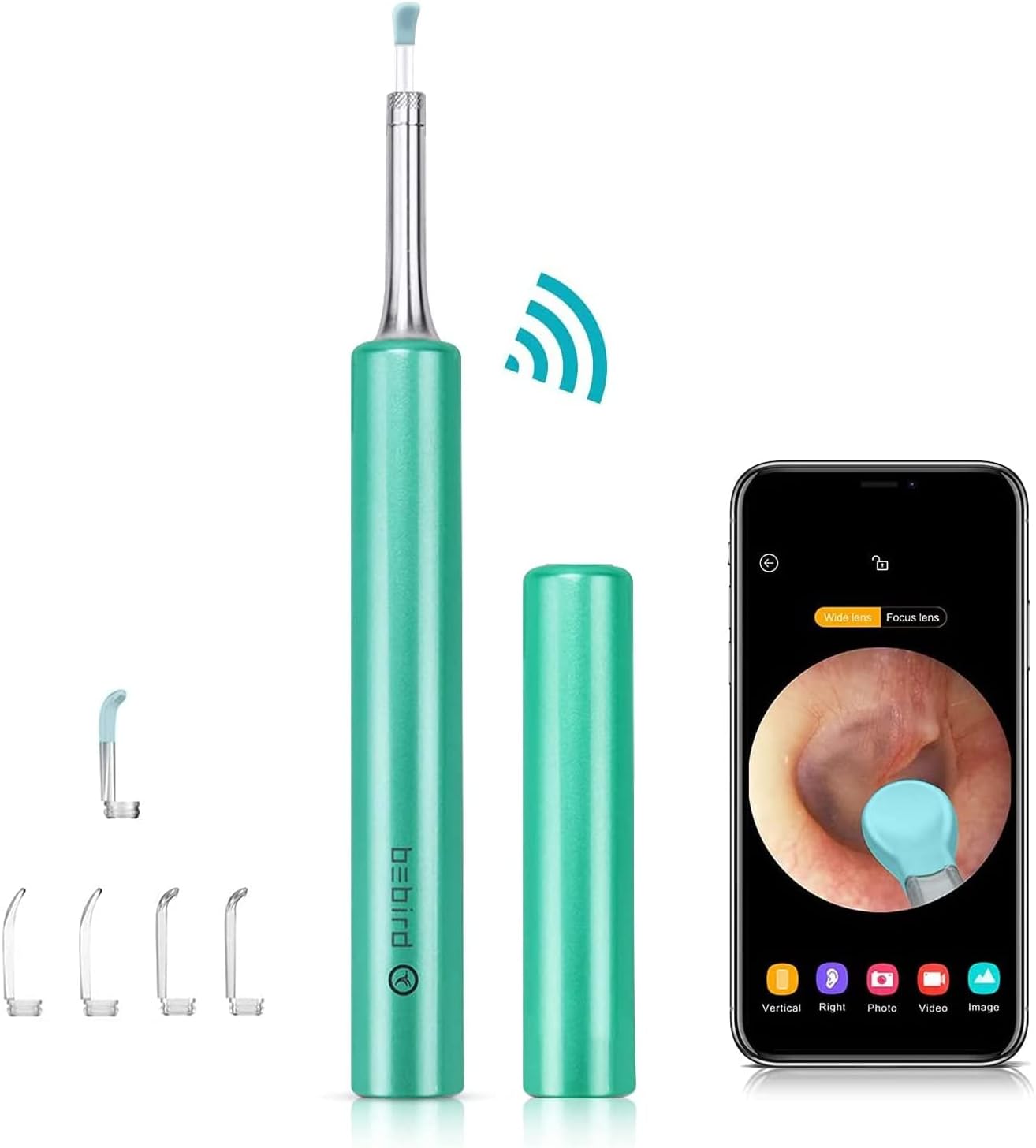
Image: The BEBIRD C3 ear wax removal tool, its protective cap, and a smartphone displaying the live otoscope view of an ear canal.
2. Package Contents
Verify that all items are present in your package:
- 1 x Ear Wax Removal Otoscope (BEBIRD C3 device)
- 1 x Q-elastic Ear Spoon
- 4 x Transparent Ear Spoons
- 1 x Charging Cable (USB)
- 1 x Bebird User Manual (this document)

Image: A detailed diagram highlighting the various components of the BEBIRD C3 device, including the power button, USB charging port, power indicator, camera and LEDs, and the replaceable ear spoon.
3. Important Safety Information
Please adhere to the following safety guidelines for safe and effective use:
- When cleaning the lens, please wipe it carefully with a professional alcohol cotton swab.
- Please do not use the device while you are moving, and prevent from being hit by others.
- Please do not put the product in liquid to avoid damage.
- During use, the temperature of the product may rise slightly (up to 35 degrees Celsius). This is normal and safe for use.
Legal Disclaimer: Statements regarding dietary supplements have not been evaluated by the FDA and are not intended to diagnose, treat, cure, or prevent any disease or health condition. This product is intended for personal hygiene and observation.
4. Setup and First Use
Follow these steps to set up your BEBIRD C3 device and begin using it:
- Download the App: Scan the QR code provided in the manual (or on the product packaging) or visit http://www.bebird.cn/app/en.html to download the official BEBIRD application for your iOS or Android device.
- Power On: Press the power button on the BEBIRD C3 device until the blue light flashes, indicating it is powered on and ready for connection.
- Connect Wi-Fi: Go to your smartphone's Wi-Fi settings and connect to the Wi-Fi network named "bebird-XXXX" (where XXXX will be a unique identifier for your device).
- Start the App: Open the BEBIRD application on your smartphone. The app should automatically detect and connect to the device, displaying the live view from the otoscope camera.
- Select Model: Within the app, ensure that the BEBIRD C3 model is selected if prompted.

Image: A visual guide illustrating the five steps to set up and use the BEBIRD C3, from scanning the app QR code to connecting Wi-Fi and starting the application.
5. Operating Instructions
Once connected, the BEBIRD C3 provides a clear, real-time view of the area you are examining. The device is designed for various applications beyond just ear wax removal.
5.1 General Usage
- Gently insert the ear spoon attached to the device into the area you wish to examine.
- Observe the live feed on your smartphone screen. The 1080P HD camera and 6 LED lights provide optimal clarity.
- Use the integrated 3-axis gyroscope for stable and accurate viewing, preventing dizziness and glare.
- The 3.5mm small lens is designed for safety and ease of use, especially in delicate areas.

Image: An adult carefully using the BEBIRD C3 tool on a child's ear, demonstrating gentle and safe application, with the smartphone displaying the clear view of the ear canal.
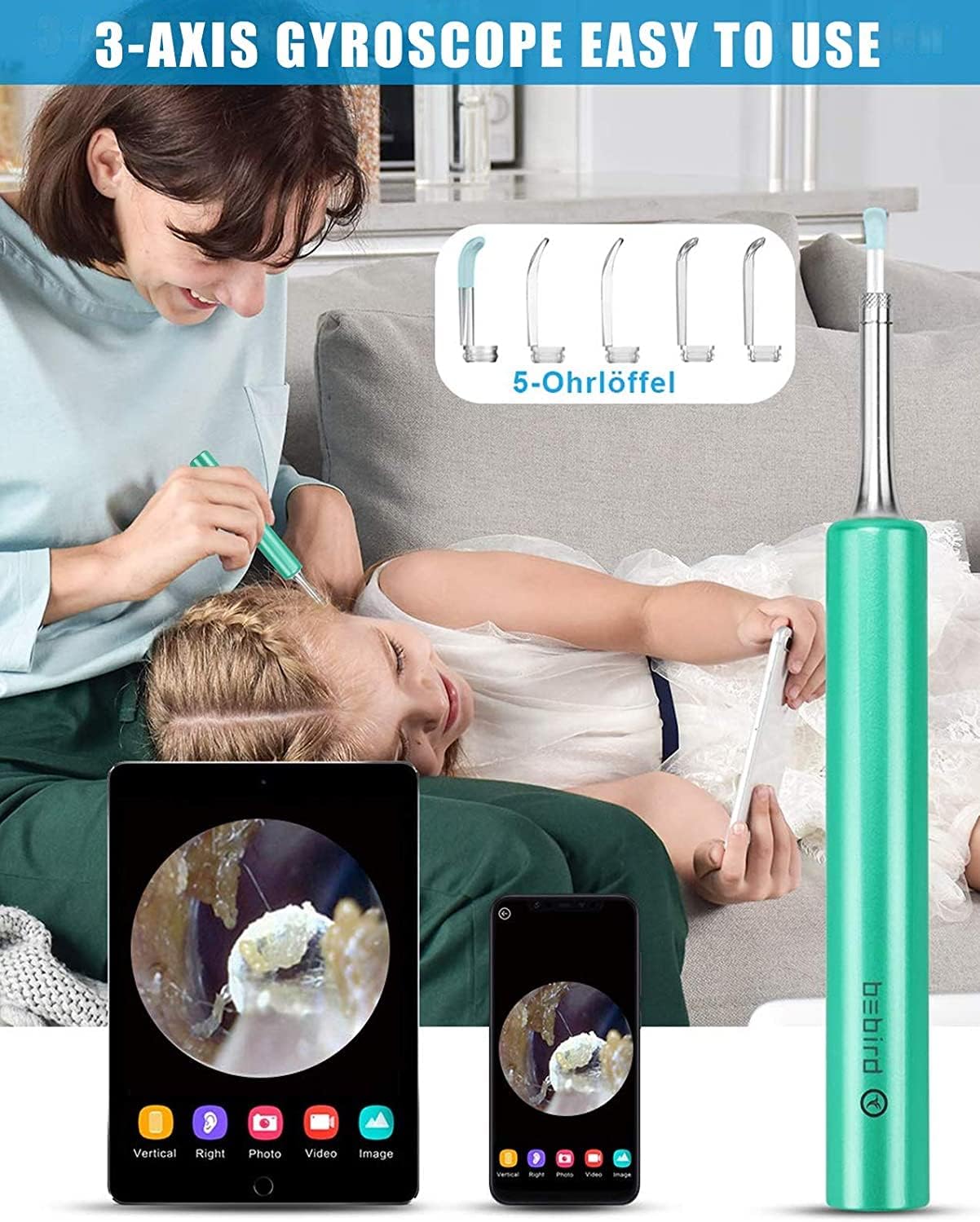
Image: This image highlights the 3-axis gyroscope feature of the BEBIRD C3, showing how it contributes to ease of use and stable imaging during examination.

Image: A visual comparison demonstrating the smaller 3.5mm lens of the BEBIRD C3 otoscope, emphasizing its safety and reduced risk of injury compared to larger 5mm otoscopes.

Image: This image illustrates the advanced optics of the BEBIRD C3, featuring a 6-super light lens and 360-degree wide angle view, designed to provide clear images without causing dizziness or glare.
5.2 Multiple Applications
The BEBIRD C3 is versatile and can be used for various inspection purposes:
- Ear Wax Removal: Safely and effectively remove ear wax while monitoring the process on your screen.
- Oral Cavity Examination: Inspect teeth, gums, and the back of the throat.
- Nasal Examination: Check nasal passages for blockages or irritation.
- Hair Inspection: Examine scalp and hair follicles for health or issues.
- Dermatological Observation: Observe skin conditions or small areas of the skin.
- Pet Checks: Safely inspect the ears, mouth, or skin of your pets.
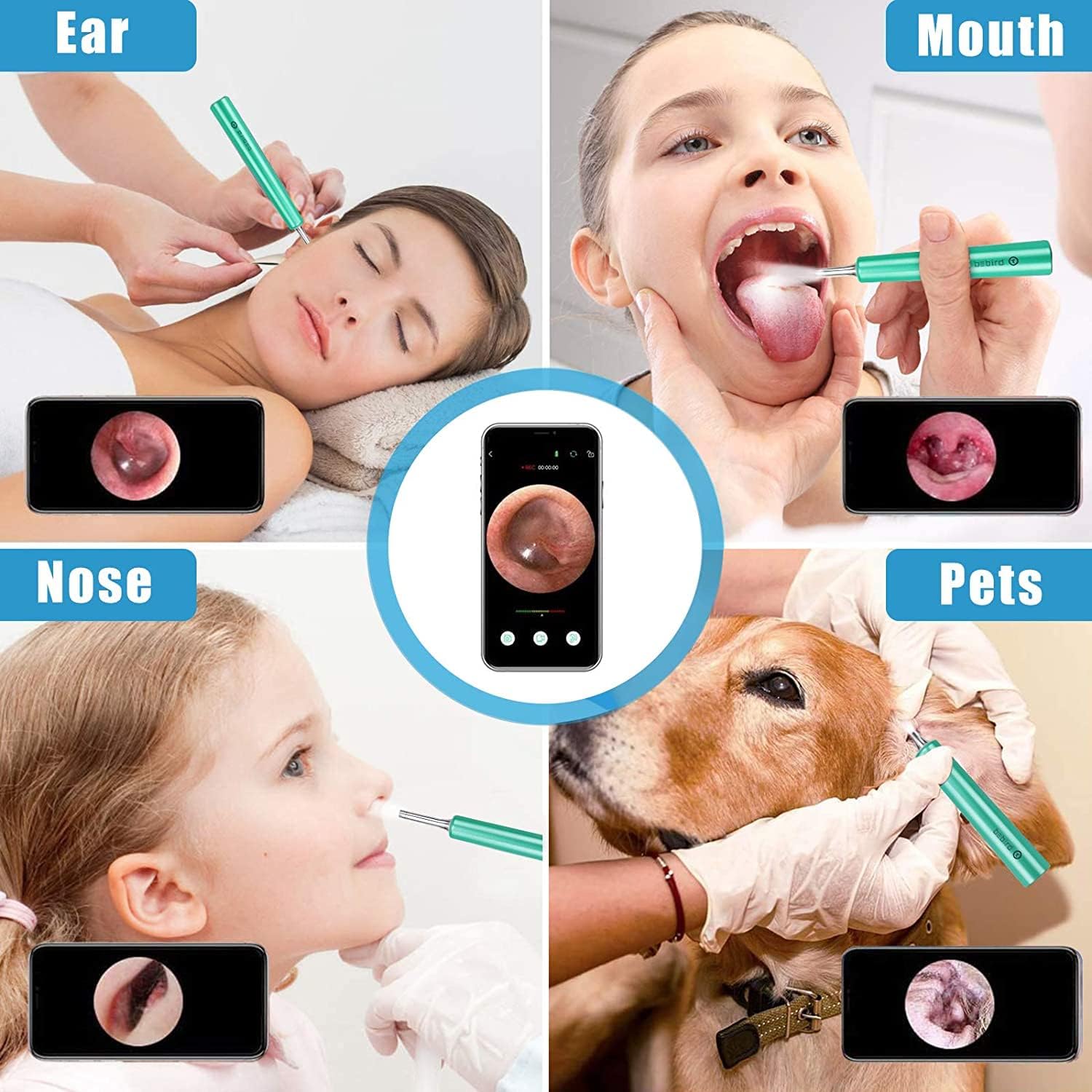
Image: A composite image demonstrating the multi-purpose functionality of the BEBIRD C3, showing its use for examining ears, mouth, nose, and even for pet checks, each with a corresponding screen view.
6. Maintenance and Care
Proper maintenance ensures the longevity and optimal performance of your BEBIRD C3 device:
- Cleaning the Lens: After each use, carefully wipe the camera lens with a professional alcohol cotton swab to remove any debris or earwax. Ensure the lens is clean for clear imaging.
- Cleaning Ear Spoons: The ear spoons can be detached and cleaned with soap and water or disinfected with alcohol. Ensure they are completely dry before reattaching.
- Storage: Store the device in a cool, dry place, away from direct sunlight and extreme temperatures. Use the provided cap to protect the lens and ear spoon when not in use.
- Charging: Charge the device using the provided USB cable when the power indicator shows low battery. Avoid overcharging.
7. Troubleshooting
If you encounter any issues with your BEBIRD C3, please refer to the following common problems and solutions:
| Problem | Possible Cause | Solution |
|---|---|---|
| Device won't power on. | Low battery. | Charge the device using the USB cable. |
| Cannot connect to Wi-Fi. | Incorrect Wi-Fi network selected or device not in pairing mode. | Ensure the device is powered on (blue light flashing). Go to your phone's Wi-Fi settings and select the "bebird-XXXX" network. Restart both the device and your phone if necessary. |
| No image in the app. | App not connected to device, or lens is dirty. | Confirm Wi-Fi connection. Close and reopen the BEBIRD app. Clean the camera lens with an alcohol swab. |
| Image is blurry or dark. | Dirty lens or insufficient lighting. | Clean the camera lens. Ensure the 6 LED lights are functioning. |
8. Product Specifications
| Specification | Detail |
|---|---|
| Model | C3 |
| Manufacturer | BEBIRD |
| Camera Resolution | 1080P HD |
| Lens Diameter | 3.5mm |
| Lighting | 6 LED Lights |
| Connectivity | Wi-Fi (for iOS & Android) |
| Gyroscope | 3-axis |
| Package Dimensions | 7.48 x 2.95 x 0.94 inches |
| Item Weight | 2.47 ounces |
| First Available Date | July 14, 2022 |
9. Warranty and Customer Support
BEBIRD products are manufactured with high-quality standards. For specific warranty information regarding your BEBIRD C3 device, please refer to the warranty card included in your product packaging or visit the official BEBIRD website. If you have any questions, require technical assistance, or need to report an issue, please contact BEBIRD customer support through the contact information provided on the official website or your purchase platform.


