
Product Overview
This document provides instructions for the ZdalaMit 0212-62622-00R replacement remote control. This remote is designed to function with various Polaroid TV/DVD Combo models, offering a direct replacement without requiring complex programming. Simply install batteries, and the remote is ready for use.

Front view of the ZdalaMit 0212-62622-00R replacement remote control, showing all buttons and layout.
Setup
1. Installing Batteries
The remote control requires two (2) 1.5V AAA Alkaline batteries (not included). Ensure correct polarity when inserting the batteries.
- Locate the battery compartment on the back of the remote control.
- Slide the battery compartment cover downwards or in the direction indicated by an arrow to open it.
- Insert two AAA batteries, matching the positive (+) and negative (-) terminals as shown inside the compartment.
- Replace the battery compartment cover, ensuring it clicks securely into place.
Note: No programming is required for this replacement remote. Once batteries are installed, it is ready for use with compatible Polaroid TV/DVD Combo models.
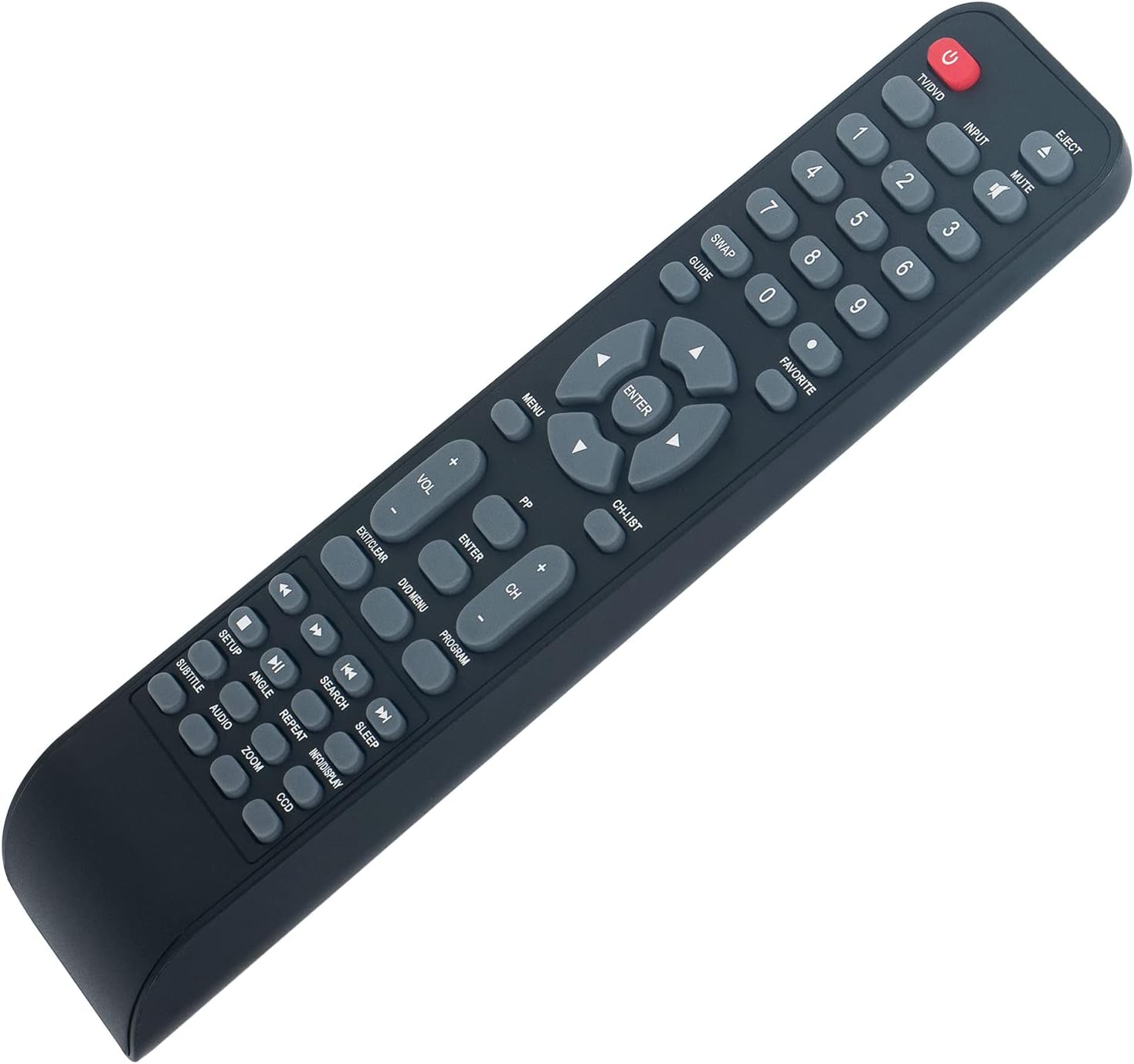
Angled view of the remote control, illustrating its ergonomic design and button layout for easy handling during battery installation.
Operating Instructions
Point the remote control directly at the infrared sensor on your Polaroid TV/DVD Combo unit for optimal performance. Ensure there are no obstructions between the remote and the unit.
Basic Functions
- TV/DVD (Power): Press to turn the TV/DVD Combo unit on or off.
- INPUT: Selects the input source (e.g., TV, DVD, HDMI if applicable).
- MUTE: Mutes or unmutes the audio.
- Number Buttons (0-9): Used for direct channel selection or entering numerical values.
- VOL +/-: Adjusts the volume level.
- CH +/-: Changes the television channel up or down.
- MENU: Accesses the main menu of the TV or DVD player.
- Arrow Buttons (Up, Down, Left, Right): Navigates through menu options.
- ENTER: Confirms a selection in the menu.
- EXIT/CLEAR: Exits a menu or clears an entry.
DVD/Media Playback Functions
- EJECT: Ejects the DVD from the player.
- DVD MENU: Accesses the DVD disc menu.
- PLAY/PAUSE (►/❚❚): Starts or pauses playback.
- STOP (■): Stops playback.
- REWIND (◀◀): Rewinds playback.
- FAST FORWARD (►►): Fast forwards playback.
- PREVIOUS (◀❚): Skips to the beginning of the current track/chapter or the previous one.
- NEXT (❚►): Skips to the next track/chapter.
- REPEAT: Repeats a track, chapter, or entire disc.
- SEARCH: Initiates a search function within media.
- SUBTITLE: Toggles subtitle display.
- AUDIO: Changes audio tracks or languages.
- ANGLE: Changes camera angle on compatible DVDs.
- ZOOM: Zooms in or out on the picture.
- INFO/DISPLAY: Displays information about the current program or media.
Maintenance
- Cleaning: To clean the remote control, wipe it with a soft, dry cloth. Do not use liquid cleaners or abrasive materials, as these can damage the surface or internal components.
- Battery Replacement: Replace batteries when the remote's response becomes sluggish or stops working. Always replace both batteries at the same time with new AAA Alkaline batteries. Do not mix old and new batteries, or different types of batteries.
- Storage: If the remote control will not be used for an extended period, remove the batteries to prevent leakage, which can cause damage to the remote. Store the remote in a cool, dry place away from direct sunlight and extreme temperatures.
Troubleshooting
| Problem | Possible Cause | Solution |
|---|---|---|
| Remote not responding | Dead or incorrectly installed batteries. Obstruction between remote and TV/DVD Combo. Remote is too far from the unit. | Replace batteries with new AAA Alkaline batteries, ensuring correct polarity. Remove any objects blocking the line of sight to the TV/DVD Combo's IR sensor. Move closer to the unit (within 33 feet). |
| Some functions do not work | The specific function may not be supported by your particular Polaroid TV/DVD Combo model. | This remote is a replacement designed for a range of Polaroid TV/DVD Combo models. While it offers broad compatibility, some advanced or model-specific functions may not be fully supported on all units. Refer to your original TV/DVD Combo manual for specific feature compatibility. |
| Buttons are sticky or unresponsive | Dirt or debris under the buttons. | Gently clean the remote control surface with a soft, dry cloth. Avoid pressing buttons excessively hard. |
Specifications
- Model: 0212-62622-00R
- Brand: ZdalaMit
- Compatibility: Polaroid TV/DVD Combo models (TDAC-01933, TDAC-02212, TLAC-03212, 4641-TLXB, TDAC-03212B, TDAC-03212W, TLAC-02255, TDAC01933, TDAC02212, TLAC02255, TDAC03212B, TDAC03212W, TLAC03212, 4641TLXB)
- Power Supply: 2 x 1.5V AAA Alkaline Batteries (not included)
- Connectivity Technology: Infrared (IR)
- Maximum Range: Approximately 33 feet (10 meters)
- Button Quantity: 18
- Color: Black
- Dimensions (L x W x H): 8.34" x 1.99" x 0.55" (21.18 cm x 5.05 cm x 1.4 cm)
- Item Weight: 40 Grams (without batteries)
Warranty and Support
This ZdalaMit remote control comes with a 1-year warranty from the date of purchase. This warranty covers manufacturing defects under normal use. It does not cover damage caused by misuse, accidents, unauthorized modifications, or battery leakage.
For technical support, warranty claims, or any questions regarding your remote control, please contact the seller directly through the platform where the purchase was made. Please have your order number ready when contacting support.