
javiscam G106
javiscam G106 Wireless Indoor Security Camera User Manual
Model: G106 | Brand: javiscam
1. Introduction
The javiscam G106 is a compact and versatile wireless indoor security camera designed for home surveillance. It features 1080p HD video recording, AI motion detection, and infrared night vision for comprehensive monitoring. With its long-lasting battery and flexible storage options, the G106 provides reliable security for various indoor environments.

Figure 1.1: Key features of the javiscam G106 camera, including 2K UHD resolution, 2.4G WiFi connectivity, a 2800mAh battery, AI motion detection, night vision up to 5 meters, a 140-degree wide-angle lens, and support for loop recording.
2. Setup Guide
Follow these steps to set up your javiscam G106 camera for optimal performance.
2.1 Charging the Camera
Before initial use, fully charge the camera. The G106 features a 2800mAh battery, providing up to 150 days of standby battery life on a single charge, depending on usage and motion detection frequency.

Figure 2.1: The javiscam G106 camera's internal battery, emphasizing its 2800mAh capacity and extended standby time of up to 150 days.
2.2 App Installation and Wi-Fi Connection
The camera is controlled via a dedicated mobile application. Download the app to your smartphone (compatible with Android devices). Ensure your Wi-Fi network is 2.4G, as the camera does not support 5G Wi-Fi.
- Download and install the official javiscam app from your device's app store.
- Register or log in to your account.
- Follow the in-app instructions to add your G106 camera. This typically involves scanning a QR code on the camera or manually entering its ID.
- Connect the camera to your 2.4G Wi-Fi network as prompted by the app.

Figure 2.2: The javiscam G106 camera shown alongside its mobile application interface, demonstrating real-time viewing and event logging.
2.3 Mounting the Camera
The G106 camera is designed for indoor use and can be wall-mounted or placed on a flat surface. It comes with a versatile mount for flexible positioning.

Figure 2.3: Different installation scenarios for the javiscam G106 camera, showcasing its adaptability for various indoor placements and confirming 2.4G Wi-Fi support.
3. Operating Instructions
This section details the various functions and settings of your javiscam G106 camera.
3.1 Notification Management
You can easily enable or disable motion detection notifications directly from the app's device list. Look for the bell icon next to your camera's live view.
3.2 Cloud Storage Free Trial
New customers are eligible for a 30-day free trial of cloud storage. To activate, navigate to the camera's settings within the app, select 'Cloud service', and then click 'Free trial'.
3.3 Night Vision Mode
The 'Scene mode' setting in the app allows you to control the camera's night vision. 'Normal' enables adaptive mode, where night vision triggers automatically based on light conditions. 'Night vision mode' forces the camera to always record with infrared.

Figure 3.1: Visual representation of the camera's night vision capability, showing clear images in low-light conditions using 2MP infrared technology.
3.4 Motion Detection & Sensitivity
Adjust the 'Detection sensitivity' in the app settings to turn motion detection on or off, and to set its sensitivity level. Higher sensitivity records more motions but consumes more power.
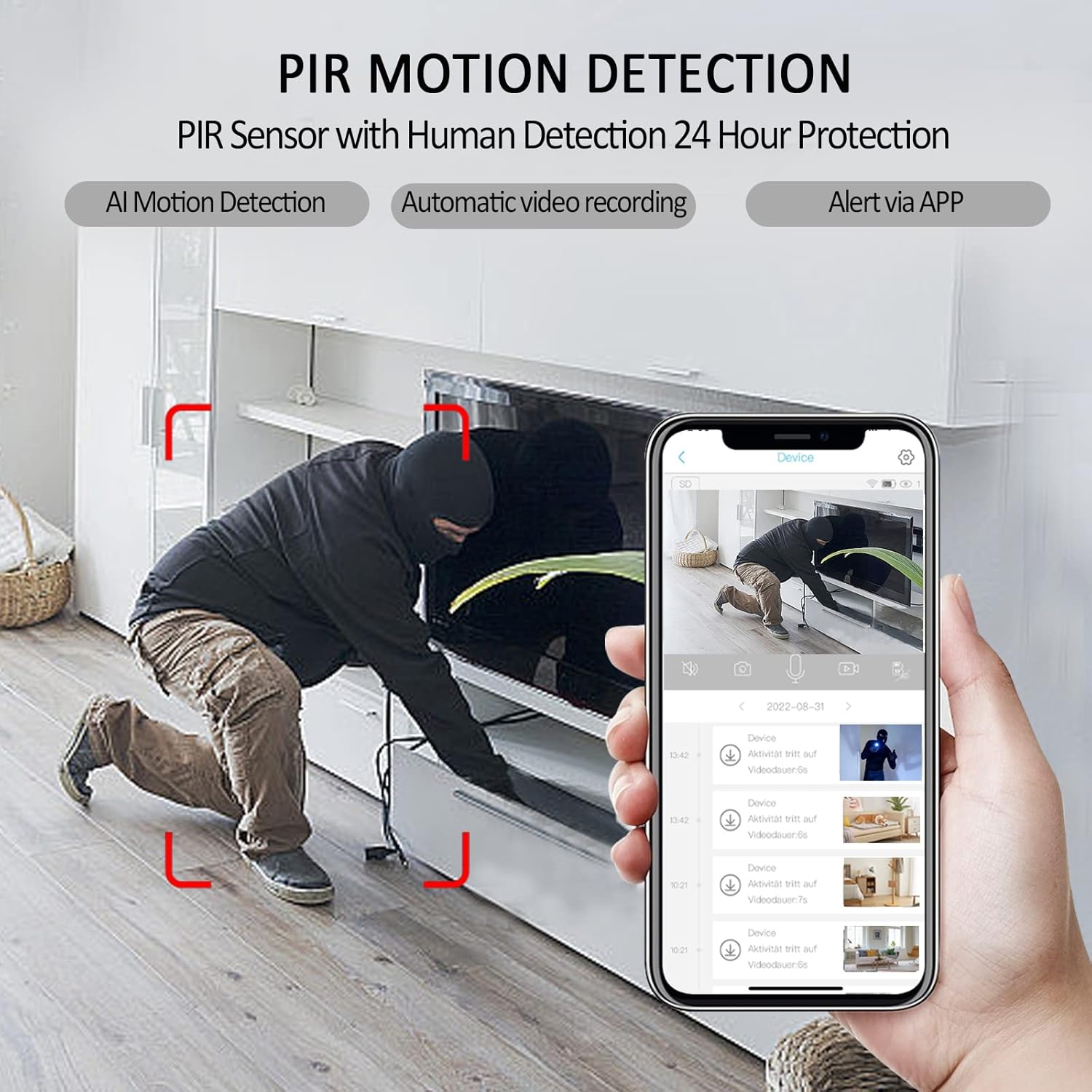
Figure 3.2: The camera's PIR motion detection feature, illustrating how it detects human movement and triggers automatic video recording and app alerts.
3.5 Motion Detection Schedule
Under 'Arming setting', you can set a daily schedule for when motion detection should be active. This allows you to customize monitoring times to suit your needs.
3.6 Motion Detection Video Length
The 'Sleep delay' setting controls the length of each recorded video clip triggered by motion. The default is a minimal 5 seconds. You can extend this duration using the provided options. If set to 'Always', the camera will continue recording until manually stopped or power is off.

Figure 3.3: Advanced security features accessible via the mobile app, including family sharing, continuous loop recording, full-length video capture, and customizable motion detection schedules.
3.7 Wide Angle View
The G106 camera features a 140-degree wide-angle lens, providing a more extensive surveillance area and allowing you to see more detail within the room.

Figure 3.4: A visual comparison highlighting the superior coverage and detail provided by the camera's 1080P Full HD and 140-degree wide-angle lens compared to a standard 720P camera.
3.8 Important Settings Video Guide
For a visual guide on important settings, including notification control, cloud storage activation, night vision, motion detection sensitivity, scheduling, and video length, please refer to the official video below.
Video 3.1: Official guide demonstrating important settings for the javiscam G106 camera, including notification on/off, cloud storage free trial activation, night vision mode, motion detection sensitivity, arming schedule, and sleep delay for video length.
4. Maintenance
To ensure the longevity and optimal performance of your javiscam G106 camera, follow these maintenance guidelines:
- Cleaning: Use a soft, dry cloth to clean the camera lens and body. Avoid abrasive cleaners or solvents.
- Battery Care: Recharge the camera regularly, especially if it's not in continuous use, to maintain battery health. Avoid extreme temperatures.
- Firmware Updates: Periodically check the app for available firmware updates to ensure your camera has the latest features and security enhancements.
5. Troubleshooting
If you encounter issues with your javiscam G106 camera, refer to the following common problems and solutions:
- Camera Offline:
- Check your Wi-Fi connection. Ensure it's a stable 2.4G network.
- Verify the camera's battery level.
- Restart the camera and your Wi-Fi router. - No Motion Detection Alerts:
- Ensure notifications are enabled in the app (check the bell icon).
- Adjust 'Detection sensitivity' to a higher level.
- Verify the 'Arming setting' schedule is correctly configured. - Poor Video Quality:
- Check your Wi-Fi signal strength at the camera's location.
- Ensure the camera lens is clean and free from obstructions. - Battery Drains Quickly:
- Reduce motion detection sensitivity or frequency.
- Shorten the 'Sleep delay' video length.
- Ensure the camera is not in an area with constant motion, triggering frequent recordings.
For further assistance, please contact customer support.
6. Specifications
| Feature | Detail |
|---|---|
| Brand | javiscam |
| Model Number | G106 |
| Indoor/Outdoor Usage | Indoor |
| Connectivity Technology | Wireless (Wi-Fi 2.4G) |
| Video Capture Resolution | 2K (1080p HD) |
| Frame Rate | 30 fps |
| Special Features | Motion Sensor, Night Vision |
| Battery Power | 2200 mAh (Note: Product images indicate 2800mAh, using provided spec) |
| Control Method | App |
| Mounting Type | Wall Mount |
| International Protection Rating | IP65 |
| Item Weight | 10.2 ounces |
| Package Dimensions | 5.59 x 3.54 x 1.65 inches |
7. Warranty and Support
Your javiscam G106 camera is manufactured by JAVISCAM. For any product-related inquiries, technical support, or warranty claims, please contact our customer service team.
Customer Service Email: support@javis-cam.com
Please retain your proof of purchase for warranty purposes.
Related documentsG106


Ask a question about this manual
Ask about setup, troubleshooting, compatibility, parts, safety, or missing instructions. Manuals+ will review the question and use this page’s manual context to help answer it.