
maXpeedingrods YH-Q15
maXpeedingrods Q96 Double Din Android Car Stereo Radio User Manual
Model: YH-Q15 | Brand: maXpeedingrods
1. Introduction
This manual provides detailed instructions for the installation, operation, and maintenance of your maXpeedingrods Q96 Double Din Android Car Stereo Radio. This advanced head unit features a 7-inch HD touchscreen, wireless Apple CarPlay and Android Auto compatibility, built-in GPS navigation, Bluetooth, Wi-Fi, and USB charging capabilities, designed to enhance your in-car entertainment and connectivity.
2. What's in the Box
Upon opening your maXpeedingrods Q96 package, please verify that all the following components are included:
- GPS Cable
- RCA Cable
- Power Cable
- USB Cable
- Backup Cable
- Brackets
- Two Sticks
- Screws
- User Manual
- Cleaning Cloth

Figure 2.1: All components included in the maXpeedingrods Q96 package.
3. Specifications
| Feature | Detail |
|---|---|
| Product Dimensions | 8.86 x 5.71 x 4.92 inches (Front Size: 178mm x 101mm; Total Size: 180mm x 104mm) |
| Item Weight | 2.43 pounds (1100 Grams) |
| Operating System | Android 10 OS (4+4 cores, 2G DDR3+32G memory) |
| Display | 7-inch HD Capacitive IPS Touchscreen (1280x720 resolution, 16:9 aspect ratio, 178° full-viewing angle) |
| Connectivity | Bluetooth 5.0, Wi-Fi, USB, FM/AM Radio) |
| Special Features | Wireless Apple CarPlay & Android Auto, Dual MIC, 32-Band EQ, DSP Settings, GPS Navigation (offline map support), 2 USB interfaces, 1080p video playback |
| Camera Input | Front Camera Input, Rear Camera Input (cameras purchased separately) |
| Audio Output Mode | Stereo (Built-in 4*25W amp, Subwoofer output) |
| Operating Voltage | 9-16V |
4. Setup and Installation
Proper installation is crucial for optimal performance. It is recommended to seek professional assistance for complex wiring. Refer to the included User Manual PDF for detailed wiring diagrams.
4.1. Removing the Original Car Stereo
Carefully remove your vehicle's existing stereo unit. Use appropriate tools to avoid damaging the dashboard. Disconnect all existing wiring harnesses from the old unit.
Video 4.1: Demonstration of removing a car's original stereo unit and preparing for installation.
4.2. Connecting the Q96 Unit
Connect the provided power cable, RCA cables, GPS cable, and any optional camera cables to the corresponding ports on the Q96 unit. Ensure all connections are secure.

Figure 4.2: Rear connections of the maXpeedingrods Q96 head unit.
Video 4.2: Detailed steps for connecting power, radio, GPS, and camera cables to the Q96 unit.
4.3. GPS Antenna Placement
For optimal GPS signal reception, place the GPS antenna on the dashboard, ideally near the front windshield, ensuring it has a clear view of the sky.
4.4. Camera Connections (Optional)
If installing optional front or rear cameras, connect their video output cables to the corresponding camera input ports on the Q96 unit. Ensure the reverse trigger wire for the rear camera is correctly connected to your vehicle's reverse light circuit.
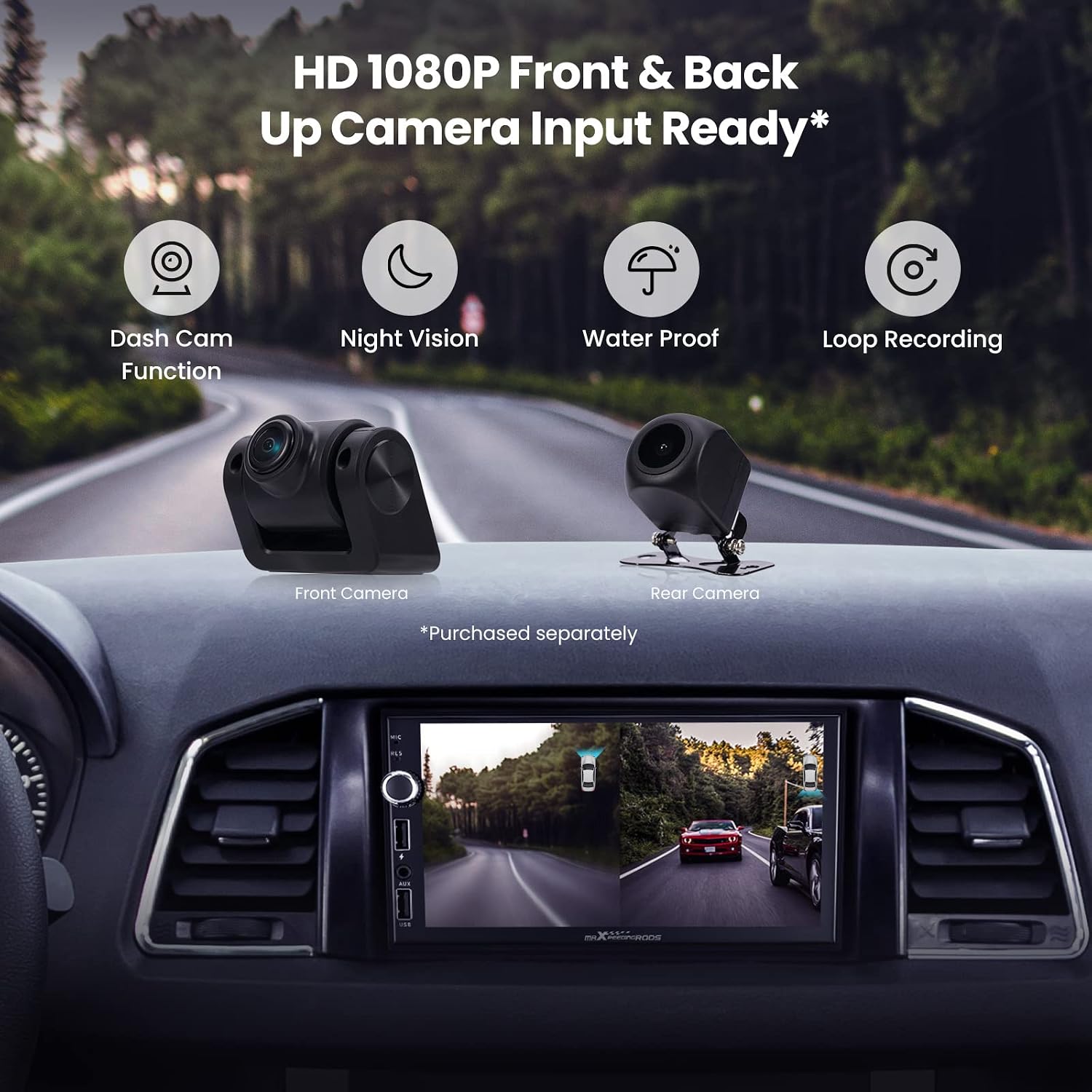
Figure 4.3: Front and rear camera input readiness.
Video 4.3: Overview of camera functionality and DVR settings on the Q96.
5. Operating Instructions
5.1. User Interface Overview
The Q96 features an intuitive Android 10 interface. Navigate through apps and settings using the responsive 7-inch HD touchscreen. The main screen displays essential information such as time, date, and current media playback.
Video 5.1: A detailed introduction to the maXpeedingrods Q96 Model's user interface and main features.
5.2. Wireless Connectivity (Apple CarPlay & Android Auto)
Connect your smartphone wirelessly via Bluetooth and Wi-Fi to access Apple CarPlay or Android Auto. This allows for seamless integration of navigation, music, calls, and messages directly on the head unit's display.
- Apple CarPlay: Connect your iPhone wirelessly or via USB to use CarPlay features.
- Android Auto: Connect your Android phone wirelessly or via USB to use Android Auto features.

Figure 5.1: Wireless connectivity for Apple CarPlay and Android Auto.
Video 5.2: Demonstration of wireless Apple CarPlay and Android Auto connection on the Q96 unit.
5.3. GPS Navigation
The unit supports offline map downloads, allowing for reliable navigation even without Wi-Fi or cellular signals. The built-in GPS does not require a cellular network to function, ensuring privacy and uninterrupted guidance.

Figure 5.2: Android 10 OS with integrated GPS navigation.
5.4. Media Playback (Music, Video, Radio)
Enjoy various media options including local music files, streaming apps like Spotify, and video playback. The unit supports 1080p video playback for a vivid viewing experience. Tune into your favorite FM/AM radio stations with ease.
Video 5.3: Demonstration of media playback features including YouTube and radio on the Q96 unit.
5.5. DSP Sound Settings
Customize your audio experience with the built-in Digital Sound Processor (DSP). The 32-band EQ allows for precise frequency adjustments. You can also configure listening positions and output settings for a tailored soundstage.

Figure 5.3: DSP settings for ultimate in-car sound customization.
Video 5.4: Detailed walkthrough of DSP settings, including EQ, listening positions, and output frequencies.
6. Maintenance
To ensure the longevity and optimal performance of your maXpeedingrods Q96 unit, follow these maintenance guidelines:
- Cleaning: Use the provided cleaning cloth or a soft, lint-free cloth to gently wipe the touchscreen and exterior. Avoid abrasive cleaners or solvents.
- Software Updates: Periodically check for software updates to ensure you have the latest features and bug fixes. Updates can typically be found on the manufacturer's website or through the unit's settings.
- Temperature: Avoid exposing the unit to extreme temperatures for prolonged periods.
7. Troubleshooting
If you encounter issues with your Q96 unit, refer to the following common troubleshooting steps:
- No Power: Check all power connections. Ensure the vehicle's ignition is on. Verify fuses are intact.
- No Sound: Check speaker connections and ensure volume is not muted or set too low. Verify DSP output settings.
- Touchscreen Unresponsive: Try restarting the unit. If the issue persists, a factory reset might be necessary (refer to the full user manual for instructions).
- GPS Signal Issues: Ensure the GPS antenna is correctly installed and has a clear view of the sky. Avoid placing it under metal objects.
- CarPlay/Android Auto Connection Problems: Ensure Bluetooth and Wi-Fi are enabled on both the unit and your smartphone. Try forgetting and re-pairing the device. Ensure your phone's software is up to date.
- Microphone Issues: If using an external microphone, ensure it is properly connected to the "MIC" RCA connector and the MIC Type setting is set to "External connection MIC" in the unit's settings.
For more complex issues or persistent problems, please contact customer support.
8. Warranty and Support
Your maXpeedingrods Q96 unit comes with a 1-year warranty from the date of purchase. maXpeedingrods is committed to providing lifetime customer service and technical support for this product.
For detailed warranty information, technical assistance, or to access the full user manual, please visit the official maXpeedingrods website or refer to the PDF document provided with your purchase:
User Manual (PDF): Download Here
Related documentsYH-Q15


Ask a question about this manual
Ask about setup, troubleshooting, compatibility, parts, safety, or missing instructions. Manuals+ will review the question and use this page’s manual context to help answer it.