
X88 X88PRO
MXQ Pro 5G Android 13.1 TV Box User Manual
Model: X88PRO | Brand: X88
1. Introduction
This user manual provides detailed instructions for the setup, operation, and maintenance of your MXQ Pro 5G Android 13.1 TV Box. This device is designed to transform your television into a smart media hub, offering access to various applications, streaming services, and multimedia content. Please read this manual thoroughly before using the device to ensure optimal performance and safety.
2. Safety Information
- Ensure the device is placed on a stable, flat surface to prevent accidental falls.
- Do not expose the device to water, moisture, or extreme temperatures.
- Avoid blocking ventilation openings to prevent overheating.
- Use only the provided power adapter. Using unauthorized adapters may damage the device and void the warranty.
- Keep the device away from direct sunlight and heat sources.
- Do not attempt to disassemble or repair the device yourself. Contact qualified personnel for service.
- Unplug the device during lightning storms or when unused for long periods.
3. Package Contents
Please check the box for the following items:
- MXQ Pro 5G Android 13.1 TV Box
- Remote Control
- Power Adapter
- HDMI Cable
- User Manual

Image: The MXQ Pro 5G TV Box, remote control, power adapter, HDMI cable, and user manual are included in the package.
Video: An unboxing video demonstrating the contents of the MXQ Pro 5G 8GB package, including the TV box, remote, power adapter, and cables.
4. Product Overview
4.1 Device Layout
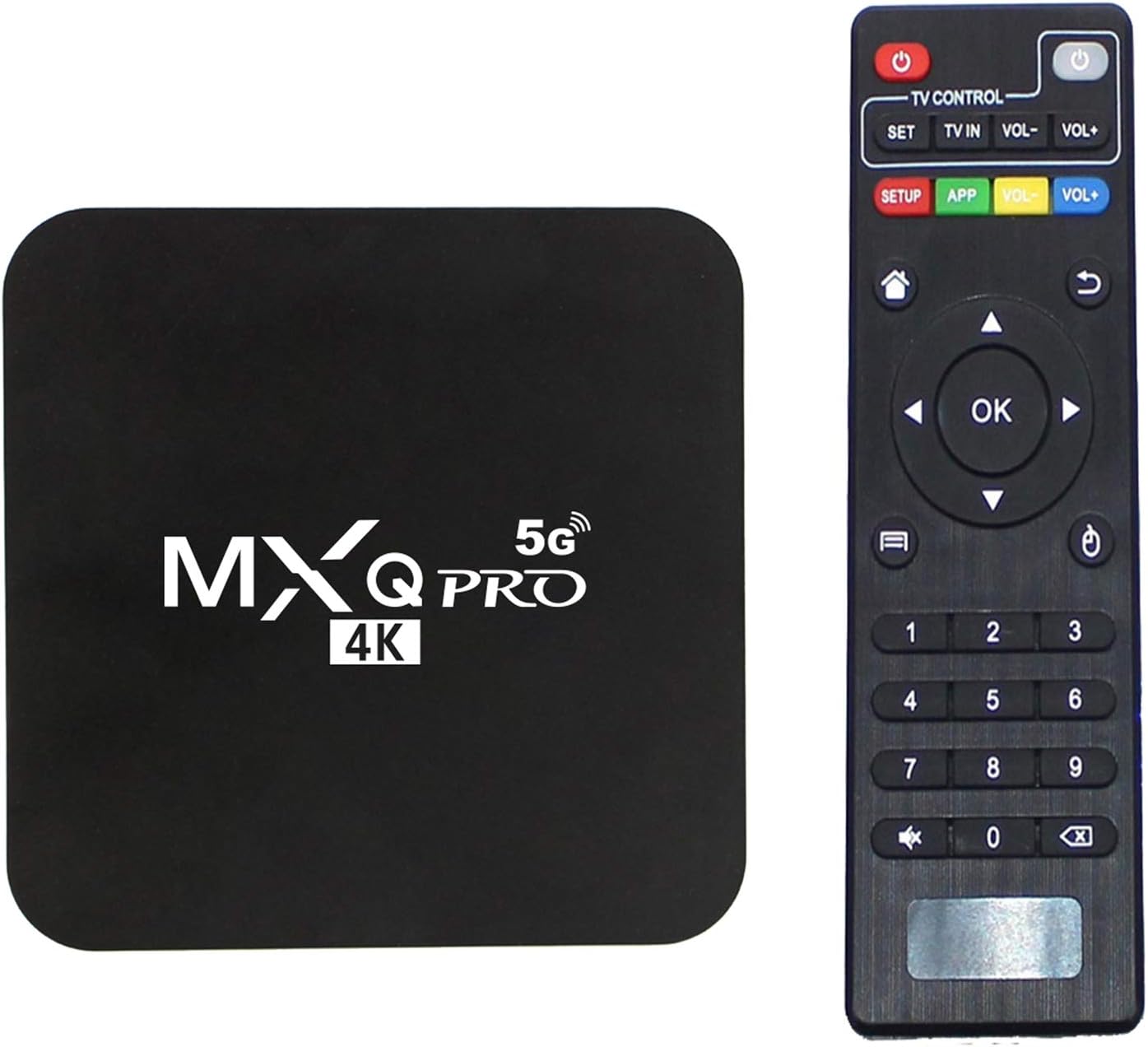
Image: Front view of the MXQ Pro 5G TV Box and its accompanying remote control.

Image: Rear and side view of the MXQ Pro 5G TV Box showing various ports including SD/MMC, USB, AV, SPDIF, HDMI, Ethernet, and Power Port.

Image: Detailed view highlighting the USB ports and other connectivity options on the MXQ Pro 5G TV Box.
4.2 Key Features
- Operating System: Android 13.1
- Processor: Quad Core
- Memory: 1GB RAM, 8GB ROM
- Video Decoding: H.265, 4K HD, 3D support
- Connectivity: Dual Band 2.4G/5.8G WiFi, Ethernet
- Output Resolution: Up to 3840x2160 (4K)

Image: Graphic indicating the Android 13 operating system, emphasizing enhanced user privacy protection.

Image: Icons representing 5G WiFi and 2.4G WiFi, indicating dual-band wireless connectivity.

Image: A graphic depicting a 3D experience, highlighting the device's capability to support 3D content.

Image: Demonstrates the 4K 1080i/p resolution capability, stating it is 4 times full HD, with H.265 hardware decoding for smooth 4K movie playback.
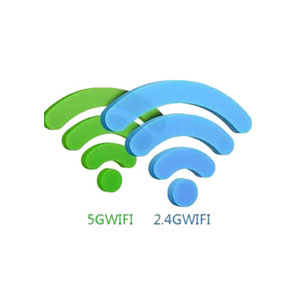
Image: Illustrates 1920x1080P HD resolution with 10bit @60pfs H.265 frame powerful decoding capability, showing a comparison with 4K (3840x2160), 2K (2048P), 1080P, and 720P resolutions.

Image: Shows multi-screen interaction features like Airplay, DLNA, and Miracast, allowing content sharing from mobile devices to the TV.
5. Setup Instructions
Follow these steps to set up your MXQ Pro 5G TV Box:
- Connect to TV: Connect the HDMI cable from the TV Box's HDMI port to an available HDMI input on your television.
- Connect to Power: Plug the power adapter into the DC 5V port on the TV Box, then plug the adapter into a wall outlet.
- Connect to Internet:
- Wi-Fi: Once powered on, navigate to the network settings and select your Wi-Fi network. Enter the password to connect.
- Ethernet: Connect an Ethernet cable from your router to the LAN port on the TV Box.
- Power On: The device should power on automatically. If not, press the power button on the remote control.
- Initial Setup: Follow the on-screen prompts to complete the initial setup, including language selection, time zone, and Google account login.
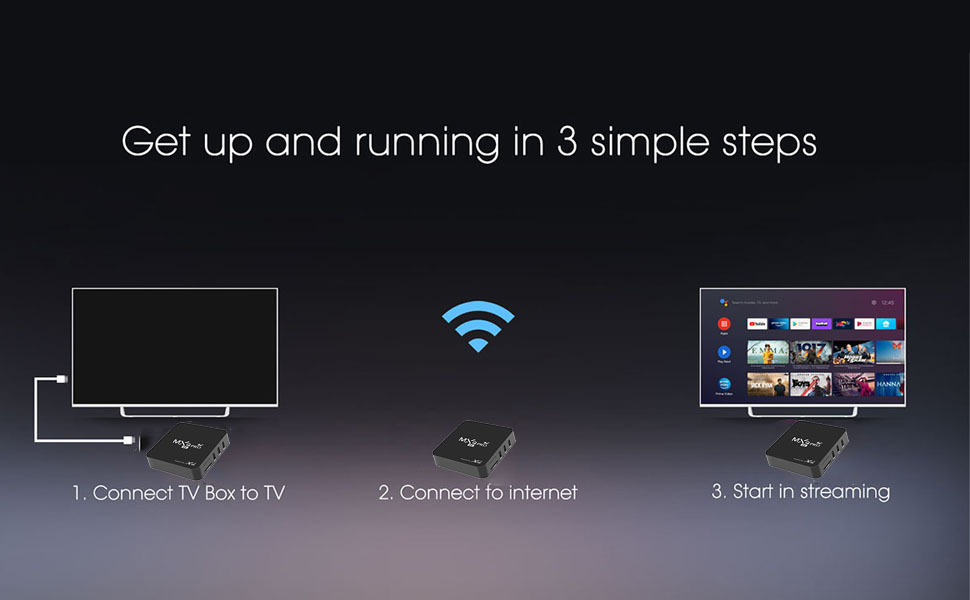
Image: Visual guide showing three simple steps to get started: 1. Connect TV Box to TV, 2. Connect to internet, 3. Start in streaming.
6. Operating Instructions
6.1 Remote Control Functions
The included remote control allows you to navigate the Android interface and control media playback.
- Power Button: Turns the device on/off or puts it into standby mode.
- Navigation Buttons (Up/Down/Left/Right): Move cursor or selection.
- OK Button: Confirms selection or opens an item.
- Back Button: Returns to the previous screen.
- Home Button: Returns to the main home screen.
- Volume Buttons: Adjusts audio volume.
- Number Buttons: For direct input or channel selection.
6.2 Navigating the Interface
The MXQ Pro 5G TV Box runs on Android, providing a user-friendly interface.
- The home screen displays frequently used apps and shortcuts.
- Use the navigation buttons on the remote to move between icons and sections.
- Press the OK button to launch an application or confirm an action.
- Access the app drawer to view all installed applications.
6.3 Media Playback
The device supports various media formats and can play content from different sources.
- Streaming Apps: Install and use popular streaming services like Netflix, YouTube, etc., from the Google Play Store.
- Local Media: Connect USB drives or SD cards to play local video, audio, and image files. The device supports H.265 decoding for efficient playback of high-quality content.
- Network Media: Access media files from network-attached storage (NAS) or shared folders on your home network.
7. Maintenance
- Cleaning: Use a soft, dry cloth to clean the device. Do not use liquid cleaners or aerosols.
- Software Updates: Periodically check for system updates in the settings menu to ensure optimal performance and security.
- Ventilation: Ensure the device has adequate airflow around it to prevent overheating. Do not place it in enclosed spaces.
- Storage: If storing the device for an extended period, unplug it from power and store it in a cool, dry place.
8. Troubleshooting
| Problem | Possible Cause | Solution |
|---|---|---|
| No power | Power adapter not connected or faulty. | Check power connections. Ensure the power outlet is working. Try a different outlet. |
| No display on TV | HDMI cable loose or incorrect input selected on TV. | Ensure HDMI cable is securely connected. Select the correct HDMI input on your TV. Try a different HDMI port or cable. |
| Remote control not working | Batteries are dead or remote is not paired. | Replace batteries. Ensure there are no obstructions between the remote and the TV Box. |
| Wi-Fi connection issues | Incorrect password, weak signal, or router issue. | Re-enter Wi-Fi password. Move the TV Box closer to the router. Restart your router. |
| App crashes or slow performance | Too many apps running, low storage, or outdated app/system. | Close background apps. Clear app cache. Check for system and app updates. Consider a factory reset if issues persist (backup data first). |
9. Specifications
| Feature | Detail |
|---|---|
| Brand Name | X88 |
| Model Number | X88PRO |
| Operating System | Android 13.1 |
| RAM Memory Installed Size | 1 GB |
| Memory Storage Capacity | 8 GB |
| Video Output Resolution | 3840x2160 (4K) |
| Video Codec | H.265 |
| Connectivity | Dual Band 2.4G/5.8G WiFi, Ethernet |
| Product Dimensions | 4.13 x 4.13 x 0.74 inches |
| Item Weight | 2.4 ounces (0.15 Pounds) |
| Color | Black |

Image: Diagram showing the dimensions of the MXQ Pro 5G TV Box: 117mm x 117mm x 25mm.
10. Warranty and Support
For warranty information and technical support, please refer to the contact details provided with your purchase or visit the official X88 website.
Each item has a unique code that is verified before shipping, ensuring product authenticity.
Ask a question about this manual
Ask about setup, troubleshooting, compatibility, parts, safety, or missing instructions. Manuals+ will review the question and use this page’s manual context to help answer it.