
1. Introduction
This manual provides detailed instructions for the installation, operation, and maintenance of your Inwerang 8MP 4K PoE PTZ IP Dome Security Camera. This camera is designed for robust surveillance, offering high-resolution video, pan-tilt functionality, and advanced features for reliable security monitoring.

Image 1.1: The Inwerang 8MP 4K PoE PTZ IP Dome Security Camera, showcasing its compact dome design.
2. Key Features
- 8MP 4K Ultra HD Resolution: Provides clear, high-definition video (3840x2160 pixels).
- Power over Ethernet (PoE): Simplifies installation by delivering power and data through a single Ethernet cable.
- Pan-Tilt-Zoom (PTZ) Functionality: Offers a 0-355° pan range and 0-90° tilt range for comprehensive area coverage. Note: This model features digital zoom, not optical zoom.
- Built-in Microphone: Enables one-way audio monitoring.
- IP66 Weatherproof Rating: Ensures durability and reliable operation in various outdoor weather conditions.
- 60ft IR Night Vision: Provides clear surveillance in low-light or complete darkness.
- 2.8mm Fixed Lens: Offers a wide 110° viewing angle.
- H.265 Compression: Efficiently reduces video file sizes without compromising quality.
- Person/Vehicle Detection: Advanced motion detection for relevant alerts.
- NVR Compatibility: Works with various NVRs including Hiks, LTS, EZVIZ, Dah-ua, Lorex, UNV, TVT, and Raysharp.

Image 2.1: Visual summary of the camera's main features, including 4K resolution, remote access, H.265 compression, pan/tilt, audio input, IP66 rating, person/vehicle detection, and Power over Ethernet.
3. Package Contents
Please check the package for the following items:
- Inwerang 8MP 4K PoE PTZ IP Dome Security Camera
- Mounting Screws and Wall Plugs
- Waterproof Connector Kit
- Quick Start Guide
4. Physical Overview and Dimensions
Familiarize yourself with the camera's components and dimensions before installation.

Image 4.1: Diagram illustrating the camera's components, including the built-in microphone, aluminum alloy case, 2.8mm fixed lens, IR LEDs, DC 12V power port, and LAN port, along with detailed dimensions in millimeters.
Components:
- Built-in Microphone: For one-way audio input.
- Aluminum Alloy Case: Provides durable, weatherproof protection.
- 2.8mm Fixed Lens: Wide-angle view.
- IR LEDs: For night vision illumination.
- DC 12V Power Port: Optional power input if PoE is not used.
- LAN Port: RJ-45 connector for network and PoE connection.
5. Installation
5.1 Mounting the Camera
- Choose a suitable mounting location, typically a ceiling or wall, ensuring a clear field of view.
- Use the provided mounting template (if included) to mark drill holes.
- Drill holes and insert wall plugs if mounting on masonry.
- Secure the camera base to the mounting surface using the provided screws.
5.2 Wiring the Camera
The camera supports Power over Ethernet (PoE) for simplified wiring. You can connect it to a PoE switch, a PoE NVR, or a standard router with a separate 12V DC power supply.
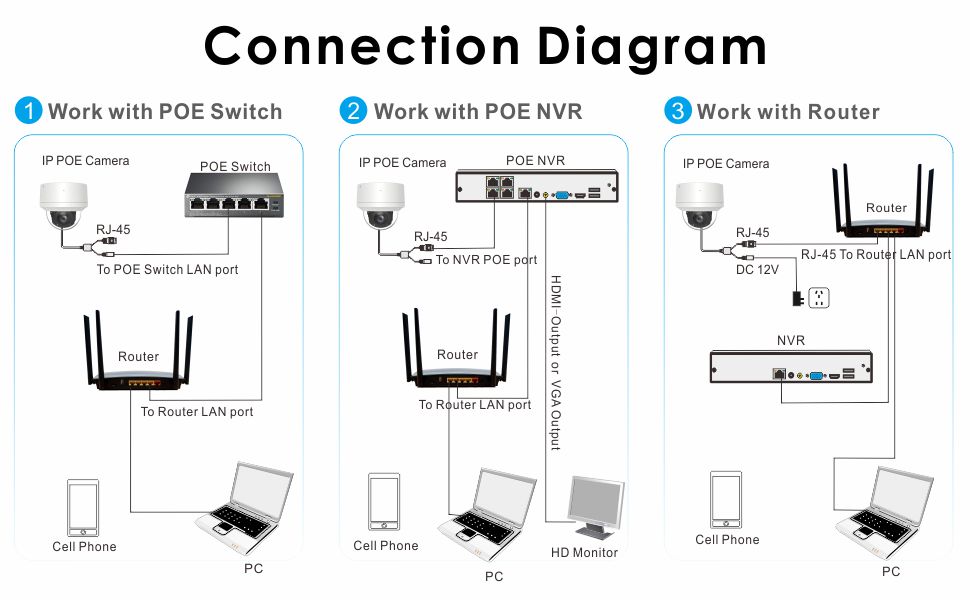
Image 5.1: Connection diagram showing three methods to connect the IP camera: directly to a PoE switch, to a PoE NVR, or to a standard router with a separate DC 12V power adapter.
- Work with PoE Switch: Connect the camera's RJ-45 LAN port to a PoE switch LAN port. The switch will provide both power and data. Connect the PoE switch to your router.
- Work with PoE NVR: Connect the camera's RJ-45 LAN port directly to a PoE NVR port. The NVR will provide power and manage video recording. Connect the NVR to your router.
- Work with Router (Non-PoE): Connect the camera's RJ-45 LAN port to your router's LAN port. You will also need to connect a DC 12V power adapter (not included) to the camera's DC 12V power port.
Use the waterproof connector kit for outdoor installations to protect the Ethernet cable connection from moisture.
6. Initial Setup and Configuration
6.1 Network Connection
The camera is typically configured to obtain an IP address automatically via DHCP. If your network requires static IP addresses, you will need to configure this through the camera's web interface or NVR settings.
6.2 Accessing the Camera
You can access and configure the camera using its web interface or through a compatible NVR/software.
- Web Interface: Open a web browser and enter the camera's IP address. The default username is admin and the default password is 123456. It is highly recommended to change the default password immediately after initial setup.
- NVR/Software: The camera is ONVIF compliant and compatible with various NVRs and surveillance software (e.g., Hiks, LTS, EZVIZ, Dah-ua, Lorex, UNV, TVT, Raysharp). Refer to your NVR or software manual for adding IP cameras.
7. Operation
7.1 Pan and Tilt Control
The camera offers flexible positioning:
- Pan Range: 0° to 355°
- Tilt Range: 0° to 90°
Control the pan and tilt movements through the camera's web interface, NVR, or compatible mobile application.
7.2 Audio Monitoring
The built-in microphone allows for one-way audio monitoring, capturing sound from the camera's vicinity. This feature enhances situational awareness during surveillance.

Image 7.1: Depiction of the camera's one-way audio feature, allowing users to hear sounds from the monitored area, such as a delivery person at the door.
7.3 Night Vision
The camera is equipped with IR LEDs to provide clear black-and-white video footage in low-light conditions or complete darkness, with a night vision range of up to 60 feet.

Image 7.2: Comparison of day vision (color) and night vision (black and white) footage from the 8MP camera, demonstrating its capability to provide clear images in varying light conditions.
7.4 Person/Vehicle Detection
Utilize the intelligent person/vehicle detection feature to receive alerts only for relevant events, reducing false alarms caused by minor movements. Configure detection zones and sensitivity settings via the camera's interface.

Image 7.3: Example of person and vehicle detection in a busy street scene, highlighting detected objects with green bounding boxes.
7.5 Remote Access
Access your camera's live feed and recordings from anywhere using a compatible mobile application or web browser. Follow the instructions provided by your NVR or software for remote access setup.
8. Maintenance
8.1 Weather Protection
The camera features an IP66 weatherproof metal casing, designed to withstand harsh environmental conditions including rain, snow, and extreme temperatures. Ensure all cable connections are properly sealed using the waterproof kit for optimal protection.

Image 8.1: The camera installed outdoors during rainy weather, illustrating its IP66 weatherproof rating and ability to function in harsh conditions.
8.2 Cleaning
Periodically clean the camera lens and dome cover with a soft, damp cloth to remove dust, dirt, or water spots that may affect image clarity. Do not use harsh chemicals or abrasive materials.
8.3 Firmware Updates
Check the manufacturer's website periodically for firmware updates. Keeping your camera's firmware updated ensures optimal performance, security, and access to new features.
9. Troubleshooting
- No Power/Image:
- Ensure the PoE connection is active or the 12V DC power adapter is correctly connected and powered.
- Check Ethernet cable integrity.
- Pan/Tilt Not Responding:
- Unplug the PoE cable or power supply for a few minutes, then reconnect to reset the camera.
- Verify that the control commands are being sent correctly from your NVR or software.
- Network Connectivity Issues:
- Confirm the camera's IP address is correct and not conflicting with other devices.
- Check router and network settings.
- Ensure DHCP is enabled on the camera if your network uses it.
- Condensation Inside Dome:
- This can occur due to rapid temperature changes. Ensure the camera is properly sealed during installation. If persistent, contact support.
- Forgot Password:
- If you cannot access the camera, refer to the default login (admin/123456) or consult the manufacturer's support for password reset procedures.
10. Technical Specifications
| Feature | Specification |
|---|---|
| Model | 8MP 4K PoE PTZ IP Dome Camera |
| Resolution | 8 Megapixels (3840x2160) |
| Lens | 2.8mm Fixed Lens (110° wide viewing angle) |
| Pan Range | 0°~355° |
| Tilt Range | 0°~90° |
| Night Vision | Up to 60 feet (IR LEDs) |
| Audio | Built-in Microphone (One-way audio) |
| Compression | H.265/H.264 |
| Connectivity | PoE (Power over Ethernet), Wired Ethernet |
| Weatherproof Rating | IP66 |
| Material | Metal |
| Power Source | PoE or DC 12V (12 Watts) |
| Dimensions (L x W x H) | 4.4 x 4.4 x 4.1 inches |
| Weight | 1.36 pounds |
| Compatible Devices | Smartphone, NVRs (Hiks, LTS, EZVIZ, Dah-ua, Lorex, UNV, TVT, Raysharp) |
| Control Method | Remote (via software/app) |
| UPC | 788416496999 |
| ASIN | B0B3VMCLCY |
11. Warranty and Support
11.1 Warranty Information
This Inwerang 8MP 4K PoE PTZ IP Dome Security Camera comes with a 1-year warranty from the date of purchase. This warranty covers manufacturing defects and malfunctions under normal use. Please retain your proof of purchase for warranty claims.
11.2 Technical Support
For technical assistance, troubleshooting, or questions regarding the camera's functionality, please contact Inwerang customer support. We also provide an SDK for our IP cameras upon request for advanced integration needs. Our support team aims to respond to your inquiries within 24 hours.