
1. Introduction
This instruction manual provides comprehensive guidance for the installation, setup, and operation of your MOES WiFi Smart Thermostat (Model WGB-006-WH-MS). This thermostat is specifically designed for 16A electric floor heating systems, offering advanced control and smart home integration for optimal comfort and energy efficiency.
Key features include Wi-Fi connectivity for remote control via the Tuya/Smart Life app, voice control compatibility with Amazon Alexa and Google Home, a modern frameless touch display, and flexible programming options to suit your lifestyle.
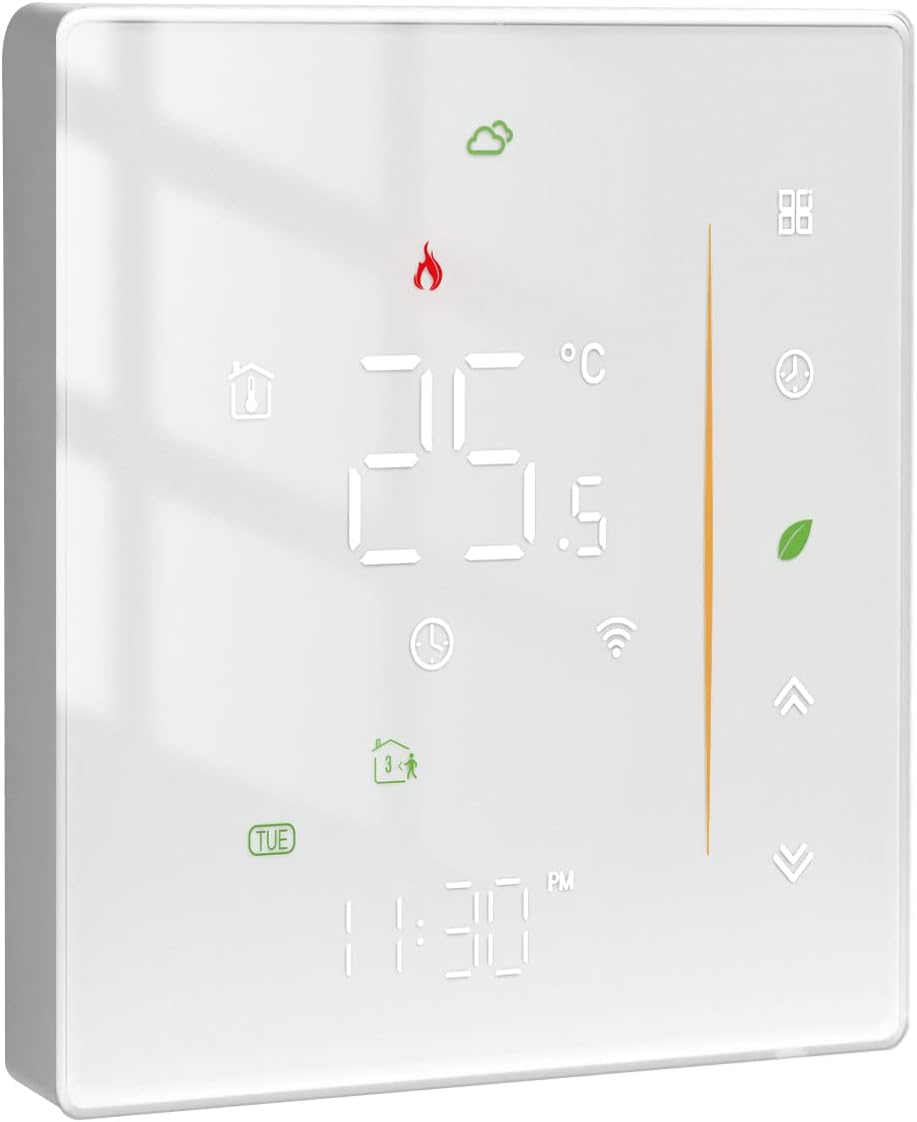
Front view of the MOES WiFi Smart Thermostat, displaying current temperature and time.
2. Safety Information
Please read all safety warnings and instructions carefully before installing or operating this device. Failure to follow these instructions may result in electric shock, fire, or other hazards.
- Professional Installation Recommended: Installation should only be performed by a qualified electrician in accordance with local electrical codes and regulations.
- Power Disconnection: Always disconnect power at the circuit breaker before performing any wiring or installation work.
- Voltage Compatibility: Ensure the thermostat's voltage rating (AC 95-240V) matches your electrical supply.
- Avoid Water Exposure: Do not install the thermostat in areas where it may be exposed to water or excessive humidity.
- Do Not Disassemble: Do not attempt to disassemble or repair the thermostat yourself. Contact customer support for assistance.
3. Package Contents
Verify that all items are present in the package:
- MOES WiFi Smart Thermostat (WGB-006-WH-MS)
- Mounting Screws
- User Manual
4. Product Overview
The MOES WiFi Smart Thermostat features a sleek, modern design with an intuitive interface.

The thermostat's LED display showing temperature, time, Wi-Fi status, heating indicator, and various mode icons.
4.1 Display and Controls
- LED Display: Shows current temperature, set temperature, time, day of the week, Wi-Fi status, heating status, and various mode indicators.
- Touch Buttons: Hidden touch buttons simplify the user interface for adjusting settings.
- Frameless Design: Features a 2.5D arc edge lens for a modern aesthetic.

A detailed view highlighting the frameless design, 2.5D arc edge, and hidden touch buttons of the MOES Smart Thermostat.
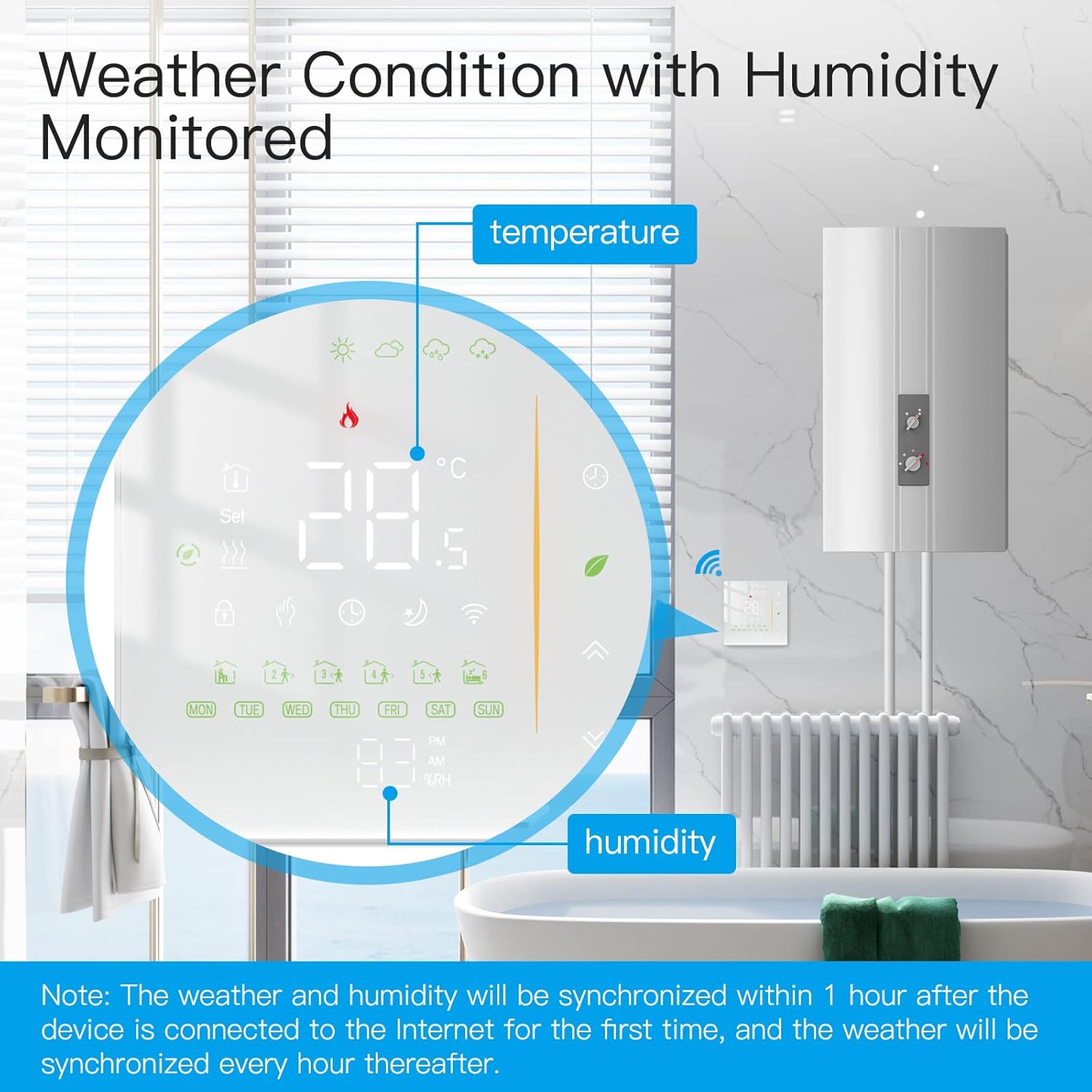
Diagram showing the dimensions and various display icons of the MOES Smart Thermostat, including its back panel connections.
5. Installation
Important: Ensure power is disconnected at the main circuit breaker before proceeding with installation.
5.1 Wiring Diagram (GB-Electric Floor Heating)
Refer to the diagram below for correct wiring connections. This model is designed for 16A electric floor heating systems.
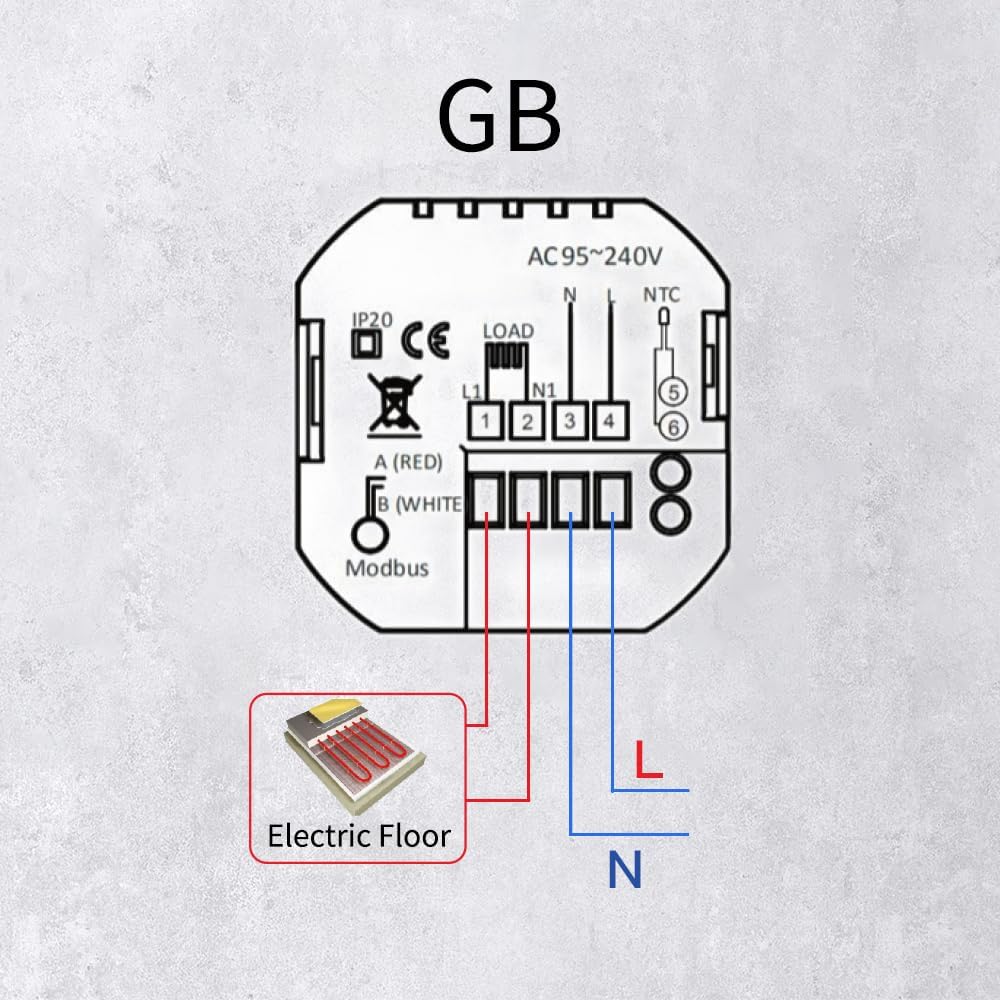
Detailed wiring diagram for connecting the MOES thermostat to an electric floor heating system. Shows connections for Live (L), Neutral (N), Load, and NTC sensor.
- L (Live): Connect to the live wire from your power supply.
- N (Neutral): Connect to the neutral wire from your power supply.
- LOAD (L1, N1): Connect to the electric floor heating element.
- NTC (5, 6): Connect to the NTC floor temperature sensor.
5.2 Mounting
The thermostat is compatible with standard 86mm square and 60mm European wall cassettes.
- Carefully separate the front panel from the backplate.
- Mount the backplate into the wall cassette using the provided screws.
- Connect the wires according to the wiring diagram (Section 5.1).
- Reattach the front panel to the backplate, ensuring it clicks securely into place.

Diagram illustrating the installation process of the MOES thermostat into a standard 86mm square or 60mm European wall cassette.
6. Setup
6.1 Initial Power-On
After successful installation and wiring, restore power at the circuit breaker. The thermostat display will light up.
6.2 Connecting to Wi-Fi (Tuya/Smart Life App)
To enable smart features and remote control, connect your thermostat to the Tuya Smart or Smart Life application.
- Download the Tuya Smart or Smart Life app from your smartphone's app store (iOS or Android).
- Register or log in to your account.
- On the thermostat, press and hold the Wi-Fi icon (or a combination of buttons as indicated on screen) until the Wi-Fi icon starts blinking rapidly. This indicates pairing mode.
- In the app, tap the "+" icon to add a device. Select "Thermostat" or "Heater" from the device list.
- Follow the in-app instructions to connect the thermostat to your 2.4GHz Wi-Fi network. Ensure your phone is connected to the same Wi-Fi network during setup.
- Once connected, the Wi-Fi icon on the thermostat will become solid, and you can control the device via the app.

Illustration of the MOES thermostat being controlled remotely using the Tuya/Smart Life smartphone application.
7. Operating Instructions
7.1 Basic Temperature Adjustment
Use the Up/Down arrow touch buttons on the thermostat to manually adjust the desired temperature. The new set temperature will be displayed.
7.2 Mode Selection
The thermostat supports various operating modes:
- Manual Mode: The thermostat maintains the temperature you manually set.
- Automatic/Program Mode: The thermostat follows the pre-set weekly schedule.
- Temporary Manual Mode: When in Automatic mode, manually adjusting the temperature will temporarily override the schedule until the next programmed period.
7.3 Programming Schedules
The thermostat allows for a 5+1+1 day weekly schedule with 6 periods per day. This can be configured directly on the thermostat or more easily via the Tuya/Smart Life app.
- 5+1+1 Day Schedule: Allows separate programming for weekdays (Monday-Friday), Saturday, and Sunday.
- 6 Periods: Each day can be divided into 6 distinct time periods, each with its own set temperature.
7.4 Voice Control Integration
Once connected to the Tuya/Smart Life app, you can link your thermostat to Amazon Alexa or Google Home for voice control.
- Enable the "Tuya Smart" or "Smart Life" skill in your Alexa or Google Home app.
- Discover devices.
- Use commands like: "Alexa, set the thermostat to 22 degrees," or "Hey Google, what is the temperature in the living room?"
7.5 Humidity and Weather Display
The thermostat can display indoor temperature and humidity, and synchronize external weather conditions (requires internet connection).

The thermostat screen showing current room temperature and humidity, along with external weather conditions. Weather and humidity data will synchronize within 1 hour of connecting to the internet.
8. Advanced Settings
8.1 Child Lock
Activate the child lock feature to prevent unauthorized changes to the thermostat settings. This can typically be enabled or disabled through the app or by a specific button combination on the device (refer to the on-screen menu for details).
8.2 Power-Off Memory
The thermostat is equipped with a power-off memory function, ensuring that your settings are retained even after a power outage.
9. Maintenance
To ensure optimal performance and longevity of your thermostat:
- Cleaning: Wipe the screen and body with a soft, dry cloth. Do not use abrasive cleaners or solvents.
- Avoid Obstructions: Ensure the thermostat is not covered by furniture or curtains, which could affect its temperature readings.
10. Troubleshooting
If you encounter issues with your MOES WiFi Smart Thermostat, refer to the following common problems and solutions:
| Problem | Possible Cause | Solution |
|---|---|---|
| Thermostat has no power. | No power from circuit breaker; incorrect wiring. | Check circuit breaker. Verify wiring connections (Section 5.1). |
| Wi-Fi icon is blinking or off. | Not connected to Wi-Fi; weak signal. | Ensure 2.4GHz Wi-Fi is active. Re-pair using the Tuya/Smart Life app (Section 6.2). Move router closer if signal is weak. |
| Temperature reading seems inaccurate. | Thermostat location; sensor issue. | Ensure thermostat is not in direct sunlight or near heat sources. If issue persists, contact support. |
| Heating is not turning on/off. | Incorrect mode; wiring issue; heating element fault. | Check operating mode (Manual/Auto). Verify wiring. Consult a qualified electrician if heating element is suspected. |
For further assistance, please contact MOES customer support.
11. Specifications
| Feature | Specification |
|---|---|
| Brand | MOES |
| Model | WGB-006-WH-MS |
| Color | White |
| Voltage | AC 95-240V |
| Current | 16A (for Electric Floor Heating) |
| Connectivity Technology | Wi-Fi |
| Controller Type | Google Assistant, Amazon Alexa |
| Temperature Control Type | Programmable, Smart |
| Display Type | LED |
| Special Feature | Indoor temperature and humidity monitoring |
| Dimensions (Packaging) | 10.7 x 9.9 x 5.9 cm; 270 g |
12. Warranty and Support
MOES products are designed for reliability and performance. For information regarding warranty coverage, technical support, or service, please refer to the warranty card included with your product or visit the official MOES website. Please have your model number (WGB-006-WH-MS) and purchase date available when contacting support.