
1. Product Overview
The TP-Link AXE5400 Tri-Band WiFi 6E Router (Archer AXE75) is designed to provide ultra-fast and reliable wireless internet connectivity. Featuring the brand-new 6 GHz band, it offers increased bandwidth, faster speeds, and near-zero latency, making it ideal for responsive gaming and video chatting. This router supports Wi-Fi 6E, Tri-Band technology, and OFDMA to connect more devices simultaneously without slowing down your network.
Equipped with a 1.7 GHz Quad-Core CPU and 512 MB High-Speed Memory, the Archer AXE75 ensures powerful processing for demanding applications. It also supports OneMesh for seamless whole-home coverage when paired with a compatible TP-Link OneMesh Extender. Advanced security features like WPA3 and TP-Link HomeShield provide comprehensive network protection and parental controls.
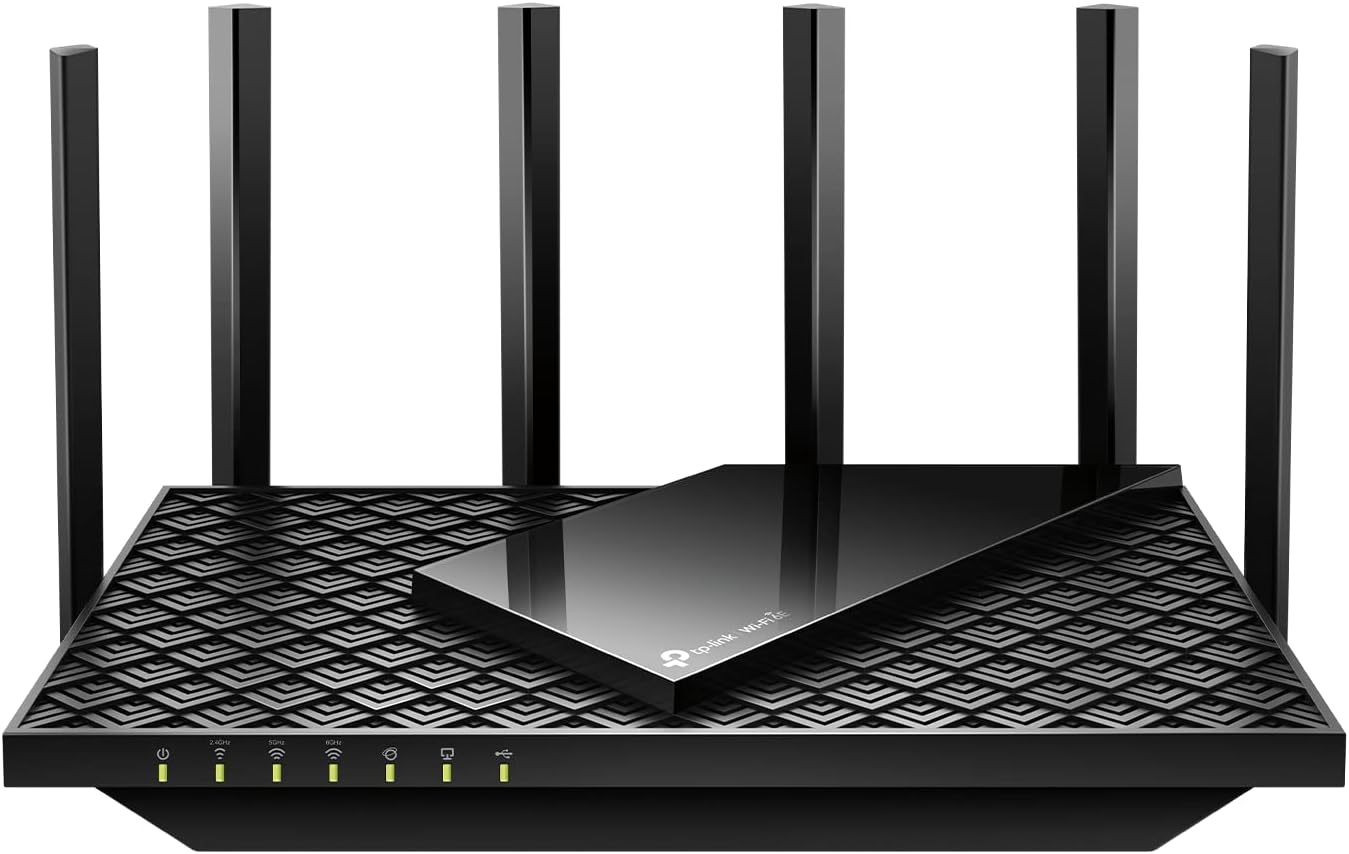
Figure 1: TP-Link AXE5400 Tri-Band WiFi 6E Router (Archer AXE75) - Front View
2. What's in the Box
- Wi-Fi Router Archer AXE75
- Power Adapter
- RJ45 Ethernet Cable
- Quick Installation Guide
3. Setup Guide
3.1 Hardware Connection
- Position the Router: Place the Archer AXE75 router horizontally on a flat surface. Orient the six high-performance antennas vertically for optimal signal coverage.
- Power Off Modem: Turn off your existing modem, if any, and remove its backup battery if it has one.
- Connect Modem to Router: Plug one end of the provided RJ45 Ethernet cable into your modem's LAN port and the other end into the blue WAN port on the back of the Archer AXE75 router.
- Power On Modem: Power on your modem. Wait for approximately 2 minutes until the modem's indicator lights stabilize, indicating a successful connection.
- Power On Router: Connect the power adapter to the router's power port and plug it into a wall outlet. Press the power button to turn on the router.
- Verify LED Status: After about 1 minute, check the router's LED indicators. The Power LED, 2.4 GHz Wi-Fi LED, 5 GHz Wi-Fi LED, 6 GHz Wi-Fi LED, and Internet LED should all be solid green, indicating a successful hardware setup.
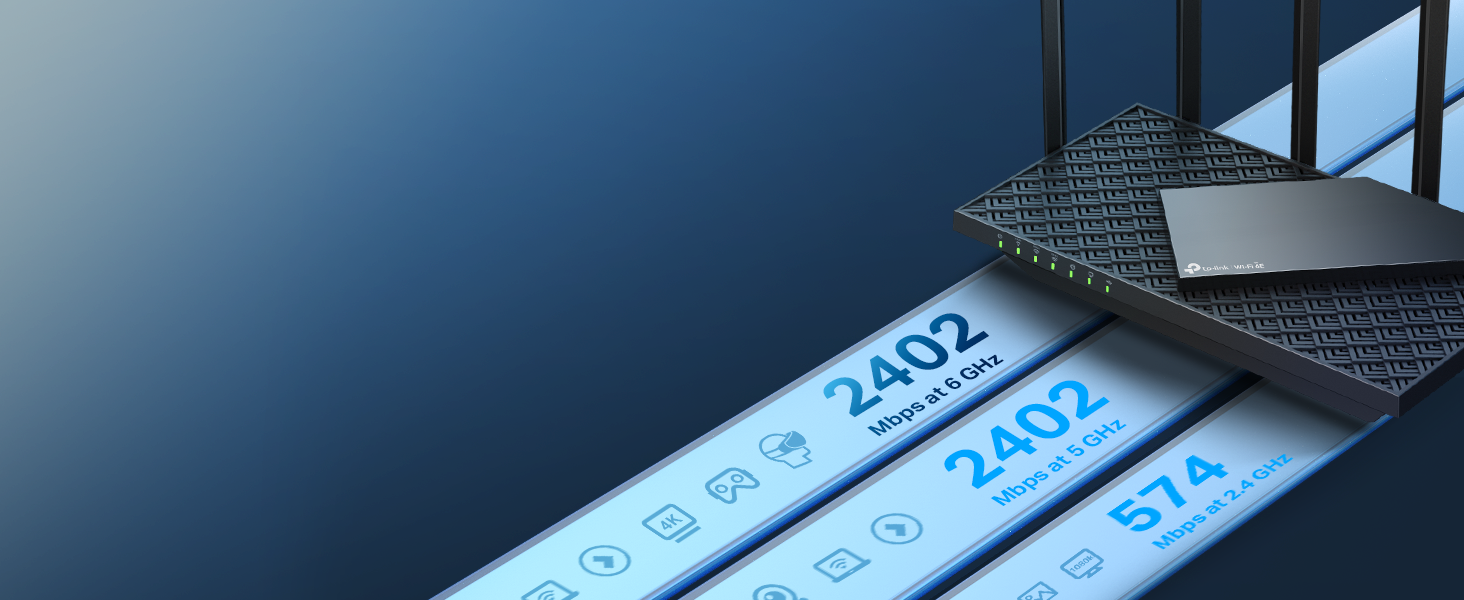
Figure 2: Rear Panel Ports of Archer AXE75 (USB 3.0, LAN, WAN, Power)
Video 1: Setting up a TP-Link WiFi 6/WiFi 6E Router. This video demonstrates the physical connection steps for the router.
3.2 Network Setup via TP-Link Tether App
The TP-Link Tether app provides an intuitive way to set up and manage your Archer AXE75 router from your smartphone.
- Download Tether App: Download the TP-Link Tether app from your device's app store (iOS or Android).
- Log In/Create TP-Link ID: Open the Tether app and log in with your existing TP-Link ID. If you don't have one, create a new ID.
- Add Router: Tap the "+" button in the app and select "Wireless Router" > "Standard Routers".
- Follow On-Screen Instructions: The app will guide you through the remaining steps to configure your internet connection, set up Wi-Fi names (SSIDs) and passwords for your 2.4 GHz, 5 GHz, and 6 GHz bands.
- Connect to Wi-Fi: Go to your device's Wi-Fi settings, find the Wi-Fi network name (SSID) that matches the default SSID on the Wi-Fi Info Card (usually found on the router's label), and enter the password to connect.
- Enjoy Internet: Once connected, you can enjoy your internet access. For a more complete service, bind your TP-Link ID to the router within the app.

Figure 3: Setting up the Archer AXE75 using the TP-Link Tether App.
4. Operating Instructions
4.1 Tri-Band Wi-Fi 6E Technology
The Archer AXE75 operates on three distinct bands: 2.4 GHz, 5 GHz, and the new 6 GHz band. This Tri-Band setup, combined with OFDMA technology, allows for more efficient data transmission to multiple devices simultaneously, reducing congestion and improving overall network performance.
- 2.4 GHz Band: Ideal for longer range and penetrating walls, suitable for basic internet use and smart home devices.
- 5 GHz Band: Offers faster speeds over shorter distances, best for streaming 4K video and online gaming.
- 6 GHz Band (Wi-Fi 6E): Provides the fastest speeds and lowest latency, exclusive to Wi-Fi 6E compatible devices, minimizing interference from older devices. This band is perfect for demanding applications like 8K video streaming, VR/AR, and competitive gaming.
Video 2: Explanation of Wi-Fi 6E and the 6 GHz band benefits.
4.2 HomeShield Security
TP-Link HomeShield is a premium security service integrated into the Archer AXE75, offering cutting-edge network and IoT protection. Key features include:
- Network Protection: Detects cyber threats and protects connected devices.
- Parental Controls: Manage online time and block inappropriate content.
- Quality of Service (QoS): Prioritize bandwidth for specific devices or activities, e.g., gaming, streaming.
- Comprehensive Reports: Gain insights into your home network's usage and security.
Note: HomeShield includes a Free Basic Plan. Pro Plan features may require a subscription.
4.3 VPN Server and Client
The Archer AXE75 supports both VPN Server and VPN Client functionalities (OpenVPN/PPTP/L2TP). This allows you to securely access your home network from outside or connect your entire network to a VPN service for enhanced privacy and security.
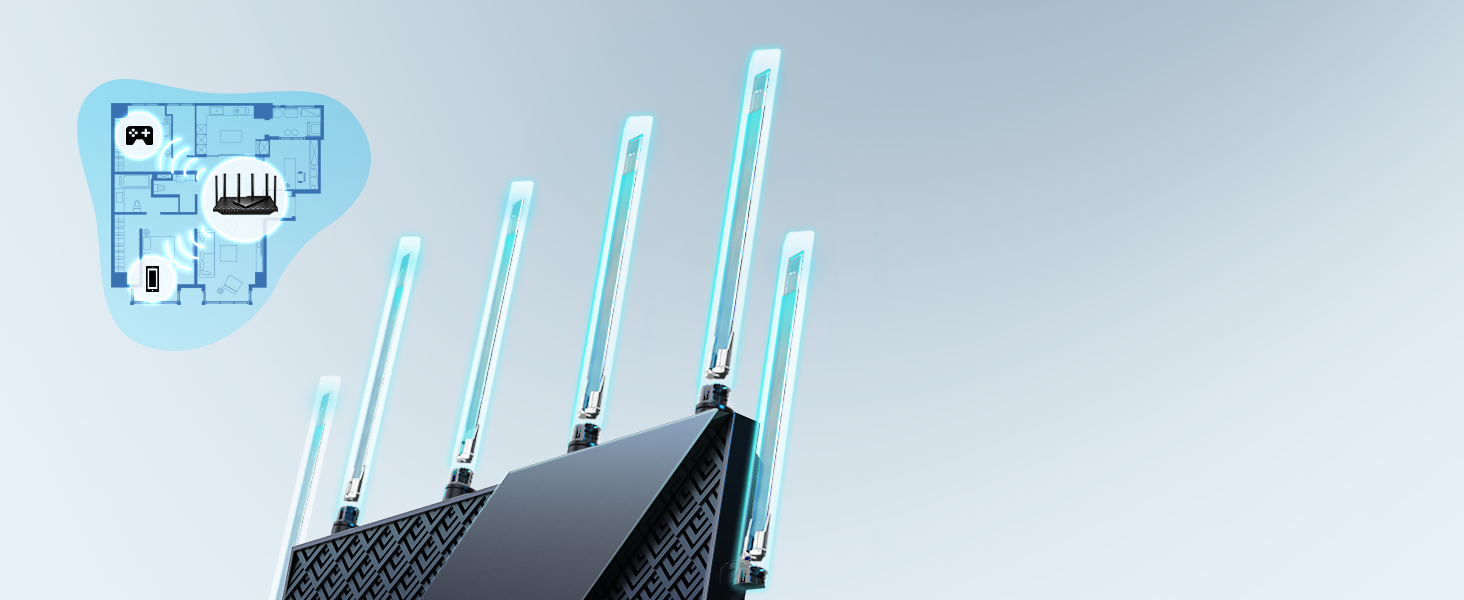
Figure 4: VPN Client setup on Archer AXE75, connecting devices to VPN servers.
5. Maintenance
To ensure optimal performance and longevity of your Archer AXE75 router, consider the following maintenance tips:
- Firmware Updates: Regularly check for and install firmware updates via the Tether app or the router's web interface. Updates often include performance improvements, security patches, and new features.
- Placement: Keep the router in an open, central location, away from obstructions, large metal objects, and other electronic devices that may cause interference.
- Cleaning: Periodically clean the router's exterior with a soft, dry cloth. Ensure ventilation holes are free from dust and debris to prevent overheating.
- Reboot: If you experience network issues, try rebooting the router by unplugging it from the power outlet for 10 seconds and then plugging it back in.
6. Troubleshooting
If you encounter issues with your Archer AXE75 router, try the following basic troubleshooting steps:
- No Internet Access:
- Check modem and router LED indicators. Ensure all relevant LEDs (Power, Wi-Fi bands, Internet) are solid green.
- Verify all cables are securely connected.
- Reboot your modem and router.
- Contact your Internet Service Provider (ISP) to confirm service status.
- Slow Wi-Fi Speed:
- Ensure your devices are connected to the appropriate Wi-Fi band (5 GHz or 6 GHz for faster speeds).
- Check for interference from other electronic devices.
- Adjust router antenna orientation.
- Limit the number of simultaneous high-bandwidth activities, e.g., multiple 4K streams.
- Cannot Access Router Settings:
- Ensure your device is connected to the router's Wi-Fi network or via an Ethernet cable.
- Try accessing the web interface using the default address, e.g., tplinkwifi.net or 192.168.0.1.
- Clear your browser's cache or try a different browser.
For more detailed troubleshooting or advanced issues, refer to the official TP-Link support website or contact their customer service.
7. Specifications
| Feature | Detail |
|---|---|
| Model Name | TP-Link AXE5400 Tri-Band WiFi 6E Router (Archer AXE75) |
| Product Dimensions | 12.91 x 10.43 x 4.72 inches |
| Item Weight | 1.52 pounds |
| Frequency Band Class | Tri-Band (2.4 GHz, 5 GHz, 6 GHz) |
| Wireless Communication Standard | 802.11ax (Wi-Fi 6E) |
| CPU | 1.7 GHz Quad-Core CPU |
| Memory | 512 MB High-Speed Memory |
| Ports | 1x Gigabit WAN/LAN, 4x Gigabit LAN, 1x USB 3.0 Port |
| Security | WPA3, TP-Link HomeShield |
| Special Features | WPS, LED Indicator, Alexa Compatible, Parental Control, QoS, Beamforming, OneMesh, VPN Server/Client |
8. Warranty and Support
TP-Link offers industry-leading support for its products. The Archer AXE75 comes with a 2-year warranty. For technical assistance, TP-Link provides 24/7 technical support.
Additional resources and support documents can be found online:
- Installation Manual (PDF)
- User Guide (PDF)
- Visit the official TP-Link Store on Amazon for more products and information.
Legal Disclaimer: Maximum wireless signal rates are physical rates derived from IEEE Standard 802.11 specifications. Actual wireless data throughput and coverage are not guaranteed and will vary based on network conditions, client limitations, and environmental factors. Use of Wi-Fi 6 (802.11ax), Wi-Fi 6E, and features like OFDMA, 1024-QAM, and HE160 require clients to also support these features. Seven 160MHz channels may not be available in all regions due to regulatory restrictions. HomeShield includes the Free Basic Plan; fees apply for the Pro Plan. Use of WPA3 requires client support. Further software upgrades may be required for feature availability. Actual network speed may be limited by Ethernet WAN/LAN port rates, cable quality, ISP factors, and environmental conditions.


