
AULA AU-KM001-T102
AULA T102 Gaming Keyboard and Mouse Combo User Manual
Model: AU-KM001-T102 | Brand: AULA
Introduction
This manual provides detailed instructions for the setup, operation, and maintenance of your AULA T102 104-Key Gaming Keyboard and Mouse Combo. Designed for an enhanced gaming and office experience, this combo features vibrant RGB backlighting, ergonomic design, and durable construction. Please read this manual thoroughly to ensure optimal performance and longevity of your product.

Figure 1: AULA T102 Gaming Keyboard and Mouse Combo
The AULA T102 combo features a full-sized keyboard with a numeric keypad and a matching RGB backlit mouse, both designed for comfort and performance.
Package Contents
Please verify that all items are present in your package:
- AULA T102 104-Key Gaming Keyboard
- AULA RGB Backlit Gaming Mouse
- Keycap Puller
- User Manual (this document)
Setup Instructions
The AULA T102 keyboard and mouse combo is designed for simple plug-and-play functionality, requiring no additional software or drivers for basic use.
- Locate an available USB port on your computer (PC, laptop, Google TV, Smart TV, PS4/Xbox).
- Plug the USB connector of the AULA T102 keyboard into the USB port.
- Plug the USB connector of the AULA RGB backlit mouse into another available USB port.
- The devices should be automatically recognized by your operating system (Windows 2000/2003/XP/Vista/Win 7/8/10/Mac/iOS).
The keyboard and mouse will illuminate upon successful connection.
Operating Instructions
RGB Backlight Control (Keyboard)
The AULA T102 keyboard features vibrant rainbow backlighting with adjustable modes and brightness levels.
- Adjust Brightness: Press FN + PgUp to increase brightness. Press FN + PgDn to decrease brightness. There are 3 brightness levels.
- Change Backlight Mode: Press Fn + 1 to cycle through 3 illumination modes: Constant Light, Breathing, and Heartbeat. The backlight can be turned off if not needed.

Figure 2: RGB Backlight Adjustment
Control your keyboard's lighting with simple key combinations for brightness and mode selection.
Multimedia Keys
Access common functions quickly using the 12 multimedia combination keys located at the top of the keyboard.
| Key Combination | Function |
|---|---|
| FN + F1 | Music Player |
| FN + F2 | Volume Down |
| FN + F3 | Volume Up |
| FN + F4 | Mute |
| FN + F5 | Stop |
| FN + F6 | Previous Track |
| FN + F7 | Play/Pause |
| FN + F8 | Next Track |
| FN + F9 | |
| FN + F10 | Home Page |
| FN + F11 | My Computer |
| FN + F12 | Calculator |

Figure 3: Multimedia Function Keys
Utilize these shortcuts for quick access to media controls and system functions.
Anti-Ghosting and WIN Key Lock
The keyboard supports 26-key anti-ghosting, ensuring all your simultaneous keystrokes are registered accurately during intense gaming sessions.
- WIN Key Lock: To prevent accidental interruptions during gameplay, you can lock the Windows key. Press FN + WIN to toggle the WIN key lock on or off.
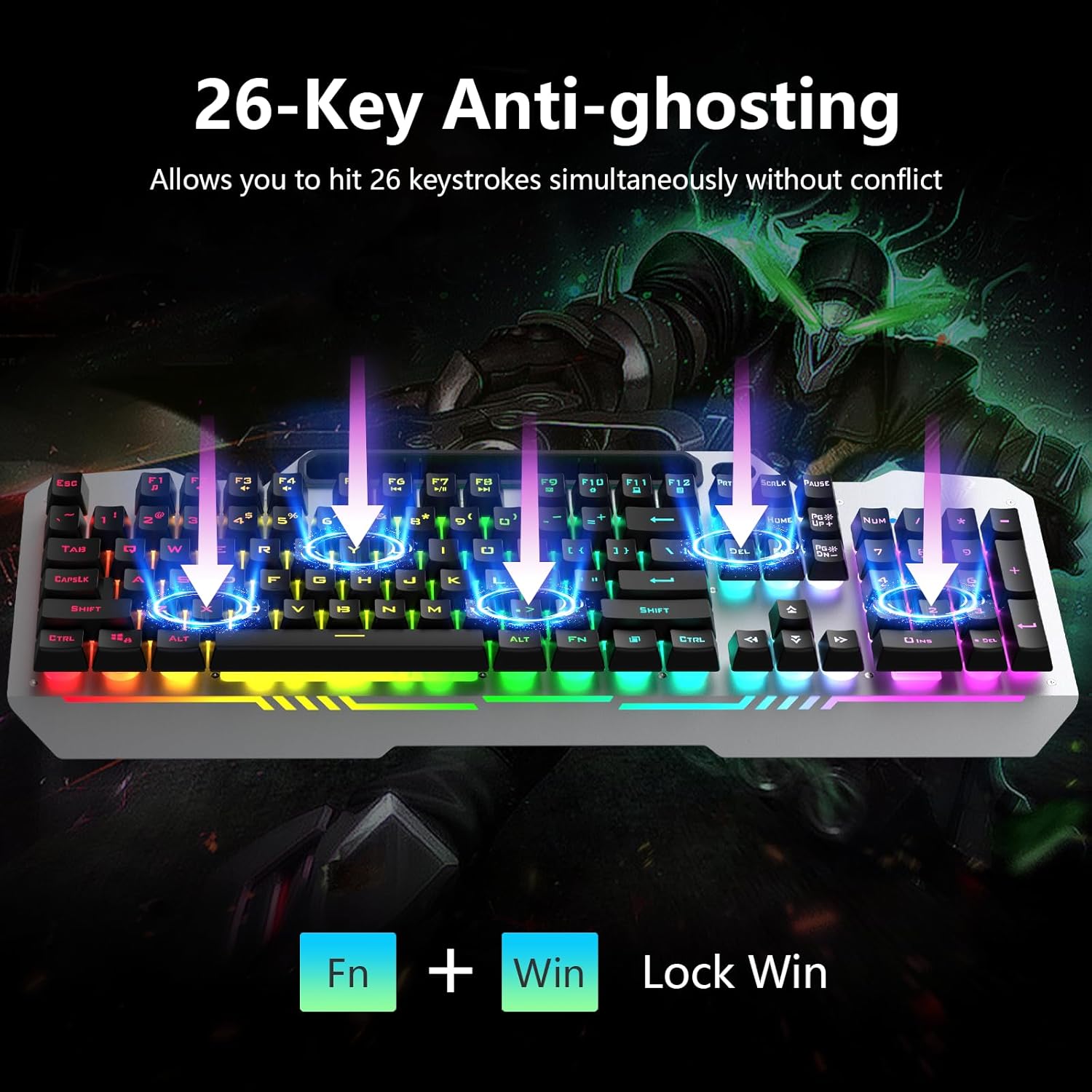
Figure 4: Anti-Ghosting Feature
The anti-ghosting feature ensures precise command input, while the WIN key lock prevents accidental desktop returns.
Mouse DPI Settings
The AULA gaming mouse offers adjustable DPI settings to customize sensitivity for different tasks or games.
- Adjust DPI: Use the dedicated DPI button on the mouse to cycle through 4 adjustable DPI settings: 1200, 2400, 4800, and 7200.
Integrated Phone Holder
The keyboard features a convenient integrated phone and pen bracket, allowing you to keep your mobile device or writing tools within easy reach during use.
Maintenance
Cleaning Floating Keycaps
The floating keycap design makes cleaning easier. Use the included keycap puller to remove keycaps for thorough cleaning.
- Gently pull keycaps straight up using the keycap puller.
- Clean the keycaps with a soft, damp cloth.
- Use compressed air to remove dust and debris from underneath the keycaps.
- Ensure keycaps are completely dry before reattaching them by pressing them firmly onto the switches.

Figure 5: Keycap Removal for Cleaning
The included keycap puller simplifies the process of removing keycaps for deep cleaning.
General Cleaning and Water Resistance
To maintain the appearance and functionality of your keyboard and mouse:
- Wipe the surfaces with a soft, lint-free cloth.
- Avoid using harsh chemicals or abrasive materials.
- The keyboard features a water-resistant design, offering protection against minor spills. However, it is not fully waterproof and should not be submerged in liquid.
Troubleshooting
If you encounter issues with your AULA T102 combo, refer to the following common solutions:
- Device Not Responding:
- Ensure the USB cables are securely plugged into your computer's USB ports.
- Try plugging the devices into different USB ports.
- Restart your computer.
- Backlight Not Working/Dim:
- Press FN + PgUp multiple times to increase brightness.
- Press Fn + 1 to cycle through lighting modes, ensuring it's not set to off.
- Keys Not Registering/Ghosting:
- Ensure the keyboard is clean and free of debris under the keycaps.
- Verify that the WIN key lock is not accidentally engaged if specific keys are not working as expected.
- Mouse Cursor Jumpy/Inaccurate:
- Clean the optical sensor on the bottom of the mouse.
- Ensure you are using the mouse on a clean, non-reflective surface.
- Adjust the DPI setting using the DPI button on the mouse.
Specifications
| Feature | Description |
|---|---|
| Model Number | AU-KM001-T102 |
| Product Dimensions (Keyboard) | 17.5 x 7.48 x 1.38 inches |
| Item Weight (Keyboard) | 2.17 pounds |
| Connectivity Technology | USB Wired |
| Keyboard Backlight | RGB Rainbow Backlit (3 modes, 3 brightness levels) |
| Keyboard Panel Material | Aluminum Alloy Brushed Panel |
| Key Type | Floating Keycaps, Membrane (2.0mm keystroke) |
| Anti-Ghosting | 26 Keys Simultaneously |
| Mouse DPI Settings | 1200-2400-4800-7200 DPI (Adjustable) |
| Mouse Backlight | RGB Breathable Backlit |
| Special Features | Ergonomic Design, Phone Holder, Water Resistant (Keyboard) |
| Compatible Devices | PC, Laptop, Google TV, Smart TV, PS4/Xbox (Windows 2000/2003/XP/Vista/Win 7/8/10/Mac/iOS) |

Figure 6: AULA T102 Product Dimensions
Detailed measurements of the keyboard and mouse for reference.
Warranty and Support
AULA products are manufactured with high-quality standards. For information regarding warranty coverage, technical support, or service inquiries, please refer to the warranty card included in your product packaging or visit the official AULA website. Contacting the manufacturer directly will provide the most accurate and up-to-date support information.
Related documentsAU-KM001-T102


Ask a question about this manual
Ask about setup, troubleshooting, compatibility, parts, safety, or missing instructions. Manuals+ will review the question and use this page’s manual context to help answer it.