
hygger HG028-18W
hygger 18W Smart Aquarium Light Instruction Manual
Model: HG028-18W
1. Introduction
Thank you for choosing the hygger 18W Smart Aquarium Light. This full spectrum LED light is designed for 12-18 inch freshwater planted tanks, offering advanced control via Bluetooth and a dedicated mobile application. It features a 24/7 lighting cycle, multiple scene modes, and extensive color customization to create an optimal environment for your aquatic life.

Image 1.1: The hygger 18W Smart Aquarium Light illuminating a planted freshwater tank.
2. Safety Information
Please read and understand all safety instructions before using this product. Failure to follow these instructions may result in electric shock, fire, or serious injury.
- Electrical Safety: Ensure your hands are dry before handling the power adapter or plugging/unplugging the light. Do not operate if the cord or plug is damaged.
- Water Exposure: The light unit is waterproof, but the power adapter is not. Keep the power adapter away from water. Do not immerse the light in water.
- Installation: Securely mount the light to prevent it from falling into the aquarium.
- Ventilation: Ensure adequate ventilation around the light to prevent overheating.
- Children and Pets: Keep the product out of reach of children and pets.
- Maintenance: Always unplug the light from the power source before performing any maintenance or cleaning.
3. Package Contents
Verify that all items are present and in good condition upon unpacking.
- hygger 18W Smart Aquarium Light Unit
- Adjustable Mounting Brackets (pre-attached or separate)
- DC 24V/1A Power Adapter
- Instruction Manual

Image 3.1: Components and dimensions of the hygger 18W Smart Aquarium Light.
4. Setup
4.1 Physical Installation
- Unpack all components and inspect for any damage.
- Attach the adjustable mounting brackets to the light unit if not already installed.
- Place the light securely on top of your aquarium, ensuring the brackets are extended to fit the tank size (12-18 inches).
- Connect the power adapter to the light unit, then plug the adapter into a suitable power outlet.
4.2 App Download and Initial Connection
The hygger Smart Aquarium Light is controlled via Bluetooth using the "TUYA" app.
- Download the "TUYA Smart" app from the App Store (iOS) or Google Play Store (Android).
- Open the app and register/log in to your account.
- Ensure Bluetooth is enabled on your mobile device.
- In the app, tap "Add Device" or the "+" icon to search for nearby devices.
- When prompted, allow "Nearby Devices" permission for the app. This is crucial for Bluetooth connectivity.
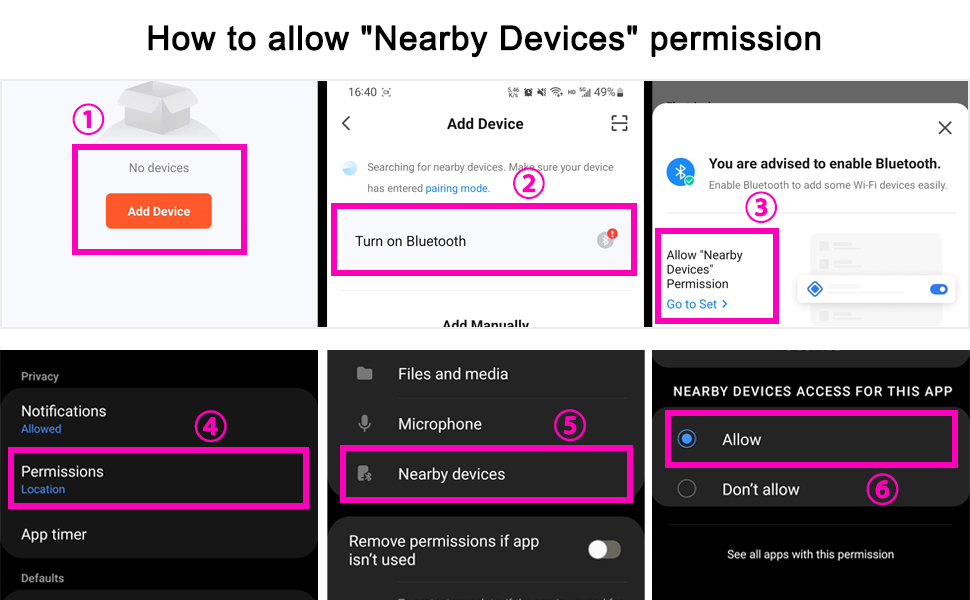
Image 4.1: Steps to grant "Nearby Devices" permission for the TUYA app.
- Select the hygger aquarium light from the discovered devices.
- Follow any on-screen prompts to complete the pairing process.
- Firmware Update: It is recommended to update the light's firmware immediately after connecting to ensure optimal performance and access to the latest features. Check for updates within the app settings.
5. Operating Instructions
5.1 Physical Buttons
The light unit features four physical buttons for basic control without the app:
- Power Button: Turns the light ON/OFF.
- Scene Button: Cycles through default scene modes (Sunlight, Moonlight, Fishlight, Oceanblue).
- Up Button: Increases brightness or adjusts other parameters.
- Down Button: Decreases brightness or adjusts other parameters.

Image 5.1: Physical control buttons on the light unit.
5.2 App Control Overview
The TUYA app provides comprehensive control over your aquarium light, allowing for advanced customization and scheduling.

Image 5.2: App interface for Bluetooth control.
5.3 1-Click Scene Switching
The app offers pre-set scenes for quick selection:
- Sunlight Scene: Simulates bright daylight conditions.
- Moonlight Scene: Provides a dim, calming blue light for nighttime.
- Fishlight Scene: Optimized lighting to enhance fish colors.
- Oceanblue Light Scene: Creates a deep blue aquatic effect.
- User Defined Scenes (x2): Customize and save your preferred color and brightness settings.

Image 5.3: App interface for selecting and customizing lighting scenes.
5.4 24/7 Lighting Cycle
Automate your aquarium lighting with the 24/7 cycle feature:
- Sunrise Sunset Scene: Simulates a natural sunrise and sunset, gradually increasing and decreasing light intensity.
- 8 Times Set Scene: Allows you to customize specific lighting settings (color, brightness) for up to 8 different time periods throughout the day.

Image 5.4: Configuration options for 24/7 lighting cycles.
5.5 Color Changing and Brightness Adjustment
The light features high-quality 5054 RGB LED lamp beads, offering over 300 colors. You can freely adjust the brightness and color temperature (3000-6700K) to create a vibrant or subtle atmosphere.
- Use the "Dim & Color" section in the app to access the color wheel and brightness slider.
- Adjust RGB values individually for precise color mixing.

Image 5.5: App controls for color selection and brightness adjustment.
5.6 Memory Function
The light includes a power-off memory function. If power is interrupted, the light will restore its previous settings within one hour of power being restored.
6. Maintenance
Regular maintenance ensures the longevity and optimal performance of your aquarium light.
- Cleaning: Periodically wipe the light unit with a soft, damp cloth to remove dust, water spots, or algae buildup. Ensure the light is unplugged before cleaning. Do not use harsh chemicals or abrasive materials.
- Inspection: Regularly check the power cord and adapter for any signs of damage. If damage is found, discontinue use and replace the component.
- Waterproofing: While the light unit is waterproof, avoid submerging it. The full sealed process protects against splashes and humidity.
7. Troubleshooting
7.1 Light Not Turning On
- Check if the power adapter is securely plugged into both the light unit and the wall outlet.
- Verify that the power outlet is functional.
- Inspect the power cord and adapter for any visible damage.
7.2 App Connectivity Issues
- Ensure Bluetooth is enabled on your mobile device.
- Confirm that the TUYA app has "Nearby Devices" permission enabled (refer to Section 4.2).
- Make sure your mobile device is within Bluetooth range of the light.
- Restart the TUYA app and/or your mobile device.
- Check for and install any available firmware updates for the light within the app.
7.3 Resetting the Light
If the light is unresponsive or you are unable to connect via the app, you may need to reset it:
- Plug in the power adapter to the light unit.
- After 10 seconds, unplug and plug in the connector between the light and the power adapter 3 times.
- Wait a few seconds; the light will flash, indicating it has been reset and can now be found by the TUYA app for re-pairing.
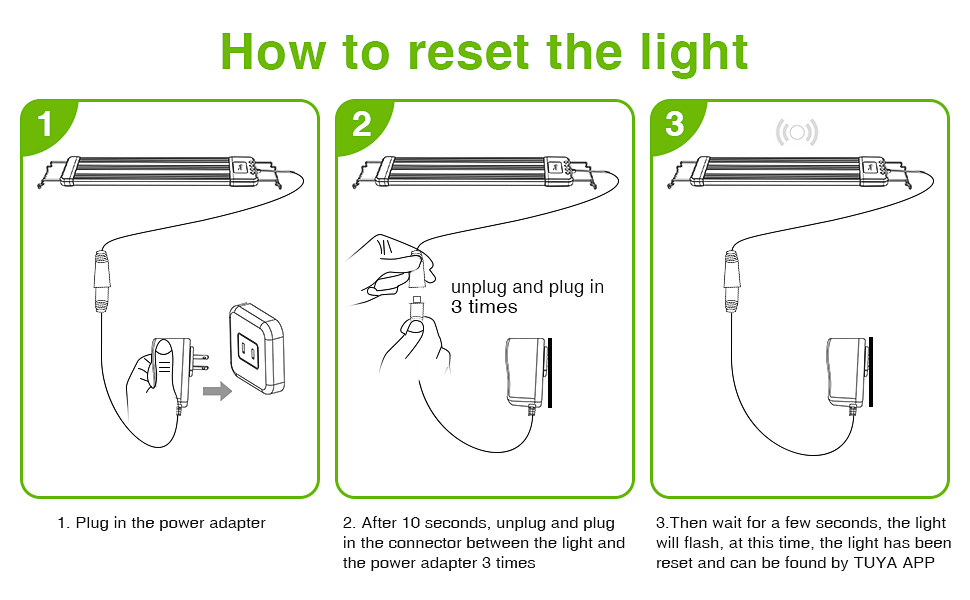
Image 7.1: Visual guide for resetting the light unit.
8. Specifications
| Feature | Specification |
|---|---|
| Model Name | HG028-18W |
| Wattage | 18W |
| Suitable Tank Size | 12"-18" Freshwater Planted Tank |
| Light Source Type | LED (5054 RGB lamp beads) |
| Number of Light Sources | 21 |
| Brightness | 1170 Lumens |
| Color Temperature | 3000-6700K |
| Color Rendering Index (CRI) | Up to 95 |
| Control Method | Bluetooth App (TUYA), Physical Buttons |
| Material | Aluminum Alloy (shell) |
| Water Resistance Level | Waterproof (light unit only) |
| Product Dimensions (LxWxH) | 11.02" x 4.02" x 0.79" |
| Item Weight | 1.41 pounds (0.64 kg) |
| Power Source | Corded Electric (DC 24V/1A adapter) |

Image 8.1: Color rendering index comparison.
9. Warranty and Support
9.1 Warranty Information
The hygger 18W Smart Aquarium Light typically comes with a 1-year limited warranty from the date of purchase, covering defects in materials and workmanship. Please retain your proof of purchase for warranty claims. The warranty does not cover damage caused by misuse, accident, unauthorized modification, or failure to follow the instructions in this manual.
9.2 Customer Support
For technical assistance, troubleshooting not covered in this manual, or warranty inquiries, please contact hygger customer support. Refer to the contact information provided on the product packaging or the official hygger website.
Website: www.hygger-online.com (Example, please verify official website)
Related documentsHG028-18W


Ask a question about this manual
Ask about setup, troubleshooting, compatibility, parts, safety, or missing instructions. Manuals+ will review the question and use this page’s manual context to help answer it.