
1. Product Overview
The xTool M1 is a versatile 3-in-1 desktop machine combining laser engraving, laser cutting, and blade cutting functionalities. It is designed for precision and efficiency, capable of working with over 300 types of materials including vinyl, coated metals, leather, wood, paper, PVC, fabric, thick paper, felt, ceramics, and plastics.
Equipped with a true 10W laser output and dual laser head technology, the M1 can cut 6mm wood in a single pass. Its FAC lens compression spot technology achieves ultra-fine engraving precision of 0.01mm at speeds up to 250mm/s. The integrated 16MP high-resolution camera provides visual processing and auto-focus for simplified operation and batch processing.
Safety features include a blue light filtering cover to protect eyes and an integrated exhaust fan with an exhaust pipe to quickly remove smoke, dust, and debris.

Figure 1.1: The xTool M1 10W Laser Engraver and Blade Cutter.

Figure 1.2: The xTool M1 offers three functions: laser engraving, laser cutting, and blade cutting.
2. Setup Instructions
The xTool M1 is designed for quick and easy setup, requiring no assembly. Simply unbox the machine, plug in the power adapter, and connect it to your computer or mobile device.
- Unboxing: Carefully remove the xTool M1 from its packaging. Ensure all components are present: the main unit, power adapter, USB cable, and any included material packages.
- Placement: Place the machine on a stable, level surface in a well-ventilated area. Ensure there is sufficient space around the machine for operation and heat dissipation.
- Power Connection: Connect the power adapter to the machine and then plug it into a suitable power outlet.
- Software Installation: Download and install the xTool Creative Space (XCS) software from the official xTool website. The software is compatible with both desktop (Windows/macOS) and mobile devices.
- Device Connection: Connect the xTool M1 to your computer via the provided USB cable or establish a wireless connection through the XCS software.
- Initial Power On: Press the power button on the machine. Follow any on-screen prompts in the XCS software for initial calibration or firmware updates.

Figure 2.1: The xTool M1 requires no assembly, allowing for quick setup.
3. Operating Instructions
The xTool M1 simplifies creative projects with its smart features and intuitive software.
3.1. Software Interface and Project Creation
The xTool Creative Space (XCS) software is your primary interface for designing and controlling the M1. It allows you to import designs, adjust settings, and preview your work.
- Design Import: Import various image formats (e.g., SVG, PNG, JPG) or use the built-in design tools to create your project.
- Material Selection: Select your material type from the software's library. This will automatically suggest optimal laser or blade settings.
- Smart Camera: The built-in 16MP camera provides a real-time view of your workspace. This allows for precise placement of designs on materials.

Figure 3.1: The xTool Creative Space software for design and control.
3.2. Auto-Focus and Real-time Preview
The M1 features automatic focus adjustment and real-time preview for enhanced accuracy and ease of use.
- Auto-Focus: Simply click the "Auto-focus" button in the software. The machine will automatically detect the material's thickness and adjust the laser head to the optimal focal length.
- Real-time Preview: The smart camera provides a live preview of your design overlaid on the material in the software. This allows for precise positioning and adjustment before starting the process.

Figure 3.2: Real-time preview of the design on the material via the smart camera.

Figure 3.3: The auto-focus mechanism ensures precise laser distance for various materials.
3.3. Laser Engraving and Cutting
The 10W laser module is suitable for engraving and cutting a wide range of materials.
- Engraving: Place the material inside the machine. Use the smart camera and auto-focus to position your design. Select "Engrave" in the software and adjust power/speed settings as needed.
- Cutting: For cutting, ensure the material is securely placed. Select "Cut" in the software. The M1 can cut up to 6mm wood or 3mm acrylic in a single pass.
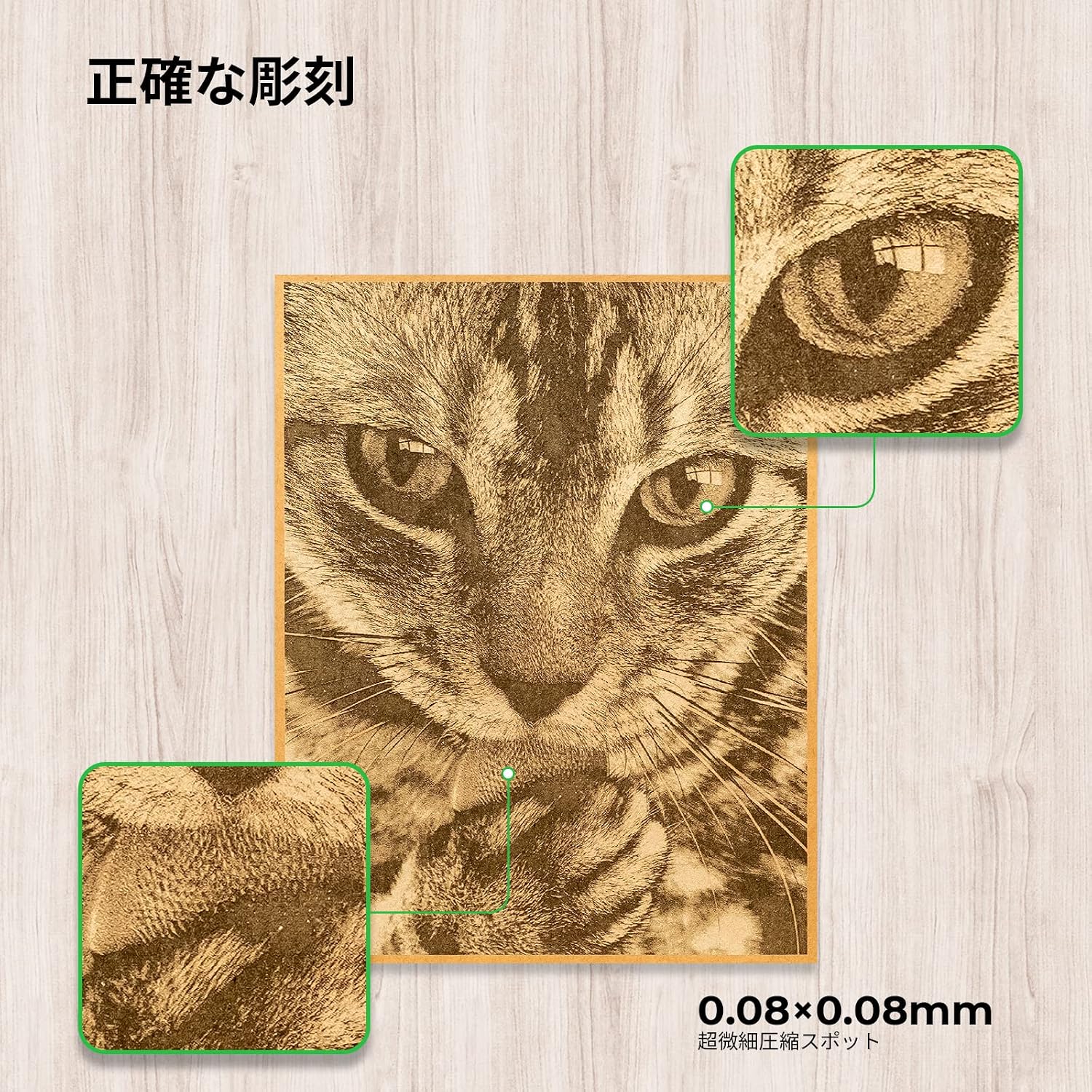
Figure 3.4: Example of precise engraving with the xTool M1.
3.4. Blade Cutting
The blade cutting function is ideal for softer materials like vinyl, paper, and fabric, preventing burning or discoloration often associated with laser processing on these materials.
- Material Preparation: Place the material on the cutting mat provided (if applicable) and secure it inside the machine.
- Blade Selection: Ensure the blade module is correctly installed.
- Software Settings: In XCS, select "Blade Cut" and choose the appropriate material settings.
3.5. Batch Processing
The AI system automatically detects the shape of materials and can process multiple items of the same shape in a single batch, enhancing efficiency.

Figure 3.5: The smart camera facilitates efficient batch processing of multiple items.
4. Maintenance
Regular maintenance ensures optimal performance and longevity of your xTool M1.
- Cleaning the Lens: Periodically clean the laser lens with a soft, lint-free cloth and lens cleaning solution. Refer to the detailed cleaning instructions in the full manual for proper technique.
- Cleaning the Work Area: After each use, clear any debris, dust, or material scraps from the work area and the honeycomb panel (if used). This prevents interference with laser paths and maintains air circulation.
- Exhaust System: Ensure the exhaust fan and pipe are free from obstructions. Clean the fan blades and exhaust ducting as needed to maintain efficient smoke and fume extraction.
- Blade Inspection: For blade cutting, regularly inspect the blade for sharpness and damage. Replace dull or damaged blades to ensure clean cuts.
- General Inspection: Routinely check all cables and connections for any signs of wear or damage. Ensure the machine's lid closes securely.
5. Troubleshooting
This section addresses common issues you might encounter with your xTool M1. For more complex problems, please contact customer support.
5.1. Common Issues and Solutions
- Machine Not Powering On:
- Check if the power cable is securely connected to both the machine and the power outlet.
- Verify the power outlet is functional.
- Laser Not Firing/Cutting:
- Ensure the lid is fully closed. The machine has safety interlocks.
- Check laser power and speed settings in the XCS software. They might be too low for the material.
- Verify the material is within the working area and the auto-focus was successful.
- Clean the laser lens if it's dirty.
- Poor Engraving/Cutting Quality:
- Adjust laser power, speed, and passes in the XCS software according to the material.
- Ensure the material is flat and properly focused.
- Clean the laser lens.
- For blade cutting, ensure the blade is sharp and correctly installed.
- Software Connection Issues:
- Restart both the machine and the XCS software.
- Check USB cable connection or Wi-Fi signal strength.
- Ensure your XCS software is updated to the latest version.
- Excessive Smoke/Fumes:
- Ensure the exhaust fan is operating and the exhaust pipe is properly installed and directed outdoors or to an air filter.
- Verify the work area is well-ventilated.
6. Product Specifications
| Feature | Detail |
|---|---|
| Brand | xTool |
| Model Number | P1030284 (M1-10W) |
| Material Compatibility | Polyvinyl chloride, Wood, Metal, Leather, Paper, Fabric, Felt, Ceramics, Plastic (300+ types) |
| Color | White |
| Effective Working Area | 30.48 cm x 30.48 cm (12 x 12 inches) |
| Operation Mode | Automatic |
| Laser Output Power | 10W |
| Engraving Precision | 0.01mm |
| Engraving Speed | Up to 250mm/s |
| Product Weight | 18.6 kg |
| Included Items | M1 Main Unit, Material Package |
7. Warranty Information
xTool products typically come with a limited warranty covering manufacturing defects. The specific warranty period and terms may vary by region and product. Please refer to the official xTool website or your purchase documentation for detailed warranty information.
Keep your proof of purchase for any warranty claims.
8. Customer Support
For technical assistance, troubleshooting, or any inquiries regarding your xTool M1, please contact our professional support team. We are dedicated to providing prompt and helpful service.
- Online Support: Visit the official xTool support website for FAQs, tutorials, and community forums.
- Email Support: Contact us via email at support@xtool.com.
- Phone Support: Check the xTool website for regional phone support numbers.
When contacting support, please have your product model (M1-10W) and serial number ready to expedite the process.


