
Hexgears PowerBlade X1 Pro
Hexgears PowerBlade X1 Pro Wireless Mechanical Keyboard User Manual
Model: PowerBlade X1 Pro
Introduction
This manual provides comprehensive instructions for the setup, operation, maintenance, and troubleshooting of your Hexgears PowerBlade X1 Pro Wireless Mechanical Keyboard. Please read this manual thoroughly before using the product to ensure optimal performance and longevity.
Package Contents
- PowerBlade X1 Pro Wireless Mechanical Keyboard
- Keycap Puller
- Type-C USB Cable
- Wrist Rest
- 2.4GHz Wireless USB Dongle
Setup
1. Initial Charging
Before first use, connect the keyboard to a USB power source using the provided Type-C USB cable. The keyboard features a 2300mAh battery. A full charge ensures extended wireless operation.

Figure 1: Keyboard highlighting its 2300mAh battery for long-lasting performance.
2. Connecting the Wrist Rest
The included wrist rest is magnetic and can be easily attached to the front edge of the keyboard for ergonomic support. This helps relieve pressure on your wrists during extended use.
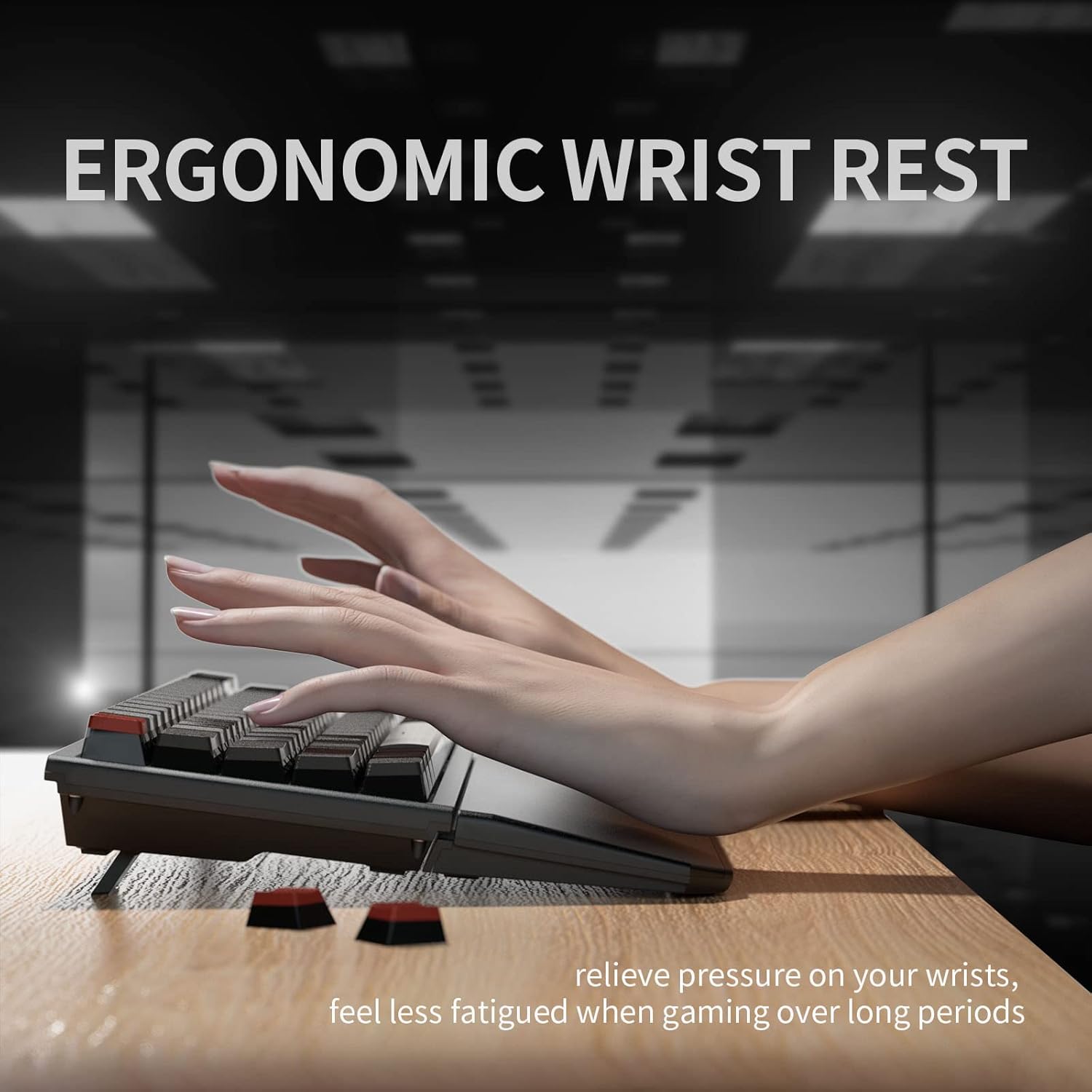
Figure 2: Ergonomic wrist rest attached to the keyboard, designed to reduce wrist strain.
3. Connectivity Modes
The PowerBlade X1 Pro supports three connectivity modes: 2.4GHz wireless, Bluetooth 5.0, and wired USB-C.
- 2.4GHz Wireless Connection: Insert the 2.4GHz USB dongle into an available USB port on your device. The keyboard will automatically connect.
- Bluetooth Connection:
- Turn on the keyboard's Bluetooth mode.
- On your device, search for Bluetooth devices and select "Hexgears X1 Pro".
- The keyboard supports up to three Bluetooth connections. Use Fn + Q/W/E to switch between paired devices.
- Wired USB-C Connection: Connect the keyboard directly to your device using the provided Type-C USB cable. This mode also charges the keyboard.

Figure 3: Overview of the keyboard's versatile connectivity options.
Operating Instructions
Key Functions and Layout
The PowerBlade X1 Pro features a 65% layout with essential keys for gaming and productivity. Many functions are accessed via the Fn key combinations.

Figure 4: The Hexgears PowerBlade X1 Pro keyboard layout.
Hot-Swappable Switches
The keyboard is equipped with Kailh Box hot-swappable switches, allowing users to easily change switches without soldering. It supports both 3-pin and 5-pin mechanical switches.

Figure 5: Kailh Box Hot Swap Switches, demonstrating their easy removal and replacement.
To replace a switch:
- Gently pull the keycap off using the provided keycap puller.
- Use a switch puller (not included, but often comes with switch sets) to carefully remove the switch from the PCB.
- Align the pins of the new switch with the holes on the PCB and press firmly until it clicks into place.
- Reattach the keycap.
Backlighting
The PowerBlade X1 Pro features monochrome backlighting with double-shot PBT pudding keycaps, allowing light to shine through. Adjustments to brightness and lighting modes can typically be made using Fn key combinations (refer to the keyboard's specific function layer for details).

Figure 6: Double-colored keycaps designed for enhanced backlighting.
N-Key Rollover
The keyboard supports N-Key Rollover, ensuring that every keypress is registered accurately, even when multiple keys are pressed simultaneously. This feature is crucial for fast-paced gaming.
Maintenance
Cleaning the Keyboard
- Disconnect the keyboard from all power sources before cleaning.
- Use a soft, lint-free cloth slightly dampened with water or a mild cleaning solution to wipe the surface.
- For cleaning between keycaps, use compressed air or a small brush.
- The keyboard has an IP54 rating for protection against dust and water splashes. However, avoid submerging it in liquid.

Figure 7: Spill-resistant design of the keyboard.
Battery Care
- Avoid exposing the battery to extreme temperatures.
- Charge the keyboard regularly, even if not in frequent use, to maintain battery health.
Troubleshooting
| Problem | Possible Cause | Solution |
|---|---|---|
| Keyboard not responding in wireless mode. | Low battery, incorrect connection mode, dongle not connected. | Charge the keyboard. Ensure the correct mode (2.4GHz or Bluetooth) is selected. Verify the USB dongle is properly inserted. |
| Bluetooth connection issues. | Keyboard not in pairing mode, interference, device Bluetooth off. | Ensure keyboard is in Bluetooth pairing mode. Move closer to the device. Check device's Bluetooth settings. |
| Keys not registering or double-typing. | Faulty switch, dust/debris under keycap. | Clean under the keycap. If issue persists, consider replacing the switch (refer to Hot-Swappable Switches section). |
| Backlight not working. | Backlight turned off, low battery. | Adjust backlight settings using Fn key combinations. Charge the keyboard. |
Specifications
- Model: PowerBlade X1 Pro
- Connectivity: 3-Mode (Bluetooth 5.0, 2.4GHz Wireless, USB-C Wired)
- Keyboard Layout: 65%
- Switches: Kailh Box Hot-Swappable (3-pin/5-pin compatible)
- Keycaps: Double-Shot PBT Pudding Keycaps
- Rollover: N-Key Rollover
- Battery Capacity: 2300mAh Lithium Ion (included)
- Dimensions: 16 x 5 x 2.4 inches (approximate)
- Item Weight: 2.7 pounds (approximate)
- IP Rating: IP54 (Dust and Splash Resistant)
- Compatible Devices: Gaming Console, Laptop, Mac, PC, Desktop
- Special Features: Backlit, Ergonomic Wrist Rest, Rechargeable
Warranty and Support
For warranty information and technical support, please visit the official Hexgears website or contact their customer service. Keep your purchase receipt for warranty claims.
Hexgears Official Store: Visit Hexgears Store on Amazon
Ask a question about this manual
Ask about setup, troubleshooting, compatibility, parts, safety, or missing instructions. Manuals+ will review the question and use this page’s manual context to help answer it.