
Hexgears X5
Hexgears PowerBlade X5 Wireless Mechanical Gaming Keyboard User Manual
Model: X5
Introduction
Thank you for choosing the Hexgears PowerBlade X5 Wireless Mechanical Gaming Keyboard. This manual provides essential information for setting up, operating, and maintaining your new keyboard. The PowerBlade X5 is designed for high-performance gaming and efficient typing, featuring durable Kailh BOX switches, customizable backlighting, and versatile connectivity options.

Figure 1: Hexgears PowerBlade X5 Wireless Mechanical Gaming Keyboard.
Package Contents
Please verify that all items are present in your package:
- HEXGEARS X5 Mechanical Gaming Keyboard
- USB Cable (Type-C)
- Keycap Puller
- Plastic Dust Cover
- Ergonomic Wrist Rest
- User Manual (this document)
Key Features
Premium Kailh BOX Switches
The PowerBlade X5 features upgraded Kailh BOX switches, custom-engineered by Hexgears for enhanced performance and durability. These switches offer protection against spills and dust accumulation, ensuring a long lifespan of up to 100 million keystrokes.

Figure 2: Kailh BOX 3.0 Sky Blue Switch.
Available switch types include:
- Red: Quiet and Smooth Linear Typing.
- Blue: Crisp 'Clicky' and Tactile Feedback, ideal for gaming.
- Gold: Similar Creamy and Smooth Linear Typing.

Figure 3: Available Kailh Box Switch types.
Versatile Connectivity
The PowerBlade X5 supports both 2.4GHz wireless and USB-C wired connectivity, providing flexibility for various setups. The 2.4GHz wireless connection offers a low latency of 1 millisecond, crucial for responsive gaming.

Figure 4: 2.4GHz Wireless vs. Bluetooth Latency Comparison.
N-Key Rollover (NKRO) and Anti-Ghosting
Ensuring every single key press is registered during intense gaming moments, the PowerBlade X5 features N-Key Rollover and anti-ghosting technology for ultimate precision.
Pudding PBT Keycaps with Frosted Finish
The double-shot Pudding PBT keycaps are engineered for durability and provide a unique light textured feel, minimizing typing errors and increasing accuracy. The pudding design enhances the gaming ambiance by allowing backlight to glow between the keys.

Figure 5: PBT Keycap Frosting Process.
White Backlight with 16 Light Modes
The keyboard features a monochrome minimalist white-color backlight with 16 customizable effects to match your typing and gaming style.

Figure 6: N-Key Rollover and LED Lighting Effects.
Ergonomic Wrist Rest
An ergonomically designed wrist rest is included to provide crucial comfort during long gaming sessions or extended typing tasks.

Figure 7: Ergonomic Wrist Rest.
Long Battery Life
The PowerBlade X5 offers extended battery life, providing up to 300 hours with the backlight off and 30 hours with the backlight on, ensuring uninterrupted usage.
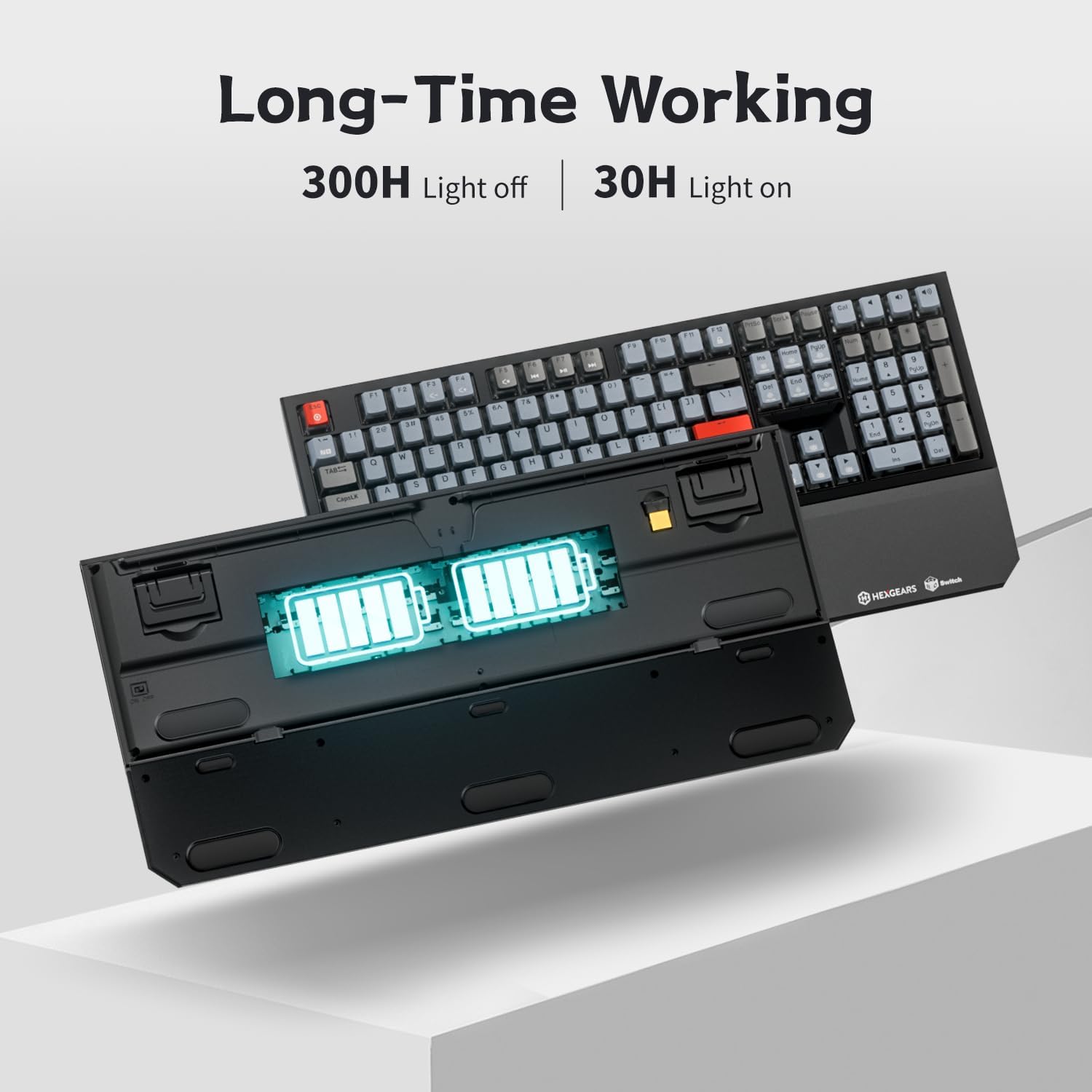
Figure 8: Battery Life Indication.
Setup Guide
1. Charging the Keyboard
Before first use, it is recommended to fully charge the keyboard. Connect the supplied USB-C cable to the keyboard's USB-C port and the other end to a powered USB port on your computer or a USB wall adapter. The charging indicator light will show the charging status.
2. Connecting the Keyboard
The PowerBlade X5 offers two connection methods:
2.1. 2.4GHz Wireless Connection
- Locate the 2.4GHz USB receiver, typically stored in a compartment on the underside of the keyboard.
- Plug the USB receiver into an available USB port on your computer.
- Turn on the keyboard using the power switch, usually located on the back or side of the keyboard. The keyboard should automatically connect to the receiver.
2.2. Wired USB-C Connection
- Connect the supplied USB-C cable to the keyboard's USB-C port.
- Connect the other end of the USB-C cable to an available USB port on your computer.
- The keyboard will function immediately in wired mode and will also charge simultaneously.
Operating Instructions
1. Basic Keyboard Functions
The PowerBlade X5 is a full-size 108-key keyboard. All standard keys function as expected. For optimal performance, ensure the keyboard is placed on a stable surface.
2. Function (Fn) Key Combinations
The Fn key allows access to various multimedia and backlight controls. Press and hold the Fn key, then press the corresponding function key (F1-F12) or other designated keys.
| Function Key | Description |
|---|---|
| Fn + F1 | Media Player |
| Fn + F2 | Volume Down |
| Fn + F3 | Volume Up |
| Fn + F4 | Mute |
| Fn + F5 | Stop |
| Fn + F6 | Previous Track |
| Fn + F7 | Play/Pause |
| Fn + F8 | Next Track |
| Fn + F9 | |
| Fn + F10 | Web Browser |
| Fn + F11 | My Computer |
| Fn + F12 | Calculator |
| Fn + Ins | Switch Backlight Mode (16 modes) |
| Fn + Home | Adjust Backlight Brightness Up |
| Fn + End | Adjust Backlight Brightness Down |
| Fn + Page Up | Adjust Backlight Speed Up |
| Fn + Page Down | Adjust Backlight Speed Down |
3. Switching Operating Systems
The keyboard supports both Windows and iOS operating systems. Use the following Fn key combinations to switch modes:
- Fn + W: Switch to Windows mode.
- Fn + M: Switch to iOS mode.
4. Official Product Video
Watch the official Hexgears X5 Wireless Mechanical Keyboard video for a visual overview of its features and operation.
Video 1: Hexgears X5 Wireless Mechanical Keyboard Overview. This video demonstrates the keyboard's design, key features, and functionality.
Maintenance and Care
Cleaning the Keyboard
To clean the keyboard, disconnect it from your computer. Use a soft, lint-free cloth slightly dampened with water or a mild cleaning solution. Avoid excessive moisture. For cleaning between keycaps, use compressed air or the supplied keycap puller to remove keycaps and clean the switches directly.
Keycap Removal and Replacement
Use the provided keycap puller to carefully remove keycaps. Grip the keycap firmly with the puller and pull straight up. When replacing, align the keycap with the switch stem and press down gently until it clicks into place.
Storage
When not in use, store the keyboard in a dry, cool place. Use the plastic dust cover to protect it from dust and debris.
Troubleshooting
Keyboard Not Responding
- Ensure the keyboard is charged. Connect it via USB-C cable to charge and test wired functionality.
- For wireless connection, verify the USB receiver is securely plugged into a working USB port.
- Check if the keyboard's power switch is in the "On" position.
- Try restarting your computer.
Backlight Not Working or Dim
- Adjust backlight brightness using Fn + Home (increase) or Fn + End (decrease).
- Ensure the keyboard has sufficient charge. Low battery can affect backlight performance.
- Cycle through backlight modes using Fn + Ins.
Keys Not Registering (Ghosting/N-Key Rollover Issues)
- While the keyboard features N-Key Rollover, ensure no software conflicts are interfering.
- Test the keyboard on another computer to rule out system-specific issues.
- Clean under the affected keycaps to ensure no debris is obstructing the switch.
Wireless Connection Intermittent
- Ensure the keyboard is within range of the USB receiver (typically up to 10 meters).
- Avoid placing the receiver near strong electromagnetic interference sources (e.g., Wi-Fi routers, other wireless devices).
- Try plugging the USB receiver into a different USB port, preferably a USB 2.0 port if available, to avoid potential USB 3.0 interference.
Specifications
| Feature | Detail |
|---|---|
| Brand | Hexgears |
| Model Number | X5 |
| Keyboard Layout | Full Size, 108-Key |
| Switch Type | Kailh BOX 3.0 Mechanical Switches (Rose Red Linear, Sky Blue Clicky, Gold Tactile options) |
| Keycap Material | Double-shot Pudding PBT with Frosted Finish |
| Backlight | White LED, 16 Lighting Modes |
| Connectivity | 2.4GHz Wireless, USB-C Wired |
| N-Key Rollover | Supported |
| Anti-Ghosting | Supported |
| Battery Type | Lithium Ion (1 included) |
| Battery Life | Approx. 300 hours (light off), 30 hours (light on) |
| Product Dimensions | 16 x 5 x 2.4 inches |
| Item Weight | 3.89 pounds |
| Compatible Devices | Laptop, Desktop PC, Gaming Console, Mac |
Warranty and Support
Hexgears products are designed for reliability and performance. For warranty information, technical support, or service inquiries, please refer to the official Hexgears website or contact their customer support directly. Keep your purchase receipt as proof of purchase for warranty claims.
For the latest drivers, firmware updates, and additional support resources, visit the official Hexgears support page.
Related documentsX5


Ask a question about this manual
Ask about setup, troubleshooting, compatibility, parts, safety, or missing instructions. Manuals+ will review the question and use this page’s manual context to help answer it.