1. Introduction
This manual provides detailed instructions for the MAIWO Dual Bay RGB SATA to USB 3.0 Hard Drive Docking Station, Model K3062B. This device is designed to facilitate easy access, data transfer, and offline cloning for 2.5-inch and 3.5-inch SATA HDDs and SSDs. Please read this manual thoroughly before use to ensure proper operation and to maximize the product's lifespan.

Figure 1: MAIWO Dual Bay RGB SATA Hard Drive Docking Station with two hard drives inserted.
2. Package Contents
Verify that all items are present in the package:
- 1 x MAIWO K3062B Dual Bay Docking Station
- 1 x Instruction Manual
- 1 x 12V/3A Power Adapter
- 1 x USB 3.0 Data Cable
3. Product Features
- Dual Bay Design: Supports simultaneous reading and writing for two 2.5-inch or 3.5-inch SATA HDDs/SSDs.
- Offline Clone Function: Allows direct disk-to-disk cloning without a computer connection.
- High-Speed Data Transfer: USB 3.0 interface with UASP support provides transfer speeds up to 5Gbps.
- RGB LED Lighting: Features a breathing RGB light effect during operation.
- Automatic Sleep Mode: Hard drives enter sleep mode after 10 minutes of inactivity to conserve power and extend drive life.

Figure 2: RGB LED lighting effect during operation.
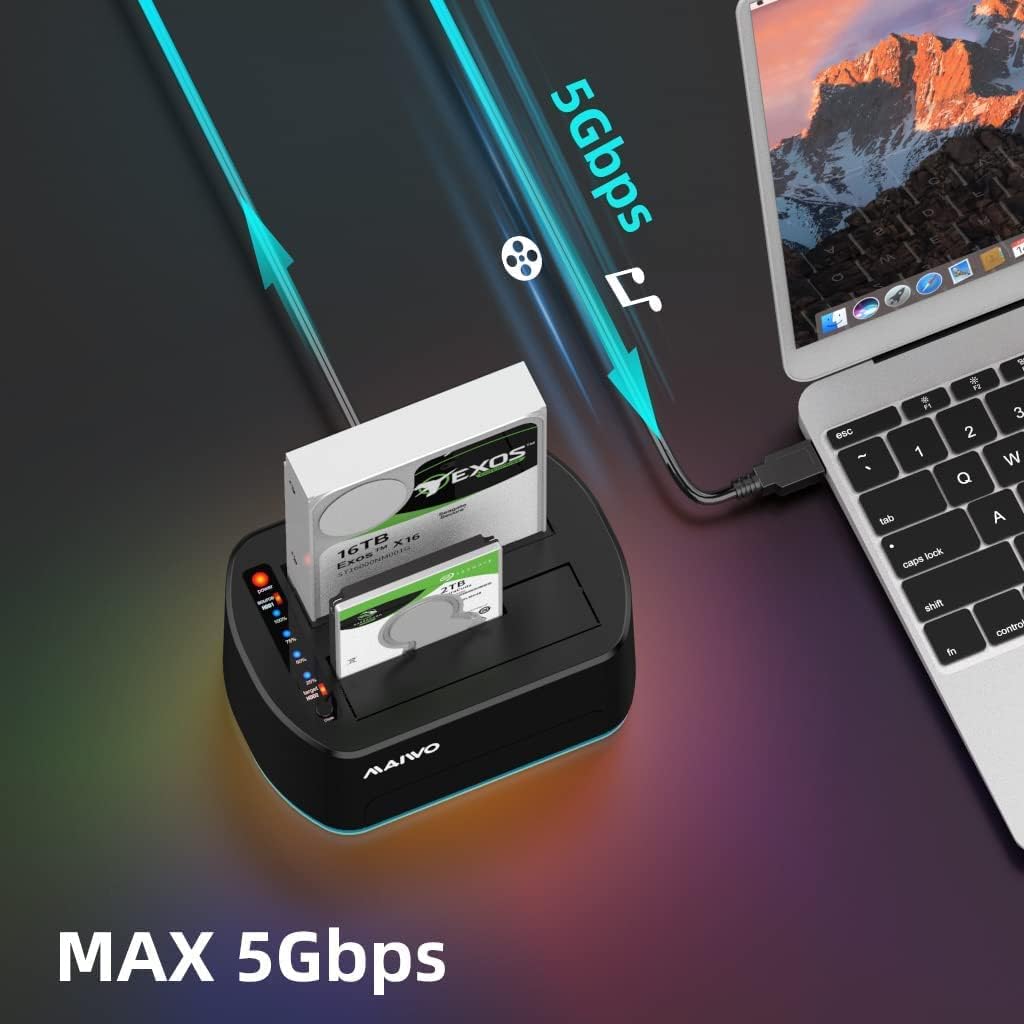
Figure 3: High-speed data transfer via USB 3.0.

Figure 4: Automatic sleep mode after 10 minutes of inactivity.
4. Setup Instructions
- Connect Power: Connect the provided 12V/3A power adapter to the docking station's DC input port and then plug it into a power outlet.
- Insert Hard Drives: Gently insert your 2.5-inch or 3.5-inch SATA HDDs/SSDs into the drive bays. Ensure they are seated firmly.
- Connect to Computer (for Data Transfer): If using for data transfer, connect the USB 3.0 data cable from the docking station to an available USB 3.0 port on your computer.
- Power On: Press the power button on the docking station. The RGB LED light will illuminate.

Figure 5: Connecting the independent power supply.
5. Operating Instructions
5.1 Data Transfer Mode
Once connected to your computer via USB 3.0 and powered on, the inserted hard drives will appear as external storage devices. You can then access, read, and write data to them as you would with any other external drive.
5.2 Offline Clone Function
The offline clone function allows you to duplicate data from a source drive to a target drive without needing a computer. This is ideal for creating backups or upgrading drives.
- Prepare Drives: Ensure both the source drive (containing data) and the target drive (where data will be copied) are inserted into the docking station. The source drive should be in the 'Source' bay and the target drive in the 'Target' bay.
- Important Note: The capacity of the target drive must be equal to or larger than the source drive. All data on the target drive will be overwritten during the cloning process.
- Disconnect from Computer: Ensure the USB data cable is disconnected from your computer. The docking station must operate independently for offline cloning.
- Power On: Turn on the docking station.
- Initiate Clone: Press and hold the 'Clone' button for approximately 3-5 seconds until the clone progress indicator lights begin to flash.
- Confirm Clone: Briefly press the 'Clone' button again to confirm. The cloning process will begin, and the progress indicator lights (25%, 50%, 75%, 100%) will illuminate sequentially to show the cloning status.
- Completion: The cloning process is complete when all four progress indicator lights (25%, 50%, 75%, 100%) remain steadily lit.
- Power Off: Once cloning is complete, power off the docking station before removing the drives.

Figure 6: Offline clone process with progress indicators.
6. Maintenance
- Keep the docking station clean and free from dust. Use a soft, dry cloth for cleaning.
- Avoid exposing the device to extreme temperatures, humidity, or direct sunlight.
- Do not attempt to disassemble or repair the device yourself. Contact customer support if issues arise.
- Always power off the docking station before inserting or removing hard drives to prevent data corruption or damage.
7. Troubleshooting
- Drives not recognized:
- Ensure drives are properly seated in the bays.
- Verify the power adapter is securely connected and the device is powered on.
- If connected to a computer, try a different USB port or cable.
- Check Disk Management (Windows) or Disk Utility (macOS) to see if the drive is detected but uninitialized or unformatted.
- Offline clone fails or does not start:
- Ensure the USB data cable is disconnected from the computer.
- Verify the target drive's capacity is equal to or larger than the source drive's capacity.
- Ensure both drives are properly inserted.
- Follow the clone initiation steps precisely (press and hold, then brief press).
- Slow transfer speeds:
- Ensure you are connected to a USB 3.0 port on your computer.
- Verify the USB 3.0 data cable is not damaged.
- The actual speed may vary depending on the hard drive's performance and your computer system.
8. Specifications
| Feature | Detail |
|---|---|
| Model Number | K3062B |
| Material | Plastic |
| Compatible Drives | 2.5" / 3.5" SATA HDDs & SSDs |
| Max Drive Capacity | Up to 80 TB (40TB per bay) |
| Interface | USB 3.0 (backward compatible with USB 2.0) |
| Data Transfer Rate | Up to 5Gbps (USB 3.0) |
| Special Features | Offline Clone, UASP Support, RGB LED, Automatic Sleep Mode |
| Power Supply | 12V/3A Power Adapter |
| Compatible Operating Systems | Windows, macOS, Linux (driver-free) |
| Product Dimensions | 5.98 x 4.29 x 2.44 inches |
| Item Weight | 1.41 pounds (0.64 kg) |
9. Warranty and Support
MAIWO products come with a standard manufacturer's warranty. For specific warranty details, technical support, or service inquiries, please refer to the warranty card included in your package or visit the official MAIWO website. Please retain your proof of purchase for warranty claims.


