
1. Setup
1.1 Unboxing
Carefully remove all components from the packaging. The box should contain the following items:
- X5 Wireless Mechanical Keyboard
- X5 Dongle (USB receiver)
- Wrist Rest
- Plastic Dust Cover
- USB-C Data Cable
- Keycap Puller
- User Manual (this document)

Image: Hexgears X5 keyboard with its accessories, including the detachable wrist rest, USB-C cable, USB dongle, and keycap puller.
1.2 Connecting the Keyboard
The Hexgears X5 keyboard supports both 2.4GHz wireless and USB-C wired connectivity.
1.2.1 2.4GHz Wireless Mode
- Locate the X5 USB dongle. It is typically stored in a compartment on the underside of the keyboard or within the packaging.
- Plug the USB dongle into an available USB port on your computer or device.
- Ensure the keyboard's power switch (usually on the back or bottom) is set to the wireless mode.
- The keyboard should automatically connect. If not, refer to the troubleshooting section.
1.2.2 USB-C Wired Mode
- Connect one end of the provided USB-C data cable to the USB-C port on the keyboard.
- Connect the other end of the USB-C data cable to an available USB port on your computer or device.
- The keyboard will function immediately in wired mode and will also charge its internal battery.

Image: The Hexgears X5 keyboard demonstrating both wired connectivity via USB-C and wireless connectivity using the USB dongle.
1.3 Attaching the Wrist Rest
The ergonomic wrist rest can be easily attached to the front of the keyboard for enhanced comfort during extended use. Align the magnetic connectors on the wrist rest with those on the keyboard and gently bring them together until they snap into place.
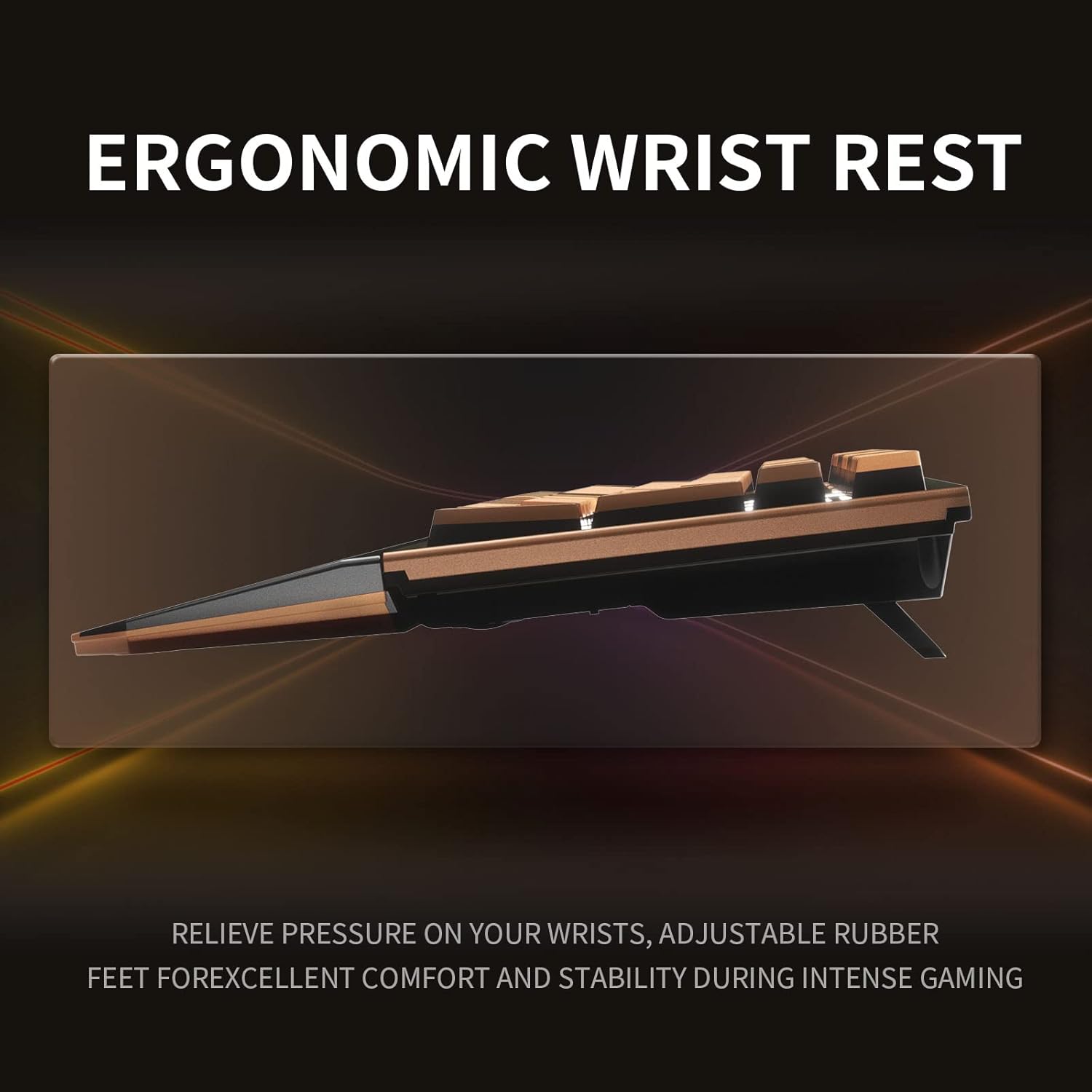
Image: An illustration highlighting the ergonomic design of the Hexgears X5 keyboard, specifically showing the integrated wrist rest for comfortable typing and gaming.
2. Operating Instructions
2.1 Key Features
The Hexgears X5 features 108 keys, including a full numeric keypad and function keys. It supports N-Key Rollover, ensuring every key press is registered accurately, even when multiple keys are pressed simultaneously.

Image: The Hexgears X5 keyboard featuring double-colored keycaps, highlighting its full 108-key layout.
2.2 Kailh Box 3.0 Switches
The keyboard is equipped with Hexgears customized Kailh Box 3.0 switches, designed for durability and a smooth typing experience. The switches feature a reduced gap between the shaft and housing for improved stability and dust/water resistance. Each switch is factory-lubricated for a lifespan of 100 million clicks.
- Kailh Box 3.0 Gold Switch (Quicksand Gold): Linear switch with a 45g actuation force, providing a smooth and quiet typing experience with a creamy sound profile.
- Sky Blue Switch: Offers tactile feedback with a "Clicky" sound.
- Rose Red Switch: Provides a linear typing effect.

Image: A detailed view of the Kailh Box switches installed on the Hexgears X5 keyboard, showing their design.

Image: An exploded diagram of a Kailh Box switch, detailing its components, including the dust seal in four directions and the patented safety box for conductors.
2.3 Backlighting Control
The Hexgears X5 features white LED backlighting with 16 lighting modes. These controls are accessed using the Function (Fn) key in combination with other keys.
2.3.1 Side LED Controls (Keyboard Rim)
- Fn + PrtSc: Activates a full, rainbow-colored border around the keyboard (if applicable to the current mode).
- Fn + Pause: Cycles through specific single colors for the keyboard border (red, green, blue, white, light blue, light magenta, dark magenta, orange).
- Fn + PgDn: Switches between various side LED modes:
- Entire LED border cycles through colors (e.g., blue to green to yellow).
- Rainbow color moves counter-clockwise.
- Rainbow color moves in both directions.
- Stable rainbow color.
- Fn + ,<: Decreases the speed of light changes for the side LED.
- Fn + .>: Increases the speed of light changes for the side LED.
- Fn + -_: Decreases the brightness of the side LED, down to off.
- Fn + =+: Increases the brightness of the side LED.
2.3.2 Key Backlighting Controls
- Fn + Ins: Cycles through several key lighting modes:
- Pressing a key sends rainbow light from that key across the keyboard.
- Light goes outward from the pressed key only in that row.
- Light moves in two split columns away from the key.
- A key lights only itself up, and the light lasts briefly.
- All keys are lit continuously with stable light.
- Fn + Home: Activates "breathing mode," where the entire keyboard's light changes color continuously.
- Fn + PgUp: Changes the color of key presses to a single color (press repeatedly to cycle colors).
- Fn + Del: Provides additional key lighting modes:
- All keys lit with the same color (adjustable with Fn + PgUp).
- Random keys lit across the keyboard (default mixed colors, adjustable to single color with Fn + PgUp).
- Pulsing rainbow light under all keys.
- Pulsing single light under all keys.
- Wave effect moving left to right.
- Bouncing wave effect.
- Diagonal wave effect.
- Wave effect across rows.
- Fn + End: Turns all key lights off.
- Fn + Up Arrow: Increases brightness of key light.
- Fn + Down Arrow: Decreases brightness of key light.
- Fn + Left Arrow: Decreases speed of key light changes.
- Fn + Right Arrow: Increases speed of key light changes.
Video: An official Hexgears video demonstrating the features and lighting effects of the Hexgears X5 Wireless Mechanical Keyboard.
3. Maintenance
3.1 Cleaning the Keyboard
To maintain optimal performance and appearance, regularly clean your Hexgears X5 keyboard.
- Dust Removal: Use a soft brush or compressed air to remove dust and debris from between the keycaps.
- Surface Cleaning: Wipe the keycaps and keyboard surface with a slightly damp, lint-free cloth. Avoid excessive moisture.
- Keycap Removal: Use the provided keycap puller to carefully remove keycaps for deeper cleaning. Gently pull straight up on the keycap. Do not force it.
3.2 Water Resistance
The Hexgears X5 keyboard features a water-resistant design with three drain holes on the underside to help prevent damage from accidental spills. While it offers protection, it is not fully waterproof. Avoid submerging the keyboard in liquid.

Image: The underside of the Hexgears X5 keyboard, illustrating the three drain holes designed to prevent water damage from spills.
4. Troubleshooting
4.1 Connectivity Issues
- Wireless Connection Failure:
- Ensure the USB dongle is securely plugged into a working USB port.
- Verify the keyboard's power switch is in wireless mode.
- Check the keyboard's battery level. Recharge if necessary using the USB-C cable.
- Try plugging the dongle into a different USB port or a different computer to isolate the issue.
- Wired Connection Failure:
- Ensure the USB-C cable is firmly connected to both the keyboard and the computer.
- Try using a different USB-C cable or a different USB port on your computer.
4.2 Keys Sticking or Not Registering
If keys are intermittently sticking, ghosting, or not registering, try the following:
- Re-plugging: If using wireless, try plugging the keyboard into wired mode, then unplugging it and returning to wireless. This can sometimes reset the connection.
- Cleaning: Dust or debris under the keycaps can cause issues. Refer to the "Cleaning the Keyboard" section for instructions on how to clean or remove keycaps.
- Battery Level: A low battery can sometimes lead to inconsistent key registration in wireless mode. Ensure the keyboard is fully charged.
4.3 Backlighting Not Working
- Brightness Adjustment: Ensure the brightness is not set to minimum (off) using Fn + Down Arrow (for keys) or Fn + -_ (for side LED).
- Mode Selection: Cycle through different lighting modes using Fn + Ins, Fn + Home, or Fn + Del to see if the lights activate.
- Power Cycle: Turn the keyboard off and then on again.
5. Specifications
| Feature | Detail |
|---|---|
| Brand | Hexgears |
| Model Name | X5 Wireless Mechanical Keyboard |
| Connectivity Technology | 2.4GHz Wireless, USB-C Wired |
| Number of Keys | 108 |
| Switch Type | Kailh Box 3.0 Gold (Linear), Sky Blue (Clicky), Rose Red (Linear) |
| Key Rollover | N-Key Rollover |
| Backlighting | White LED, 16 Lighting Modes |
| Special Features | Backlit, Ergonomic, Hotkeys and Media Keys, Rechargeable, Wrist Rest |
| Compatible Devices | Gaming Console, Laptop, Mac, PC, Desktop |
| Product Dimensions | 16"L x 5"W x 2.4"H |
| Material | Polybutylene Terephthalate (PBT Keycaps) |
| Water Resistance Level | Water Resistant (with drain holes) |
| Power Source | Battery Powered |
6. Warranty and Support
For any issues encountered while using your Hexgears X5 Wireless Mechanical Keyboard, please contact Hexgears customer support. They aim to respond within 24 hours (excluding holidays).
Please refer to your purchase documentation or the official Hexgears website for specific warranty terms and contact details.
Hexgears Support: Visit the Hexgears Store on Amazon


