
1. Introduction
Thank you for choosing the Dpofirs 8192 Level Pressure Sensitive Pen. This pen is designed to provide a precise and natural drawing and writing experience on compatible graphics tablets. Its ergonomic design and advanced pressure sensitivity allow for detailed and expressive digital artwork and note-taking. Please read this manual carefully to ensure proper setup and optimal use of your new pen.
2. Product Overview
The Dpofirs Pressure Sensitive Pen offers advanced features for digital artists and professionals. It is engineered for high responsiveness and comfort during extended use.
Key Features:
- 8192 Level Pressure Sensing: Provides sensitive feedback for precise control over line thickness and opacity.
- Upgraded Tilt Pressure: Accurately detects the pen's tilt angle, allowing for natural shading and varied brush strokes.
- Palm Rejection: Enables comfortable resting of your palm on the screen without interfering with pen input.
- Ergonomic Design: Lightweight and comfortable to hold for prolonged creative sessions.
- No Bluetooth or Apps Required: Simple operation; just insert the battery and begin use.
Compatibility:
This pen is perfectly compatible with the following Huion graphics tablets:
- GT-191
- GT-221 PRO
- GT-156HD V2
- GT-220 V2
It is also compatible with GT-190/GT-190S, GT-185, GT-220, GT-220 V2 (2048) manufactured after January 1st, 2017.
Note: This pen is not compatible with other Huion drawing tablets not listed above.

Image: The Dpofirs pen showcasing its 8192 pressure levels and lightweight design (14g).

Image: A visual guide indicating compatible Huion tablet models for the Dpofirs pen.
3. Setup
To begin using your Dpofirs Pressure Sensitive Pen, you will need to install an AAA battery.
- Unscrew the Pen: Gently twist the pen barrel to separate the two halves.
- Insert Battery: Insert a new AAA battery into the pen, ensuring the cathode (negative end) is facing upwards and the anode (positive end) is facing downwards.
- Reassemble Pen: Screw the pen halves back together securely.
- Power On: Press the power button on the pen before you start using it.

Image: Step-by-step diagram illustrating the battery installation process for the Dpofirs pen.
4. Operation
The Dpofirs pen is designed for intuitive use across various applications on your compatible graphics tablet.
General Usage:
- Drawing and Writing: Simply tap the pen to the tablet surface to begin drawing or writing. The 8192 levels of pressure sensitivity will translate your strokes into varying line weights and opacities.
- Tilt Function: Tilt the pen to create shading effects, similar to using a real pencil or brush. The pen's sensor accurately detects the angle for natural results.
- Palm Rejection: Feel free to rest your hand on the tablet screen while drawing or writing. The system is designed to recognize the pen as the primary input, preventing accidental touches from your palm.
- Programmable Buttons: The pen features two programmable buttons on its side. These can be customized within your tablet's driver settings to perform various functions, such as right-click, undo, or eraser toggle. Refer to your tablet's software manual for button customization options.
Power Management:
To conserve battery life, press the power button to turn off the pen when it is not in use.
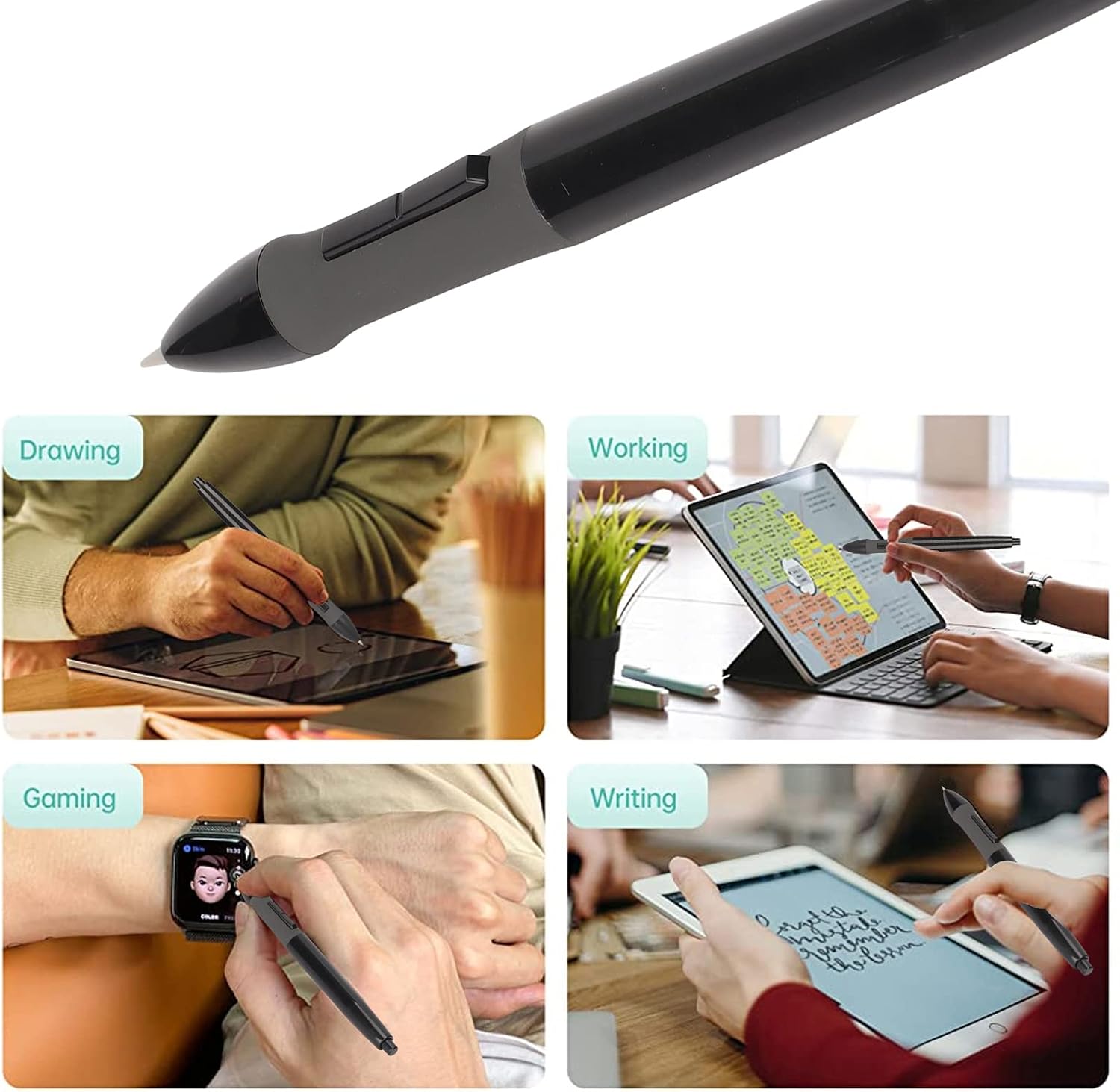
Image: The Dpofirs pen demonstrated in various applications including drawing, working, gaming, and writing.

Image: A user drawing a detailed portrait on a tablet using the Dpofirs pen, showcasing its precision.

Image: The Dpofirs pen in action, illustrating its accurate and quick response performance with 8192 levels of pressure sensitivity.
5. Maintenance
Proper care will extend the life and performance of your Dpofirs pen.
- Cleaning: Use a soft, dry cloth to wipe the pen's surface. Avoid using harsh chemicals or abrasive materials.
- Storage: Store the pen in a safe place when not in use to prevent damage to the pen nib or body.
- Battery Replacement: Replace the AAA battery when the pen's performance diminishes or it stops responding.
- Nib Replacement: If the pen nib becomes worn, replace it with a new one. Refer to your tablet's manual for instructions on nib replacement.
6. Troubleshooting
If you encounter issues with your Dpofirs pen, try the following solutions:
| Problem | Possible Solution |
|---|---|
| Pen is not responding |
|
| Inconsistent pressure sensitivity |
|
| Pen disconnects frequently |
|
If these steps do not resolve the issue, please contact customer support.
7. Specifications
| Feature | Detail |
|---|---|
| Brand | Dpofirs |
| Model Number | Dpofirsonk8fqgawr9255 |
| Pressure Sensitivity | 8192 Levels |
| Material | Plastic |
| Color | Black |
| Item Weight | 0.634 ounces (0.02 Kilograms) |
| Power Source | 1 x AAA Battery (Not Included) |
| Compatible Devices | Huion Graphics Tablets (GT-191, GT-221 PRO, GT-156HD V2, GT-220 V2, etc.) |
8. Warranty and Support
For warranty information and customer support, please refer to the documentation provided with your purchase or visit the official Dpofirs website. If you have any questions or require assistance with your product, please do not hesitate to contact our support team.