
Bewinner Dpofirsb8ug7hnda39349
Contents
Bewinner 2.4G Wireless Video Doorbell Camera User Manual
Model: Dpofirsb8ug7hnda39349
1. Introduction
Thank you for choosing the Bewinner 2.4G Wireless Video Doorbell Camera. This device provides enhanced home security with its advanced features, including high-definition video, two-way audio, motion detection, and night vision. This manual will guide you through the installation, operation, and maintenance of your new video doorbell to ensure optimal performance and a secure environment.
Key Features:
- Wireless Connectivity: 100% wireless installation and 2.4G Wi-Fi connection for flexible placement.
- HD Resolution: 1280 x 720 HD video resolution with a 166° wide-angle lens for clear and broad views.
- Two-Way Audio: Built-in microphone and loudspeaker for real-time two-way communication with noise cancellation.
- Motion Detection (PIR): Automatically detects motion and sends instant alarm notifications to your smartphone.
- Night Vision: Equipped with 6 x 850mm infrared LEDs for clear visibility in low-light conditions and at night.
- APP Control: Remote control and real-time view via dedicated mobile applications for Android and iOS devices.
- Long Battery Life: Powered by 3pcs 18650 specification batteries (not included), offering up to 6 months of regular operation.
2. Safety Information
Please read all safety instructions carefully before using the product. Failure to follow these instructions may result in personal injury or equipment damage.

Image: A warning label indicating important safety precautions.
- Do not disassemble, modify, or repair the product yourself. This can lead to personal injury, electric shock, or damage to the device, and will void the warranty.
- Ensure the product is installed in a location protected from extreme weather conditions, although it is designed to be weatherproof.
- Use only specified battery types (18650 lithium batteries) and ensure correct polarity during installation.
- Keep the device away from direct sunlight, heat sources, and strong magnetic fields.
- Clean the lens and body with a soft, dry cloth. Do not use harsh chemicals or abrasive cleaners.
3. Package Contents
Verify that all items are present in the package:
- 1 x Bewinner Video Doorbell Camera
- 6 x Screws
- 4 x Expansion Pipes
- 1 x User Manual
Note: 3pcs 18650 lithium batteries are required for operation and are not included in the package.
4. Product Overview
Familiarize yourself with the components of your video doorbell.

Image: A close-up front view of the Bewinner 2.4G Wireless Video Doorbell Camera, showing the camera lens, motion sensor, speaker, and doorbell button.
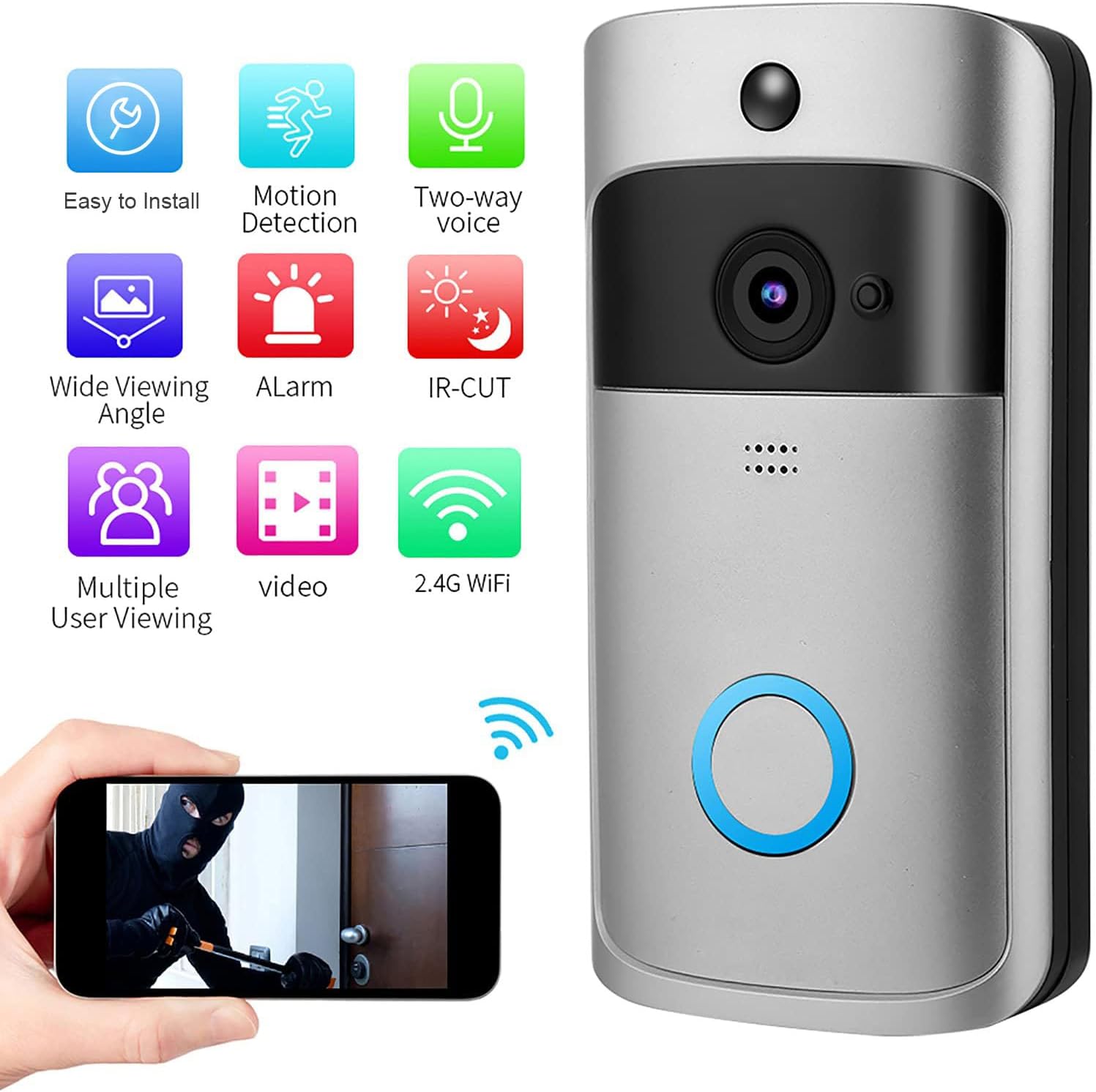
Image: A visual representation of the doorbell's features including Easy to Install, Motion Detection, Two-way voice, Wide Viewing Angle, Alarm, IR-CUT (Night Vision), Multiple User Viewing, Video recording, and 2.4G WiFi.
Component Identification:
- Camera Lens: Captures video footage.
- PIR Motion Sensor: Detects movement in front of the doorbell.
- Microphone: Captures audio for two-way communication.
- Speaker: Outputs audio for two-way communication.
- Doorbell Button: Activates the doorbell and sends notifications.
- LED Indicator: Shows device status (e.g., charging, connected, motion detected).
- Battery Compartment: Located at the back, holds 3 x 18650 batteries.
Note: The product may come in a new or old model type, which are shipped randomly. Both types offer the same functionality.

Image: A side-by-side comparison of the 'New Type' and 'Old Type' Bewinner video doorbell models, highlighting slight cosmetic differences.
5. Setup and Installation
5.1 Battery Installation
- Open the battery compartment cover on the back of the doorbell.
- Insert three (3) 18650 lithium batteries, ensuring correct polarity (+/-).
- Close the battery compartment cover securely.
5.2 App Download and Account Registration
- Search for the recommended app (refer to the manual for specific app name) in your device's app store (for iOS or Android).
- Download and install the app.
- Open the app and follow the on-screen instructions to register a new account.
5.3 Device Pairing and Wi-Fi Connection
- Ensure your smartphone is connected to a 2.4G Wi-Fi network. The doorbell does not support 5G Wi-Fi.
- Open the app and select 'Add Device' or similar option.
- Follow the in-app instructions to put the doorbell into pairing mode (usually by pressing and holding a button on the doorbell).
- Enter your Wi-Fi network name (SSID) and password when prompted in the app.
- The app will generate a QR code. Position your phone in front of the doorbell camera so the doorbell can scan the QR code.
- Once the doorbell confirms successful connection (via voice prompt or LED indicator), the device will appear in your app.

Image: The Bewinner video doorbell shown next to a smartphone displaying a Wi-Fi signal icon, illustrating the wireless connection process.
5.4 Physical Installation
The doorbell is designed for easy wall-mounted installation.
- Choose a suitable location near your door, ensuring a clear view and good Wi-Fi signal strength.
- Mark the drilling points on the wall using the doorbell's mounting bracket as a template.
- Drill holes and insert the expansion pipes.
- Secure the mounting bracket to the wall using the provided screws.
- Attach the doorbell camera to the mounting bracket, ensuring it clicks securely into place.

Image: The doorbell mounted on an exterior wall during rain, with icons indicating weatherproof, anti-lightning, cold resistance, and heat resistance features.
6. Operating Instructions
6.1 Live View and Two-Way Audio
- Open the app and select your doorbell device to access the live video feed.
- Tap the microphone icon in the app to speak through the doorbell's speaker. Tap again to end speaking.
- The doorbell supports two-way communication, allowing you to converse with visitors from your smartphone.

Image: A split image showing a person at the door speaking into the doorbell and another person indoors speaking into a smartphone, demonstrating two-way communication.
6.2 Motion Detection and Notifications
- The doorbell's PIR sensor detects motion in its field of view.
- When motion is detected, the doorbell will automatically push an alarm notification to your smartphone within 1 second.
- You can adjust the motion detection sensitivity settings within the app.
6.3 Night Vision
- The doorbell automatically switches to infrared night vision mode in low-light conditions.
- This ensures clear video monitoring even in complete darkness.

Image: A split image showing a house scene in daylight on one side and the same scene at night with infrared illumination on the other, demonstrating the automatic day/night mode switch for high-resolution imaging.
6.4 Video Recording and Playback
- The doorbell can record video clips triggered by motion detection or manual activation.
- Recorded videos are stored (e.g., on a microSD card if supported, or cloud storage if subscribed).
- Access and playback recorded videos through the app's history or event log.

Image: The doorbell shown with a filmstrip overlay displaying various video frames, indicating its video recording capabilities and compatibility with different devices for viewing.
6.5 Remote Wake-up
- You can remotely wake up the device within 1 second via the mobile app to view the live feed at any time.

Image: A hand pressing the doorbell button, with a smartphone displaying a notification and live view, indicating instant alerts and app control.
7. Maintenance
- Cleaning: Regularly wipe the doorbell's exterior, especially the camera lens, with a soft, damp cloth to remove dust and smudges. Avoid using abrasive cleaners or solvents.
- Battery Check: Monitor the battery level through the app. Replace batteries when they are low to ensure continuous operation.
- Firmware Updates: Check the app periodically for any available firmware updates for your doorbell. Keeping the firmware updated ensures optimal performance and security.
- Wi-Fi Signal: Ensure your Wi-Fi router is within an optimal range to maintain a strong and stable connection for the doorbell.
8. Troubleshooting
- Doorbell not connecting to Wi-Fi:
- Ensure your Wi-Fi is 2.4GHz. 5GHz networks are not supported.
- Check Wi-Fi password accuracy.
- Move the doorbell closer to the router to improve signal strength.
- Restart your router and the doorbell.
- No motion detection notifications:
- Check app notification settings and ensure they are enabled for the doorbell.
- Adjust PIR motion detection sensitivity in the app.
- Ensure there are no obstructions blocking the sensor's view.
- Poor video quality or night vision:
- Clean the camera lens.
- Ensure sufficient Wi-Fi bandwidth.
- For night vision, ensure no strong light sources are directly facing the doorbell, which can interfere with infrared.
- Two-way audio issues:
- Check volume settings on your phone and within the app.
- Ensure there are no physical obstructions over the microphone or speaker on the doorbell.
- Verify stable internet connection.
- Doorbell not powering on:
- Ensure batteries are correctly inserted and fully charged.
- Try new batteries.
9. Specifications
| Feature | Specification |
|---|---|
| Model Number | Dpofirsb8ug7hnda39349 |
| Resolution | 1280 x 720 HD |
| Angular Field of View | 166° |
| Lens | 1.7mm@F2.4 |
| Infrared LED | 6 x 850mm |
| Wi-Fi Standard | IEEE 802.11 b/g/n (2.4G only) |
| Audio | Two-way Call with Noise Cancellation |
| Monitoring Methods | Device Button, Motion Detection, Remote Real-time View |
| Notification Function | Push Notifications within 1 Second |
| Device Wake Up Time | within 60ms |
| Power Consumption (Standby) | 200µA |
| Power Consumption (Operating) | 170mA |
| Battery Type | 3 x 18650 Lithium Battery (AC input, 6800mAh total, not included) |
| App Compatibility | For iOS and Android |
| Item Weight | 196 g |
| Package Dimensions | 18.4 x 10.1 x 4.1 cm |
10. Warranty and Support
Bewinner is committed to providing high-quality products and customer satisfaction. This product comes with a complete service guarantee.
- Satisfaction Guarantee: If you have any questions about the product or are not satisfied, please contact us at any time. We are dedicated to providing you with the best solution.
- Technical Support: For technical assistance, troubleshooting, or any inquiries not covered in this manual, please refer to the contact information provided with your purchase or visit the official Bewinner support website.
Ask a question about this manual
Ask about setup, troubleshooting, compatibility, parts, safety, or missing instructions. Manuals+ will review the question and use this page’s manual context to help answer it.