
1. Introduction
This manual provides detailed instructions for the Dpofirs USB Audio Interface Q-24. This device is designed for studio recording, offering 24-bit, 192kHz high-definition sound quality. It features a USB 2.0 connection, making it suitable for guitarists, vocalists, and producers. The interface supports flexible sampling rates and internal recording capabilities for various audio production needs.

Image 1.1: Front view of the Dpofirs USB Audio Interface Q-24.
2. Product Features
- High-Definition Sound Quality: Supports 24-bit, 192kHz resolution with low noise and clear details. Flexible sampling rates include 44.1K, 48K, 88.2K, 96K, 176.4K, and 192kHz.
- Internal Recording: Allows mixing audio input from streaming media for synchronous data transfer, enabling internal recording, cover singing, and live K-song.
- USB 2.0 Connectivity: Connects to your computer via USB 2.0. For iOS devices, a 5V Micro USB power supply is required for mobile music production.
- Versatile Audio Input/Output: Features front output and additional output interfaces for simultaneous connection to audio chain devices. Supports various audio inputs; additional adapters may be required for different plug types.
- Mobile Recording Production: Supports simultaneous input and playback of two-channel microphones, lines, and musical instruments. Includes independent headphone and speaker output control.

Image 2.1: The Dpofirs Q-24 USB Audio Interface, highlighting its use as a live sound card.
3. Setup Guide
3.1 Connecting to a Computer
- Ensure all volume knobs on the audio interface are set to their minimum position before connecting any devices.
- Connect the Dpofirs USB Audio Interface to your computer using the provided USB 2.0 cable. The device is plug-and-play for most operating systems (Windows, macOS, iOS).
- For iOS devices, connect a 5V Micro USB power supply to the interface's dedicated port to ensure stable operation.
- Connect your microphones, instruments (e.g., guitar), or line-level devices to the appropriate INPUT 1 (MIC/LINE) and INPUT 2 (MIC/LINE) jacks.
- Connect headphones to the PHONES output for monitoring.
- Connect your main speakers or monitors to the OUTPUT jacks.
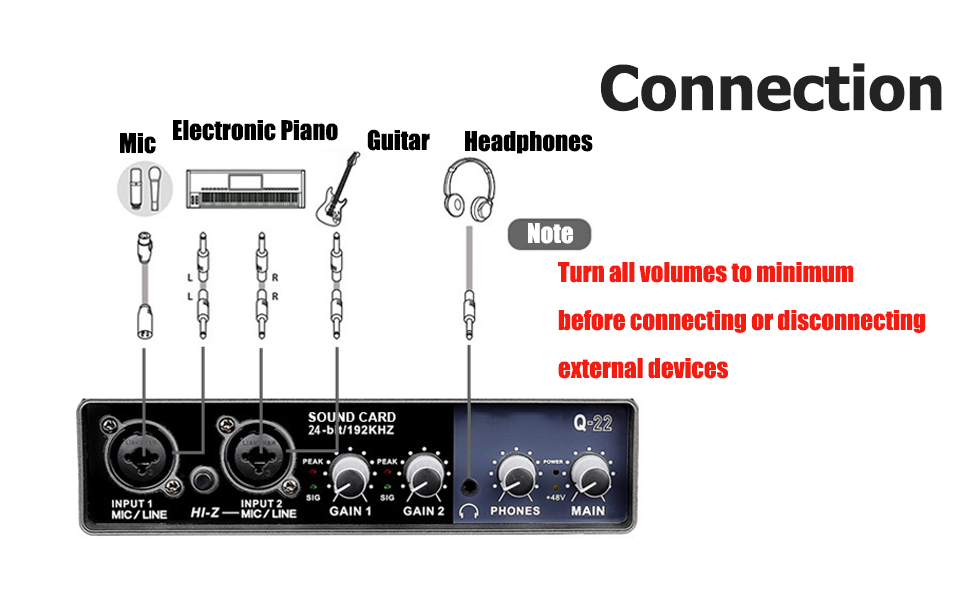
Image 3.1: Connection diagram for various audio devices to the Dpofirs Q-24 interface.
3.2 Driver Installation (If Required)
The Dpofirs USB Audio Interface is designed for plug-and-play operation on most modern operating systems. In rare cases, or for advanced features, you may need to install specific drivers. Please refer to the manufacturer's website for the latest driver downloads and installation instructions if your system does not automatically recognize the device or if you experience issues.
4. Operating Instructions
4.1 Input Gain Adjustment
Use the GAIN 1 and GAIN 2 knobs to adjust the input level for your microphones or instruments. The SIG (Signal) LED will illuminate when an audio signal is present, and the PEAK LED will light up if the signal is too high, indicating potential clipping. Adjust the gain to achieve a strong signal without peaking.
4.2 Monitoring
- Direct Monitoring: The interface provides ultra-low latency monitoring. Use the MIX-DAW knob to blend between the direct input signal (IN) and the playback from your Digital Audio Workstation (DAW).
- Headphone Output: Adjust the PHONES knob to control the volume of your headphones.
- Main Output: Adjust the OUTPUT knob to control the volume of your main speakers or monitors.
4.3 Loopback Function
The LOOP BACK button enables the internal recording and cover singing function. When activated, the audio input from streaming media can be mixed with your live input and sent back to your computer, facilitating live K-song or streaming with mixed audio.
4.4 Phantom Power (+48V)
If you are using condenser microphones, activate the 48V PWR switch to supply phantom power. Ensure your microphone requires phantom power before activating this feature.

Image 4.1: Applications of the Dpofirs Q-24 audio interface in different recording scenarios.
5. Maintenance
- Cleaning: Use a soft, dry cloth to clean the exterior of the device. Avoid using liquid cleaners or solvents, as they may damage the finish or internal components.
- Storage: Store the audio interface in a cool, dry place away from direct sunlight and extreme temperatures.
- Handling: Handle the device with care. Avoid dropping it or subjecting it to strong impacts.
- Cable Management: Ensure cables are not kinked or strained, which can lead to damage over time.
6. Troubleshooting
- No Sound/Input Not Detected:
- Verify all cables are securely connected.
- Ensure the audio interface is selected as the input/output device in your computer's sound settings and DAW.
- Check the GAIN knobs; increase them gradually.
- If using a condenser microphone, ensure +48V phantom power is activated.
- Restart your computer and the audio interface.
- Distorted Sound/Clipping:
- Reduce the GAIN knobs if the PEAK LED is frequently lighting up.
- Check the input level on your microphone or instrument.
- Ensure your DAW's input levels are not set too high.
- Latency Issues:
- Adjust the buffer size in your DAW's audio settings. A smaller buffer size reduces latency but requires more CPU power.
- Use the direct monitoring feature (MIX-DAW knob) to monitor your input signal directly from the interface.
- Inconsistent Dial Resistance/Physical Issues:
While the device is designed for reliable performance, minor variations in physical controls may occur. If you experience significant issues with dial functionality or other physical components, please contact customer support.
7. Specifications
| Feature | Specification |
|---|---|
| Model Number | Dpofirsi6h7k3ao9e8319 |
| Connectivity Technology | USB 2.0 |
| Sampling Rate | 24-bit, up to 192kHz (44.1kHz, 48kHz, 88.2kHz, 96kHz, 176.4kHz, 192kHz) |
| Number of Channels | 4 (2 input, 2 output) |
| Compatible Devices | Personal Computer (Windows, macOS), iOS devices (with 5V Micro USB power) |
| MIC INPUT 1 to 2 (Balanced) | Frequency Response: -1/-1dB, 20Hz to 20kHz; Dynamic Range: 82dB; THD+N: 0.03%, 1kHz; Max Input Level: +6dBu; Input Impedance: 4kΩ; Gain Range: +3dB to +60dB |
| HI-Z INPUT 2 (Unbalanced) | Max Input Level: +3.0dBV; Input Impedance: 1MΩ; Gain Range: 0dB to +40dB |
| LINE INPUT 1/2 (Balanced) | Max Input Level: +10dBu; Input Impedance: 18.5kΩ; Gain Range: -10dB to +40dB |
| MAIN OUTPUT (Impedance Balance) | Frequency Response: -1/-1dB, 20Hz to 20kHz; Dynamic Range: 82dB; THD+N: 0.03%, 1kHz; Max Output Level: +6dBu; Output Impedance: 100Ω |
| PHONES Output | Max Output Level: 15mW+15mW, 40Ω |
| XLR Input Polarity | 1 Ground, 2: Hot (+), 3: Cold (-) |
| Power Requirements | Greater than 5W |
| Item Weight | 1.85 pounds |
| Package Dimensions | 9.17 x 5.51 x 2.13 inches |
8. Warranty and Support
8.1 Warranty Information
Specific warranty details for the Dpofirs USB Audio Interface Q-24 are typically provided with the product packaging or can be found on the official Dpofirs website. Please retain your proof of purchase for warranty claims.
8.2 Customer Support
For technical assistance, troubleshooting, or further inquiries, please visit the official Dpofirs store or contact their customer support channels.
Brand: Dpofirs
Online Store: Dpofirs Store on Amazon