

Introduction
Welcome to your new Amazon Fire TV 55" 4-Series 4K UHD Smart TV. This manual provides essential information for setting up, operating, maintaining, and troubleshooting your television. Designed for an immersive viewing experience, your Fire TV integrates vivid 4K Ultra HD, HDR 10, and HLG for stunning picture quality, along with built-in Fire TV functionality for easy access to a vast library of content and Alexa voice control.
Key features include:
- Vivid 4K Ultra HD, HDR 10, HLG, and Dolby Digital Plus support for lifelike visuals.
- Integrated Fire TV experience for streaming over 1.5 million movies and TV episodes.
- Alexa Voice Remote for easy content search, control, and smart home integration.
- Multiple HDMI inputs (3 HDMI 2.0 + 1 HDMI 2.1 with eARC) for connecting external devices.

The Amazon Fire TV 4-Series delivers stunning 4K UHD resolution with HDR 10 for enhanced color and contrast.
What's Included
Please check the box contents against the list below to ensure all components are present:
- Fire TV 4-Series 55" Television
- Fire TV Alexa Voice Remote
- Power Cord
- 2 AAA Batteries (for remote)
- 4 Screws (for stand assembly)
- TV Stand (2 legs)
- Quick Start Guide (PDF / Accessible HTML)

All essential components for your Fire TV setup are included in the box.
Setup
1. Attaching the TV Stand
- Carefully place the TV screen-down on a soft, clean surface to prevent scratches.
- Align each TV leg with the corresponding screw holes on the bottom of the TV.
- Secure each leg with the provided screws.
2. Connecting External Devices
Your Fire TV is equipped with multiple ports for various connections:
- HDMI Ports: 3 HDMI 2.0 ports and 1 HDMI 2.1 port with eARC for high-definition video and audio devices like gaming consoles, Blu-ray players, or soundbars.
- Ethernet Port: For a wired internet connection.
- USB Port: For connecting USB devices.
- Digital Optical Audio Output: For connecting to external audio systems.
- Cable/Antenna Input: For connecting an antenna or cable TV.
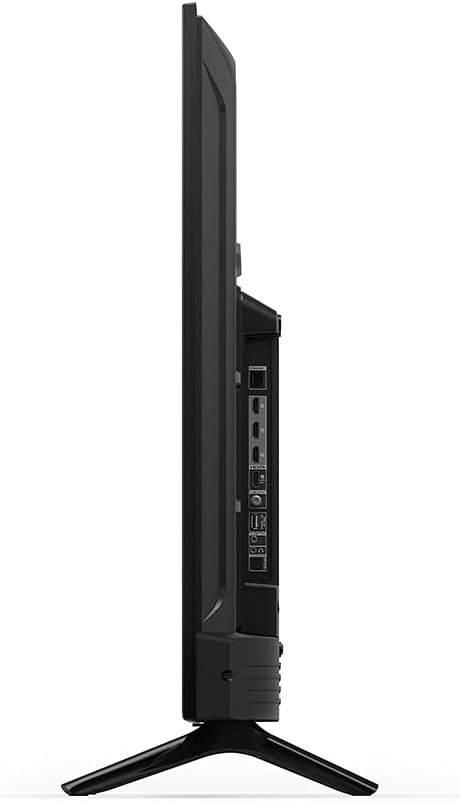
The side panel of the Fire TV provides easy access to all essential connection ports.

Detailed view of the Fire TV's connectivity options, including HDMI, USB, Ethernet, and audio outputs.
3. Initial Power On and Network Connection
- Plug the power cord into the TV and then into a wall outlet.
- Insert the included AAA batteries into the Fire TV Alexa Voice Remote.
- Follow the on-screen instructions to select your language, connect to your Wi-Fi network (or use an Ethernet cable), and sign in with your Amazon account.
4. Remote Pairing
The Fire TV Alexa Voice Remote should automatically pair with your TV during initial setup. If it does not, press and hold the Home button on the remote for 10 seconds until the LED indicator on the remote flashes blue, then release. The remote should then pair with your TV.
Operating Your Fire TV
Basic Navigation
Use the directional pad and select button on your Fire TV Alexa Voice Remote to navigate through menus, select apps, and control playback. The Home button returns you to the main Fire TV interface, while the Back button navigates to the previous screen.
Content Streaming
Your Fire TV provides access to a vast array of streaming services. Simply select an app from the home screen to begin watching. Subscription fees may apply for certain services.

Stream over 1.5 million movies and TV episodes from popular services directly on your Fire TV.
Alexa Voice Control
Press and hold the Alexa button on your remote, then speak your command. You can ask Alexa to find content, launch apps, control playback, check the weather, or get sports scores. For example, say "Find action movies" or "Open Netflix."
Input Switching
To switch between connected devices (e.g., a game console on HDMI 1, a cable box on HDMI 2), press the Input button on your remote and select the desired source from the on-screen menu.
Accessibility Features
Your Fire TV includes several accessibility features:
- VoiceView Screen Reader: Provides spoken feedback for navigation and on-screen elements for users who are blind or visually impaired.
- Screen Magnifier: Allows you to zoom in and out, and pan around the screen.
- Text Banner: Consolidates on-screen text into a compact, customizable banner.
- Closed Captioning: Display captions for videos and TV shows where available.
- Audio Description: Provides verbal descriptions of on-screen actions and scenes for compatible content.
- Bluetooth Hearing Aid Support: Supports audio streaming for select compatible Bluetooth hearing aids and devices for private listening.
Maintenance
Cleaning Your TV
To clean the screen, gently wipe it with a soft, lint-free cloth. For stubborn marks, slightly dampen the cloth with water or a screen-cleaning solution. Avoid using harsh chemicals or abrasive materials. For the TV frame and stand, use a dry, soft cloth.
Software Updates
Your Fire TV automatically receives software security updates to ensure optimal performance and security. These updates are guaranteed for at least four years after the device is last available for purchase as a new unit. Ensure your TV is connected to the internet to receive these updates.
Troubleshooting
If you encounter issues with your Fire TV, refer to the common solutions below:
- No Power: Ensure the power cord is securely plugged into both the TV and a working wall outlet. Try a different outlet.
- No Picture/Sound: Verify the correct input source is selected. Check all cable connections (HDMI, antenna). For external devices, ensure they are powered on.
- Remote Not Responding: Replace the AAA batteries in the remote. If the issue persists, try re-pairing the remote by holding the Home button for 10 seconds.
- Wi-Fi Connectivity Issues: Restart your Wi-Fi router and modem. On the TV, go to Settings > Network and try reconnecting to your Wi-Fi network. Ensure your Wi-Fi password is correct.
- Alexa Voice Commands Not Working: Ensure the remote batteries are fresh. Speak clearly and hold the Alexa button while speaking. Note that some specific commands, like "Turn on [TV Name]", may not be supported by all Alexa-enabled devices or may require specific linking in the Alexa app. Try general commands like "Turn on Fire TV."
- External Speaker Audio Dropouts: If using external speakers (e.g., Echo Studio) and experiencing occasional audio dropouts, pausing and resuming content, switching inputs, or asking a question to the speaker may help re-establish the connection.
- Picture Quality Issues: Ensure you are viewing 4K content for optimal resolution. Check your internet speed for streaming quality. Adjust picture settings in the TV menu.
- App Not Loading/Crashing: Try restarting the app. If the problem persists, clear the app's cache (Settings > Applications > Manage Installed Applications > [App Name] > Clear Cache) or uninstall and reinstall the app.
For persistent issues, consider performing a factory reset (Settings > My Fire TV > Reset to Factory Defaults). Note that this will erase all your settings and downloaded apps.
Specifications
| Feature | Specification |
|---|---|
| Resolution | 3840 x 2160 (4K UHD) |
| High Dynamic Range (HDR) | HDR 10, HLG |
| Refresh Rate | 60 Hz |
| Screen Size | 55 |
| Viewable Display Size | 54.6 |
| HDMI Ports | 3 HDMI 2.0 + 1 HDMI 2.1 with eARC |
| Ethernet | 1 Ethernet port |
| USB | 1 USB port |
| Audio Support | Dolby Digital Plus with passthrough of Dolby-encoded audio |
| Operating System | Fire TV OS |
| Product Size (without stand) | 48.7 x 28.3 x 3.5 |
| Weight (without stand) | 25 lb |
| VESA Wall Mount Standard | 300 mm x 300 mm |
| SKU Number | 4K55N400A |
Warranty and Support
Warranty
Your Amazon Fire TV 4-Series 55" comes with a 1-year limited warranty and service included. Optional 3-Year and 4-Year Extended Warranty plans are available for U.S. customers and can be purchased separately. Use of Fire TV is subject to the terms found on the Amazon website.
Support
For additional information, troubleshooting, or to explore more about your Fire TV 4-Series, you can refer to the online User Manual or the Quick Start Guide. The Quick Start Guide is available as a PDF or Accessible HTML.
You can also visit the Amazon support website or contact customer service for further assistance.


