
1. Introduction
The Calonny M3C PRO is a portable CAT4 4G LTE mobile Wi-Fi hotspot designed to provide high-speed internet access wherever you go. With its compact design, long-lasting battery, and support for multiple devices, it is an ideal solution for travel, remote work, or home use where a stable internet connection is needed.
This manual provides essential information on how to set up, operate, maintain, and troubleshoot your Calonny M3C PRO device. Please read these instructions carefully before using the device to ensure optimal performance and longevity.

Figure 1: Calonny M3C PRO Mobile Wi-Fi Hotspot providing instant access to mobile networks with a Nano SIM.
2. Product Overview
2.1 Key Features
- 4G LTE CAT4 Connectivity: Supports high-speed mobile internet with download speeds up to 150Mbps and upload speeds up to 50Mbps.
- Portable Wi-Fi Hotspot: Create your own Wi-Fi network to share with up to 8 devices simultaneously.
- Long-lasting Battery: Equipped with a 3000mAh Lithium-ion battery, providing extended usage time.
- Easy Setup: Plug and play functionality with Nano SIM card support.
- USB-C Port: Modern and convenient charging interface.
- Compact Design: Small and lightweight for easy portability.
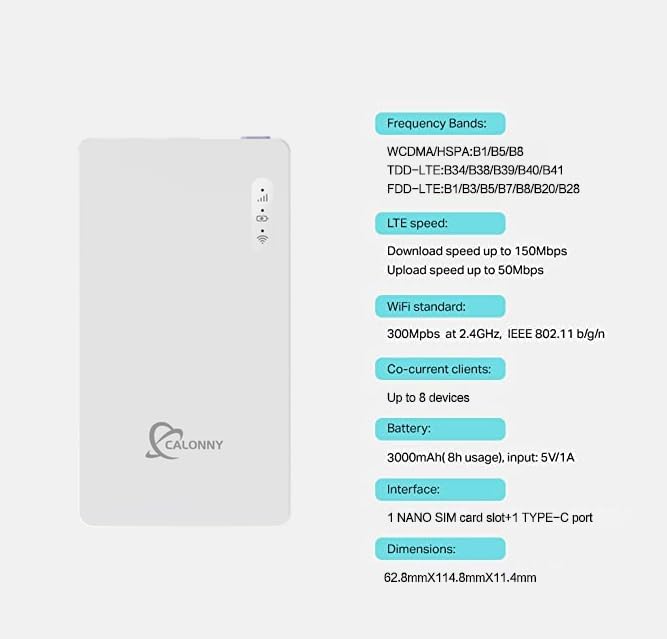
Figure 2: Front view of the Calonny M3C PRO device with its technical specifications.
2.2 Package Contents
The package typically includes:
- Calonny M3C PRO Mobile Wi-Fi Hotspot
- USB-C Charging Cable
- User Manual (this document)
2.3 Device Layout
The device features a minimalist design with essential indicators and ports:
- Power Button: Located on the side for turning the device on/off.
- LED Indicators: Signal strength, battery status, and Wi-Fi activity.
- Nano SIM Card Slot: For inserting your mobile data SIM card.
- USB-C Port: For charging the device.
3. Setup
3.1 Inserting the SIM Card
- Ensure the device is powered off.
- Locate the Nano SIM card slot on the device.
- Carefully insert your Nano SIM card into the slot with the gold contacts facing down and the notched corner aligned correctly. Push until it clicks into place.
3.2 Powering On/Off
- To Power On: Press and hold the Power button for approximately 3-5 seconds until the LED indicators light up.
- To Power Off: Press and hold the Power button for approximately 3-5 seconds until the LED indicators turn off.
3.3 Initial Wi-Fi Connection
- Power on the Calonny M3C PRO.
- On your computer, smartphone, or tablet, search for available Wi-Fi networks.
- Locate the Wi-Fi network name (SSID) and password printed on the back label of your Calonny M3C PRO device.
- Select the SSID and enter the password to connect.

Figure 3: Device back label indicating the default Wi-Fi network name and password.
3.4 APN Configuration (if required)
In some cases, you may need to manually configure the Access Point Name (APN) settings for your mobile network provider. This is typically done via the device's web management interface.
- Connect your device (computer, smartphone) to the Calonny M3C PRO's Wi-Fi network.
- Open a web browser and enter the IP address for the device's web interface (usually found on the back label, e.g., 192.168.0.1).
- Log in using the default username and password (also found on the back label, e.g., username: admin, password: admin).

Figure 4: Web management interface login page.
- Navigate to the 'Internet' or 'Network Settings' section.
- Find the 'APN Settings' option.
- Enter the APN details provided by your mobile network operator. This typically includes APN Name, Username, and Password.
- Save the settings and restart the device if prompted.

Figure 5: Example of APN settings configuration in the web interface.
4. Operating Instructions
4.1 Connecting Devices
The Calonny M3C PRO can connect up to 8 devices simultaneously via Wi-Fi. Simply search for the device's Wi-Fi network on your smartphone, tablet, laptop, or other Wi-Fi enabled device and enter the password.

Figure 6: The Calonny M3C PRO supports seamless connection for up to 8 devices.
4.2 Checking Status Indicators
The LED indicators on the device provide important status information:
- Signal Indicator: Shows the strength of the 4G LTE signal. More bars indicate a stronger signal.
- Battery Indicator: Displays the current battery level.
- Wi-Fi Indicator: Lights up when Wi-Fi is active and blinks when data is being transmitted.
4.3 Charging the Device
To charge the Calonny M3C PRO, connect the provided USB-C cable to the device's USB-C port and the other end to a USB power adapter (5V/1A recommended) or a computer's USB port. The battery indicator will show charging status.

Figure 7: The device features a large 3000mAh battery for extended usage.
5. Maintenance
5.1 Battery Care
- Avoid exposing the device to extreme temperatures (hot or cold) as this can degrade battery performance.
- Do not fully discharge the battery frequently. Charge it before it drops to very low levels.
- If storing the device for a long period, charge it to about 50% and store in a cool, dry place.
5.2 Cleaning
Use a soft, dry cloth to clean the exterior of the device. Do not use liquid cleaners or aerosols, as they may damage the device.
6. Troubleshooting
6.1 No Internet Connection
- Check SIM Card: Ensure the Nano SIM card is correctly inserted and active with a data plan.
- Check Signal: Verify the signal strength indicator on the device. If the signal is weak or absent, move to an area with better network coverage.
- APN Settings: Confirm that the APN settings are correctly configured for your mobile network provider (refer to Section 3.4).
- Restart Device: Power off and then power on the Calonny M3C PRO.
6.2 Slow Internet Speed
- Signal Strength: Ensure you have a strong 4G LTE signal.
- Number of Connected Devices: Too many devices connected simultaneously can reduce speed.
- Network Congestion: Internet speed can be affected by network traffic in your area.
- Data Plan Limits: Check if your data plan has speed restrictions after a certain usage threshold.

Figure 8: The device supports high-speed LTE connectivity up to 150Mbps.
6.3 Cannot Access Web Management Interface
- Wi-Fi Connection: Ensure your device is connected to the Calonny M3C PRO's Wi-Fi network.
- IP Address: Double-check the IP address entered in the browser (e.g., 192.168.0.1).
- Browser Cache: Clear your browser's cache and cookies, or try a different browser.
- Device Restart: Restart the Calonny M3C PRO.
7. Specifications
| Feature | Specification |
|---|---|
| Model Number | M3C |
| Brand | Calonny |
| Operating System | RouterOS |
| RAM Size | 8 GB |
| Connectivity Technology | Wi-Fi, USB, 4G LTE |
| Wireless Communication Standard | 802.11b, 802.11g, 802.11n |
| Frequency Band Class | Single-Band (2.4 GHz) |
| LTE Speed | Download up to 150Mbps, Upload up to 50Mbps |
| Battery Capacity | 3000mAh Lithium-ion |
| Interface | 1 Nano SIM card slot, 1 Type-C port |
| Compatible Devices | Portable devices, Routers |
| Color | White |
| Dimensions | 62.8mm x 114.8mm x 11.4mm (approximate, from image) |
8. Warranty and Support
8.1 Warranty Information
Specific warranty details are not provided in the product information. Please refer to your purchase documentation or contact the seller for warranty terms and conditions.
8.2 Customer Support
For technical assistance or customer service, you may contact Calonny support via email:
Email: calonnyservice@gmail.com

