
sovunis AC1200
sovunis AC1200 Dual Band WiFi Repeater User Manual
Model: AC1200
Introduction
This user manual provides comprehensive instructions for setting up, operating, and maintaining your sovunis AC1200 Dual Band WiFi Repeater. This device is designed to extend your existing WiFi coverage, eliminate dead zones, and provide a stable, high-speed internet connection for multiple devices.
What's in the Box
- AP/Repeater/Router x1
- 3.3 Feet Ethernet Cable x1
- User Manual x1
Product Overview
The sovunis AC1200 WiFi Repeater is a versatile device capable of operating in Repeater, AP, and Router modes. It features dual-band technology (2.4GHz and 5GHz) for high-speed data transfer and is equipped with adjustable external antennas for enhanced signal coverage.
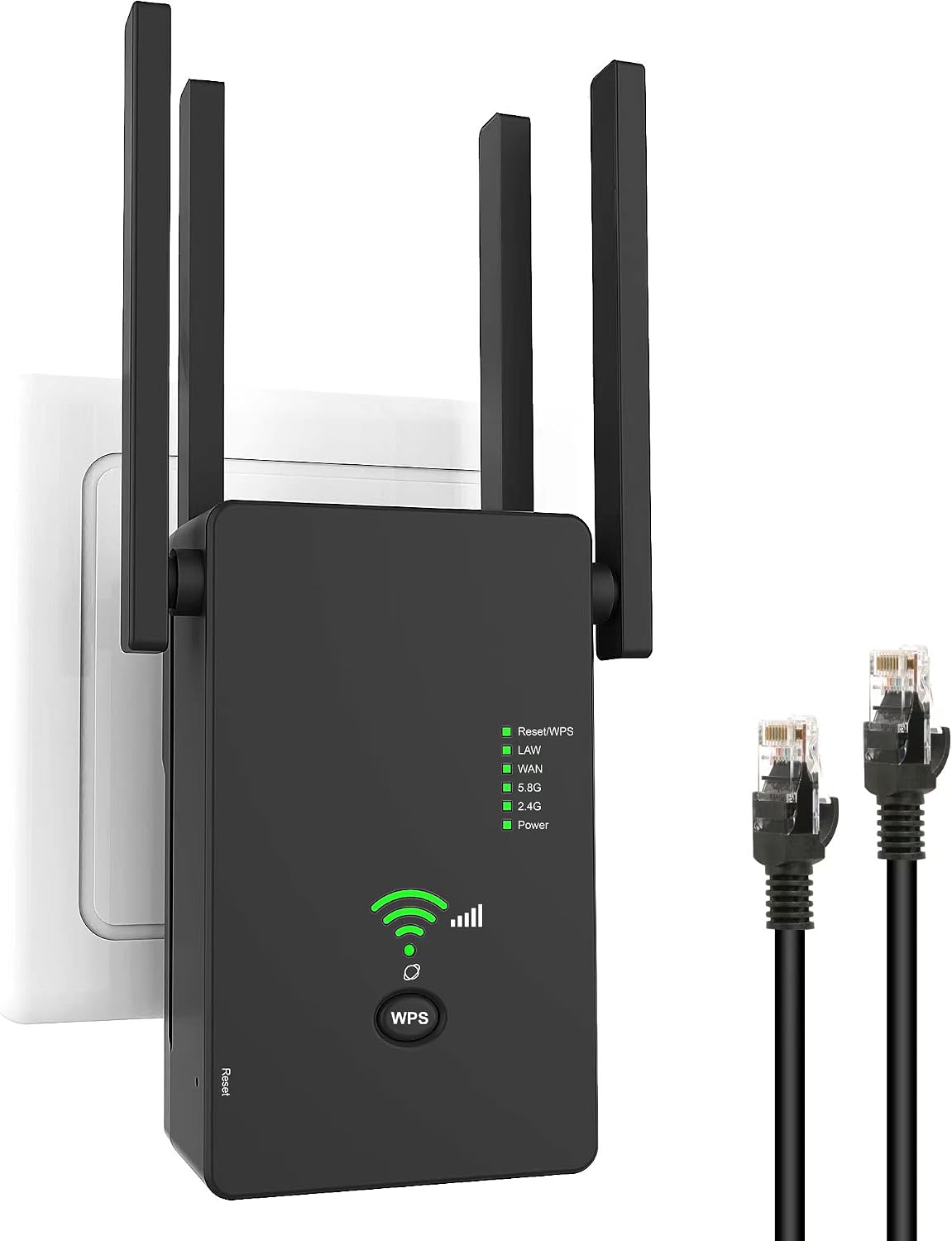
Figure 1: sovunis AC1200 WiFi Repeater and included Ethernet cable.
Key Features:
- 1200Mbps High-Speed Dual Band: Supports up to 867Mbps on 5GHz and 300Mbps on 2.4GHz, providing a total rate of approximately 1200Mbps for smooth HD video streaming and gaming.
- Multiple Operating Modes: Functions as a Repeater, Access Point (AP), or Router to suit various networking needs.
- Two Ethernet Ports: Allows wired connections for devices like smart TVs and desktop computers while extending WiFi coverage.
- Four Adjustable External Antennas: Enhances signal strength and coverage throughout your home.
- Smart Indicator Lights: Assists in finding the optimal placement for the extender.
- Compact Wall-Plug Design: Easy to install and integrate into any environment.

Figure 2: The repeater features four 3dBi omni-directional antennas for dual-band WiFi support (2.4G and 5.8G) and a total speed of 1200Mbps.

Figure 3: The repeater is equipped with two Ethernet ports, allowing direct wired connection to a router or other devices, functioning as a wireless access point.

Figure 4: The compact design of the WiFi Repeater, shown in comparison to an iPhone 11 for scale.
Setup Guide
Follow these steps to set up your sovunis AC1200 WiFi Repeater. For a visual guide, please refer to the setup video below.
Setup Video Tutorial:
Video 1: AC1200M Extended Mode Setup Video. This video demonstrates the step-by-step process for setting up the WiFi Repeater in extended mode using a mobile phone.
Step-by-Step Setup (Repeater Mode):
- Initial Placement: Plug the extender into a power outlet near your main router. Wait until the 5G and 2.4G LEDs turn solid green.
- Connect to Extender's Network: On your mobile phone or computer, go to WiFi settings. Find and connect to the default SSID (network name) printed on the label of the extender (e.g., "wireless_A6BP80"). This network will typically be open (no password).
- Access Setup Page: Once connected, your device may automatically prompt you to "Sign in to WLAN network" or open a browser. If not, open a web browser and type freefawifiextender.com into the address bar.
- Select Repeater Mode: On the setup page, select "Repeater Mode Settings" and click "NEXT". The extender will scan for available WiFi networks.
- Choose Host Network: From the list of available networks, select your host router's network name (SSID).
- Enter Password: Enter the password for your host network. You can choose to display 2.4G and 5G signals together or separately. You can also change the extended network names (SSID) if desired.
- Complete Setup: Click "NEXT" or "FINISH". The extender will apply the settings and restart. Note down your extended network information (SSID and password).
- Verify Connection: Once the extender restarts, the signal LED should turn steady green, indicating a successful connection to your host network.
Optimal Placement:
Relocate your extender to optimize WiFi coverage and performance. For best results, insert the repeater about halfway between your router and the WiFi dead zone. Place the repeater in an open, unobstructed area and keep it away from large appliances that may cause interference.
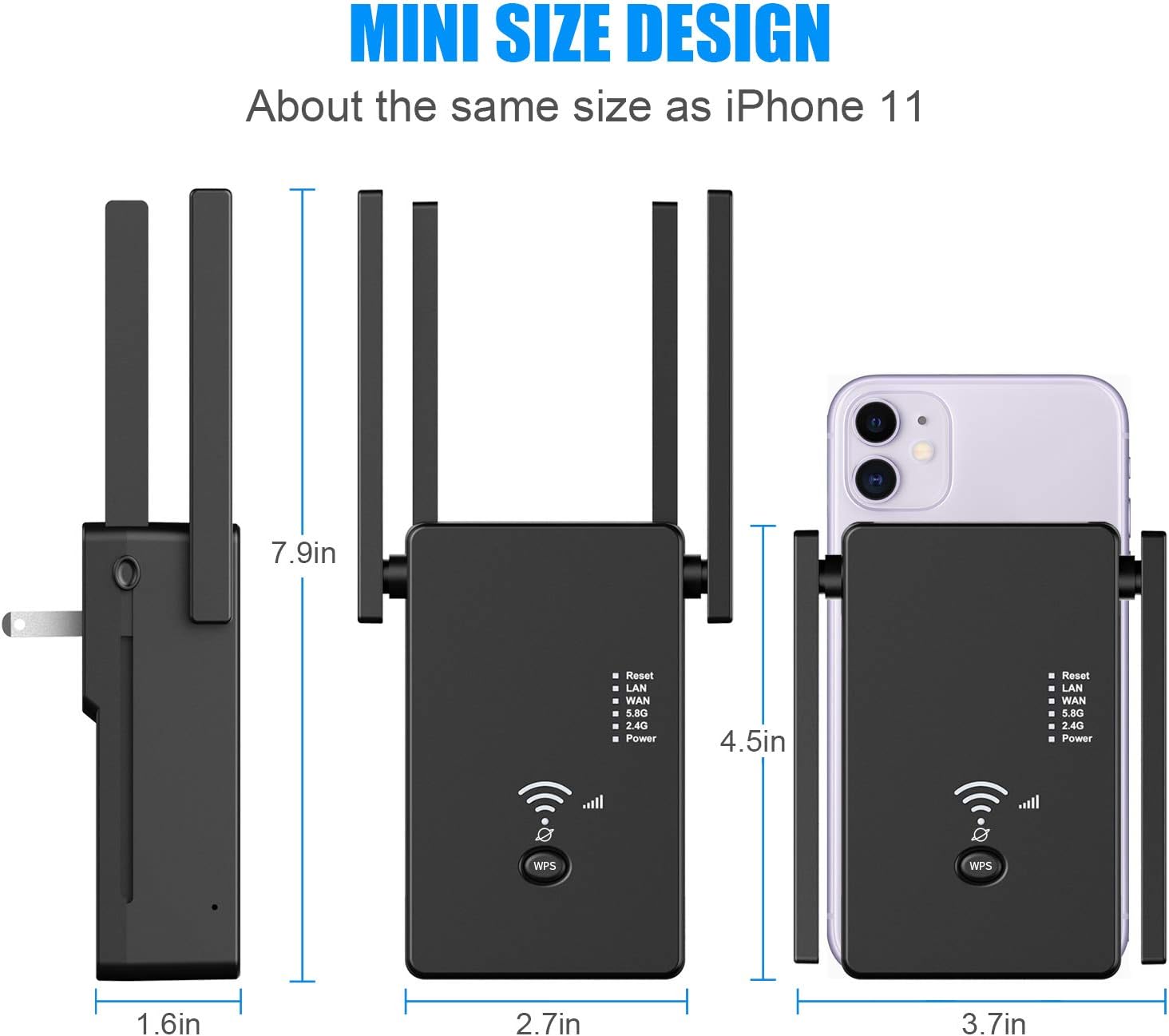
Figure 5: Illustration of optimal repeater placement. Placing the repeater too close to the router (left) or too far (right) results in suboptimal signal. The best placement is halfway between the router and the desired extended area, where the signal LED indicates a good connection.

Figure 6: The repeater boosts WiFi signal to previously unreached areas, extending coverage throughout your home.
Operating Modes
The sovunis AC1200 WiFi Repeater supports three main operating modes:
- Repeater Mode: Extends the WiFi coverage of an existing wireless network. This is the most common use case for eliminating WiFi dead zones.
- AP (Access Point) Mode: Converts a wired network connection into a wireless network. Ideal for areas with only wired internet access, allowing wireless devices to connect.
- Router Mode: Functions as a primary router, creating a new wireless network from a modem connection.
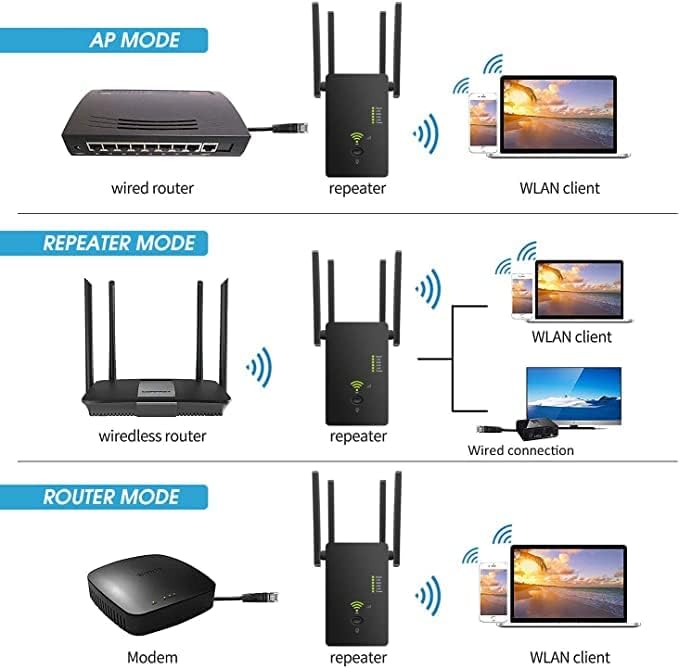
Figure 7: Visual representation of the three operating modes: AP Mode (wired router to repeater to WLAN client), Repeater Mode (wireless router to repeater to WLAN client/wired connection), and Router Mode (modem to repeater to WLAN client).
Maintenance
- Keep the device in a dry, well-ventilated area.
- Avoid exposing the device to extreme temperatures or direct sunlight.
- Clean the device with a soft, dry cloth. Do not use liquid cleaners or aerosols.
- Ensure the device is unplugged before cleaning.
Troubleshooting
| Problem | Solution |
|---|---|
| Cannot access the setup page (freefawifiextender.com). | Ensure your device is connected to the extender's default WiFi network (e.g., "wireless_A6BP80"). Try clearing your browser's cache or using a different browser. If issues persist, try resetting the extender to factory settings. |
| Extender is connected but no internet access. | Verify that your main router has internet access. Re-check the password entered for your host network during setup. Ensure the extender is placed within a reasonable range of your main router where it receives a good signal (check signal LEDs). |
| Extended WiFi signal is weak or unstable. | Relocate the extender to an optimal position, ideally halfway between your router and the dead zone. Avoid placing it near large metal objects, microwaves, or other sources of interference. Adjust the external antennas for better reception. |
| Forgot extended network password or need to reconfigure. | Use a paperclip or pin to press and hold the "Reset" button on the extender for about 8-10 seconds until the lights flash. This will restore factory settings, and you can then re-perform the setup process. |
Specifications
| Feature | Detail |
|---|---|
| Brand | sovunis |
| Wireless Communication Standard | 802.11ac |
| Data Transfer Rate | 1200 Megabits Per Second (Mbps) |
| Frequency Band Class | Dual-Band (2.4GHz & 5GHz) |
| Special Feature | Dual-band technology, Repeater/AP/Router modes, 2 Ethernet Ports, Adjustable External Antennas |
| Package Dimensions | 5.39 x 4.49 x 2.56 inches |
| Item Weight | 7.8 ounces |
| Manufacturer | sovunis |
| Country of Origin | China |
Warranty and Support
Every genuine sovunis WiFi extender comes with a 1-year manufacturer warranty. Additionally, lifetime friendly customer service is provided by sovunis. If you encounter any issues during or after setup, please do not hesitate to contact sovunis customer support for assistance.
Related Documents - AC1200
 |
BrosTrend E1/AC7 AC1200 Wi-Fi Extender Quick Installation Guide This guide provides step-by-step instructions for setting up the BrosTrend E1/AC7 AC1200 Dual Band Wi-Fi Extender and Ethernet to Wi-Fi Adapter. It covers installation via web interface and WPS, LED descriptions, and answers frequently asked questions. |
 |
BrosTrend Dual Band WiFi Extender E1 Quick Installation Guide A quick installation guide for the BrosTrend Dual Band WiFi Extender, Model E1, providing step-by-step instructions for setup via Web UI and WPS button, along with LED descriptions. |
 |
Fenvi 1200Mbps WiFi Range Extender Setup Guide Step-by-step instructions to set up your Fenvi 1200Mbps WiFi Range Extender, including connecting to your existing network and configuring new wireless settings for improved home Wi-Fi coverage. |
 |
Tenda A18/A15 Dual Band WiFi Repeater Quick Installation Guide Learn how to set up and extend your WiFi network with the Tenda A18 and A15 Dual Band WiFi Repeaters using this quick installation guide. Covers setup via Web UI and WPS, LED descriptions, button functions, and troubleshooting. |
 |
Zaclan AC1200 Dual Band Wireless Repeater User Manual & Setup Guide This user manual provides comprehensive instructions for setting up and operating the Zaclan AC1200 Dual Band Wireless Repeater. It covers product parameters, configuration steps for Repeater and AP modes, frequently asked questions, and warranty terms. |
 |
WONLINK WiFi Extender AC1200 User Manual and Setup Guide Comprehensive guide for setting up and using the WONLINK WiFi Extender AC1200, including features, modes, and troubleshooting. |
Ask a question about this manual
Ask about setup, troubleshooting, compatibility, parts, safety, or missing instructions. Manuals+ will review the question and use this page’s manual context to help answer it.