
1. Introduction
This manual provides essential information for the proper installation, operation, and maintenance of your COMTEC ZDR017 Dual Camera Drive Recorder. Please read this manual thoroughly before using the device to ensure safe and effective operation. Keep this manual for future reference.
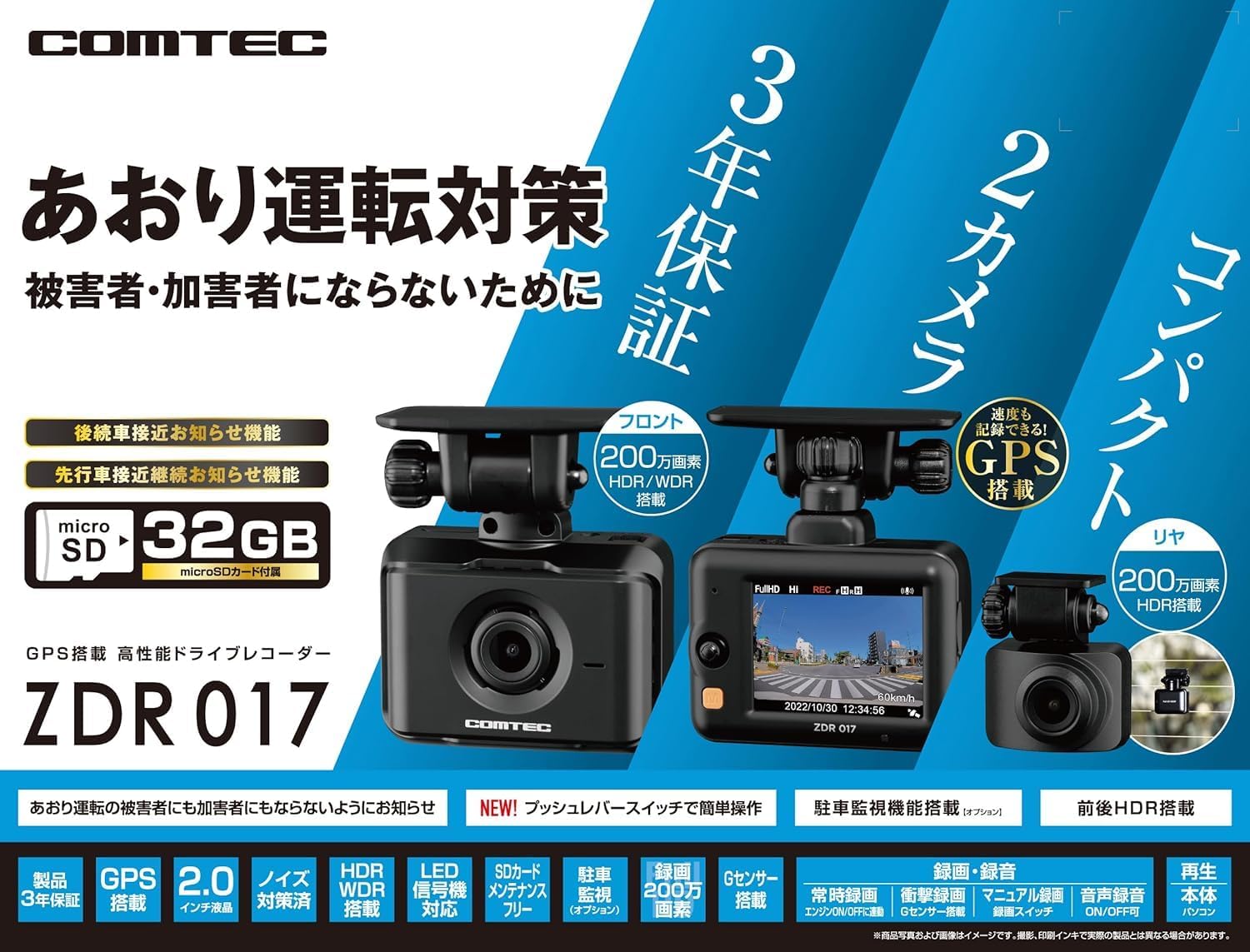
Image 1.1: The COMTEC ZDR017 Dual Camera Drive Recorder, showing both front and rear camera units.
The ZDR017 is the successor model to COMTEC's popular ZDR016 entry-level dual-camera drive recorder, offering enhanced features for vehicle recording.
2. Package Contents
Verify that all items are present in the package:
- Main Drive Recorder Unit (Front Camera)
- Rear Camera Unit
- Vehicle Power Cable (Cigar Socket Type)
- Rear Camera Connection Cable
- Mounting Bracket (for front camera)
- Mounting Bracket (for rear camera)
- 32GB microSD Card
- Instruction Manual (this document)
3. Setup and Installation
3.1. microSD Card Insertion
Before installation, insert the provided 32GB microSD card into the main unit's card slot. Ensure the card is inserted correctly until it clicks into place.
3.2. Front Camera Installation
- Choose a location on the front windshield that does not obstruct the driver's view and is within the wiper's sweep area.
- Clean the chosen area thoroughly with a degreaser or alcohol wipe.
- Attach the mounting bracket to the front camera unit.
- Peel off the protective film from the adhesive pad on the mounting bracket and firmly press the unit onto the windshield. Hold for at least 30 seconds.
- Adjust the camera angle to ensure a clear view of the road ahead.
3.3. Rear Camera Installation
- Select a position on the rear windshield that provides an unobstructed view and is within the wiper's sweep area.
- Clean the area.
- Attach the rear camera mounting bracket and firmly press it onto the windshield.
- Connect the rear camera to the main unit using the provided rear camera connection cable. Route the cable neatly along the vehicle's interior trim.

Image 3.1: Illustration of the 140-degree diagonal view angle for both front and rear cameras.
3.4. Power Connection
- Connect the vehicle power cable to the main drive recorder unit.
- Insert the other end of the power cable into your vehicle's cigar lighter socket.
- Route the power cable to avoid interference with driving controls and to prevent it from being caught or damaged.
4. Operating Instructions
4.1. Automatic Recording
The drive recorder automatically starts recording when the vehicle's engine is turned on and stops when the engine is turned off. Recordings are saved to the microSD card in continuous loops.
4.2. Event Recording (G-Sensor)
In the event of a sudden impact or acceleration/deceleration detected by the built-in G-sensor, the device automatically saves the current recording segment to a protected folder on the microSD card, preventing it from being overwritten.
4.3. HDR/WDR Function
The HDR (High Dynamic Range) and WDR (Wide Dynamic Range) functions correct images to ensure clear recording even in challenging lighting conditions, such as at night, against strong backlight, or in tunnels. This helps prevent overexposure and underexposure.

Image 4.1: Comparison of video quality with and without HDR function, demonstrating improved clarity in low-light conditions.
4.4. Rear Vehicle Proximity Alert
This function detects vehicles approaching from the rear and alerts the driver via a buzzer or voice notification. This helps prevent unintentional tailgating from vehicles behind you. Depending on settings, this event can also be recorded as proximity data.

Image 4.2: Illustration of the rear vehicle proximity alert system, showing detection and notification.
4.5. Parking Surveillance Function
When the engine is off, the parking surveillance function can record for up to 24 hours. It detects impacts and motion, recording before and after the event. This feature helps monitor your vehicle while parked.
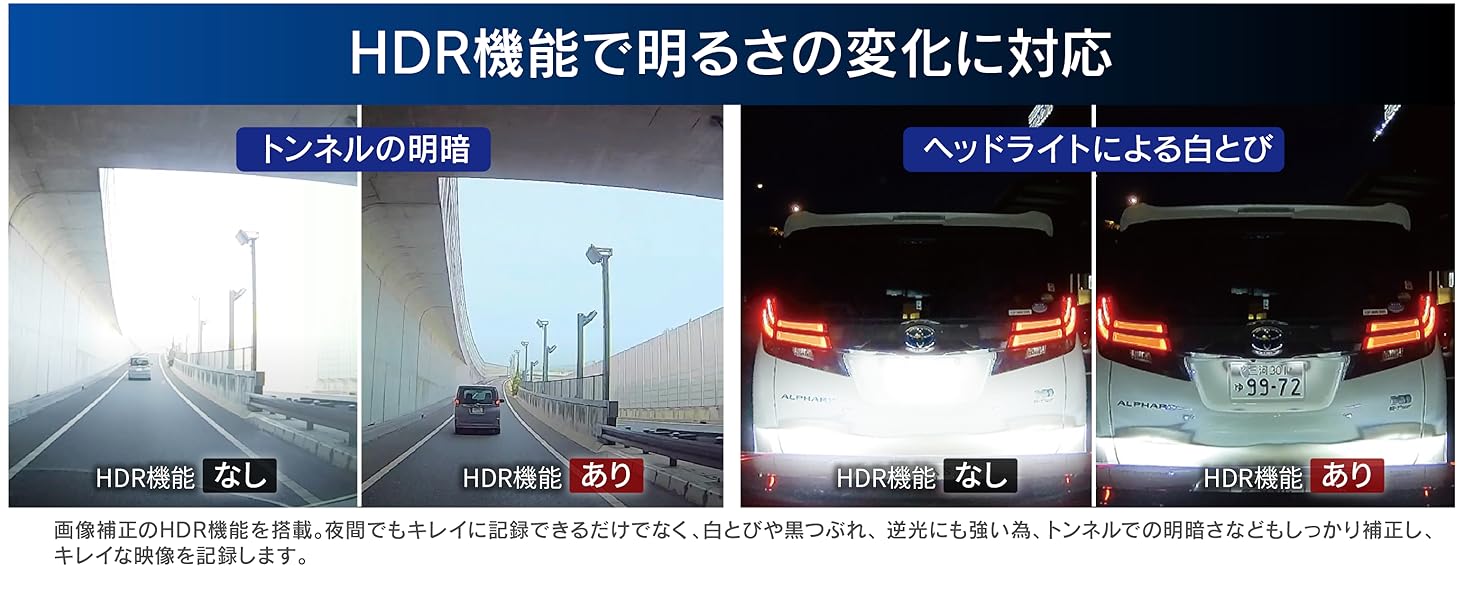
Image 4.3: Diagram illustrating the parking surveillance features, including 24-hour recording, impact quick recording, and time-lapse recording.
4.6. GPS Functionality
The built-in GPS module records location and speed data, which can be viewed during playback using dedicated software.
5. Maintenance
5.1. microSD Card Management
Regularly format the microSD card (at least once a month) using the device's menu to maintain optimal recording performance and prevent data corruption. Replace the microSD card if recording errors occur frequently.
5.2. Cleaning the Device
Wipe the camera lenses and device body with a soft, dry cloth. Do not use abrasive cleaners or solvents, as they may damage the device.
6. Troubleshooting
| Problem | Possible Cause | Solution |
|---|---|---|
| Device does not power on. | Power cable not connected properly or vehicle power issue. | Check power cable connection. Ensure vehicle's cigar lighter socket is functioning. |
| Recording stops unexpectedly. | microSD card error or full. | Format the microSD card. If the issue persists, replace the card. |
| Poor video quality. | Dirty lens or incorrect settings. | Clean camera lenses. Check video resolution settings in the menu. |
| GPS not acquiring signal. | Obstructed view of the sky or device interference. | Ensure the device has a clear view of the sky. Move away from other electronic devices that may cause interference. |
7. Specifications
| Feature | Specification |
|---|---|
| Model Name | ZDR017 |
| Image Sensor | 1/2.7-inch CMOS sensor (Front & Rear) |
| Effective Pixels | Max 2 million pixels (Front & Rear) |
| Lens Angle of View (Diagonal) | 140° (Front & Rear) |
| F-value | 2.0 (Front & Rear) |
| Video Capture Resolution | 1080p Full HD |
| GPS | Built-in |
| Included microSD Card | 32GB |
| Special Features | HDR/WDR, G-Sensor, Rear Vehicle Proximity Alert, Parking Surveillance |
| Connectivity Technology | Wired |
| Mounting Type | Adhesive |
| Product Dimensions (D x W x H) | 30 x 67 x 49 mm (Main Unit) |
| Item Weight | 600 g |
| Color | Black |
8. Warranty Information
The COMTEC ZDR017 Drive Recorder comes with a 3-year manufacturer's warranty. This warranty covers defects in materials and workmanship under normal use. Please retain your proof of purchase for warranty claims. The warranty does not cover damage caused by misuse, accidents, unauthorized modifications, or normal wear and tear.

Image 8.1: Visual confirmation of the 3-year product warranty.
9. Support
For further assistance, technical support, or detailed product information, please visit the official COMTEC website or contact their customer service department. Refer to the packaging or the official website for the most current contact information.
Official COMTEC Website: www.comtec.co.jp