
1. Product Overview
The Nutale AirPro Key Finder Tag (Model F11XD) is a Bluetooth-enabled item locator designed to help you find misplaced items such as keys, wallets, backpacks, and tablets. It integrates seamlessly with the Apple Find My app, leveraging the global Find My network for location tracking. This device is compatible exclusively with iOS devices.

Figure 1: Nutale AirPro Key Finder Tag features and Find My App integration.
2. Setup Instructions
2.1. Important iOS System Requirement
To ensure proper functionality and binding of the Nutale AirPro Key Finder Tag, your iOS device must be running iOS 18.0.1 or later. Please update your device's operating system if necessary before proceeding with the setup.

Figure 2: iOS system version requirement for tag binding.
2.2. Powering On the Device
- Locate the button on your Nutale AirPro Key Finder Tag.
- Press and hold the button for approximately 5 seconds.
- The device will emit a beep sound and a light will flash, indicating it has powered on and is ready for pairing.
2.3. Pairing with the Apple Find My App
Follow these steps to pair your Nutale AirPro Key Finder Tag with your iOS device using the Find My app:
- Open the Find My app on your iPhone or iPad.
- Navigate to the Items tab.
- Tap the + icon (Add Item).
- Select Other Supported Item from the options.
- The app will search for nearby devices. Once your Nutale AirPro Tag is detected (e.g., "NUTALE-F11X"), tap Connect.
- Follow the on-screen prompts to Name your item and choose an emoji to represent it.
- Agree to link the device to your Apple ID.
- Tap Finish to complete the pairing process.
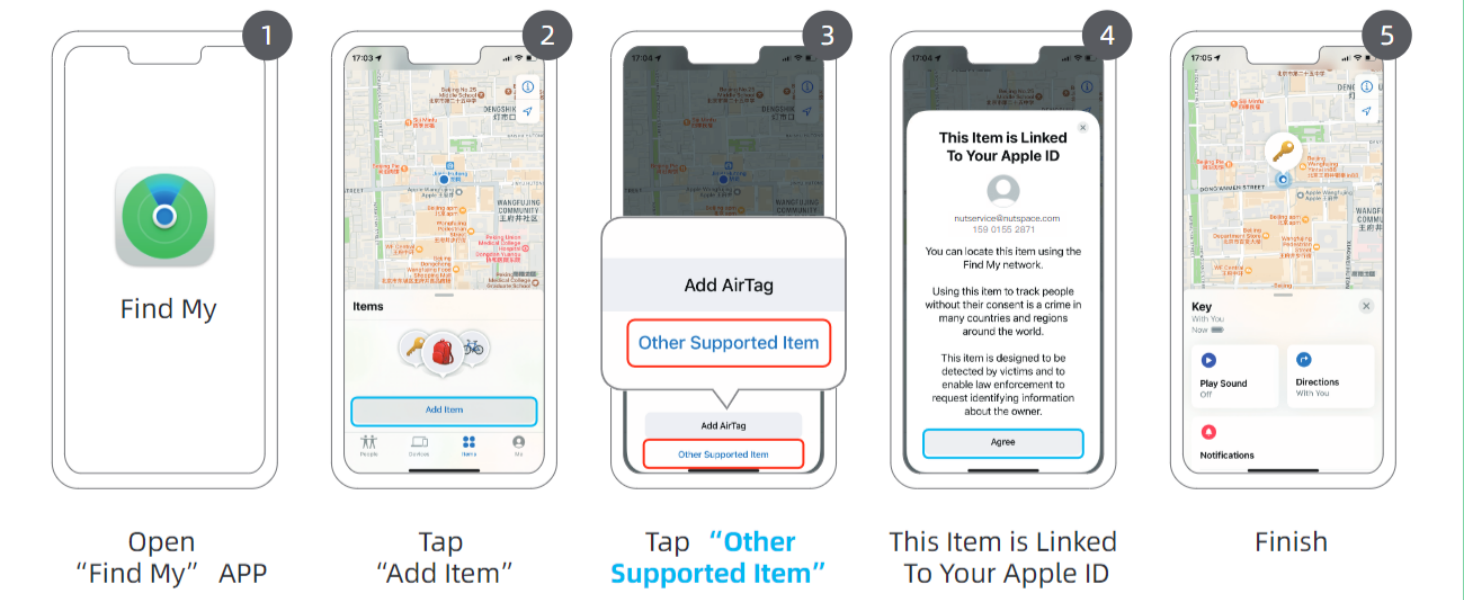
Figure 3: Visual guide for connecting your Nutale AirPro Tag to the Find My app.
3. Operating Instructions
3.1. Locating Your Item
The Nutale AirPro Key Finder Tag utilizes the Apple Find My network to help you locate your items. This network consists of millions of Apple devices worldwide that can anonymously detect your tag and report its location to you.
- Long-Distance Locating: If your item is far away, the Find My app will display its last known location on a map, updated by the Find My network. You will receive notifications if your item is detected by other Apple devices.
- Nearby Locating (Play Sound): When your item is within Bluetooth range (approximately 20 to 50 meters), you can use the Find My app to play a sound on your Nutale AirPro Tag to pinpoint its exact location.

Figure 4: Global positioning and sound features via Find My App and Siri.
3.2. Using Siri
You can also ask Siri to help you find your item. Simply say, "Hey Siri, find my [item name]" (e.g., "Hey Siri, find my keys"), and your Nutale AirPro Tag will play a sound.
3.3. Left Behind Notifications
The Find My app can alert you if you leave your Nutale AirPro Tag behind at an unfamiliar location. You can customize these notifications within the app settings.
3.4. Lost Mode
If your item is lost, you can enable Lost Mode in the Find My app. This allows you to display a message and contact information to anyone who finds your tag. When someone finds your tag and scans it with an NFC-enabled smartphone, they will see your message and contact details.
Video 1: Official demonstration of Nutale AirPro Key Finder Tag setup and functionality with iOS Find My App.
4. Maintenance
4.1. Battery Information
- The Nutale AirPro Key Finder Tag uses a CR2032 coin cell battery.
- The battery life is approximately 10 months under normal usage conditions.
- The product package includes 4 CR2032 batteries (one pre-installed, three spares).
4.2. Battery Replacement
To replace the battery:
- Locate the battery compartment on the back of the tag.
- Gently pry open the battery cover.
- Remove the old CR2032 battery.
- Insert a new CR2032 battery with the positive (+) side facing up.
- Securely close the battery cover.

Figure 5: Independent battery compartment for easy replacement.
5. Troubleshooting
- Device not pairing: Ensure your iOS device is updated to iOS 18.0.1 or later. Make sure Bluetooth is enabled on your device. Press and hold the tag's button for 5 seconds until it beeps to ensure it's in pairing mode.
- No sound from tag: Check if the tag's battery needs replacement. Ensure the tag is within Bluetooth range of your iOS device.
- Inaccurate location: Location accuracy depends on the density of Apple devices in the Find My network. In areas with fewer Apple devices, location updates may be less frequent or precise.
- Button unresponsive: Apply firm pressure to the button. If the issue persists, try replacing the battery.
6. Specifications
| Feature | Detail |
|---|---|
| Model Number | F11XD |
| Dimensions | 1.67"L x 1.67"W x 0.31"Th (4.24 cm x 4.24 cm x 0.79 cm) |
| Item Weight | 3.2 ounces (90.7 grams) |
| Material | Acrylonitrile Butadiene Styrene (ABS), Plastic |
| Battery Type | CR2032 (included) |
| Number of Batteries | 4 (1 pre-installed, 3 spares) |
| Battery Life | Approximately 10 months |
| Compatibility | iOS devices only (iPhone, iPad) with Find My app |
7. Warranty & Support
7.1. Product Warranty
The Nutale AirPro Key Finder Tag comes with a 1-year warranty from the date of purchase. This warranty covers manufacturing defects and malfunctions under normal use. Please retain your proof of purchase for warranty claims.
7.2. Technical Support
Nutale offers lifetime technical support for the AirPro Key Finder Tag. If you encounter any issues or have questions regarding the product, please contact our customer care team. Contact information can typically be found on the product packaging or the official Nutale website.

