
1. Introduction
This manual provides detailed instructions for the installation, operation, and maintenance of your CEYOMUR Smart Video Doorbell Camera R10. Please read this manual thoroughly before using the product to ensure proper function and safety. The CEYOMUR R10 is a wireless, battery-powered video doorbell designed to enhance your home security with 1080P HD video, two-way audio, and motion detection capabilities.

Image: The CEYOMUR Smart Video Doorbell Camera R10, its wireless chime, and a smartphone displaying the live view.
2. Package Contents
Verify that all items are present in your package:
- CEYOMUR Smart Video Doorbell Camera R10
- Wireless Indoor Chime
- Mounting Bracket
- Mounting Screws and Wall Anchors
- USB Charging Cable
- 16GB SD Card (pre-installed or included separately)
- User Manual
3. Product Overview
Familiarize yourself with the components of your video doorbell.
3.1 Doorbell Camera
- Camera Lens: Captures 1080P HD video with a 140° viewing angle.
- PIR Motion Sensor: Detects movement in the surveillance area.
- Microphone: For two-way audio communication.
- Speaker: For two-way audio communication and alerts.
- Doorbell Button: Activates the doorbell and sends notifications.
- Status Indicator Light: Displays device status (e.g., charging, connected, motion detected).
- Reset Button: Used for factory reset or pairing.
- USB Charging Port: For recharging the internal battery.
3.2 Wireless Chime
- Speaker: Emits doorbell sound.
- Volume Button: Adjusts chime volume (3 levels).
- Ring Tone Button: Selects from 4 available ringtones.
- Status Indicator Light: Shows chime status.

Image: The wireless indoor chime plugged into a wall outlet.
4. Setup
Follow these steps to set up your CEYOMUR Smart Video Doorbell Camera R10.
4.1 Charge the Doorbell
Before initial use, fully charge the doorbell camera using the provided USB cable. Connect the cable to the doorbell's charging port and a standard USB power adapter (not included). The status indicator light will show charging progress and turn solid when fully charged.
4.2 Download and Install the App
Search for the designated app (refer to the packaging or quick start guide for the exact app name) in your smartphone's app store (App Store for iOS or Google Play Store for Android) and install it.
4.3 Connect to Wi-Fi
- Open the app and create an account or log in.
- Follow the in-app instructions to add a new device.
- Power on the doorbell camera. The status indicator light will flash, indicating it's ready for pairing.
- Select your 2.4GHz Wi-Fi network and enter the password. (5GHz Wi-Fi is not supported).
- The app will generate a QR code. Position your doorbell camera to scan this QR code from your phone screen.
- Once scanned, the doorbell will confirm successful connection.

Image: Visual representation of the three-step installation process: App connection, mounting bracket installation, and doorbell attachment.
4.4 Mount the Doorbell
- Choose an ideal location for your doorbell, typically at eye level near your front door.
- Attach the mounting bracket to the wall using the provided screws and wall anchors.
- Slide the doorbell camera onto the mounting bracket until it clicks securely into place.

Image: A hand demonstrating how to attach the CEYOMUR video doorbell to its mounting bracket.
4.5 Pair the Wireless Chime
- Plug the wireless chime into a power outlet indoors.
- Press the pairing button on the chime (refer to chime's specific instructions if available).
- Press the doorbell button on the camera. The chime should ring, indicating successful pairing.
- Adjust the volume and select your preferred ringtone using the buttons on the chime.
5. Operating Instructions
Learn how to use the various features of your CEYOMUR Smart Video Doorbell Camera.
5.1 Live View
Open the app to access the live video feed from your doorbell camera at any time. This allows you to monitor your front door in real-time.

Image: A smartphone showing a live video feed from the doorbell camera, allowing users to see visitors.
5.2 Two-Way Audio
When a visitor presses the doorbell or motion is detected, you will receive a notification on your smartphone. Tap the notification to enter the live view and use the microphone icon in the app to speak to the visitor. They will hear you through the doorbell's speaker, and you will hear them through your phone.

Image: A person interacting with a visitor at the door using the two-way audio feature on the doorbell app.
5.3 Motion Detection
The built-in PIR sensor detects movement and sends instant alerts to your smartphone. You can adjust the motion detection sensitivity and set detection zones within the app to minimize false alarms.
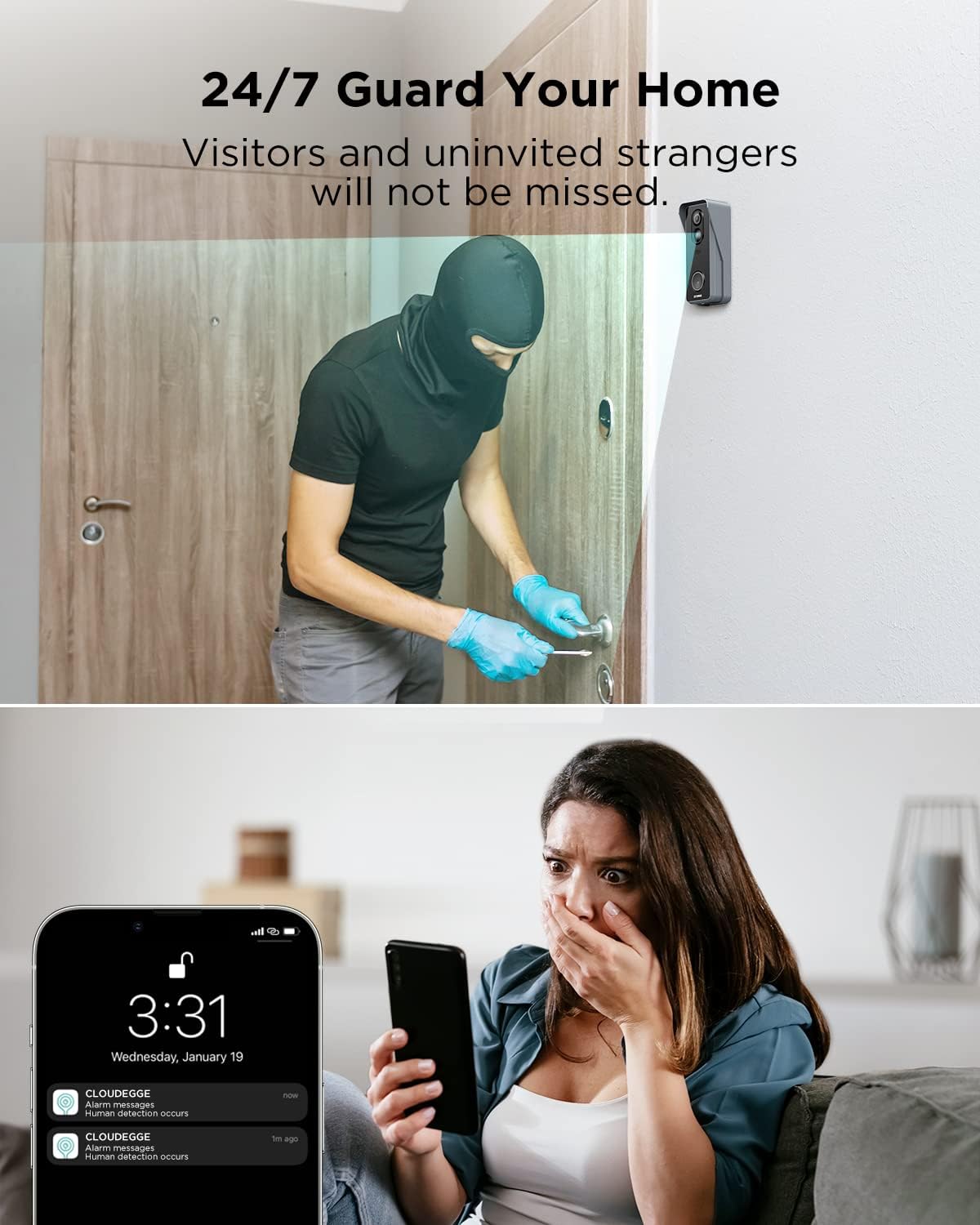
Image: The CEYOMUR doorbell detecting a person at the door, with a smartphone showing a motion alert notification.
5.4 Night Vision
The doorbell camera automatically switches to night vision mode in low-light conditions, providing clear black-and-white video footage up to a certain distance.

Image: A split image showing the clear 1080p video quality during the day and the effective night vision at night.
5.5 Video Recording and Playback
The doorbell records video clips when motion is detected or the doorbell button is pressed. These recordings are stored on the included 16GB SD card or can be optionally uploaded to cloud storage (subscription may be required). You can review recorded events through the app's history playback feature.

Image: A smartphone displaying the CEYOMUR app interface, showing options for live view, history playback, motion detection, and device sharing.
5.6 Multi-User Sharing
You can share access to your doorbell camera with family members or trusted individuals through the app. This allows multiple users to receive notifications, view live footage, and communicate with visitors.
6. Maintenance
6.1 Battery Charging
The CEYOMUR R10 is powered by a rechargeable battery. When the battery level is low, you will receive a notification via the app. Remove the doorbell from its mounting bracket and recharge it using the provided USB cable. Battery life varies depending on usage and environmental factors.
6.2 Cleaning
Periodically clean the camera lens and the doorbell's exterior with a soft, damp cloth to ensure optimal video quality and sensor performance. Avoid using harsh chemicals or abrasive materials.
7. Troubleshooting
- Doorbell not connecting to Wi-Fi: Ensure your Wi-Fi network is 2.4GHz. Check Wi-Fi signal strength at the installation location. Restart your router and the doorbell camera, then attempt pairing again.
- Poor video quality: Ensure the camera lens is clean. Check your Wi-Fi connection speed.
- Delayed notifications: This can be caused by weak Wi-Fi signal or network congestion. Ensure your phone's app notifications are enabled.
- Short battery life: Frequent motion detection events, live view access, and cold weather can reduce battery life. Adjust motion detection sensitivity and frequency in the app settings.
- Motion detection too sensitive/not sensitive enough: Adjust the PIR sensitivity settings in the app. Define specific motion detection zones if available.
- Chime not ringing: Ensure the chime is plugged in and powered on. Re-pair the chime with the doorbell if necessary.
8. Specifications
| Model | R10 |
| Video Resolution | 1080p |
| Viewing Angle | 140 Degrees |
| Connectivity | Wi-Fi (2.4GHz only) |
| Power Source | Battery Powered (1 A battery included) |
| Weather Resistance | IP65 |
| Motion Detection | PIR Sensor |
| Audio | 2-Way Audio |
| Storage | 16GB SD Card Included, Cloud Storage Option |
| Dimensions (L x W x H) | 2.17 x 1.57 x 5.28 inches |
| Item Weight | 15.5 ounces |
9. Warranty and Support
For warranty information or technical support, please refer to the contact details provided on the product packaging or visit the official CEYOMUR website. Keep your purchase receipt as proof of purchase for warranty claims.