1. Introduction
Thank you for choosing the Petory Automatic Wi-Fi Pet Feeder. This device is designed to provide scheduled and controlled feeding for your cats and dogs, ensuring they receive their meals consistently. This manual provides detailed instructions for setting up, operating, and maintaining your feeder.
Brand: Petory
Model: F01W
2. Product Overview
The Petory Automatic Wi-Fi Pet Feeder is a 4-liter dry food dispenser featuring smart controls via a mobile application. Key features include:
- App-Controlled Programming: Connects to 2.4GHz Wi-Fi via Bluetooth for flexible feeding schedules.
- Customizable Meals: Up to 10 meals daily with 1-50 portions per meal (approximately 1/10 cup per portion).
- Timely Notifications: Receive alerts for low food levels, food blockages, or Wi-Fi interruptions.
- Dual Power Supply: Operates with external power and includes a backup battery option to ensure continuous feeding during power outages.
- Large Capacity: Stores up to 16.9 cups of dry food (kibble diameter under 0.7 inches), sufficient for extended periods. Includes a desiccant bag to maintain food freshness.
- Voice Recorder: A 10-second voice recording feature to call your pet at meal times.
- Easy Maintenance: Removable hopper and bowl are dishwasher-safe for convenient cleaning. Constructed from BPA-free plastic and stainless steel.

Figure 1: Petory Automatic Wi-Fi Pet Feeder and its accompanying mobile application interface.
3. Setup
3.1 Unpacking and Assembly
- Remove all components from the packaging.
- Ensure all parts are present: feeder base, food hopper, stainless steel bowl, bowl holder, power adapter, and desiccant bag.
- Insert the stainless steel bowl into the bowl holder.
- Place the assembled bowl unit in front of the feeder base.
- Open the lid of the food hopper and insert the desiccant bag into its designated holder to keep food fresh.
- Fill the food hopper with dry kibble. Ensure kibble diameter is under 0.7 inches to prevent blockages.
- Close the lid securely.
3.2 Power Supply
The feeder supports dual power supply for reliability.
- External Power: Connect the provided 5V power adapter to the feeder and a wall outlet.
- Backup Battery (Optional, Not Included): For uninterrupted operation during power outages, install 3 D-size batteries in the battery compartment located at the bottom of the feeder.

Figure 2: Power supply options for the feeder, including external adapter and D-size battery backup.
3.3 App Installation and Wi-Fi Connection
- Download the App: Scan the QR code below or search for "Petory Smart" in your mobile app store (iOS/Android) to download the application.
- Register/Log In: Open the app and create a new account or log in if you already have one.
- Add Device: Follow the in-app instructions to add your new feeder. Ensure your phone's Bluetooth is enabled and the feeder is in pairing mode. The app will search for nearby devices.
- Connect to Wi-Fi: Select your 2.4GHz Wi-Fi network and enter the password when prompted. The feeder does not support 5GHz Wi-Fi networks.
- Once connected, the feeder's Wi-Fi indicator light will confirm the connection.

Figure 3: Scan this QR code to download the Petory Smart application.
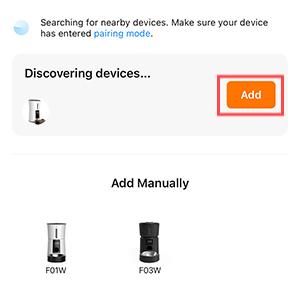
Figure 4: The app interface during device discovery, prompting to add the feeder.

Figure 5: App screen for entering Wi-Fi network details.
4. Operating Instructions
4.1 Setting a Feeding Schedule
Use the Petory Smart app to program your pet's feeding schedule.
- Open the Petory Smart app and select your feeder.
- Navigate to the "Schedule" or "Meal Plan" section.
- Set the desired meal times (up to 10 meals per day).
- For each meal, specify the number of portions (1-50 portions, where 1 portion is approximately 1/10 cup).
- The app also allows for a "Slow Feed Choice" to dispense food gradually.
- Save your settings. The feeder will now dispense food according to the programmed schedule.

Figure 6: Programming feeding schedules via the mobile application.
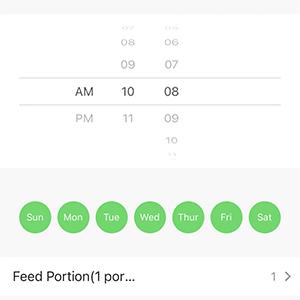
Figure 7: Detailed view of setting meal times and portions within the app.
4.2 Manual Feeding
You can dispense food manually at any time using the app or the physical button on the feeder.
- Via App: On the main screen of the Petory Smart app, locate the "Manual Feed" option and select the number of portions to dispense.
- Via Feeder Button: Press the manual feed button on the feeder's control panel to dispense one portion.
4.3 Voice Recording
Record a 10-second message to play at meal times to call your pet.
- Locate the voice recording button on the feeder's control panel.
- Press and hold the button to begin recording your message.
- Release the button to save the recording. The recorded message will play automatically before each scheduled meal.
4.4 Control Panel Lock
The feeder features a control panel lock to prevent accidental changes by pets or children.

Figure 8: The lock icon on the control panel indicates the panel is locked.
5. Maintenance
5.1 Cleaning the Feeder
Regular cleaning ensures hygiene and proper functioning of the feeder.
- Disassembly: Rotate the food hopper counter-clockwise to separate it from the feeder base. Remove the stainless steel bowl from its holder.
- Washing: The food hopper and the stainless steel bowl are dishwasher-safe. Alternatively, wash them by hand with mild soap and water.
- Drying: Ensure all parts are completely dry before reassembly to prevent moisture from affecting the kibble or electronics.
- Base Cleaning: Wipe the feeder base with a damp cloth. Do not submerge the base in water.
- Reassembly: Reattach the food hopper by aligning it with the base and rotating clockwise until secure. Place the clean bowl back into its holder.

Figure 9: Detaching the food hopper by rotating it counter-clockwise.

Figure 10: Removable parts of the feeder suitable for washing.
5.2 Desiccant Bag Replacement
The desiccant bag helps keep the dry food fresh. Replace it periodically (e.g., every 1-2 months) for optimal performance.

Figure 11: Location of the desiccant bag holder within the feeder lid.
6. Troubleshooting
| Problem | Possible Cause | Solution |
|---|---|---|
| Feeder not dispensing food. |
|
|
| No app notifications. |
|
|
| Feeder offline/Wi-Fi disconnected. |
|
|
| Power drops out/resets. |
|
|

Figure 12: Example of a food blockage notification received on the mobile app.
7. Specifications
| Feature | Detail |
|---|---|
| Model Number | F01W |
| Capacity | 4 Liters (approx. 16.9 cups dry food) |
| Material | BPA-free Plastic, Stainless Steel (bowl) |
| Color | White |
| Dimensions (LxWxH) | 13 x 7.5 x 13 inches |
| Item Weight | 4.44 pounds |
| Power Supply | 5V Power Adapter (included), 3 x D-size Batteries (not included) |
| Wi-Fi Connectivity | 2.4GHz Wi-Fi (Bluetooth for initial pairing) |
| Max Meals per Day | 10 |
| Portions per Meal | 1-50 (approx. 1/10 cup per portion) |
| Kibble Size | Under 0.7 inches diameter |
| Special Features | Voice Recording, Desiccant Bag Holder, App Control, Dual Power |
| Target Species | Cats, Dogs (Small Breeds) |
| Care Instructions | Hand Wash Only (base), Dishwasher-safe (hopper, bowl) |

Figure 13: Dimensions of the stainless steel food bowl.
8. Warranty and Support
Warranty: This Petory Automatic Wi-Fi Pet Feeder (Model F01W) comes with a 1-Year Warranty from the date of purchase.
For technical support, troubleshooting assistance, or warranty claims, please contact Petory customer service through the contact information provided on the official Petory website or through your purchase platform.