
Inkbird INKBIRD-TH1
Inkbird Bluetooth Thermometer Hygrometer INKBIRD-TH1 User Manual
Model: INKBIRD-TH1
1. Introduction
The Inkbird INKBIRD-TH1 is a Bluetooth-enabled thermometer and hygrometer designed for accurate monitoring of temperature and humidity. This smart sensor connects to your smartphone via Bluetooth, allowing you to manage environmental conditions through a dedicated application. It features a high-precision sensor and an external probe for versatile measurement applications, including water temperature. Data can be logged, viewed in graphs, and exported for analysis.
Key features include:
- App connectivity for remote monitoring and management.
- High-precision internal sensor and external probe.
- Wide temperature measurement range: -40°C to 60°C (internal), -40°C to 100°C (external probe).
- Graph recording of daily temperature and humidity changes.
- Data export functionality to CSV format.
- Adjustable sampling intervals (10s, 30s, 1min, 2min, 5min, 10min, 30min).
2. Product Overview
The Inkbird INKBIRD-TH1 consists of a main unit and an external temperature probe. The main unit displays current readings and connects wirelessly to your smartphone. The external probe extends measurement capabilities to liquids or specific areas.

Figure 2.1: Inkbird INKBIRD-TH1 main unit with smartphone app interface.
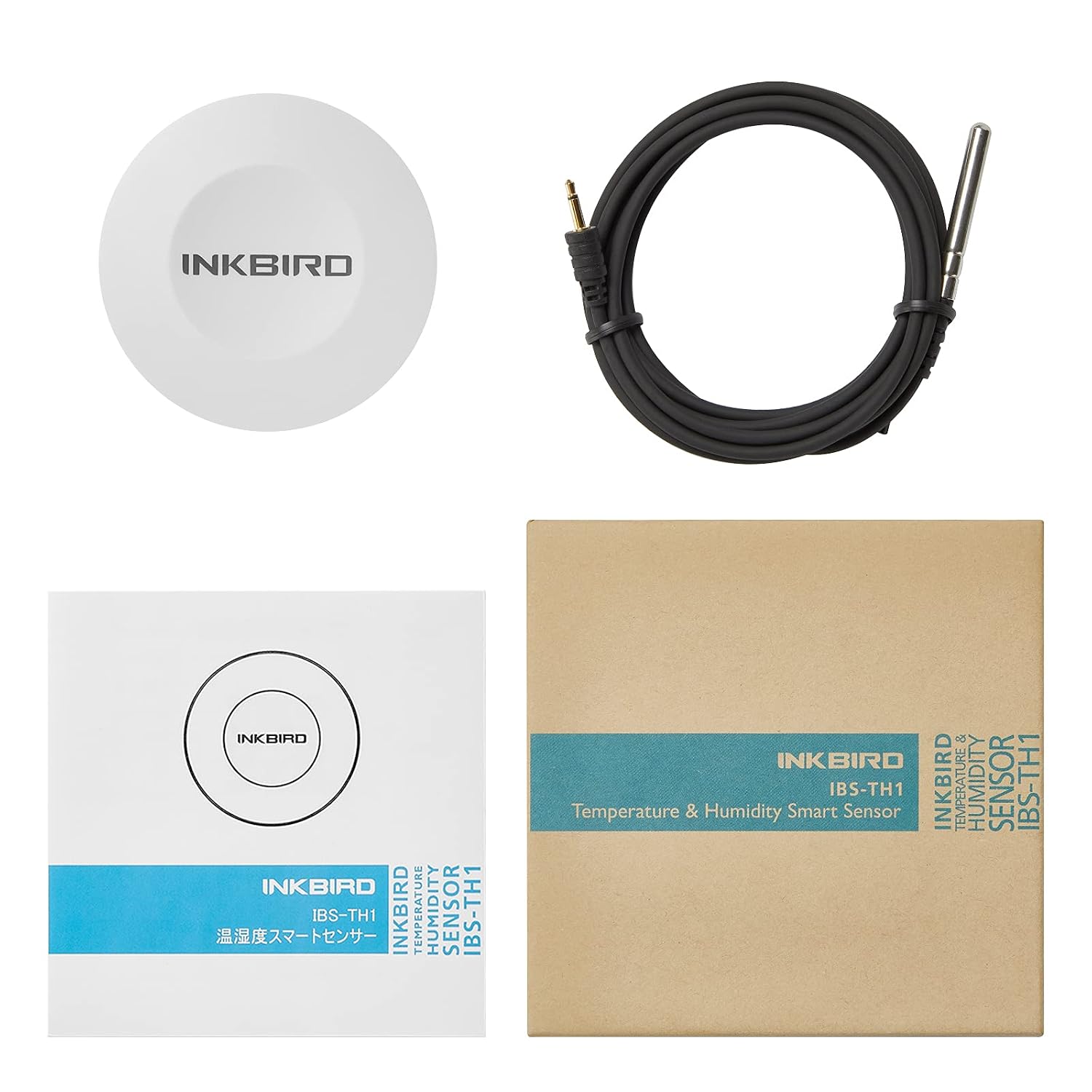
Figure 2.2: Components of the Inkbird INKBIRD-TH1, including the main unit, external probe, and packaging.
3. Setup
3.1 Battery Installation
The INKBIRD-TH1 requires two AAA batteries (not included). To install the batteries:
- Locate the battery compartment on the back of the device.
- Open the battery cover.
- Insert two AAA batteries, ensuring correct polarity (+/-).
- Close the battery cover securely.

Figure 3.1: Battery compartment for AAA batteries.
3.2 App Download
To utilize the smart features of your INKBIRD-TH1, download the official Inkbird app (often named "Engbird" or similar) from your smartphone's app store:
- For iOS devices, search for "Inkbird" or "Engbird" on the App Store.
- For Android devices, search for "Inkbird" or "Engbird" on Google Play.
- Alternatively, scan the QR code provided in the product packaging or on the device itself to directly access the app download page.
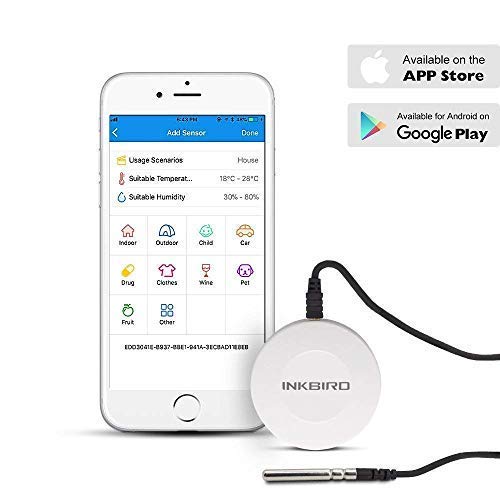
Figure 3.2: Smartphone displaying the Inkbird app and app store icons.
3.3 Device Pairing
Once the app is installed and the device has batteries, follow these steps to pair your INKBIRD-TH1:
- Ensure Bluetooth is enabled on your smartphone.
- Open the Inkbird app.
- The app should automatically detect and attempt to pair with the INKBIRD-TH1. Follow any on-screen prompts to complete the pairing process.
- If automatic pairing fails, look for an "Add Device" or "Scan" option within the app and manually select your INKBIRD-TH1 from the list of available Bluetooth devices.
4. Operating Instructions
4.1 Monitoring Temperature and Humidity
After successful pairing, you can monitor real-time temperature and humidity readings:
- On the Device: The main unit's display will show the current temperature and humidity.
- Via the App: Open the Inkbird app on your smartphone. The main dashboard will display the current readings from your INKBIRD-TH1.
4.2 Using the External Probe
The external probe allows for specialized temperature measurements:
- Connect the external probe to the designated port on the INKBIRD-TH1 main unit.
- Place the probe tip in the area or liquid you wish to measure (e.g., water in an aquarium, soil in a plant pot).
- When the external probe is connected, the device will measure temperature using the probe, while humidity will continue to be measured by the main unit's internal sensor.
4.3 Data Logging and Export
The INKBIRD-TH1 records historical data, which can be accessed and exported through the app:
- View Graphs: Within the app, navigate to the data history section to view daily or periodic temperature and humidity changes presented in graphical format.
- Export Data: The app allows you to export this historical data to your smartphone in CSV (Comma Separated Values) format for further analysis on a computer or other devices.
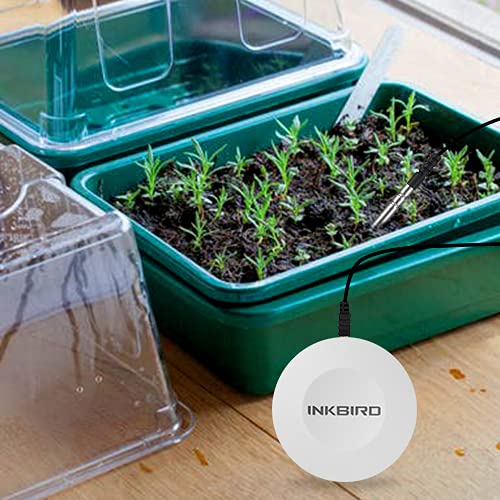
Figure 4.1: App interface showing temperature and humidity data graphs.

Figure 4.2: Data recording and export functionality shown with the app.
4.4 Setting Sampling Intervals
You can customize how frequently the device records data:
- Access the settings menu within the Inkbird app.
- Select "Sampling Interval" and choose from available options: 10 seconds, 30 seconds, 1 minute, 2 minutes, 5 minutes, 10 minutes, or 30 minutes.
- A shorter interval provides more detailed data but may consume battery faster.
5. Maintenance
5.1 Battery Replacement
When the battery indicator on the device or app shows low power, replace the batteries:
- Open the battery compartment cover on the back of the device.
- Remove the old AAA batteries.
- Insert two new AAA batteries, observing the correct polarity.
- Close the battery cover.
Note: Battery life can vary depending on usage and sampling interval settings. Frequent data logging or long-distance Bluetooth connections may reduce battery life.
5.2 Cleaning
To clean the device:
- Wipe the main unit with a soft, dry cloth.
- For the external probe, gently clean with a damp cloth and ensure it is dry before storage or next use.
- Do not use abrasive cleaners or immerse the main unit in water. The external probe is designed for immersion, but the main unit is not waterproof.
6. Troubleshooting
6.1 Device Not Connecting to App
- Ensure Bluetooth is enabled on your smartphone.
- Check if the device batteries are installed correctly and have sufficient power. Replace if necessary.
- Make sure the device is within Bluetooth range (typically up to 30-50 meters in open space, less indoors).
- Try restarting both the device (by removing and reinserting batteries) and the smartphone app.
- If connection issues persist after an app update, try clearing the app's data or reinstalling it. Sometimes, deleting existing device data within the app and re-pairing can resolve issues.
6.2 Inaccurate Readings
- Ensure the device and probe are placed in a stable environment, away from direct sunlight, heat sources, or strong air currents.
- Allow the device to stabilize for a few minutes after placement before taking readings.
- Compare readings with another calibrated thermometer/hygrometer if available. Note that minor variations (e.g., 0.5°C) between devices can occur.
6.3 Data Recording Issues
- Verify that the sampling interval is set correctly in the app.
- Ensure the device has sufficient battery power for continuous logging.
- If data appears stagnant or incorrect after a battery change, try changing the sampling interval in the app and then initializing the data to refresh the recording process.
7. Specifications
| Feature | Detail |
|---|---|
| Brand | Inkbird |
| Model | INKBIRD-TH1 |
| Connectivity | Bluetooth |
| Display Type | Digital |
| Internal Sensor Temperature Range | -40°C to 60°C (-40°F to 140°F) |
| External Probe Temperature Range | -40°C to 100°C (-40°F to 212°F) |
| Humidity Range | 0% to 99% RH |
| Power Source | 2 x AAA Batteries |
| Included Components | External Temperature Probe |
| Exterior Material | Plastic |
| Country of Origin | China |
8. Warranty and Support
For warranty information, technical support, or any inquiries regarding your Inkbird INKBIRD-TH1 device, please refer to the contact information provided in your product packaging or visit the official Inkbird website. Ensure you have your product model number (INKBIRD-TH1) and purchase details ready when contacting support.
Official Inkbird Store: Inkbird Amazon Store
Related documentsINKBIRD-TH1


Ask a question about this manual
Ask about setup, troubleshooting, compatibility, parts, safety, or missing instructions. Manuals+ will review the question and use this page’s manual context to help answer it.