
1. Introduction
This manual provides instructions for the safe and efficient use of your Epson EcoTank ET-28 Series Wireless Color All-in-One Printer. This device is designed for printing, scanning, and copying functions, featuring a cartridge-free ink system and wireless connectivity.
Please read this manual thoroughly before operating the printer and retain it for future reference.
2. Safety Information
- Place the printer on a stable, level surface.
- Ensure proper ventilation around the printer.
- Use only the power cord supplied with the printer.
- Do not expose the printer to water or excessive humidity.
- Keep ink bottles out of reach of children.
- Avoid touching the print head or internal components.
- Disconnect the power cord before cleaning or moving the printer.
3. What's in the Box
Verify that all components are present:
- Epson EcoTank ET-28 Series Printer
- Power Cable
- User Manual (this document)
- Set of 4 EcoFit Ink Bottles (Black, Cyan, Magenta, Yellow)
4. Setup
4.1 Unpacking and Placement
- Remove all protective materials and tape from the printer.
- Place the printer on a flat, stable surface with adequate space for operation and ventilation.
4.2 Filling the Ink Tanks
The EcoTank system uses high-capacity ink tanks. Use only genuine Epson EcoFit ink bottles.
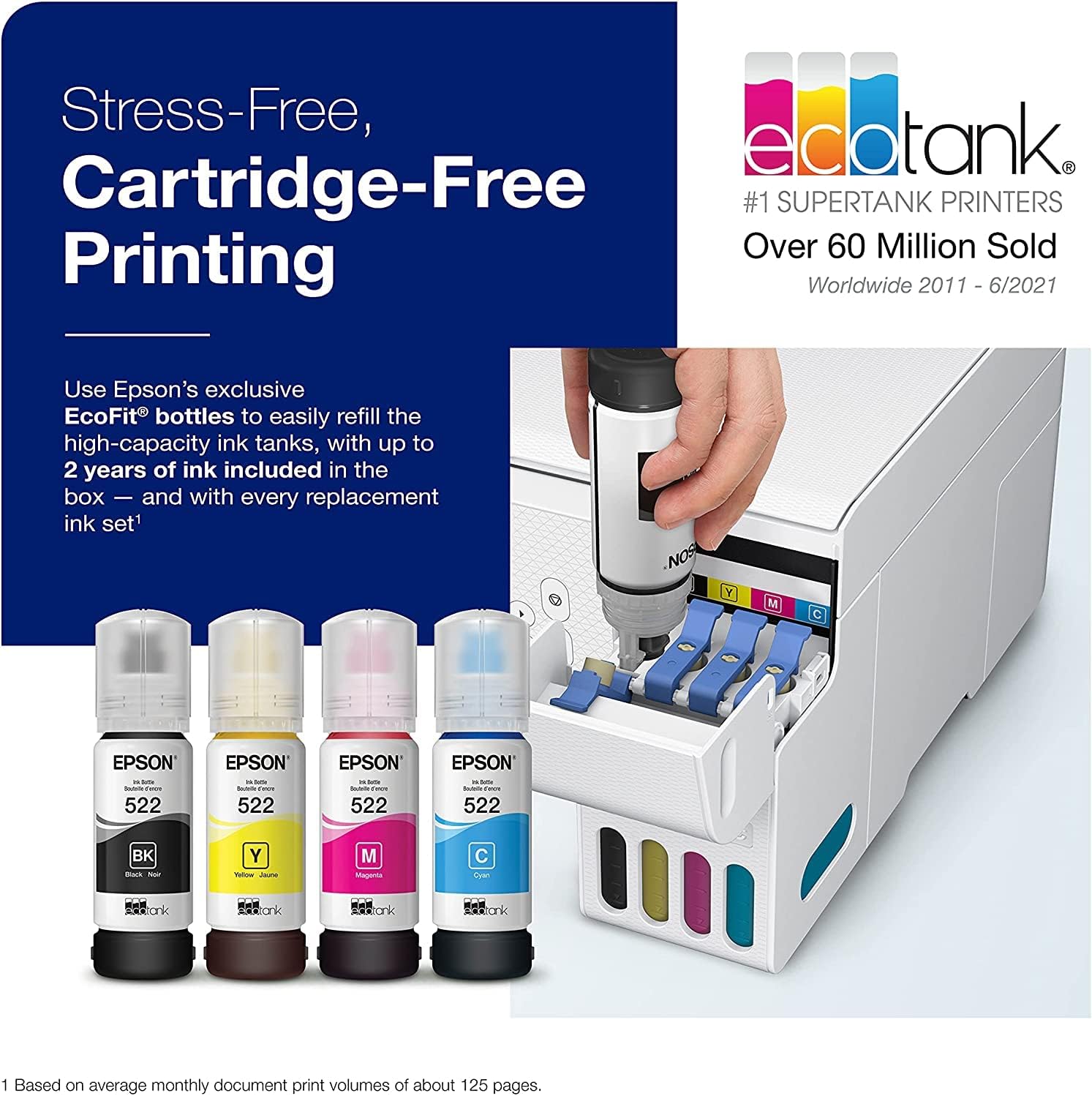
Image: The printer's ink tanks are shown with corresponding color ink bottles. The design of the EcoFit bottles ensures correct color filling into the designated tanks.
- Open the ink tank unit cover.
- Open the cap for the black ink tank.
- Uncap the black ink bottle and insert it into the filling port. The bottle is keyed to fit only the correct color tank.
- Allow the ink to drain into the tank. Do not squeeze the bottle. The tank will stop filling automatically when full.
- Remove the bottle and securely close the ink tank cap.
- Repeat for the Cyan, Magenta, and Yellow ink tanks.
- Close the ink tank unit cover.
4.3 Power Connection
- Connect the power cable to the printer's power port.
- Plug the other end of the power cable into a grounded electrical outlet.
- Press the power button to turn on the printer.
4.4 Initial Ink Charging
After turning on the printer for the first time, follow the on-screen instructions on the LCD display to initiate ink charging. This process takes approximately 10-15 minutes. Do not turn off the printer during this time.
4.5 Software Installation and Network Setup
For full functionality, install the printer software on your computer or mobile device. Visit the Epson support website for your model to download the latest drivers and utilities.
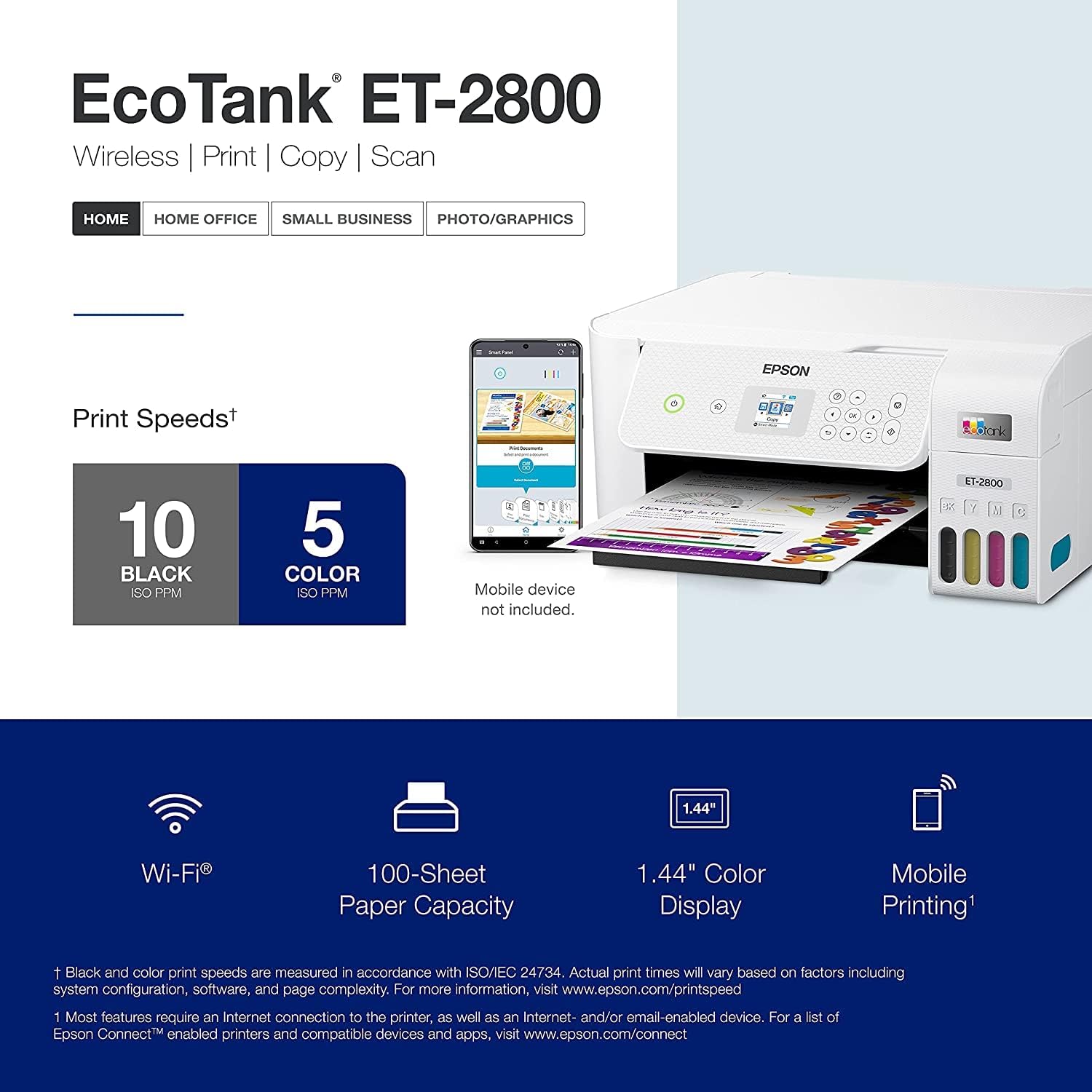
Image: The printer's control panel and display are visible, highlighting its wireless capabilities and mobile printing support.
- Wireless Setup (Wi-Fi):
- On the printer's LCD display, navigate to the Wi-Fi setup menu.
- Select your wireless network (SSID) and enter the password.
- Confirm the connection.
- Mobile Device Setup:
- Download the Epson Smart Panel App from your device's app store.
- Follow the in-app instructions to connect your mobile device to the printer.
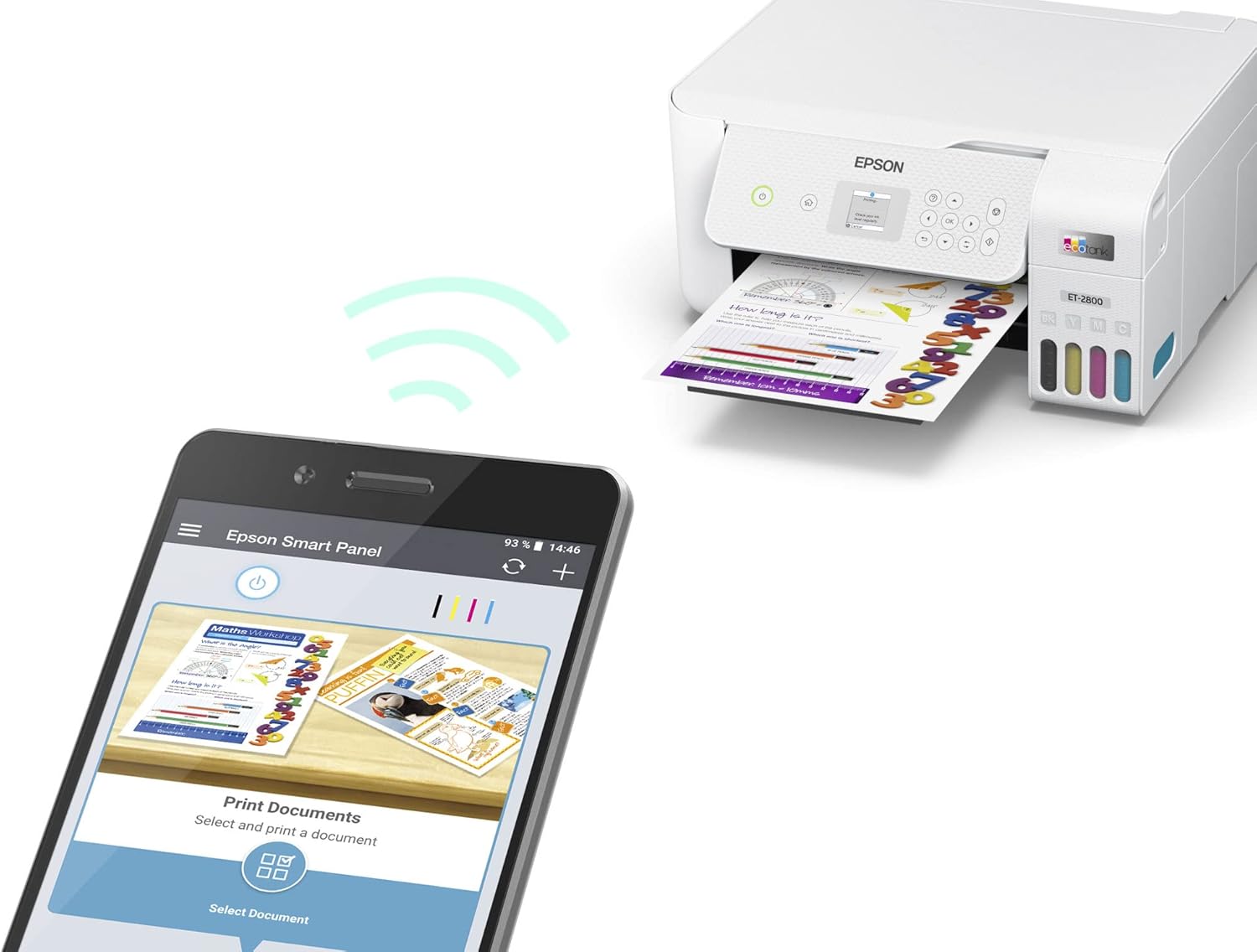
Image: A smartphone screen shows the Epson Smart Panel app interface, demonstrating wireless printing to the EcoTank printer.
5. Operating the Printer
5.1 Loading Paper
- Pull out the paper support and open the paper guide.
- Load paper into the rear paper feed slot, print side up.
- Adjust the paper guides to the width of your paper.
5.2 Printing from a Computer
- Open the document or image you wish to print.
- Select "Print" from the application's menu.
- Choose your Epson ET-28 Series printer.
- Adjust print settings (paper size, type, color/grayscale, quality) as needed.
- Click "Print".
5.3 Mobile Printing
Use the Epson Smart Panel App or other compatible mobile printing services (Apple AirPrint, Mopria Print Service) to print directly from your smartphone or tablet.
- Ensure your mobile device is connected to the same Wi-Fi network as the printer.
- Open the document or photo in your mobile app.
- Select the print option and choose your printer.
- Adjust settings and print.
5.4 Copying Documents
- Place the original document face-down on the scanner glass.
- On the printer's LCD display, select "Copy".
- Adjust copy settings (number of copies, color/B&W, paper size) using the control panel.
- Press the Start button to begin copying.
5.5 Scanning Documents
- Place the original document face-down on the scanner glass.
- From your computer, open the Epson Scan software or a compatible scanning application.
- Select your printer and choose scan settings (document type, resolution, destination).
- Initiate the scan. The scanned image will be saved to your computer.
- Alternatively, you can scan directly to a connected mobile device using the Epson Smart Panel App.
6. Maintenance
6.1 Refilling Ink Tanks
Monitor ink levels regularly using the transparent ink tanks or the printer's LCD display. Refill tanks when ink levels are low to prevent running out during print jobs.

Image: This image illustrates the process of refilling the ink tanks, emphasizing the convenience and cost-effectiveness of the EcoTank system.
Refer to Section 4.2 "Filling the Ink Tanks" for detailed instructions. Always use genuine Epson EcoFit ink bottles designed for your printer model.
6.2 Cleaning the Printer
- Exterior Cleaning: Wipe the exterior of the printer with a soft, damp, lint-free cloth. Do not use abrasive cleaners or solvents.
- Scanner Glass Cleaning: Gently wipe the scanner glass with a soft, lint-free cloth moistened with a small amount of glass cleaner.
- Nozzle Check and Head Cleaning: If print quality declines (e.g., missing lines, incorrect colors), perform a nozzle check and head cleaning cycle through the printer's control panel or the printer utility software on your computer.
7. Troubleshooting
7.1 Printer Not Responding
- Ensure the printer is powered on and the power cable is securely connected.
- Check the network connection (Wi-Fi indicator light). Restart your router if necessary.
- Verify that the correct printer is selected in your computer's or mobile device's print dialog.
- Restart both the printer and your computer/mobile device.
7.2 Poor Print Quality
- Perform a nozzle check to identify clogged nozzles. If clogs are present, run a head cleaning cycle.
- Check ink levels and refill any low tanks.
- Ensure you are using appropriate paper for your print settings.
- Verify that print settings (e.g., print quality, paper type) are correctly configured in your print driver.
7.3 Slow Printing Speed
- Printing in "Best" or "High Quality" mode will naturally take longer. Consider using "Standard" or "Draft" mode for everyday documents.
- Ensure your printer drivers are up to date.
- Large, complex documents or high-resolution images will take longer to process and print.
8. Specifications

Image: The Epson EcoTank ET-28 Series printer, showcasing its compact design and the included ink bottles.
| Feature | Detail |
|---|---|
| Printer Type | All-in-One (Print, Scan, Copy), Ink Tank |
| Printing Technology | Inkjet (Micro Piezo Heat-Free Technology) |
| Max Print Resolution (Color) | 7680 x 5120 dpi |
| Max Print Resolution (Black/White) | 7680 x 5120 dpi |
| ISO Print Speed (Black) | 10 pages per minute |
| ISO Print Speed (Color) | 5 pages per minute |
| Scanner Type | Color flatbed |
| Max Copy Resolution (Color) | 7680 x 5120 dpi |
| Max Copy Resolution (Black/White) | 1200 dpi |
| Connectivity | Wi-Fi, Wi-Fi Direct, USB 3.0, Apple AirPrint, Mopria Print Service, Epson iPrint, Google Cloud Print, Bluetooth |
| Display Screen | 1.44 inches LCD |
| Paper Capacity | 100 sheets (input tray) |
| Supported Media Sizes | 4" x 6", 5" x 7", 8" x 10", 8.5" x 11" (Letter), 8.5" x 14" (Legal), A4 |
| Duplex Printing | Automatic (for certain models/settings, check specific model) |
| Dimensions (W x D x H) | 14.8 x 15.3 x 10 inches (approximate) |
| Weight | 8.8 pounds |
| Model Number | ET28Series |
| UPC | 010343007123 |
9. Warranty and Support
9.1 Product Warranty
Your Epson EcoTank ET-28 Series printer comes with a Limited Warranty. Please refer to the warranty documentation included with your product or visit the official Epson website for detailed terms and conditions, including warranty duration and coverage.
9.2 Customer Support
For technical assistance, driver downloads, FAQs, or further support, please visit the official Epson support website for your region. You can also contact Epson customer service directly for personalized assistance.
Before contacting support, please have your printer model number (ET28Series) and serial number ready.


