1. Product Overview
The bluedery E27 360° Light Bulb Camera is a versatile security solution designed for both home and business surveillance. This wireless camera offers 1080p high-definition video, intelligent night vision, and comprehensive 360-degree viewing with pan and tilt capabilities. It supports both 2.4GHz and 5G Wi-Fi networks, providing flexible connectivity options. Key features include motion detection with real-time alerts and two-way audio communication, allowing for seamless interaction and monitoring.

Image: The bluedery E27 Light Bulb Camera shown alongside a smartphone displaying its live view interface.

Image: Visual representation of the camera's key features, such as Full HD 1080P resolution, Wi-Fi connectivity, remote pan & tilt, 5GHz Wi-Fi support, YI IoT Smart App compatibility, smart motion detection, remote viewing, and Micro SD card slot.
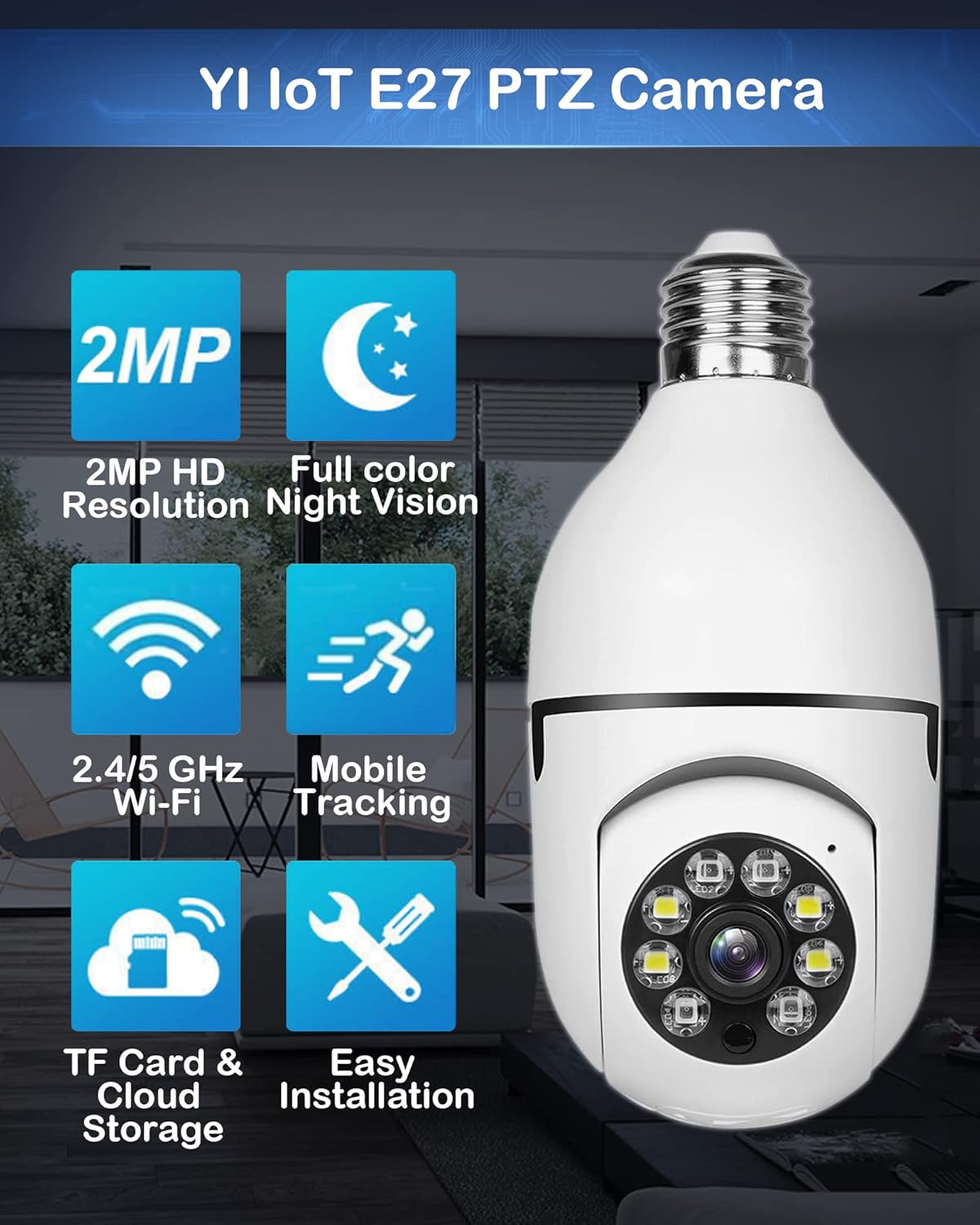
Image: An infographic highlighting the camera's capabilities: 2MP HD Resolution, Full Color Night Vision, 2.4/5 GHz Wi-Fi, Mobile Tracking, TF Card & Cloud Storage, and Easy Installation.
2. What's in the Box
- 1 x bluedery E27 Light Bulb Camera
- 1 x User Manual
- Mounting accessories (screws and anchors)
- E27 socket adapter (if included, for alternative mounting)

Image: A detailed view of the camera, labeling its components such as the E27 Light Socket, Speaker, Enhanced WiFi Module, Mic, White & IR LEDs, HD Lens, Light Sensor, Reset Button, and SD Card Slot. Dimensions are also indicated.
3. Setup Guide
3.1. Physical Installation
- Power Off: Ensure the power to the light fixture is turned off at the circuit breaker before installation.
- Screw In: Screw the E27 Light Bulb Camera into a standard E27 bulb base (110V~240V). Ensure it is securely tightened.
- Power On: Restore power to the light fixture. The camera will automatically power on and initiate its self-check process.

Image: A hand demonstrating the simple process of screwing the camera into a standard light bulb socket, highlighting its ease of installation.

Image: The camera seamlessly installed within a lamp holder, illustrating how it fits into existing light fixtures.
3.2. App Installation and Pairing
- Download App: Scan the QR code provided in the user manual or search for "YI IoT" in your smartphone's app store (Google Play for Android, App Store for iOS).
- Register/Login: Open the YI IoT app and follow the on-screen instructions to register a new account or log in if you already have one.
- Add Device: Click the "Add Device" or "+" button within the app. Select the "Light Bulb Camera" option.
- Connect to Wi-Fi: Enter your 2.4GHz or 5G Wi-Fi network name (SSID) and password. Ensure your phone is connected to the same Wi-Fi network.
- Scan QR Code: The app will generate a QR code on your phone screen. Hold your phone's screen approximately 15-20 cm (6-8 inches) in front of the camera lens. The camera will scan the QR code and emit a confirmation sound.
- Pairing Confirmation: Once the camera successfully scans the QR code, it will announce "QR code scanned successfully" and then "Connecting to Wi-Fi". Wait for the camera to announce "Pairing is successful".
- Name Camera: After successful pairing, you can name your camera (e.g., "Living Room Camera", "Front Door Camera") for easy identification within the app.
Video: This official bluedery video provides a step-by-step guide on how to install and set up the 5G E27 Light Bulb Camera, including app download, Wi-Fi connection, and QR code pairing.
4. Operating Instructions
4.1. Live View and Pan/Tilt Control
From the YI IoT app, select your camera to access the live view. Use the on-screen controls to remotely pan (355° horizontal) and tilt (90° vertical) the camera lens, allowing you to cover almost every corner of your monitored area without blind spots.

Image: Illustrates the camera's wide coverage with 355° pan and 95° tilt, and its two-way audio feature, enabling communication through the camera.
4.2. Two-Way Audio
The camera features a built-in highly sensitive microphone and a loud speaker. Tap the microphone icon in the app to initiate two-way audio communication, allowing you to speak to and hear from anyone near the camera.
4.3. Intelligent Night Vision
Equipped with 4 pieces of 850nm infrared LED lights and 4 pieces of white LED lights, the camera provides clear visuals even in low-light conditions. You can choose between ordinary night vision (black and white) and full-color night vision via the app settings, depending on your preference and environmental needs.
4.4. Motion Detection and Alerts
The camera utilizes a highly sensitive motion sensor. When a moving object is detected, the camera will automatically record the event and send real-time alerts to your smartphone via the YI IoT app. You can adjust the motion detection sensitivity and alert frequency within the app settings.

Image: Depicts the camera's motion detection and anti-theft capabilities, with a smartphone displaying an alert notification upon detecting a moving object, such as a person near a window.

Image: A "Safety Warning" illustration showing the camera actively monitoring an outdoor area, detecting a person, and sending an immediate alert to a smartphone.
Video: This official bluedery video introduces the key features of the E27 Light Bulb Home Security Camera, including its 360-degree panoramic view, two-way audio, and intelligent night vision capabilities.
5. Maintenance
- Cleaning: Gently wipe the camera lens and body with a soft, dry cloth. Do not use liquid cleaners or abrasive materials.
- Firmware Updates: Regularly check the YI IoT app for available firmware updates to ensure optimal performance and security.
- Storage: If using a Micro SD card (not included), ensure it is formatted periodically to maintain recording efficiency.
- Placement: While the camera has an IP67 rating, it is also listed as "Not Water Resistant" in some specifications. For outdoor use, ensure it is installed in a sheltered location protected from direct exposure to rain or harsh weather conditions to prolong its lifespan.
6. Troubleshooting
- Camera Not Connecting to Wi-Fi:
- Ensure your Wi-Fi network is 2.4GHz or 5G and stable.
- Verify the Wi-Fi password entered in the app is correct.
- Place the camera closer to your Wi-Fi router during setup.
- Reset the camera (refer to the user manual for reset button location, usually a small pinhole) and try pairing again.
- No Live View/Offline:
- Check if the camera is powered on and the light fixture has power.
- Verify your internet connection is active.
- Restart the camera by turning off and on the power to the light fixture.
- Motion Detection Not Working:
- Ensure motion detection is enabled in the YI IoT app settings.
- Adjust the sensitivity level.
- Check the alert frequency settings.
- Two-Way Audio Issues:
- Ensure microphone and speaker permissions are granted to the YI IoT app on your phone.
- Check the volume settings in the app and on your phone.
7. Specifications
| Model | E27 360° Light Bulb Camera |
| Brand | bluedery |
| Video Resolution | 1080p HD |
| Connectivity | 2.4GHz & 5G Wi-Fi |
| Pan/Tilt Range | 355° Horizontal, 90° Vertical (360° Field of View) |
| Night Vision | Intelligent Night Vision (Infrared & Full Color) |
| Audio | Two-Way Audio |
| Power Source | Corded Electric (E27 Bulb Base, 110V~240V) |
| Dimensions (L x W x H) | 3.3 x 3.3 x 6.9 inches |
| Weight | 11.2 ounces |
| Control Method | Smartphone App (YI IoT) |
| International Protection Rating | IP67 (Note: Product also states "Not Water Resistant" in some specifications. For outdoor use, ensure protection from direct water exposure.) |
8. Warranty and Support
bluedery provides lifetime technical support and services for this product. For any questions, issues, or technical assistance, please contact bluedery customer service directly. Refer to the contact information provided on the product packaging or the official bluedery website.
For more information, you may visit the bluedery Store on Amazon.


