1. Introduction
The GOWENIC USB Single Foot Switch is a versatile and ergonomic peripheral designed to enhance your computer interaction across various applications. This programmable foot pedal allows you to assign custom functions, acting as an extension of your mouse, keyboard, or multimedia controls. Its high sensitivity and durable design ensure comfortable and reliable use for extended periods.

Image 1: GOWENIC USB Single Foot Switch product view.
2. Setup
The GOWENIC USB Single Foot Switch is designed for simple plug-and-play functionality. No complex driver installation is typically required for basic operation.
2.1 Connecting the Foot Switch
- Locate an available USB-A port on your computer (PC).
- Plug the USB connector of the foot switch into the USB port.
- Your operating system should automatically detect the device.
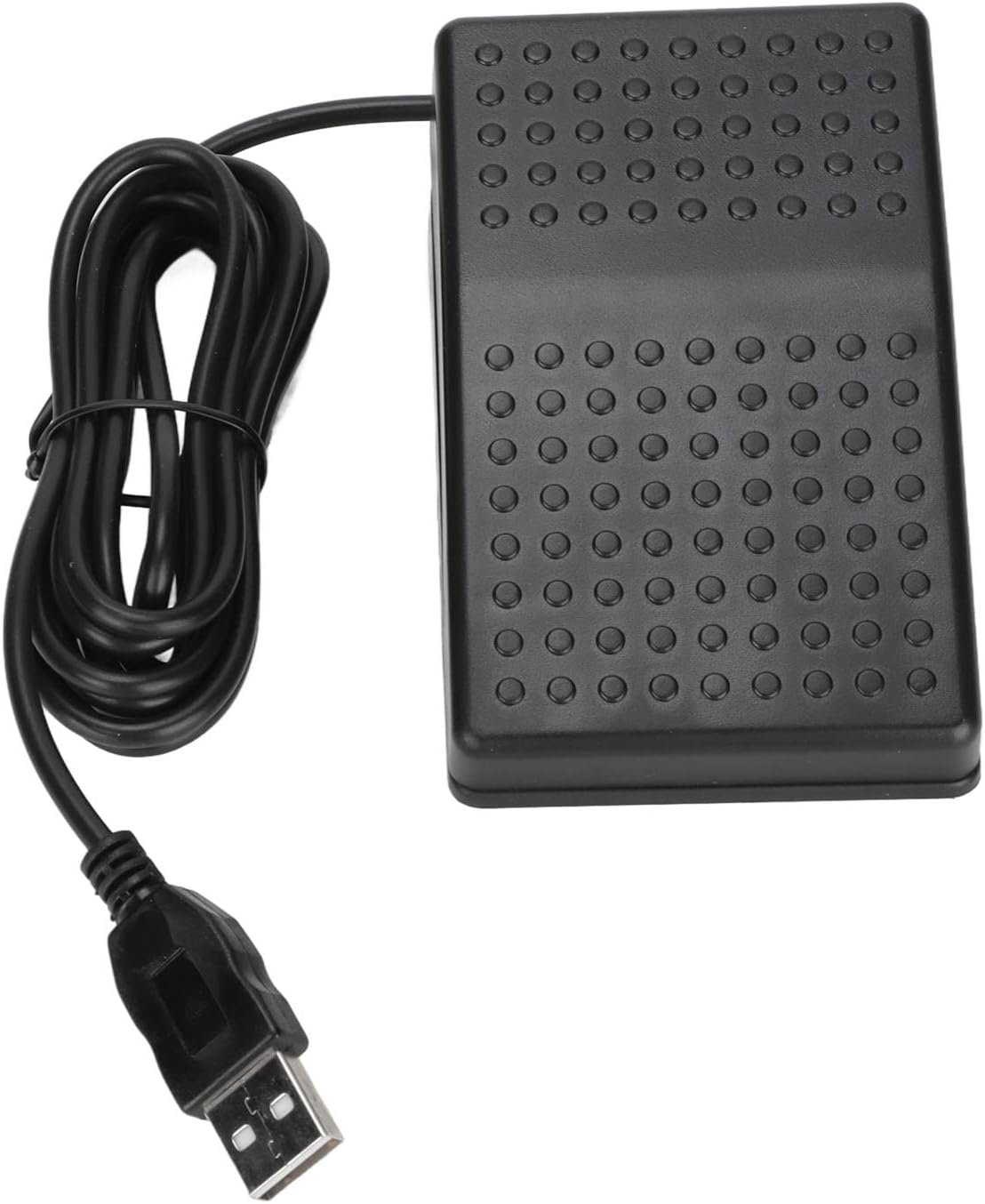
Image 2: Connecting the USB cable of the foot switch to a computer.
3. Operating Instructions
The primary functionality of the GOWENIC USB Single Foot Switch lies in its programmability. You can assign various keyboard, mouse, gaming, string, and multimedia functions to the pedal using dedicated software.
3.1 Software Installation (Elfkey)
To customize the foot switch functions, you will need to download and install the Elfkey software. This software is typically available from the manufacturer's support website. Please refer to the product packaging or manufacturer's official website for the most up-to-date download link.
Note: The Elfkey software is essential for programming custom functions. Without it, the foot switch may operate with default settings or not at all, depending on your system.
Video 1: Demonstration of configuring a PCsensor foot pedal using Elfkey software. This video illustrates the software interface and programming process.
Video 2: Quick-Tap Programmable PC Gaming USB Foot Pedal Switch. This video provides an overview of programming and applications, including gaming.
3.2 Programming Custom Functions
Once the Elfkey software is installed and your foot switch is connected, you can program its functions:
- Mouse Functions: Assign actions like left-click, right-click, middle-click, forward, backward, or even X/Y axis movements.
- Keyboard Functions: Program any single key, key combinations (e.g., Ctrl+C, Alt+Tab), or function keys (F1-F24).
- String Input: Configure the pedal to input a custom string of text (e.g., "Hello World").
- Multimedia Controls: Control media playback (play/pause, previous/next track), adjust volume, or mute audio.
- Gaming Functions: Map specific in-game actions or macros for a more immersive and efficient gaming experience.
Save your programmed settings to the foot switch's internal memory. The settings will remain even when the device is disconnected from the computer.

Image 3: Demonstrating the ergonomic design with a foot comfortably placed on the pedal.

Image 4: Various applications for the foot switch, including gaming, photobooth, and transcription.
Video 3: Short demonstration of a USB Foot Pedal in use, highlighting its responsiveness.
4. Maintenance
To ensure the longevity and optimal performance of your GOWENIC USB Single Foot Switch, follow these simple maintenance guidelines:
- Cleaning: Use a soft, dry cloth to wipe the surface of the foot switch. Avoid using harsh chemicals or abrasive cleaners.
- Storage: Store the device in a cool, dry place away from direct sunlight and extreme temperatures when not in use.
- Cable Care: Avoid bending or twisting the USB cable excessively to prevent internal damage.
5. Troubleshooting
If you encounter issues with your GOWENIC USB Single Foot Switch, try the following troubleshooting steps:
- Device Not Recognized:
- Ensure the USB cable is securely plugged into both the foot switch and your computer.
- Try plugging the foot switch into a different USB port on your computer.
- Restart your computer.
- Check your computer's Device Manager (Windows) or System Information (macOS) to see if the device is listed.
- Functions Not Working:
- Verify that the Elfkey software is correctly installed and running.
- Ensure that the desired functions have been programmed and saved to the foot switch.
- Test the foot switch on a different computer to rule out system-specific issues.
- Intermittent Operation:
- Check for any physical damage to the cable or the foot switch itself.
- Ensure there are no obstructions preventing the pedal from fully depressing or returning.
6. Specifications
| Brand | GOWENIC |
| Model Number | eb6a4d7f-82e5-46b7-b345-30f1f5099bd0 |
| Material Type | Acrylonitrile Butadiene Styrene |
| Connector Type | USB-A |
| Compatible Devices | PC |
| Operation Mode | ON-OFF |
| Switch Type | Foot Switch, Touch Switch |
| Special Features | Ergonomic |
7. Warranty and Support
For warranty information and technical support, please refer to the documentation included with your product or visit the official GOWENIC website. Typically, products come with a standard manufacturer's warranty covering defects in materials and workmanship.
For further assistance, you may contact GOWENIC customer support through their official channels.


