
Inateck BCST-43
Inateck BCST-43 1D Bluetooth Barcode Scanner User Manual
Model: BCST-43
1. Introduction
The Inateck BCST-43 is a versatile 1D barcode scanner designed for efficient data collection. It offers multiple connection options and is compatible with various operating systems, making it suitable for diverse environments. This manual provides detailed instructions for setup, operation, and maintenance to ensure optimal performance.
1.1 Package Contents
Please verify that all items listed below are included in your package:
- Inateck BCST-43 Barcode Scanner (1)
- Type-C Cable (1)
- 2.4G Wireless Adapter (1)
- Silicone Protective Case (1)
- Quick-setting User Guide (1)
- Instruction Manual (1)

1.2 Product Overview
The BCST-43 scanner is designed for portability and ease of use. Its compact form factor allows it to be carried conveniently in a pocket, making it ideal for mobile scanning tasks.

2. Setup
2.1 Charging the Scanner
Before initial use, fully charge the scanner using the provided Type-C cable connected to a USB power source. The charging indicator light will provide status updates.
2.2 Connection Methods
The Inateck BCST-43 supports three primary connection methods:
- USB Wired Connection: Connect the scanner directly to your computer using the Type-C cable. This method is plug-and-play and requires no additional configuration.
- 2.4G Wireless Connection: Insert the 2.4G USB adapter into your computer's USB port. The scanner and adapter are pre-paired by default for immediate wireless use.
- Bluetooth Connection: For mobile phones, tablets, or other Bluetooth-enabled devices, manual configuration is required. Refer to the 'Bluetooth Pairing' section in Operating Instructions.

2.3 System Compatibility
The scanner is compatible with a wide range of operating systems, ensuring broad usability:
- Windows
- macOS
- Linux
- iOS
- Android
- Unix
- Chrome OS

3. Operating Instructions
3.1 Basic Scanning
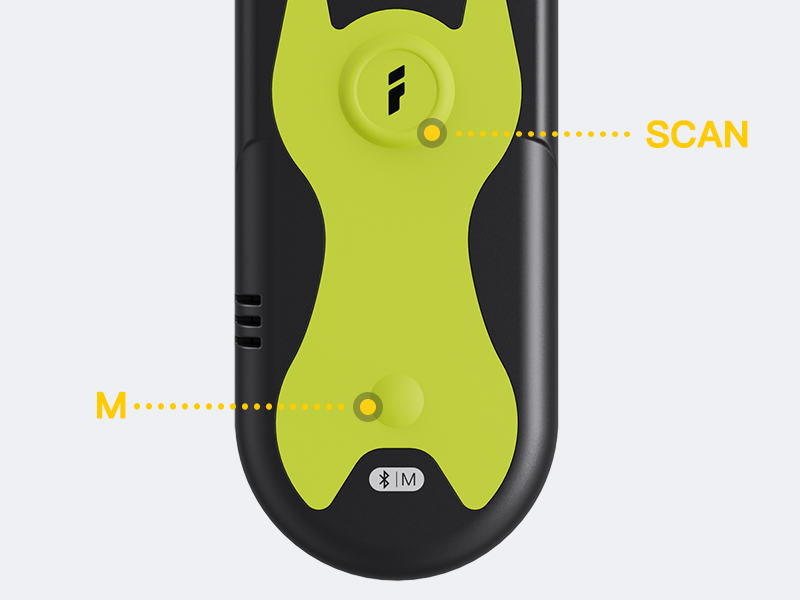
To scan a barcode, point the scanner's laser at the barcode and press the scan button. The scanner will emit a light beam to read the barcode. A successful scan is typically indicated by a short beep or vibration, depending on the configured mode.

3.2 Scanning from Screens
The BCST-43 is capable of reading 1D barcodes displayed on digital screens, such as mobile phones or computer monitors. Ensure the screen brightness is adequate for optimal scanning performance.

3.3 Shortcut Functions
The scanner features dedicated shortcut buttons for frequently used functions:
- 2.4G/Bluetooth Pairing: Long press the 'M' button to initiate pairing mode for either 2.4G wireless or Bluetooth connection.
- Inventory/Normal Mode: Press the scan button and the 'M' button simultaneously to switch between inventory mode (data stored internally) and normal mode (data transmitted directly).
- Battery Check: Short press the 'M' button to check the current battery level.

3.4 Sound and Vibration Modes
The scanner supports different feedback modes for successful scans:
- Silent Mode: No audible feedback.
- Beep Mode: Emits an audible beep.
- Vibration Mode: Provides tactile feedback through vibration. This is the default mode to minimize disturbance.
The beep volume can be adjusted according to the detailed instructions in the full user manual.

4. Maintenance
To ensure the longevity and optimal performance of your Inateck BCST-43 barcode scanner, follow these maintenance guidelines:
- Cleaning: Use a soft, dry cloth to clean the scanner's exterior. For the scanning window, use a lint-free cloth and a mild, non-abrasive cleaner if necessary. Avoid harsh chemicals or abrasive materials.
- Storage: Store the scanner in a cool, dry place away from direct sunlight, extreme temperatures, and high humidity.
- Protection: Utilize the provided silicone protective case to guard against drops and impacts.
- Battery Care: Avoid fully discharging the battery frequently. For long-term storage, charge the battery to approximately 50% and store it in a cool place.
5. Troubleshooting
If you encounter issues with your Inateck BCST-43 scanner, refer to the following common problems and solutions:
| Problem | Possible Cause | Solution |
|---|---|---|
| Scanner does not turn on | Low battery; Power button not pressed correctly | Charge the scanner; Press and hold the power button for a few seconds. |
| Cannot connect via Bluetooth | Scanner not in pairing mode; Device Bluetooth off; Interference | Long press 'M' button to enter pairing mode; Ensure device Bluetooth is on; Move closer to the device. |
| Cannot connect via 2.4G wireless | Adapter not plugged in; Adapter not recognized; Scanner not paired | Ensure adapter is securely plugged in; Try a different USB port; Re-pair scanner with adapter (refer to quick guide). |
| Scanner does not read barcodes | Barcode damaged/unreadable; Insufficient light; Incorrect barcode type enabled | Ensure barcode is clear; Provide adequate lighting; Scan configuration codes from the manual to enable specific barcode types. |
| Scanned data is incorrect or incomplete | Partial scan; Data format settings | Ensure the entire barcode is covered by the scan line; Adjust data format settings using configuration codes. |
For more complex issues or if the problem persists, please refer to the full instruction manual or contact Inateck customer support.
6. Specifications
| Feature | Detail |
|---|---|
| Model Number | BCST-43 |
| Product Dimensions | 4.53 x 1.85 x 1.06 inches |
| Item Weight | 3 ounces |
| Connectivity Technology | Bluetooth 5.0, 2.4G Wireless, USB Cable |
| Compatible Devices | Desktop Computer, Mobile Phones, Tablets |
| Supported OS | Android, iOS, Windows, Mac OS, Linux, Unix, Chrome OS |
| Barcode Types | All mainstream 1D barcodes (paper and screen, including color and inverted) |
| Power Source | Battery Powered (1 Lithium Ion battery included) |
| Manufacturer | Inateck |
| First Available Date | July 18, 2022 |
7. Warranty and Support
Inateck products are designed and manufactured to high-quality standards. This product is covered by a limited warranty against defects in materials and workmanship. For specific warranty terms and conditions, please refer to the warranty card included in your package or visit the official Inateck website.
For technical support, troubleshooting assistance, or inquiries regarding your Inateck BCST-43 barcode scanner, please contact Inateck customer service through their official website or the contact information provided in your product documentation. When contacting support, please have your product model number (BCST-43) and purchase details ready.
Related documentsBCST-43


Ask a question about this manual
Ask about setup, troubleshooting, compatibility, parts, safety, or missing instructions. Manuals+ will review the question and use this page’s manual context to help answer it.