
Lenovo TS33-BK
Lenovo thinkplus Desktop Sound Bar TS33BK User Manual
Model: TS33-BK
1. Introduction
Thank you for choosing the Lenovo thinkplus Desktop Sound Bar TS33BK. This soundbar is designed to enhance your audio experience, providing stereo sound for your desktop computer, multimedia presentations, and other applications. Its compact design allows for easy integration with compatible Lenovo ThinkVision Monitors or any desktop setup without occupying excessive space. Please read this manual thoroughly before using your soundbar to ensure proper operation and maintenance.
2. Important Safety Information
- Power Source: Use only the specified power source (USB) for this device. Ensure the voltage and current are compatible to prevent damage.
- Placement: Place the soundbar on a stable, flat surface. Avoid placing it near heat sources, direct sunlight, or in areas with high humidity or dust.
- Ventilation: Do not block any ventilation openings. Ensure adequate airflow around the device.
- Water and Moisture: Do not expose the soundbar to water, rain, or moisture. Do not place objects filled with liquids, such as vases, on or near the device.
- Cleaning: Disconnect the power before cleaning. Use a soft, dry cloth. Do not use liquid or aerosol cleaners.
- Servicing: Do not attempt to service this product yourself. Refer all servicing to qualified service personnel.
- Children: Keep the device and its accessories out of reach of children.
3. Package Contents
Please check the package for the following items:
- Lenovo thinkplus Desktop Sound Bar TS33BK
- User Manual
4. Product Overview
The Lenovo thinkplus Desktop Sound Bar TS33BK features a sleek design with integrated controls and dynamic RGB lighting.
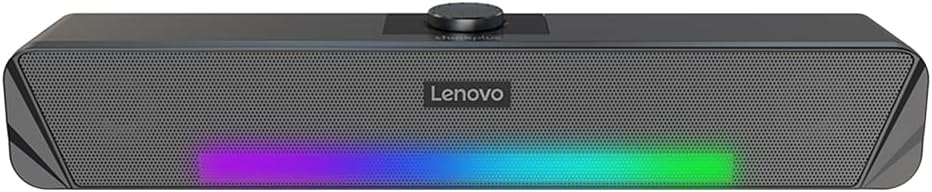
Figure 4.1: Front view of the Lenovo thinkplus Desktop Sound Bar TS33BK, showcasing the speaker grille, Lenovo branding, and integrated RGB lighting strip. The central knob is for volume control.
The soundbar is equipped with dual speakers, providing a stereo audio experience. The top panel includes a rotary knob for convenient volume adjustment.
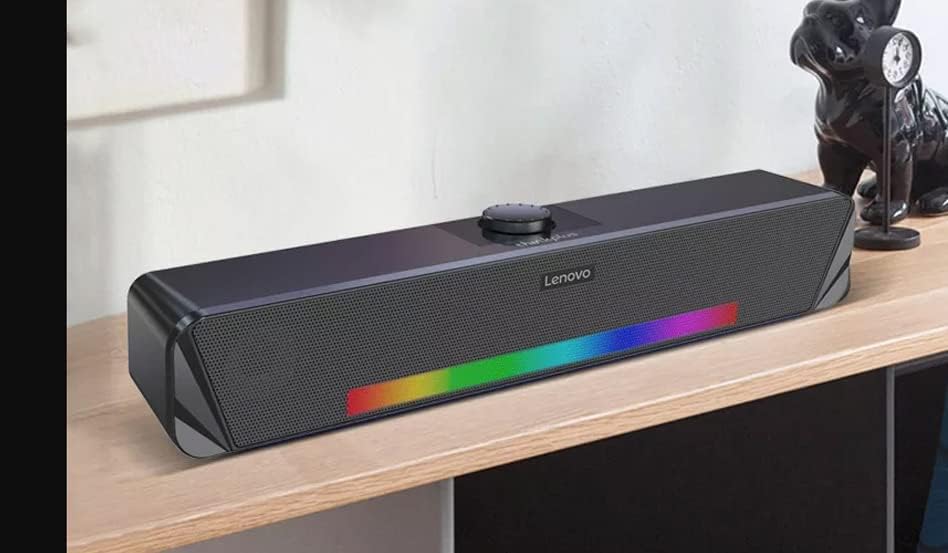
Figure 4.2: Angled view of the soundbar, highlighting its compact and modern design suitable for desktop placement.
Consider the dimensions for optimal placement on your desk or under your monitor.
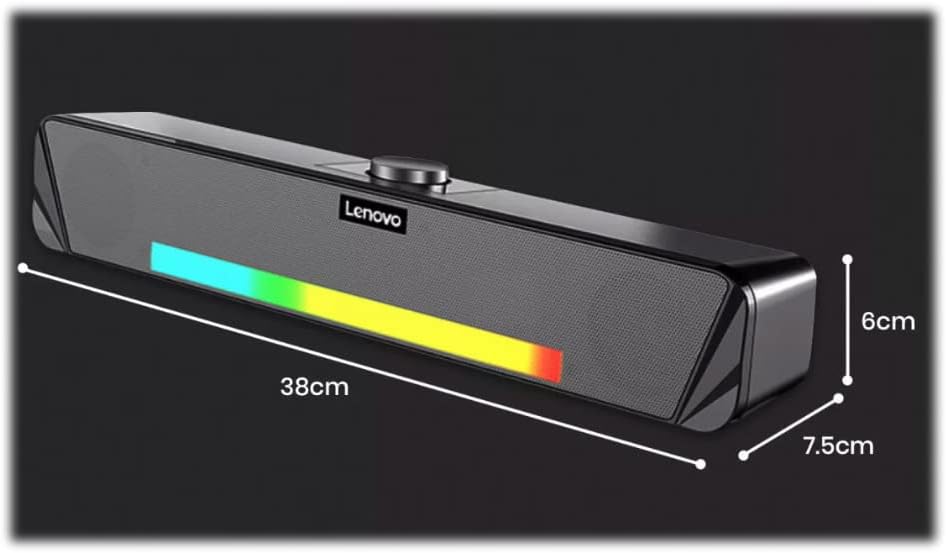
Figure 4.3: Dimensions of the soundbar: approximately 38cm (width) x 7.5cm (depth) x 6cm (height).
5. Setup Instructions
5.1. Connecting to a Computer via USB
- Placement: Position the Lenovo thinkplus Desktop Sound Bar TS33BK on a stable surface, such as your desk, directly in front of or below your monitor.
- USB Connection: Locate the USB cable attached to the soundbar. Plug the USB connector into an available USB port on your computer or a compatible USB power adapter.
- Power On: The soundbar will typically power on automatically once connected to a powered USB port. The RGB lighting may illuminate.
- Audio Output Selection: On your computer, navigate to your sound settings (e.g., Windows: Sound Settings > Playback Devices; macOS: System Preferences > Sound > Output). Select the "Lenovo thinkplus Sound Bar" or similar USB audio device as your default audio output.
- Volume Adjustment: Adjust the volume using the rotary knob on the soundbar or through your computer's system volume controls.
5.2. Bluetooth Connection (If applicable to your model)
Note: Some variations of the TS33 model may not include Bluetooth functionality. Refer to your product packaging or specific model designation for confirmation.
- Enable Bluetooth: Ensure the soundbar is powered on. Activate Bluetooth pairing mode on the soundbar (specific method may vary, often involves a dedicated button or long-pressing the power/mode button). An indicator light may flash.
- Pairing Device: On your mobile device or computer, enable Bluetooth and search for available devices. Select "Lenovo TS33" or similar from the list.
- Confirmation: Once paired, the soundbar will typically indicate a successful connection (e.g., a solid indicator light or an audible prompt).
6. Operating Instructions
6.1. Power On/Off
The soundbar typically powers on automatically when connected to a powered USB port. To power off, disconnect the USB cable from the power source.
6.2. Volume Control
Adjust the audio volume by rotating the central knob located on the top of the soundbar. Turning it clockwise increases the volume, and counter-clockwise decreases it. The soundbar's volume is also linked to your PC's audio control.
6.3. RGB Lighting
The soundbar features integrated RGB lighting. The lighting effects are typically automatic and may cycle through various colors. There is no dedicated control for the RGB lighting on the soundbar itself.
6.4. Audio Output
The soundbar provides stereo audio output. Ensure your computer's audio settings are configured to output sound through the connected USB audio device.
7. Maintenance and Care
- Cleaning: Regularly wipe the surface of the soundbar with a soft, dry, lint-free cloth. Do not use abrasive cleaners, waxes, or solvents.
- Dust: Use a soft brush or compressed air to gently remove dust from the speaker grilles.
- Storage: If storing the soundbar for an extended period, disconnect it from the power source and store it in a cool, dry place, away from direct sunlight and extreme temperatures.
- Avoid Impact: Protect the soundbar from strong impacts or vibrations, which can damage internal components.
8. Troubleshooting
| Problem | Possible Cause | Solution |
|---|---|---|
| No sound from the soundbar. |
|
|
| Sound is distorted or unclear. |
|
|
| RGB lighting is not working. |
|
|
| Bluetooth connection issues. |
|
|
9. Specifications
| Model Name | TS33-BK |
| Brand | Lenovo |
| Speaker Type | Soundbar |
| Connectivity Technology | USB, Bluetooth |
| Audio Output Mode | Stereo |
| Surround Sound Channel Configuration | 2 |
| Total Speaker Output Power | 2.5 Watts (1.25W + 1.25W) |
| Power Source | Corded Electric (via USB) |
| Item Dimensions (W x D x H) | 38cm x 7.5cm x 6cm (approximate) |
| Recommended Uses | Personal Computer, Televisions |
| Special Features | Bass Boost, RGB Lighting |
| Control Method | Rotary Volume Knob, PC Audio Control |
| Maximum Range (Bluetooth) | 20 Meters |
10. Warranty and Support
10.1. Limited Warranty
The Lenovo thinkplus Desktop Sound Bar TS33BK comes with a Limited Warranty. For detailed terms and conditions of your warranty, please refer to the warranty card included with your product or visit the official Lenovo support website. This warranty covers manufacturing defects under normal use.
10.2. Customer Support
If you encounter any issues not covered in the troubleshooting section or require further assistance, please contact Lenovo Customer Support.
- Online Support: Visit the official Lenovo support website for FAQs, drivers, and service information.
- Contact Information: Refer to your product packaging or the Lenovo website for regional contact numbers and email support.