
Introduction
This manual provides comprehensive instructions for the installation, operation, and maintenance of your johgee 2-Zone WiFi Sprinkler Timer. This smart irrigation system allows for remote control and automated watering schedules, enhancing efficiency and convenience for your garden, yard, or lawn. Please read this manual thoroughly before use to ensure proper functionality and longevity of the device.
Product Overview
Components
The johgee Sprinkler Timer system includes the following main components:
- Sprinkler Timer Unit: The main device with two outlets for hose connections.
- Wi-Fi Hub: Connects the timer to your home Wi-Fi network for remote control.
- Hose Adapters/Connectors: For connecting the timer to your faucet and hoses.

Image: The johgee 2-Zone WiFi Sprinkler Timer unit, showing its two outlets, control buttons, and indicator lights, alongside the compact Wi-Fi hub and various hose connection accessories.
Key Features
- Smart Intelligent Irrigation System: Connects to 2.4GHz WiFi for remote programming and management via the Smart Life App.
- 2 Separate Flexible Programming Zones: Each of the two outlets can be individually programmed with up to 10 different irrigation plans.
- Timed and Cyclic Irrigation Modes: Offers flexible scheduling options, including setting irrigation duration and soaking times within a period.
- Intelligent Weather-Dependent Irrigation: Features a rain delay function (1 to 7 days) to postpone watering based on weather conditions or soil moisture.
- Multi-Scene Application: Suitable for various outdoor watering needs, including gardens, lawns, and yards.
- Voice Control: Compatible with Alexa for convenient voice commands.
Setup
Unboxing and Initial Setup
- Insert Batteries: Open the battery compartment on the sprinkler timer unit and insert 4 x 1.5V AA ALKALINE batteries. Ensure correct polarity.
- Connect to Faucet: Screw the sprinkler timer unit onto your outdoor hose faucet. Ensure a tight connection to prevent leaks. The timer features a 360° rotating connector for easy installation.
- Connect Hoses: Attach your garden hoses to the Zone 1 and Zone 2 outlets at the bottom of the timer.

Image: A diagram illustrating the quick installation process for the johgee Sprinkler Timer, showing connections for USA-type (3/4" hose faucet) and EU-type (1/2" hose faucet) setups, including O-rings and quick connectors.
App Installation and Pairing
- Download Smart Life App: Scan the QR code on the product packaging or search for "Smart Life" in your mobile app store (Google Play for Android, App Store for iOS). You can also download it from http://smartapp.tuya.com/smartlife.
- Register/Log In: Open the Smart Life App and register a new account or log in if you already have one.
- Plug in Wi-Fi Hub: Plug the Wi-Fi Hub into a power outlet within 15 meters (49.2 feet) of your sprinkler timer unit. Ensure it is within range of your 2.4GHz Wi-Fi network.
- Add Device: In the Smart Life App, tap the "+" icon to add a new device. Follow the on-screen instructions to pair the Wi-Fi Hub and then the Sprinkler Timer. Ensure your phone's Bluetooth is enabled for easier discovery.

Image: A user interacting with the Smart Life App on a smartphone, demonstrating remote control capabilities for the johgee Sprinkler Timer, with the Wi-Fi hub plugged into a wall outlet.

Image: An illustration showing the recommended maximum distance of 15 meters (49.2 feet) between the Wi-Fi Hub (plugged into an indoor outlet) and the outdoor Sprinkler Timer unit for optimal connectivity.
Operating Instructions
Smart Life App Control
Once paired, you can control and monitor your johgee Sprinkler Timer from anywhere using the Smart Life App. The app provides individual control for each of the two outlets (Zone 1 and Zone 2), allowing for highly customized watering plans.

Image: The Smart Life App interface displaying options for controlling two separate outlets (Zone 1 and Zone 2) and indicating the capability for up to 40 individual watering plans.
Programming Watering Schedules
The app supports various programming modes to suit your irrigation needs:
- Timed Irrigation: Set specific start and end times for watering, with options for weekly cycles, odd days, even days, or every few days.
- Cyclic Irrigation: Define a watering duration and a soaking time within a set period. This allows for multiple shorter watering sessions to improve water absorption and reduce runoff.

Image: A screenshot of the Smart Life App showing the interface for setting up timed or scheduled irrigation, with options for start/end times and daily/weekly recurrence.

Image: A screenshot of the Smart Life App demonstrating the cyclic irrigation mode setup, allowing users to define watering duration and interval time within a specified period for up to 20 separate programs.
Rain Delay Function
To conserve water and prevent overwatering during rainy periods, use the rain delay function. In the Smart Life App, you can set a delay for 1 to 7 days, pausing all scheduled irrigation.
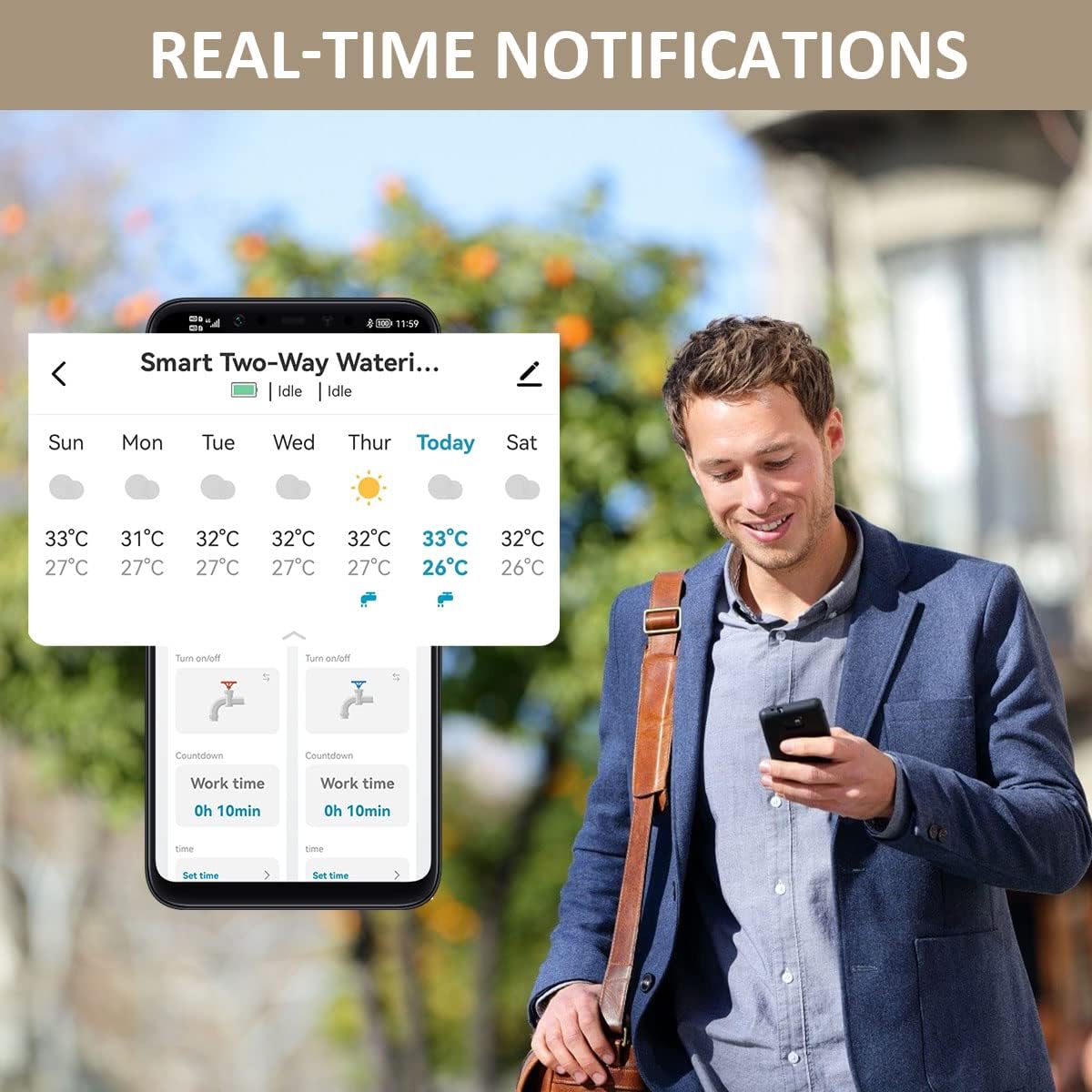
Image: The Smart Life App interface showing the rain delay option, allowing users to postpone watering for 1 to 7 days, with current weather information displayed.
Manual Watering
For immediate watering needs, you can manually activate or deactivate either zone directly from the Smart Life App or by pressing the corresponding button on the timer unit.
Voice Control with Alexa
The johgee Sprinkler Timer is compatible with Amazon Alexa. Once integrated with your Alexa account via the Smart Life skill, you can use voice commands such as:
- "Alexa, open the 2 zone Wifi water timer."
- "Alexa, close the 2 zone Wifi water timer."
- "Alexa, turn on Zone 1."
- "Alexa, turn off Zone 2."

Image: A man in a kitchen setting, demonstrating the use of Alexa voice commands to control the 2-zone WiFi water timer, with speech bubbles showing example commands.
Maintenance
- Battery Replacement: Replace batteries when the low battery indicator appears in the app or on the device. Use only 1.5V AA ALKALINE batteries. Rechargeable batteries (1.3V) may not provide sufficient power for reliable operation.
- Cleaning: Periodically clean the exterior of the timer unit with a damp cloth. Do not use abrasive cleaners or submerge the unit in water.
- Winter Storage: Before the first frost, disconnect the timer from the faucet, remove batteries, and store the unit indoors in a dry, protected area to prevent freezing damage.
- Check for Leaks: Regularly inspect all connections for leaks. Ensure O-rings are properly seated and connections are tight.
Troubleshooting
| Problem | Possible Cause | Solution |
|---|---|---|
| Timer not connecting to App/Wi-Fi. | Incorrect Wi-Fi password, hub out of range, 5GHz Wi-Fi network, pairing issue. |
|
| Water not flowing or timer not turning off. | Low batteries, water pressure issues, valve malfunction, programming error. |
|
| Water leaking from connections. | Loose connections, damaged O-rings, incorrect installation. |
|
| App settings not saving or updating. | App glitch, connectivity issue. |
|
Product Specifications
| Specification | Detail |
|---|---|
| Model | SGW02W |
| Working Temperature | 4.5-45°C (40.1-113°F) |
| Waterproof Rating | IP55 |
| Working Pressure | 0.04-0.8Mpa (5.8-116 PSI) |
| Power Supply | 4 x 1.5V AA ALKALINE Batteries |
| Hose Tap Connection | 3/4" External Thread |
| Material | Acrylonitrile Butadiene Styrene (ABS) |
| Item Weight | 400 g (0.88 lbs) |
| Parcel Dimensions | 15.4 x 14.9 x 6.3 cm (6.06 x 5.87 x 2.48 inches) |
| Screen Size | 2 Inches |
| Number of Settings | 22 |
Warranty and Support
For warranty information or technical support, please refer to the product packaging or contact johgee customer service directly. Keep your purchase receipt for warranty claims.


