
1. Introduction
Thank you for choosing the ARZOPA 16.1'' 144Hz Portable Gaming Monitor. This manual provides essential information for setting up, operating, and maintaining your new monitor. Please read it thoroughly before use to ensure optimal performance and longevity of the device.
The ARZOPA G1 Game monitor is designed for versatility and high performance, offering a 144Hz refresh rate and Full HD 1080P resolution on a 15.6-inch IPS anti-glare display. Its ultra-slim and lightweight design makes it an ideal companion for gaming, work, and entertainment on the go.

Image: The ARZOPA 16.1'' 144Hz Portable Gaming Monitor, showcasing its sleek design and vibrant display.
2. Package Contents
Please verify that all items listed below are included in your package:
- 1 x ARZOPA 15.6" 144Hz Portable Monitor
- 1 x USB-C to USB-C Cable (Full-functioned)
- 1 x Mini HDMI to HDMI Cable (Data transfer only)
- 1 x User Guide (This manual)

Image: All components included in the ARZOPA portable monitor package, neatly arranged.
3. Product Features
The ARZOPA G1 Game monitor offers a range of features designed to enhance your visual and gaming experience:
- 15.6" 144Hz Display: Features a 1080P HD resolution with an ultra-high 144Hz refresh rate for superior motion clarity and smoother visuals, ideal for gaming.
- Vibrant IPS Anti-Glare Screen: Enjoy 100% sRGB color gamut on a 15.6" IPS anti-glare display, providing rich colors and wide viewing angles (178°).
- Ultra-Slim & Lightweight Design: Weighing approximately 1.7 lbs and only 0.3 inches slim, this monitor is highly portable for work and entertainment on the go.
- Plug-and-Play Connectivity: Equipped with two full-featured USB Type-C ports and a Mini HDMI port, allowing direct connection to various devices without requiring driver installation.
- Versatile Second Monitor: Easily functions as an external display for laptops, PCs, gaming consoles (PS5, Xbox, Switch, Steam Deck), and smartphones, boosting productivity and enhancing gaming.
- Eye Care Technology: Incorporates features like Low Blue Light and Flicker-Free technology to reduce eye strain during extended use.
- HDR Support: Elevates picture quality for a more dynamic and immersive visual experience with enhanced color and brightness.

Image: A visual representation of the 144Hz refresh rate, highlighting its benefit for smooth gaming on consoles like Xbox, Switch, and PS4/PS5.
4. Setup Instructions
Before connecting, ensure your device supports video output via USB-C (DisplayPort Alternate Mode) or HDMI.
4.1. Connecting via USB Type-C (Full-featured)
For devices with a full-featured USB Type-C port (supporting both power and video output), a single USB-C to USB-C cable is sufficient.
- Connect one end of the provided USB-C to USB-C cable to the monitor's Type-C (Full-featured USB-C) port.
- Connect the other end of the USB-C to USB-C cable to your device's compatible USB Type-C port.
- The monitor should automatically detect the signal and power on. If not, press the Power Button on the monitor.

Image: Close-up view of the monitor's ports, including two USB Type-C (Full-featured) and one Mini HDMI port.
4.2. Connecting via Mini HDMI
For devices with an HDMI output, use the provided Mini HDMI to HDMI cable. An external power source may be required.
- Connect the Mini HDMI end of the cable to the monitor's Mini HDMI port.
- Connect the standard HDMI end of the cable to your device's HDMI output port.
- If the monitor does not power on or display a signal, connect an external power adapter (not included) to one of the monitor's USB Type-C ports.
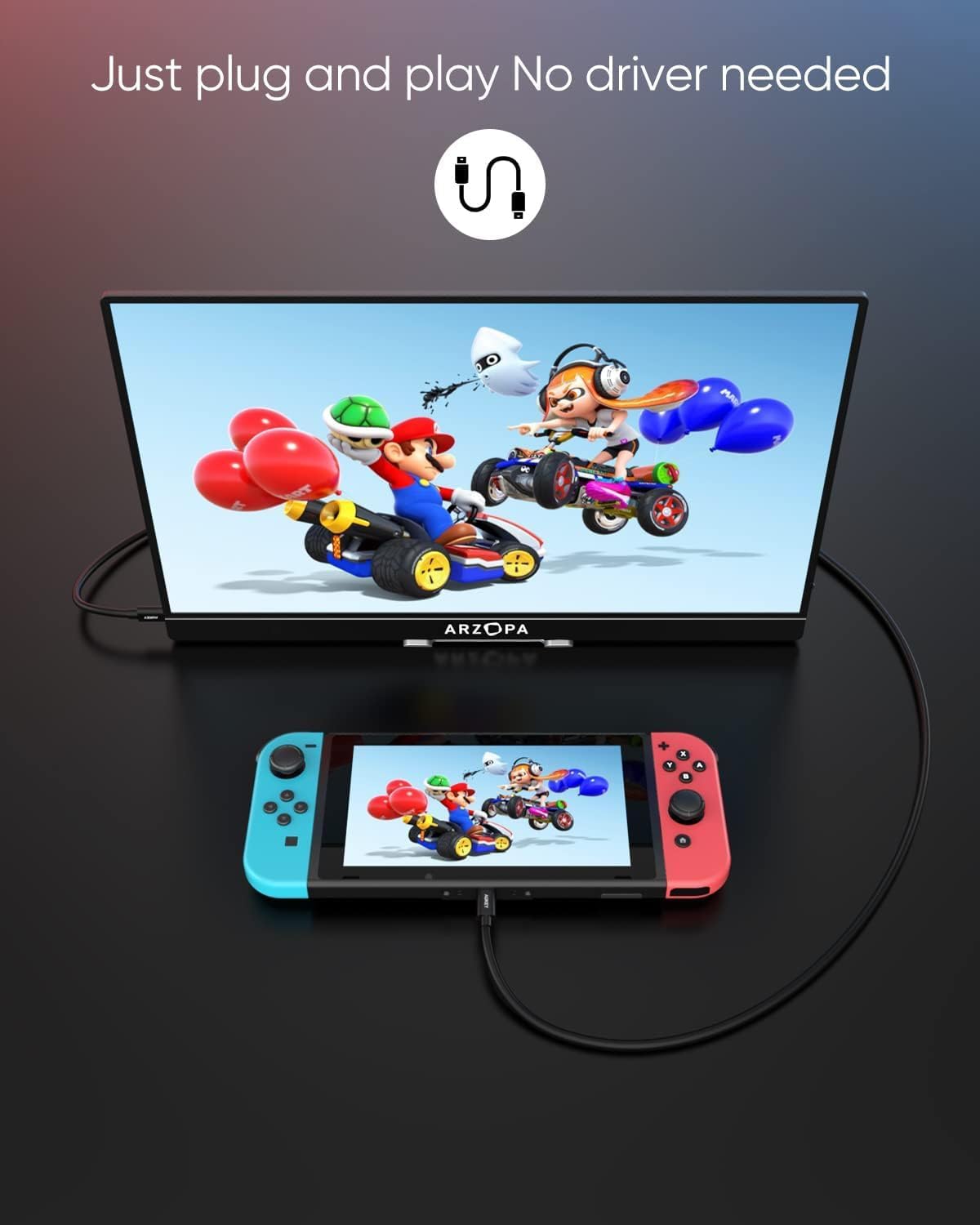
Image: The ARZOPA portable monitor connected to a Nintendo Switch, demonstrating its plug-and-play capability for gaming consoles.
5. Operating Instructions
5.1. On-Screen Display (OSD) Menu
The OSD menu allows you to adjust various monitor settings. Use the multi-function button (often a scroll wheel or joystick) on the side of the monitor to navigate and select options.
- Power Button: Press and hold to power on/off. Short press to access the OSD menu or confirm selection.
- Scroll Up/Down: Use the scroll function to navigate through menu options or adjust values.
Common OSD settings include:
- Brightness: Adjust the screen's luminance.
- Contrast: Modify the difference between light and dark areas.
- Color Temperature: Change the color warmth (e.g., 6500K for standard).
- Volume: Control the audio output level from the built-in speakers.
- Low Blue Light: Reduce blue light emission for eye comfort.
- HDR: Enable or disable High Dynamic Range.
- FreeSync: Enable or disable FreeSync for smoother gaming (if supported by your device).
- Input Source: Manually select the input (Type-C1, Type-C2, HDMI).
5.2. Adjusting Brightness and Volume
You can quickly adjust brightness and volume without entering the full OSD menu:
- Brightness: Short press the multi-function button to bring up the quick menu, then scroll to the brightness option and adjust.
- Volume: From the quick menu, scroll to the volume option and adjust.
6. Maintenance
Proper maintenance ensures the longevity and optimal performance of your ARZOPA monitor:
- Cleaning the Screen: Use a soft, lint-free cloth slightly dampened with water or a screen cleaner. Avoid harsh chemicals or abrasive materials.
- Cleaning the Body: Wipe the monitor's exterior with a soft, dry cloth.
- Storage: When not in use, store the monitor in a cool, dry place, preferably in its original packaging or a protective sleeve to prevent dust and scratches.
- Handling: Always handle the monitor by its edges. Avoid applying pressure directly to the screen.
- Avoid Extreme Conditions: Do not expose the monitor to extreme temperatures, humidity, or direct sunlight.
7. Troubleshooting
If you encounter issues with your monitor, refer to the following common solutions:
| Problem | Possible Solution |
|---|---|
| No Signal / Black Screen |
|
| Flickering Screen |
|
| No Sound |
|
| Monitor Powers Off Randomly |
|
If the problem persists after trying these solutions, please contact ARZOPA customer service.
8. Specifications
| Feature | Detail |
|---|---|
| Brand | ARZOPA |
| Model Number | G1 Game |
| Screen Size | 15.6 Inches |
| Resolution | 1920 x 1080 Pixels (FHD 1080p) |
| Refresh Rate | 144Hz |
| Panel Type | IPS Anti-Glare |
| Color Gamut | 100% sRGB |
| Aspect Ratio | 16:9 |
| Connectivity | 2 x USB Type-C (Full-featured), 1 x Mini HDMI |
| Product Dimensions | 0.35 x 14.37 x 10.82 inches |
| Item Weight | 1.7 pounds |
9. Warranty and Support
ARZOPA provides a warranty for this product. Please refer to the warranty card included in your package for specific terms and conditions. For technical support, troubleshooting assistance, or warranty claims, please contact ARZOPA customer service through the following channels:
- Email: Refer to your warranty card or the official ARZOPA website for contact details.
- Website: Visit the official ARZOPA website for FAQs, support resources, and contact information.
Please have your model number (G1 Game) and purchase information ready when contacting support.


