
johgee #HCT-SGW02
Johgee WiFi 2-Way Smart Watering Timer User Manual
Model: #HCT-SGW02 | Brand: Johgee
1. Introduction
Thank you for choosing the Johgee WiFi 2-Way Smart Watering Timer. This device is designed to provide intelligent and automated irrigation for your garden, lawn, and other watering needs. With its dual-zone control, Wi-Fi connectivity, and smart app integration, you can manage your watering schedules from anywhere, ensuring your plants receive optimal hydration while conserving water.
This manual provides detailed instructions for setting up, operating, and maintaining your smart watering timer. Please read it thoroughly before use to ensure proper functionality and longevity of the product.
2. Package Contents
- Johgee WiFi 2-Way Smart Watering Timer (Main Unit)
- WiFi Hub
- Hose Faucet Adapters (e.g., 3/4" and 1/2")
- Quick Connectors
- User Manual (this document)

Figure 2.1: Main components of the Johgee Smart Watering Timer system, including the dual-outlet timer, the compact WiFi hub, and various faucet adapters and quick connectors.
3. Setup and Installation
3.1. App Installation and Account Creation
- Download the "Smart Life" app from the App Store (iOS) or Google Play Store (Android).
- Register a new account or log in if you already have one.

Figure 3.1: The Smart Life app allows for remote control of your watering timer from anywhere with an internet connection.
3.2. WiFi Hub Placement
The WiFi Hub connects the watering timer to your home Wi-Fi network. For optimal performance, place the hub indoors, within 15 meters (49.2 feet) of the watering timer, and within range of your Wi-Fi router. Ensure it is plugged into a standard electrical outlet.

Figure 3.2: Proper placement of the WiFi hub is crucial for maintaining a stable connection between the timer and your home network. The maximum recommended distance is 15 meters (49.2 feet).
3.3. Timer Installation
- Prepare the Faucet: Ensure your outdoor faucet is clean and free of debris.
- Attach Adapter (if necessary): The timer is designed to fit standard 3/4" hose faucets. If your faucet is 1/2", use the provided 1/2" adapter. Ensure the O-ring is properly seated to prevent leaks.
- Connect the Timer: Screw the Johgee watering timer onto the faucet. The 360° rotating connector allows for easy positioning. Tighten securely by hand.
- Connect Hoses: Attach your garden hoses to the two independent outlets (ZONE1 and ZONE2) at the bottom of the timer. Use the quick connectors if desired.
- Power On: The timer is battery-powered. Insert 4 AA alkaline batteries (not included) into the battery compartment.
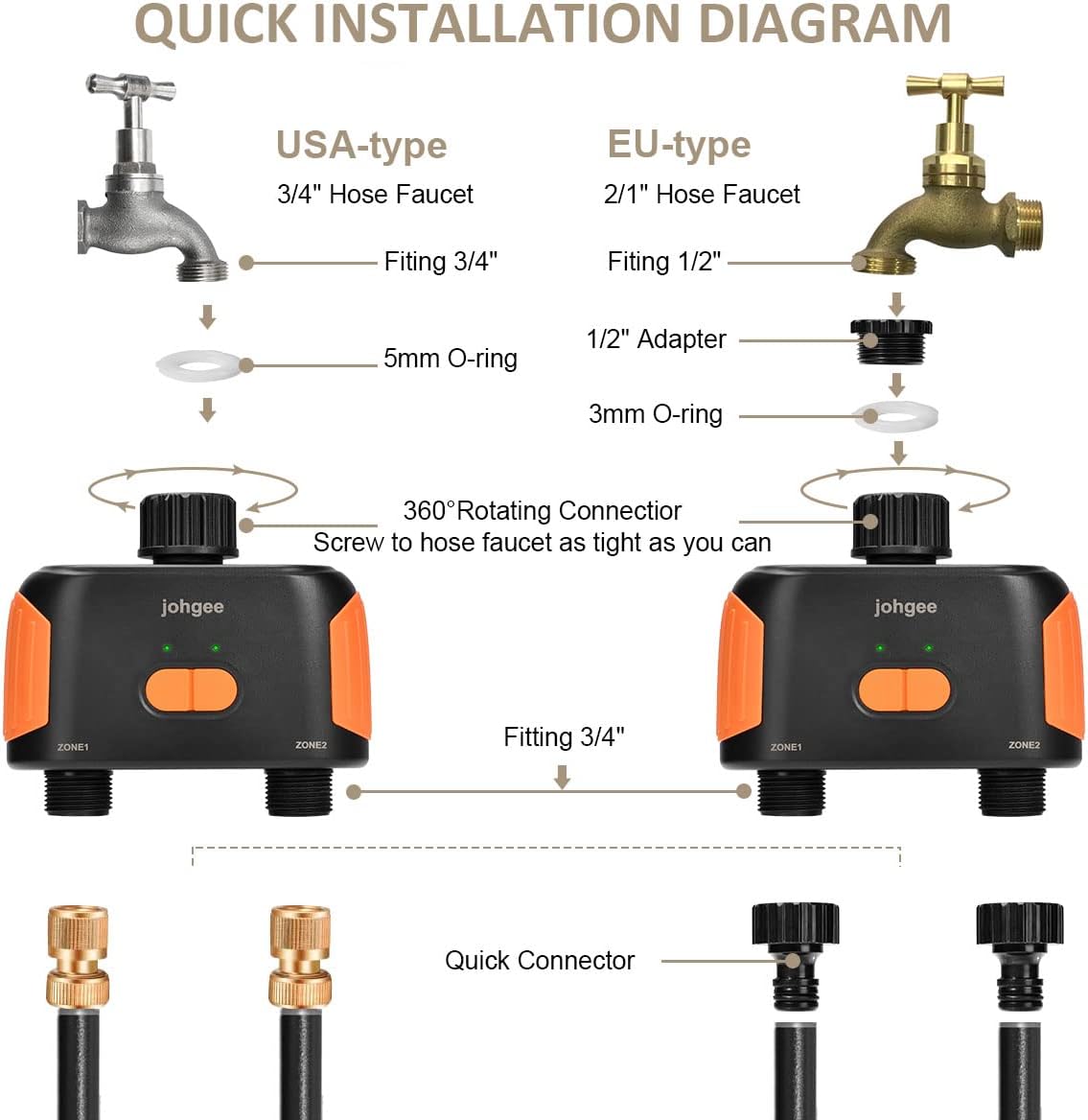
Figure 3.3: Detailed diagram illustrating the installation process for both USA-type (3/4" hose faucet) and EU-type (1/2" hose faucet) connections, including the use of adapters and O-rings.
3.4. Pairing with App
- Open the Smart Life app.
- Add the WiFi Hub: Follow the in-app instructions to add the WiFi Hub to your account. Ensure the hub's indicator light is blinking as per the app's instructions for pairing mode.
- Add the Watering Timer: Once the hub is connected, use the app to add the watering timer. The app will guide you through the process of connecting the timer to the hub.
- Verify Connection: Once successfully paired, the app will display the watering timer, and you can begin programming.
4. Operating Instructions
4.1. Dual-Zone Control
The Johgee Smart Watering Timer features two independent outlets (ZONE1 and ZONE2). Each zone can be programmed with its own unique watering schedule, allowing you to customize irrigation for different areas of your garden, such as lawns, flower beds, or drip irrigation systems.

Figure 4.1: The app allows for individual programming of up to 10 different watering plans per zone, providing flexibility for diverse watering needs.
4.2. Programming Watering Schedules
The Smart Life app offers multiple programming modes:
- Timed/Schedule Mode: Set specific start and end times for watering on selected days of the week. You can define the duration of each watering cycle.
- Cyclic Irrigation Mode: Ideal for frequent, short watering sessions. Set a start time, end time, watering duration, and interval time. For example, water for 30 minutes every hour from 6:00 AM to 10:30 AM.
- Manual Mode: Temporarily override programmed schedules to manually turn on or off watering for a specified duration directly from the app or by pressing the buttons on the timer.

Figure 4.2: The app provides options for setting up timed or scheduled irrigation, allowing precise control over watering duration and frequency.

Figure 4.3: Cyclic irrigation mode allows for multiple short watering cycles within a defined period, beneficial for certain plant types or soil conditions.
4.3. Smart Features
- Rain Delay: Utilize the rain delay function to postpone watering for 1 to 7 days based on weather forecasts or current conditions. This feature helps conserve water and prevents overwatering during rainy periods.
- Real-time Notifications: Receive instant notifications on your smartphone regarding watering status, low battery alerts, and other important system updates.
- Voice Control: The Johgee watering timer is compatible with Amazon Alexa and Google Assistant. Link your Smart Life account to your voice assistant to control watering zones with simple voice commands. For example, "Alexa, open the 2-zone WiFi water timer" or "Google, turn off the 2-zone WiFi water timer."

Figure 4.4: The rain delay feature can be easily activated through the app, allowing you to pause watering for up to 7 days.
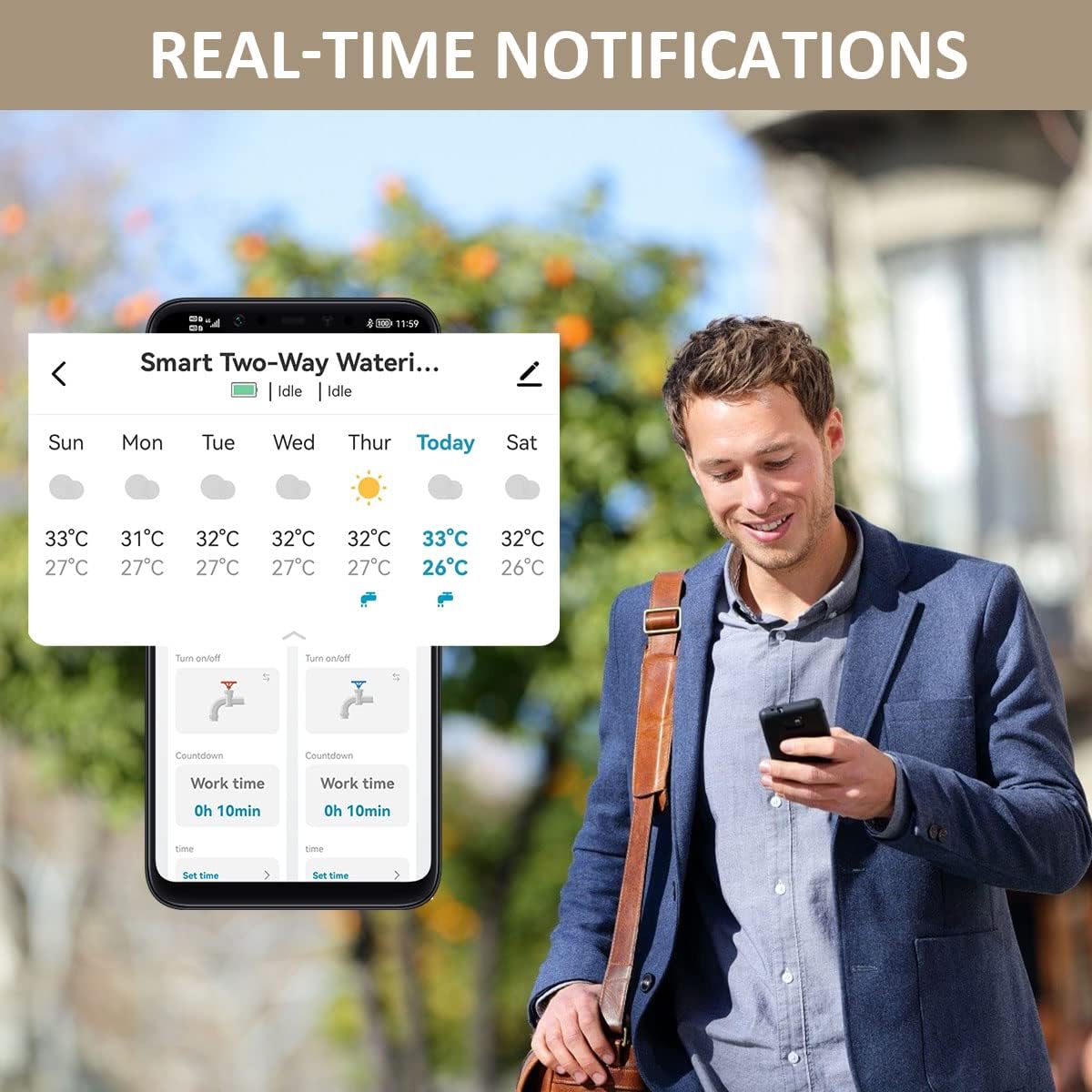
Figure 4.5: Stay informed about your watering schedule and system status with real-time notifications delivered directly to your mobile device.
5. Maintenance
- Battery Replacement: The timer requires 4 AA alkaline batteries. Replace batteries when the low battery indicator appears in the app or on the device. It is recommended to replace batteries at the start of each watering season.
- Cleaning: Periodically clean the exterior of the timer with a soft, damp cloth. Do not use abrasive cleaners or immerse the unit in water.
- Winterization: Before the first frost, disconnect the watering timer from the faucet. Remove batteries and store the unit indoors in a dry, protected area to prevent damage from freezing temperatures.
- Check for Leaks: Regularly inspect all connections for leaks. Ensure O-rings are properly seated and connections are tight.
6. Troubleshooting
| Problem | Possible Cause | Solution |
|---|---|---|
| Timer not connecting to app/hub. |
|
|
| Water not flowing from an outlet. |
|
|
| Leaks at connections. |
|
|
| Rain delay not working. |
|
|
7. Specifications
| Feature | Detail |
|---|---|
| Model Number | #HCT-SGW02 |
| Dimensions (L x W x H) | 6 x 16 x 8.2 cm (2.36 x 6.3 x 3.23 inches) |
| Weight | 420 grams (0.93 lbs) |
| Material | Silicone |
| Number of Outlets | 2 (Independent Zones) |
| Connectivity | Wi-Fi (via Hub), Bluetooth (for local connection to Hub) |
| App Compatibility | Smart Life (Android, iOS) |
| Voice Control | Amazon Alexa, Google Assistant |
| Power Source | 4 x AA Batteries (Timer), AC Power (Hub) |
| Max Hub-Timer Distance | 15 meters (49.2 feet) |
8. Warranty Information
Johgee products are manufactured to high-quality standards. This product comes with a standard manufacturer's warranty. Please refer to the product packaging or contact Johgee customer support for specific warranty terms and conditions. Keep your purchase receipt as proof of purchase for warranty claims.
9. Customer Support
For technical assistance, troubleshooting, or general inquiries, please contact Johgee customer support. You can typically find contact information on the product packaging, the official Johgee website, or through the Smart Life app's help section.
When contacting support, please have your product model number (#HCT-SGW02) and purchase details ready.
Related documents#HCT-SGW02


Ask a question about this manual
Ask about setup, troubleshooting, compatibility, parts, safety, or missing instructions. Manuals+ will review the question and use this page’s manual context to help answer it.