
1. Introduction
This manual provides detailed instructions for the PROZOR Bi-Directional 4x2/2x4 RCA Stereo Audio Switch. This device allows for flexible audio signal routing between multiple sources and outputs, enhancing your audio system's versatility. It operates without external power, ensuring signal integrity.

Image 1.1: The PROZOR Bi-Directional 4x2/2x4 RCA Stereo Audio Switch.
2. Product Features
- Bi-Directional Flexibility (4x2/2x4): Connect up to 6 devices. Use as a 4-input, 2-output switch or a 2-input, 4-output switch. Select audio sources or destinations using the textured rotary selector.
- Integrated OFF Function and Power-Free Operation: Features a built-in OFF button to cut the signal without disconnecting cables. Operates as a plug-and-play device without external power, preserving original sound quality.
- High-Performance Gold-Plated RCA Connectors: Equipped with gold-plated RCA connectors on inputs/outputs and the included cable. This design reduces oxidation, ensuring stable and durable signal transmission.
- Anti-Slip Metallic Casing: Features a robust metallic chassis with textured side knobs. Provides protection against interference and offers a compact design for discreet installation.
- Shielded RCA Cable Included: Comes with a premium 1.5m shielded RCA cable with gold-plated connectors. Compatible with amplifiers, speakers, DVD players, and classic home cinema systems.
3. Package Contents
Verify that all items are present in the package:
- PROZOR Bi-Directional 4x2/2x4 RCA Stereo Audio Switch
- 1.5m Shielded RCA Cable with Gold-Plated Connectors
- User Manual
4. Setup and Connection
The PROZOR audio switch offers two primary connection modes: 4 inputs to 2 outputs, or 2 inputs to 4 outputs. No external power supply is required for operation.
4.1. 4 Inputs to 2 Outputs Configuration
In this mode, you can connect up to four audio source devices (e.g., DVD player, PC, CD player, TV) to the "IN/OUT 1-4" ports. Connect two output devices (e.g., active speakers, amplifier) to the "IN/OUT A-B" ports. Use the rotary selector to choose which of the four input sources is routed to the two output devices.
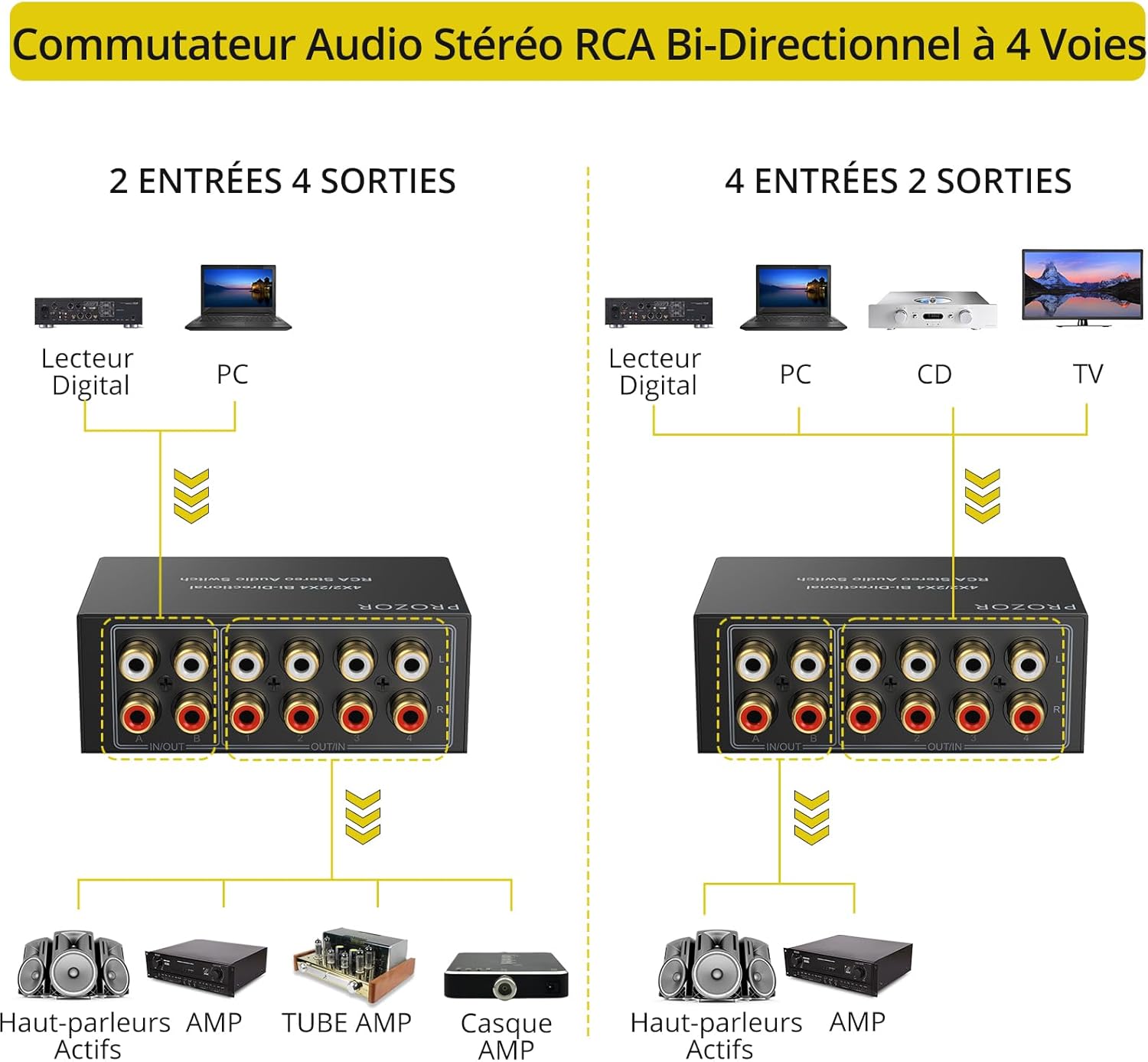
Image 4.1: Diagram illustrating the 4 inputs to 2 outputs connection setup.

Image 4.2: Example of connecting four input devices to two output devices.
4.2. 2 Inputs to 4 Outputs Configuration
In this mode, connect two audio source devices (e.g., digital player, PC) to the "IN/OUT A-B" ports. Connect up to four output devices (e.g., active speakers, amplifier, tube amp, headphone amp) to the "IN/OUT 1-4" ports. Use the rotary selector to choose which of the two input sources is routed to the four output devices.

Image 4.3: Example of connecting two input devices to four output devices.
4.3. General Connection Notes
- Ensure all RCA cables are securely connected to prevent signal loss or interference.
- The device features gold-plated RCA connectors for optimal signal transmission.
- The included shielded RCA cable should be used for reliable performance.

Image 4.4: Close-up of the gold-plated RCA interfaces for stable, anti-interference transmission.

Image 4.5: The included shielded RCA cable with gold-plated connectors.

Image 4.6: The compact design with inputs and outputs on the same side for easy desktop placement.
Video 4.1: Demonstration of connecting devices and basic operation of the audio switch.
5. Operating Instructions
The audio switch features two rotary knobs for easy selection of inputs and outputs.
- Input/Output Selector (1/2/3/4): This knob selects one of the four input/output channels.
- Input/Output Selector (A/B): This knob selects one of the two input/output channels.
- OFF Function: The "OFF" position on the 1/2/3/4 selector allows you to completely cut the audio signal without needing to unplug any cables.

Image 5.1: Close-up of the textured rotary selector knobs, including the OFF function.
Important Note: Only one input can be selected for each output at a time. Simultaneous audio output to multiple output devices is not supported if they are connected to different input channels on the switch. For example, if using 4 inputs to 2 outputs, you select one of the 4 inputs to go to both of the 2 outputs. If using 2 inputs to 4 outputs, you select one of the 2 inputs to go to all 4 outputs.
6. Troubleshooting
- No Audio Output:
- Ensure all RCA cables are securely connected to both the audio switch and your devices.
- Verify that the rotary selector on the switch is not set to "OFF" and is correctly pointing to the desired input/output.
- Check the volume levels on your source device and output device (e.g., amplifier, speakers).
- Confirm that your source device is playing audio and your output device is powered on and functioning correctly.
- Poor Sound Quality/Interference:
- Ensure all connections are tight. Loose connections can cause static or hum.
- Use the included shielded RCA cable to minimize external interference.
- Keep the audio switch away from strong electromagnetic fields (e.g., power transformers, large motors).
- Test with different RCA cables to rule out a faulty cable.
- Device Not Switching:
- Ensure the rotary knobs are fully turned to the desired position.
- The switch is mechanical; ensure there are no physical obstructions preventing the knob from turning.
7. Specifications
| Model Number | 4X2 2X4 |
| Brand | PROZOR |
| Connector Type | RCA |
| Number of Ports | 4 (Input/Output) |
| Cable Type | RCA (Shielded) |
| Color | Black |
| Power Requirement | No external power required |
| Housing Material | Metallic |
8. Warranty and Support
This PROZOR product comes with an 18-month warranty from the date of purchase. For technical support, troubleshooting assistance, or warranty claims, please contact PROZOR customer service through the retailer where the product was purchased or visit the official PROZOR website.
Please retain your proof of purchase for warranty validation.
