1. Introduction
Thank you for choosing the Rockstar PAD20 PRO ADVANCED Electronic Drum Pad. This manual provides essential information for the safe and effective use of your new instrument. Please read it thoroughly before operation and retain it for future reference. The PAD20 PRO ADVANCED is designed to offer advanced percussion performance with versatile drum kits, enhanced connectivity, and durable construction.
2. Safety Information
- Power Supply: Use only the specified power adapter. Ensure the voltage matches the requirements of the device.
- Water and Moisture: Do not expose the unit to rain, moisture, or excessive humidity. Avoid placing liquid containers near the device.
- Ventilation: Ensure adequate ventilation around the unit. Do not block ventilation openings.
- Heat Sources: Keep the unit away from heat sources such as radiators, heat registers, stoves, or other apparatus that produce heat.
- Cleaning: Disconnect the power before cleaning. Use a soft, dry cloth. Do not use liquid cleaners or aerosol cleaners.
- Servicing: Do not attempt to service this product yourself. Refer all servicing to qualified service personnel.
3. Package Contents
Verify that all items are present in the package:
- Rockstar PAD20 PRO ADVANCED Electronic Drum Pad
- Power Adapter
- User Manual (this document)
4. Product Overview
4.1 Front Panel and Controls
The front panel features eight velocity-sensitive pads, a large LCD screen, and various control buttons and knobs for navigation and sound manipulation.
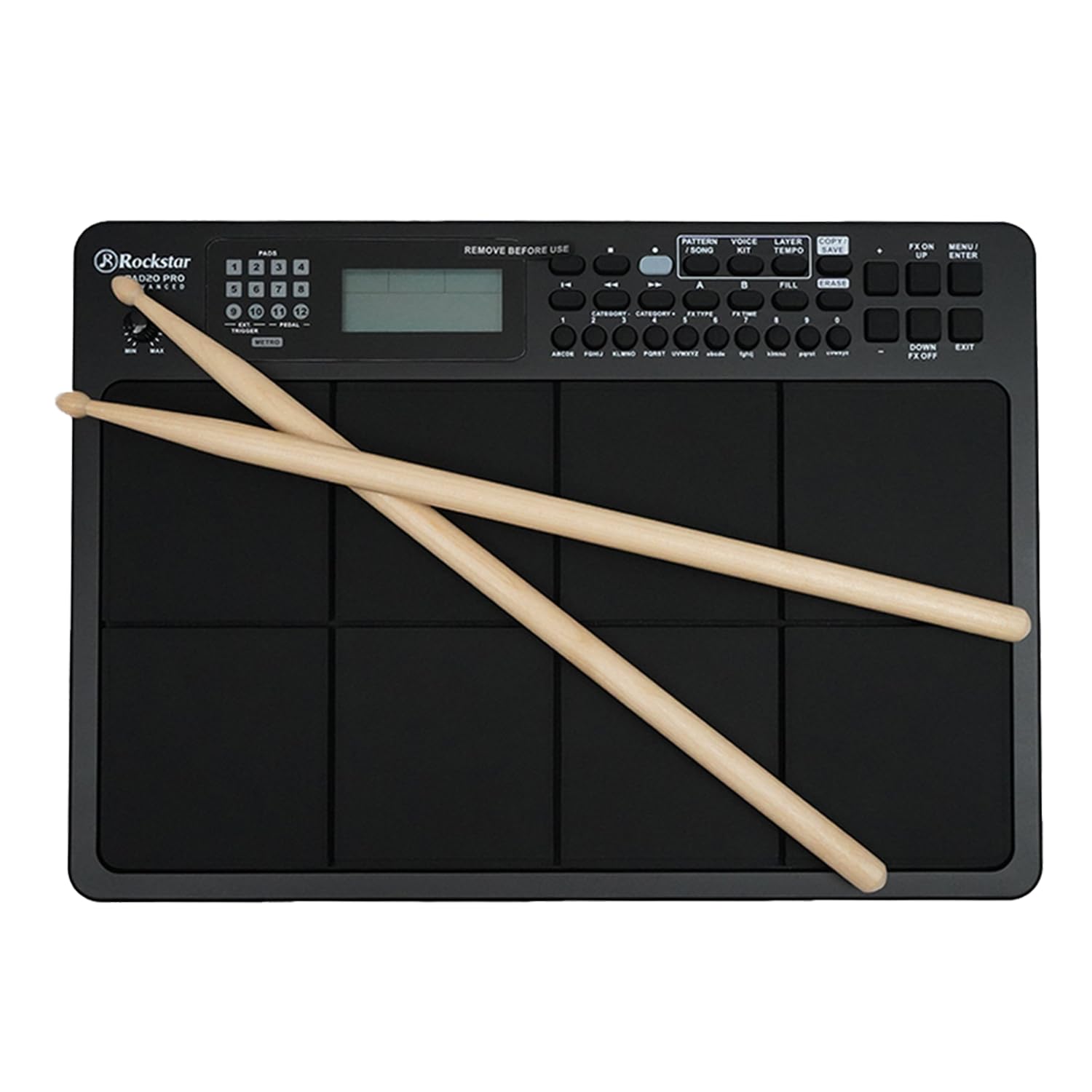
Figure 1: Front view of the Rockstar PAD20 PRO ADVANCED with drumsticks, showing the pads, display, and control buttons.
- Pads (1-8): Velocity-sensitive pads for triggering sounds.
- LCD Display: Large backlight display for navigating menus, selecting kits, and viewing parameters.
- Navigation Buttons: Buttons for moving through menus and adjusting settings.
- Volume Knob: Adjusts the overall output volume.
- Function Buttons: Dedicated buttons for Pattern, Voice, Layer, Kit, Song, Tempo, Copy, Save, FX On/Off, Menu, Up/Down, Enter, Exit.
4.2 Rear Panel Connections
The rear panel provides various input and output ports for connecting to external devices.

Figure 2: Rear panel connections diagram, illustrating ports for USB, MIDI In/Out, audio outputs, and power input.
- USB 2.0 MIDI Port: For connecting to a computer for MIDI data transfer.
- MIDI IN/OUT Ports: For connecting to other MIDI devices.
- Audio Outputs (L/MONO, R): For connecting to an amplifier, mixer, or audio interface.
- Headphone Output: For private monitoring.
- Auxiliary Input: For connecting external audio players.
- External Trigger/Pedal Inputs: For connecting additional pads or footswitches.
- Power Input: For connecting the DC power adapter.
5. Setup
- Placement: Place the PAD20 PRO ADVANCED on a stable, flat surface.
- Power Connection: Connect the provided power adapter to the DC IN port on the rear panel, then plug the adapter into a power outlet.
- Audio Connection:
- For external amplification, connect the L/MONO and R audio outputs to your amplifier or mixer using appropriate cables.
- For private practice, connect headphones to the Headphone Output.
- MIDI/USB Connection (Optional): To use the PAD20 PRO ADVANCED as a MIDI controller or to connect to a computer, use a USB cable to connect the USB 2.0 MIDI port to your computer.
- Power On: Press the power button to turn on the unit. The LCD display will illuminate.
6. Operating Instructions
6.1 Basic Operation
Upon powering on, the unit will typically load the last used drum kit. Strike the pads with drumsticks or your hands to produce sounds.
6.2 Navigating the Display

Figure 3: Close-up of the LCD screen, showing kit selection and voice information. The display is bright and clear.
Use the navigation buttons (Up/Down, Left/Right, Enter, Exit) to move through menus and adjust parameters shown on the large backlight LCD display.
6.3 Drum Kit Selection
The PAD20 PRO ADVANCED features 100 professionally curated drum kits. To select a kit:
- Press the KIT button.
- Use the navigation buttons to scroll through the available kits.
- Press ENTER to confirm your selection.
6.4 Recording Functions
The unit supports real-time record and step record edit functions. Refer to the on-screen menu for detailed instructions on how to initiate, stop, and edit recordings.
6.5 Connectivity and MIDI
The USB 2.0 MIDI port allows seamless integration with your computer. You can use the PAD20 PRO ADVANCED as a MIDI controller for software instruments or to send MIDI data to a Digital Audio Workstation (DAW).
7. Maintenance
- Cleaning: Wipe the unit with a soft, dry cloth. For stubborn dirt, a slightly damp cloth can be used, followed by a dry cloth. Avoid abrasive cleaners.
- Storage: When not in use for extended periods, store the unit in a cool, dry place, away from direct sunlight and extreme temperatures.
- Pad Care: Avoid striking the pads with excessive force or sharp objects, as this can damage the sensors.
8. Troubleshooting
| Problem | Possible Cause | Solution |
|---|---|---|
| No sound from pads | Volume too low; incorrect audio connection; headphones not connected properly. | Increase master volume. Check audio cables and connections. Ensure headphones are fully inserted. |
| Unit does not power on | Power adapter not connected; faulty power outlet. | Ensure power adapter is securely connected to the unit and a working power outlet. Try a different outlet. |
| Pads are unresponsive or trigger inconsistently | Sensitivity settings; physical damage to pads. | Check pad sensitivity settings in the menu. If problem persists, contact support. |
| MIDI connection issues | Incorrect USB cable; driver issues; software settings. | Ensure a proper USB 2.0 cable is used. Check computer's device manager for driver status. Verify MIDI input settings in your software. |
9. Specifications
| Feature | Description |
|---|---|
| Model | PAD20 PRO |
| Pads | 8 Velocity-sensitive pads |
| Drum Kits | 100 (Pre-programmed) |
| Display | Large Backlight LCD |
| Connectivity | USB 2.0 MIDI, MIDI IN/OUT, Audio Outputs (L/MONO, R), Headphone Output, Aux Input, External Trigger/Pedal Inputs |
| Recording Functions | Real-time Record, Step Record Edit |
| Body Material | Plastic |
| Finish Type | Black finish |
| Product Dimensions | 30.5 x 30.5 x 50.8 cm (L x W x H) |
| Item Weight | 2 kg |
| Country of Origin | China |
10. Warranty and Support
The Rockstar PAD20 PRO ADVANCED comes with a 2 Years Hassle Free Warranty from the date of purchase. This warranty covers manufacturing defects under normal use. For warranty claims or technical support, please contact Rockstar customer service.
Manufacturer Contact Information:
Phone Number: +91 8885241706
Email: care@justshop24x7.com


