
XPG AGAMMIXS70B-4T-CS
XPG GAMMIX S70 Blade PCIe Gen4 M.2 2280 Internal Gaming SSD User Manual
Brand: XPG | Model: AGAMMIXS70B-4T-CS
1. Product Overview
The XPG GAMMIX S70 Blade is a high-performance PCIe Gen4 NVMe 1.4 M.2 2280 Solid State Drive designed for demanding gaming and professional applications. It offers exceptional read and write speeds, making it suitable for both PC/Laptop upgrades and expanding storage on the PlayStation 5 console.
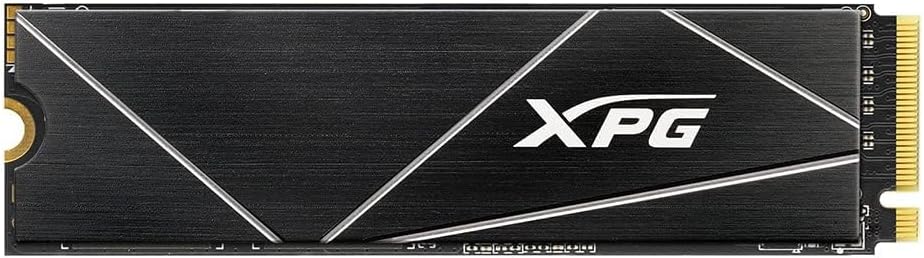
Figure 1: Top view of the XPG GAMMIX S70 Blade SSD, showcasing its sleek black design with XPG branding.
2. Key Features
- Interface: PCIe Gen4 NVMe 1.4 for cutting-edge performance.
- High Speed: Sequential Read/Write speeds up to 7400/6800 MB/s on PC/Laptop.
- PS5 Compatibility: Optimized for PlayStation 5, with sequential read speeds measured at 6100 MB/s (requires PS5 firmware 21.02-04.00.00.42 or higher).
- Form Factor: M.2 2280, suitable for compact and thin devices.
- Advanced Technologies: Features SLC Caching and DRAM Cache Buffer for enhanced performance.
- Data Protection: Equipped with E2E Data Protection and LDPC (Low-Density Parity Check) error correcting code for robust data integrity.
- Cooling: Includes a heat sink to reduce operating temperatures by up to 20%, preventing thermal throttling.
- Durability: Backed by a 5-year limited manufacturer warranty.
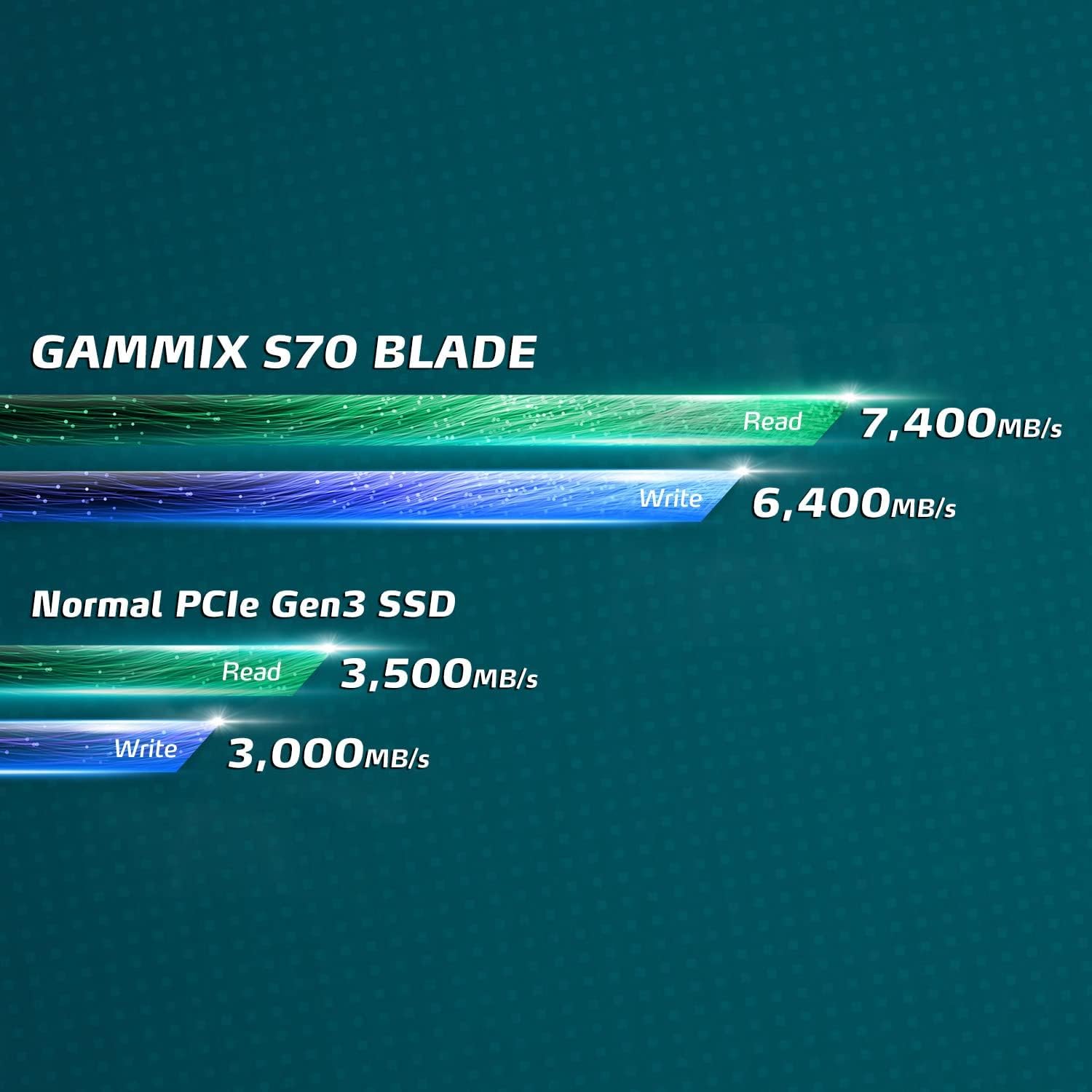
Figure 2: Performance comparison showing GAMMIX S70 Blade's superior read/write speeds (7400/6800 MB/s) compared to normal PCIe Gen3 SSDs (3500/3000 MB/s).
3. Setup and Installation
Installing the XPG GAMMIX S70 Blade SSD requires careful handling and adherence to specific procedures depending on your device (PC/Laptop or PlayStation 5).
3.1 General Installation Guidelines (PC/Laptop)
- Compatibility Check: Ensure your motherboard supports PCIe 4.0 (PCIe 3.0 backward compatible) and has an available M.2 2280 slot.
- Power Off: Always power off your system and disconnect the power cable before installation.
- Static Protection: Use an anti-static wrist strap or touch a grounded metal object to discharge static electricity.
- Insert SSD: Gently insert the M.2 SSD into the M.2 slot at a 30-degree angle.
- Secure SSD: Push the SSD down and secure it with the provided screw or retention clip on your motherboard.
- Heatsink Application: The S70 Blade comes with an optional heatsink. Carefully peel off the protective film from the thermal pad on the heatsink and firmly attach it to the SSD. This helps dissipate heat and maintain optimal performance.
- Initialize and Format: After physical installation, boot your system. New SSDs typically need to be initialized and formatted through Disk Management (Windows) or Disk Utility (macOS/Linux) before they can be used.

Figure 3: The XPG GAMMIX S70 Blade SSD shown with its heatsink detached, illustrating the separate components.
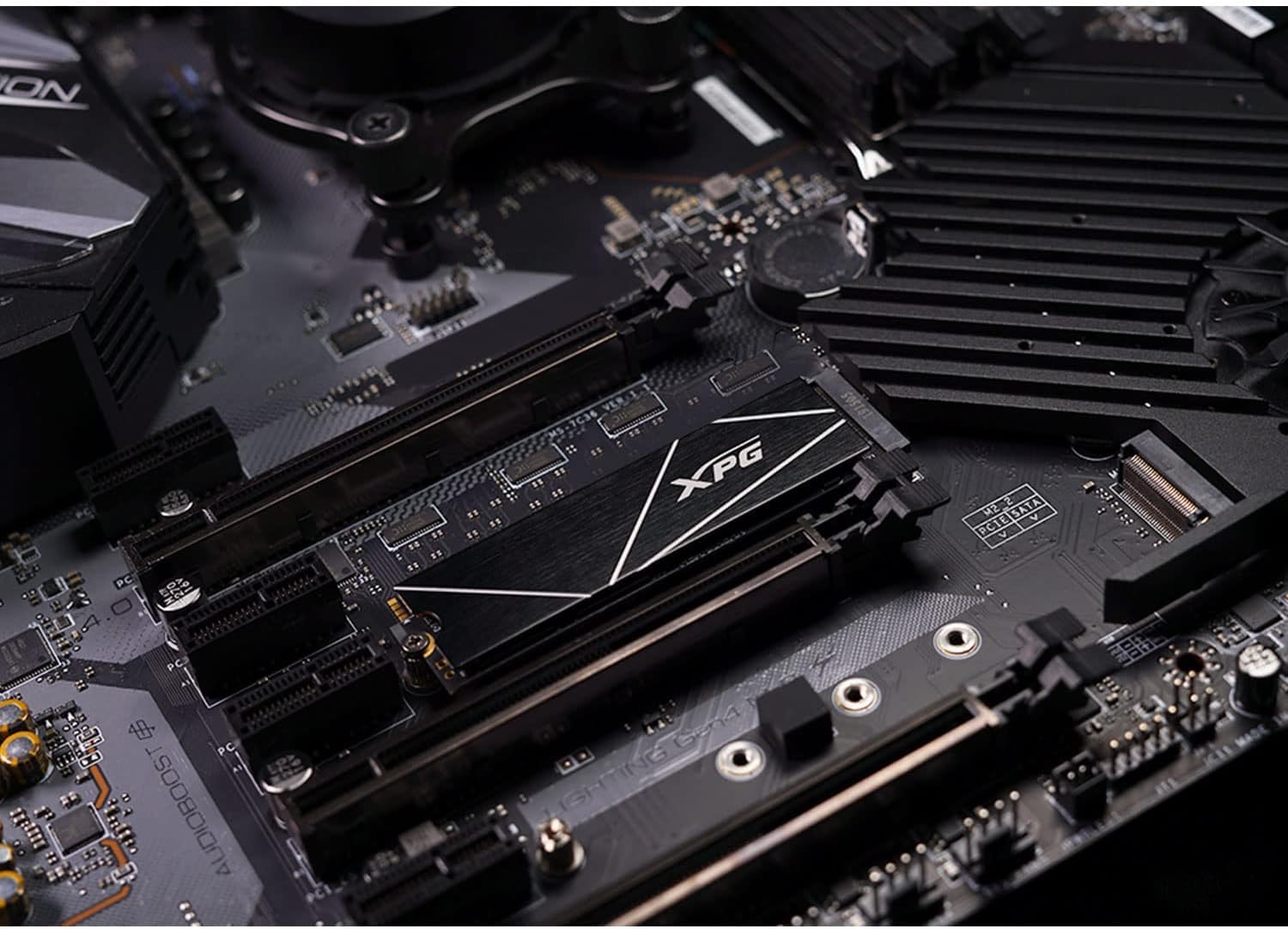
Figure 4: The XPG GAMMIX S70 Blade SSD securely installed in an M.2 slot on a computer motherboard.
3.2 PlayStation 5 Installation
The XPG GAMMIX S70 Blade is fully compatible with PlayStation 5. For detailed step-by-step instructions on installing the SSD in your PS5, please refer to the official video guide provided by ADATA (XPG's parent company):
Video 1: Official ADATA guide demonstrating the installation of the XPG GAMMIX S70 Blade SSD into a PlayStation 5 console. This video covers the process from opening the PS5 to securing the SSD and its heatsink.
Important Note for PS5: Ensure your PS5 firmware is version 21.02-04.00.00.42 or higher for optimal compatibility and performance. The S70 Blade, including its heatsink, is designed to fit perfectly within the PS5's M.2 expansion slot.

Figure 5: The XPG GAMMIX S70 Blade SSD positioned alongside a PlayStation 5 DualSense controller, highlighting its compatibility with the console.
4. Operating Instructions
Once installed and formatted, your XPG GAMMIX S70 Blade SSD will function as a high-speed storage device. For PC users, it will appear as a new drive letter. For PS5 users, it will integrate seamlessly into the console's storage system, allowing you to move and install games directly to it.
The drive is designed to deliver peak performance under various workloads. The integrated heatsink helps maintain optimal operating temperatures, preventing performance degradation due to thermal throttling during intensive tasks like gaming or large file transfers.
Video 2: A demonstration video showcasing the performance of XPG products, including the S70 Blade SSD, during gaming sessions and data transfers on a PC setup.
5. Maintenance
To ensure the longevity and optimal performance of your XPG GAMMIX S70 Blade SSD, consider the following maintenance practices:
- Firmware Updates: Periodically check the official XPG/ADATA website for firmware updates. Keeping your SSD's firmware up-to-date can improve performance, stability, and address potential issues.
- SSD Toolbox: Utilize the ADATA SSD Toolbox software (available for Windows users from the ADATA website). This utility allows you to monitor drive health, optimize performance, and perform diagnostic scans.
- Avoid Overfilling: While SSDs perform well even when nearly full, maintaining some free space (e.g., 10-15%) can help sustain performance over time, especially for write-intensive tasks.
6. Troubleshooting
If you encounter issues with your XPG GAMMIX S70 Blade SSD, refer to the following common troubleshooting steps:
- Drive Not Found/Recognized:
- For new SSDs, ensure it has been initialized and formatted in your operating system's Disk Management (Windows) or Disk Utility (macOS/Linux).
- Verify that the SSD is correctly seated in the M.2 slot and secured.
- Check your system's BIOS/UEFI settings to ensure the M.2/NVMe slot is enabled and configured correctly.
- Ensure your motherboard's chipset drivers are up to date.
- Advertised Capacity Appears Smaller:
- Advertised capacity is typically based on 1GB = 1 billion bytes and 1TB = 1 trillion bytes. Actual usable capacity may appear less in your operating system due to differences in binary calculation (1GB = 1,073,741,824 bytes) and space reserved for system files and over-provisioning. This is normal.
- Performance Issues (Slower than Expected):
- Ensure the SSD is installed in a PCIe Gen4 compatible slot. If installed in a PCIe Gen3 slot, speeds will be limited (e.g., max R/W will be limited to 3400/3000MB/s).
- Verify the heatsink is properly installed to prevent thermal throttling.
- Check for background processes or other applications that might be heavily utilizing the drive.
- Ensure your system drivers (chipset, NVMe) are up to date.
7. Specifications
| Feature | Detail |
|---|---|
| Brand | XPG |
| Series | S70 Blade |
| Model Number | AGAMMIXS70B-4T-CS |
| Digital Storage Capacity | 4 TB |
| Hard Drive Interface | NVMe |
| Connectivity Technology | eSATA (Note: This is likely a general specification, the primary interface is NVMe) |
| Form Factor | M.2 2280 |
| Sequential Read Speed (PC/Laptop) | Up to 7400 MB/s |
| Sequential Write Speed (PC/Laptop) | Up to 6800 MB/s |
| Sequential Read Speed (PS5) | 6100 MB/s (for 1TB and 2TB models, typical for 4TB as well) |
| Hardware Platform | Laptop, PC |
| Item Weight | 0.353 ounces |
| Product Dimensions (LxWxH) | 3.15 x 0.87 x 0.14 inches |
| Manufacturer | ADATA |
| Country of Origin | Taiwan |
8. Warranty and Support
The XPG GAMMIX S70 Blade SSD is covered by a 5-year limited manufacturer warranty. For warranty claims, technical support, or further assistance, please contact ADATA customer service or visit the official XPG website.
For additional resources and FAQs, you may also refer to the XPG Store on Amazon.
Related documentsAGAMMIXS70B-4T-CS


Ask a question about this manual
Ask about setup, troubleshooting, compatibility, parts, safety, or missing instructions. Manuals+ will review the question and use this page’s manual context to help answer it.