
1. Introduction
This manual provides comprehensive instructions for the operation and maintenance of your THINKCAR OBD2 Scanner Diagnostic Tool. This advanced Bluetooth scanner offers OE-level full system diagnostics, 28 reset services, and supports bidirectional control and ECU coding for a wide range of vehicles.

Image 1.1: The THINKCAR OBD2 Scanner Diagnostic Tool, showing the main unit, OBD dongle, and a protective carrying case.
2. Product Features
2.1. OE-Level Full System Diagnostic
The THINKCAR OBD2 scanner allows for comprehensive diagnosis of all available vehicle systems, including Engine, Transmission, Airbag, ABS, ESP, TPMS, SRS, BMS, Gateway, Steering, Air Conditioner, IMMO, and more. It features an Auto VIN function for quick vehicle identification.
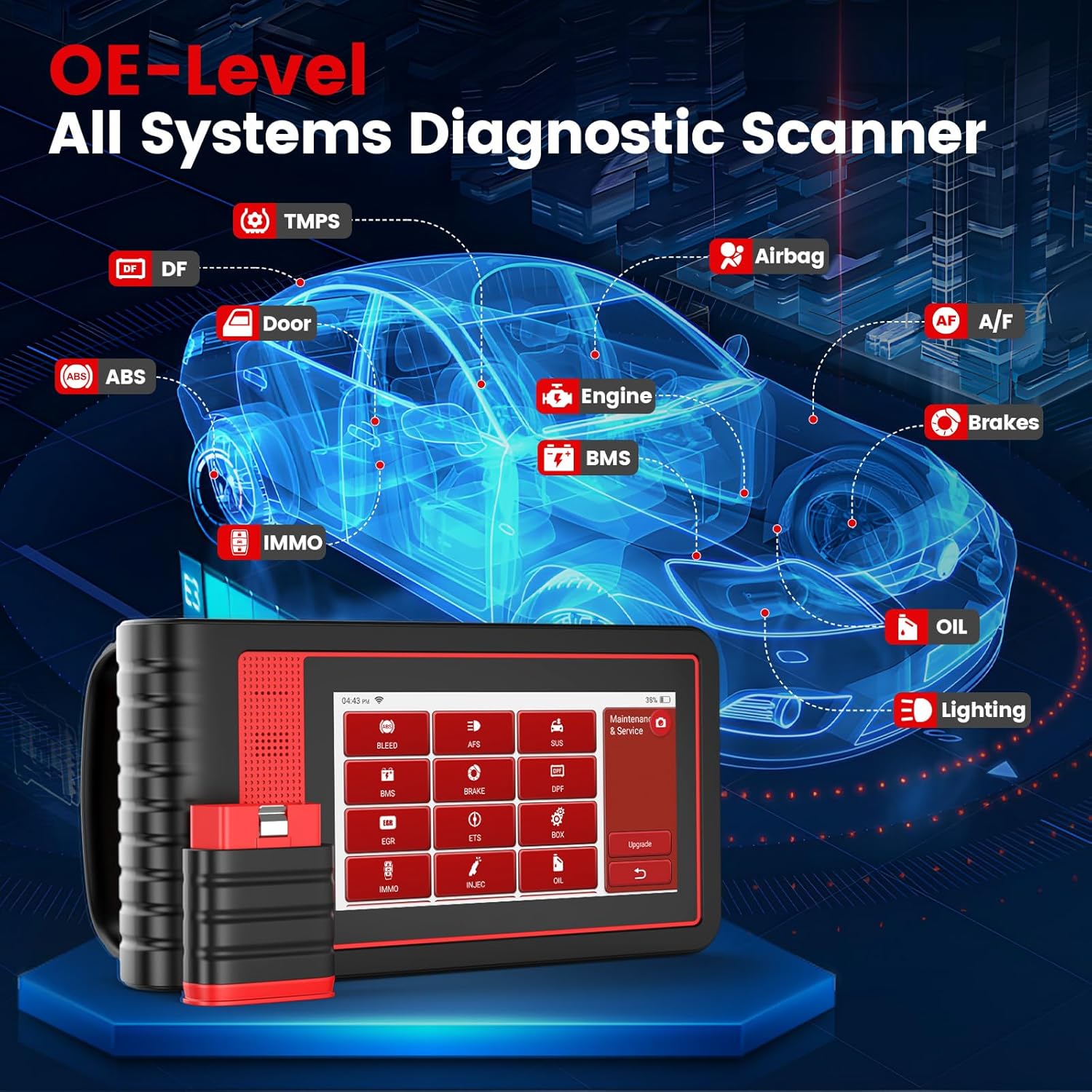
Image 2.1: Visual representation of the OE-Level All Systems Diagnostic capability, highlighting various vehicle systems like Engine, ABS, Airbag, TPMS, and more.
2.2. 28 Special Reset Services
The tool includes 28 value-added maintenance reset services for various scheduled service and maintenance performances. These include, but are not limited to:
- Oil Reset
- ABS Bleeding
- TPMS Reset
- Immobilizer Reset (IMMO)
- AFS (Adaptive Front Lighting System) Reset
- BMS (Battery Matching System) Reset
- Brake Reset
- Coolant Bleed
- DPF (Diesel Particulate Filter) Regen
- ETS (Electronic Throttle System) Reset
- Injector Coding
- SAS (Steering Angle Sensor) Reset
- SUN (Sunroof) Reset
- SUS (Suspension) Reset
- GEAR Resets
- And many more.

Image 2.2: Examples of the 28+ most useful reset functions, such as Oil Reset, ABS Bleeding, TPMS Reset, and Immobilizer Reset, with accompanying visuals.
2.3. Bidirectional Control and ECU Coding
This feature allows you to send commands to vehicle components to test their functionality (Bidirectional Control) and modify adaptive data for vehicle control modules (ECU Coding). This functionality is available via an optional subscription of $49.95 per year per model car.

Image 2.3: Depiction of Bidirectional Control and ECU Coding capabilities, showing how various vehicle components like mirrors, headlights, wipers, and fuel injectors can be tested or customized.
2.4. Enhanced OBD2 Functions
The scanner provides standard OBD2 functions for quick and efficient diagnostics:
- Read Codes
- Clear Codes
- Live Data Stream
- Freeze Frame Data
- I/M Readiness Status
- O2 Sensor Test
- On-Board Monitor Test
- EVAP Test
- Vehicle Information Retrieval
- Read Permanent DTCs

Image 2.4: Overview of professional OBD2 code reader functions, including reading and clearing codes, live data, I/M readiness, O2 sensor test, and more.
2.5. Wide Vehicle Compatibility and CANFD Support
The THINKCAR scanner is compatible with over 94 car brands and 100,000+ car models, supporting various protocols including ISO 14230-4 KWP, ISO 15765-4 CAN, ISO 9141-2 ISO, SAE J1850 VPM, SAE J1850 PWM. It also features newly added protocols for CANFD (ISO11898-1:2015), enabling higher data rates and faster diagnostic speeds for newer vehicle models.

Image 2.5: Illustration of the scanner's broad compatibility with EU-based cars (since 2000), USA-based cars (since 1996), and Asian-based cars (since 2008).
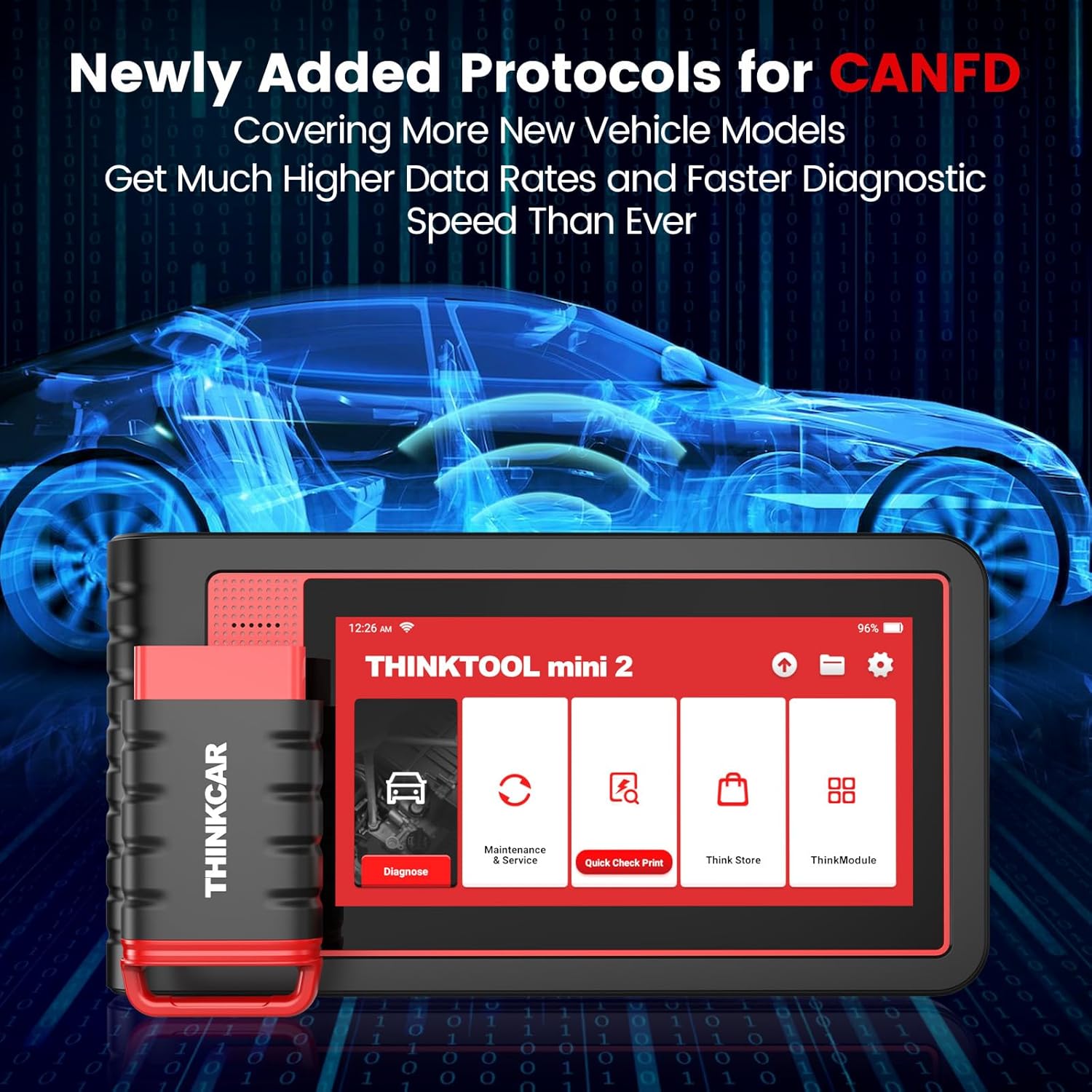
Image 2.6: The THINKCAR scanner interface highlighting support for newly added CANFD protocols, indicating compatibility with more new vehicle models and faster diagnostics.
3. Setup
3.1. Initial Power On and Wi-Fi Connection
- Power on the THINKCAR diagnostic tool.
- Navigate to the settings menu on the device.
- Connect the device to a stable Wi-Fi network or a phone hotspot.
3.2. Software Updates
After connecting to Wi-Fi, it is crucial to update the APP operating system and car brand diagnostic software. This ensures optimal product experience and access to the latest diagnostic features and vehicle compatibility. Accept or initiate updates as prompted by the device.
4. Operating Instructions
4.1. Connecting to a Vehicle
- Locate the vehicle's OBD2 port (typically under the dashboard).
- Plug the THINKCAR OBD dongle into the vehicle's OBD2 port.
- Ensure the diagnostic tool is powered on and connected to the dongle via Bluetooth.
4.2. Performing a Diagnostic Scan
- From the main menu, select "Diagnose".
- Use the "Auto VIN" feature to automatically identify your vehicle, or manually select the vehicle make, model, and year.
- Choose the desired diagnostic function (e.g., "Full System Scan", "Read Codes", "Live Data").
- Follow on-screen prompts to complete the diagnostic process.
4.3. Utilizing Reset Services
- From the main menu, select "Maintenance & Service".
- Choose the specific reset service required (e.g., "Oil Reset", "ABS Bleeding").
- Follow the detailed on-screen instructions to perform the reset. Ensure all safety precautions are observed.
4.4. Bidirectional Control and ECU Coding (Subscription Required)
If you have an active subscription for Bidirectional Control and ECU Coding for your vehicle model:
- Access these functions through the appropriate menu options after vehicle identification.
- For Bidirectional Control, select the component you wish to test (e.g., "A/C Clutch", "Fuel Pump"). The tool will send commands to activate or deactivate the component.
- For ECU Coding, follow the prompts to modify adaptive data or unfold hidden features. Exercise caution when performing ECU coding as incorrect modifications can affect vehicle operation.

Image 4.1: Powerful add-on features including lifetime free updates, AutoVIN scan for quick vehicle identification, live data streaming in graphical format, and the device's solid protective case.
5. Maintenance
- Software Updates: Regularly connect to Wi-Fi and check for software updates to ensure optimal performance and access to the latest vehicle data.
- Cleaning: Use a soft, dry cloth to clean the device screen and body. Avoid abrasive cleaners or solvents.
- Storage: Store the device in its protective case in a cool, dry place when not in use.
- Battery Care: For prolonged storage, ensure the battery is charged to approximately 50-70% to maintain battery health.
6. Troubleshooting
6.1. Fault Code Persists After Clearing
If you clear a fault code directly without repairing the underlying issue and find that the fault code reappears, it indicates that the car's hardware fault still exists. It is recommended to repair the car's physical issue first, and then clear the fault code.
6.2. Device Not Powering On
- Ensure the device battery is charged.
- Verify the charging cable and adapter are functioning correctly.
- If connected to the vehicle, ensure the OBD dongle is properly seated and the vehicle's ignition is on.
6.3. Connection Issues (Bluetooth/Wi-Fi)
- Bluetooth: Ensure the OBD dongle is within range of the main unit and that Bluetooth is enabled on both devices. Re-pair if necessary.
- Wi-Fi: Check Wi-Fi signal strength. Ensure the password is correct. Try connecting to a different Wi-Fi network or phone hotspot.
7. Specifications
| Feature | Specification |
|---|---|
| Brand | thinkcar |
| Model | Code Scanner |
| Item Weight | 3.5 pounds |
| Product Dimensions | 8.89 x 2.09 x 4.65 inches |
| Operating System | Android 10 |
| Display | 6" HD Touchscreen, 1280*800 Resolution |
| Processor | 4Cores 2.0GHz CPU |
| Memory | 2GB RAM, 32GB Storage Memory |
| Battery | 6300mAh |
| Connectivity | Wireless Bluetooth, Wi-Fi |
| Update | Lifetime Free Update |
| Supported Protocols | ISO 14230-4 KWP, ISO 15765-4 CAN, ISO 9141-2 ISO, SAE J1850 VPM, SAE J1850 PWM, ISO11898-1:2015 (CAN-FD) |

Image 7.1: Detailed view of the scanner's optimized hardware configuration, including its 6-inch HD touchscreen, Android 10 operating system, memory, battery capacity, and processor.
8. Support and Warranty
8.1. Online Service Support
THINKCAR provides 24/7 professional support. You can contact highly trained technicians anytime and anywhere via the in-app chat feature or by emailing the official after-sales service mailbox: support@mythinkcar.com.
8.2. Lifetime Free Updates
The device includes lifetime free updates for its software, ensuring you always have access to the latest features and vehicle compatibility data.


