1. Introduction
The Cubilux USB A to TOSLINK Optical Audio Adapter is designed to connect your USB Type A enabled devices, such as laptops, desktop computers, or compatible gaming consoles, to S/PDIF optical audio input systems. This includes soundbars, home audio systems, external DACs, amplifiers, preamps, or speakers. It facilitates the transmission of high-resolution digital audio for an enhanced listening experience.
Key Features:
- High-Resolution Audio: Supports crisp and clear sound at 48KHz/24-bit, 96KHz/24-bit, and 192KHz/24-bit.
- Plug & Play: No driver installation or external power supply is required for operation.
- Wide Compatibility: Works with Windows and Mac OS computers, laptops, and PCs equipped with a USB Type A port.
- Durable Design: Constructed with an aluminum alloy case and a braided cable for enhanced durability and effective isolation from electromagnetic (EM) and radio frequency (RF) interference.
- Compact and Portable: Measuring approximately 0.6in x 0.6in x 8in (including cable), it is designed for easy transport.
Important Note: This adapter is specifically designed for computers and compatible gaming consoles (e.g., PS4/PS5 for audio output). It does NOT support audio output from TVs, Xbox, or Nintendo Switch consoles.
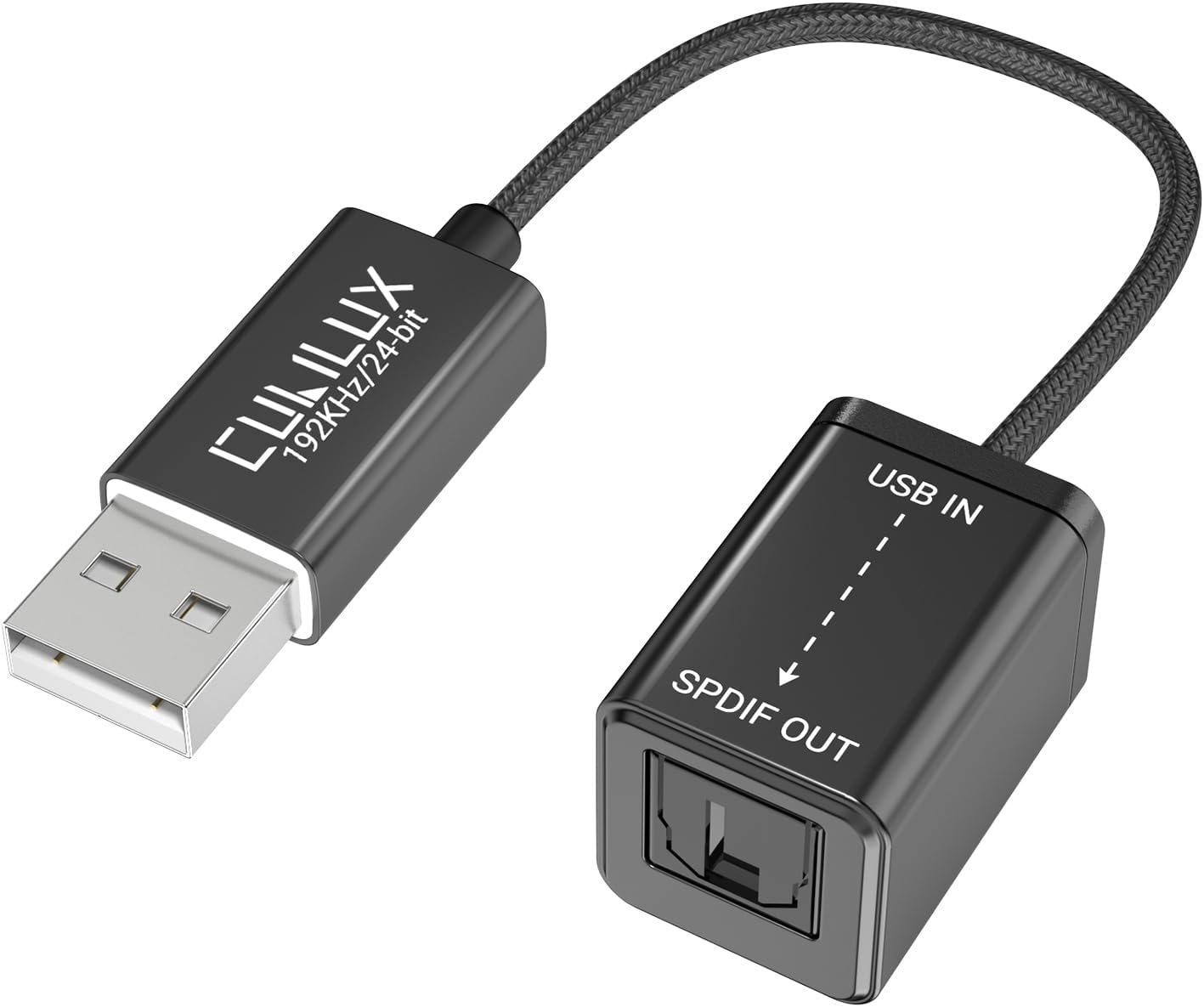
Image 1.1: The Cubilux USB A to TOSLINK Optical Audio Adapter, showing the USB-A connector and the S/PDIF optical output port.
2. Setup Instructions
Follow these steps to set up your Cubilux USB A to TOSLINK Optical Audio Adapter:
- Connect the Adapter: Plug the USB Type A end of the adapter into an available USB port on your computer, laptop, or compatible gaming console.
- Connect to Audio System: Connect a TOSLINK optical cable (not included) from the S/PDIF OUT port on the adapter to the optical input port on your soundbar, amplifier, DAC, or speakers.
- Select Output Device: On your computer or device, navigate to the sound settings or audio output preferences. Select the "USB S/PDIF Adapter" or similar recognized device as your primary audio output.
- Match Sampling Rates: Ensure that the sampling rate settings on your computer's audio output and your connected audio device (DAC/amplifier) are consistent for optimal performance. For example, if your audio device supports 192KHz/24-bit, set your computer's output to the same.

Image 2.1: Visual guide for connecting the adapter (Step 1), selecting it as the output device in system settings (Step 2), and ensuring consistent sampling rates (Step 3).

Image 2.2: Diagram illustrating compatible USB A source devices (computers) and S/PDIF output devices (amplifier, speaker, soundbar), and explicitly stating non-compatibility with gaming consoles, TVs, or other devices.
3. Operating Instructions
Once the adapter is set up, you can begin playing audio from your connected USB A device through your S/PDIF sound system.
- Audio Playback: Start playing audio on your computer or gaming console. The digital audio signal will be transmitted via the adapter to your optical audio system.
- 5.1 Surround Sound: For 5.1 surround sound playback, ensure that your amplifier, the audio/video content, and the playback software all support 5.1 audio. The adapter transmits the digital signal as provided by the source.
- Unidirectional Transmission: This adapter is a transmitter and is designed for playing music and other audio signals only. It cannot record audio from an optical source device.

Image 3.1: A user enjoying high-resolution audio from a laptop connected via the Cubilux adapter to an audio system.
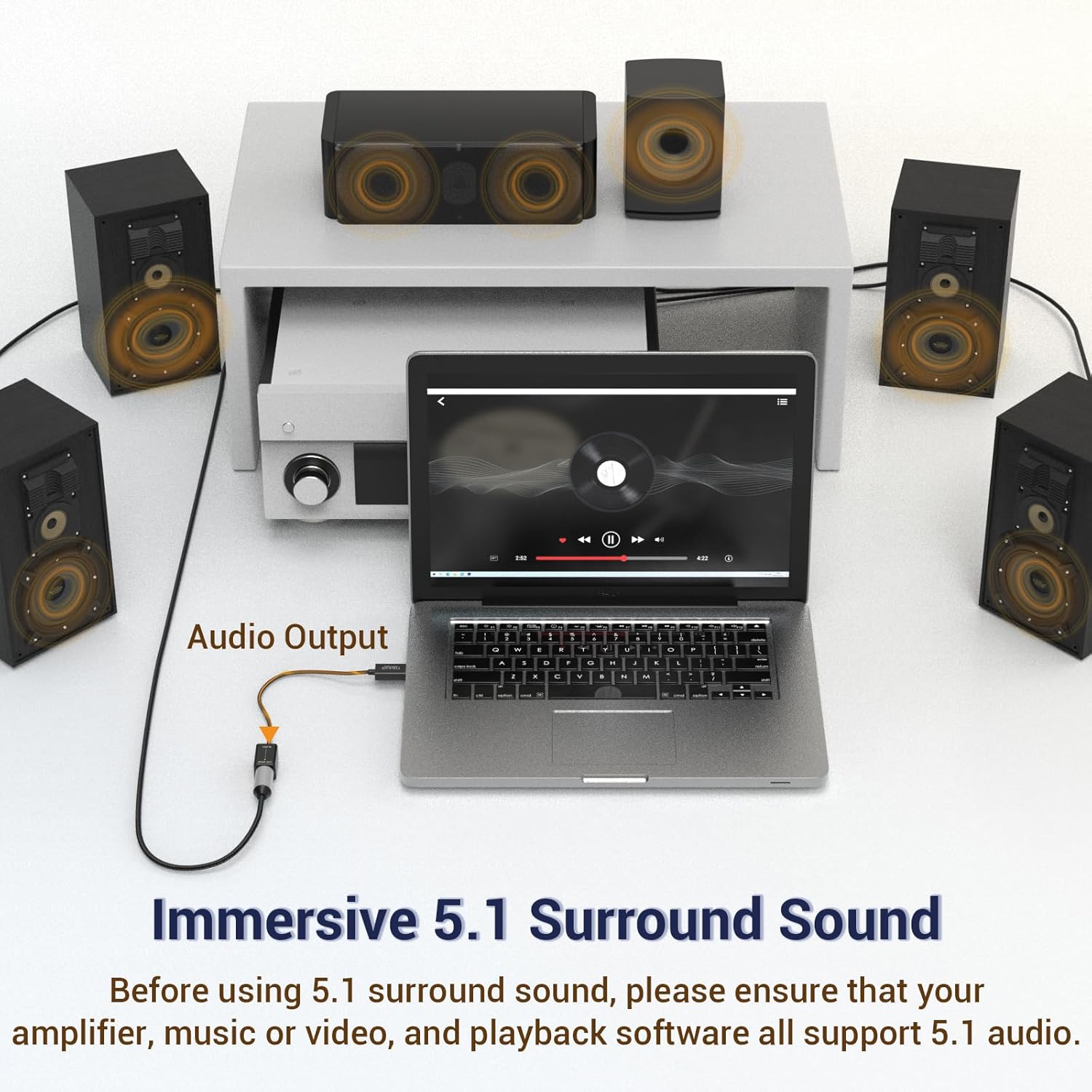
Image 3.2: A laptop connected to an audio system via the adapter, illustrating a potential 5.1 surround sound setup. Users must ensure all components support 5.1 audio.
4. Maintenance
The Cubilux USB A to TOSLINK Optical Audio Adapter is designed for durability and requires minimal maintenance.
- Cleaning: Use a soft, dry cloth to clean the adapter. Avoid using liquid cleaners or solvents.
- Storage: When not in use, store the adapter in a cool, dry place, away from direct sunlight and extreme temperatures.
- Cable Care: Avoid sharp bends or excessive pulling on the cable to prevent internal damage.
5. Troubleshooting
If you encounter issues with your Cubilux USB A to TOSLINK Optical Audio Adapter, refer to the following troubleshooting tips:
- No Sound Output:
- Ensure the adapter is securely plugged into both the USB port of your source device and the optical input of your audio system.
- Verify that the "USB S/PDIF Adapter" is selected as the default audio output device in your computer's sound settings.
- Check the volume levels on both your computer and your audio system.
- Confirm that the optical cable is not damaged and is correctly inserted.
- Audio Quality Issues (e.g., static, dropouts):
- Ensure the sampling rates on your computer and audio system are consistent. Mismatched rates can cause issues.
- Try a different optical cable to rule out cable defects.
- Ensure the adapter is not near strong electromagnetic interference sources.
- Adapter Disconnects or Turns Off (Mac OS specific):
- Some users have reported that on Mac OS, the adapter may power down if no continuous audio signal is being sent. If this occurs, the receiving audio gear may lose sync. Resuming audio playback should re-establish the connection, though a brief re-sync period may be necessary.
- Volume Range Appears Limited:
- If the system volume range seems compressed (e.g., full volume control occurs within a small portion of the slider), this can sometimes be a characteristic of digital audio output devices. Adjust volume primarily on your connected audio system (amplifier, soundbar) for finer control.
- Incompatibility with Devices:
- Remember, this adapter is designed for computers (Windows/Mac OS) and specific gaming consoles (PS4/PS5 for audio output). It is NOT compatible with TVs, Xbox, or Nintendo Switch for audio output.
6. Specifications
| Product Dimensions | 2.56 x 2.17 x 0.98 inches |
| Item Weight | 0.704 ounces |
| Compatible Devices | Gaming Console (PS4/PS5 for audio output), Laptop, Personal Computer |
| Input Connector Type | USB Type A |
| Output Connector Type | TOSLINK (S/PDIF Optical) |
| Supported Audio Resolution | 48KHz/24-bit, 96KHz/24-bit, 192KHz/24-bit |
| Operating Systems | Windows, Mac OS |
| Manufacturer | Cubilux |
7. Safety Information
Please observe the following safety guidelines for safe use and handling of the product:
- Choking Hazard: This product contains small parts. Keep out of reach of children under 3 years old and individuals who may place inedible objects in their mouths.
- Heat and Fire: Keep the adapter away from fire sources and heat sources to prevent damage or hazards.
- Packaging: To avoid the risk of suffocation, keep plastic bags away from babies and children. Do not use this bag in cribs, beds, carriages, or playpens. This plastic bag is not a toy.

Image 7.1: Warning symbol for choking hazard.

Image 7.2: Warning symbol for fire and heat sources.

Image 7.3: Warning symbol for suffocation hazard from plastic bags.
8. Warranty and Support
For warranty information and customer support, please refer to the documentation included with your product or visit the official Cubilux website. Keep your purchase receipt for warranty claims.