
Product Overview
The Geek Smart L-B400 Fingerprint Door Lock offers advanced keyless entry solutions for enhanced home security and convenience. This smart door knob combines multiple unlocking methods including fingerprint recognition, passcode, RFID card, emergency key, and mobile application control. Designed for easy, wire-free installation, it integrates modern technology with a sleek design.
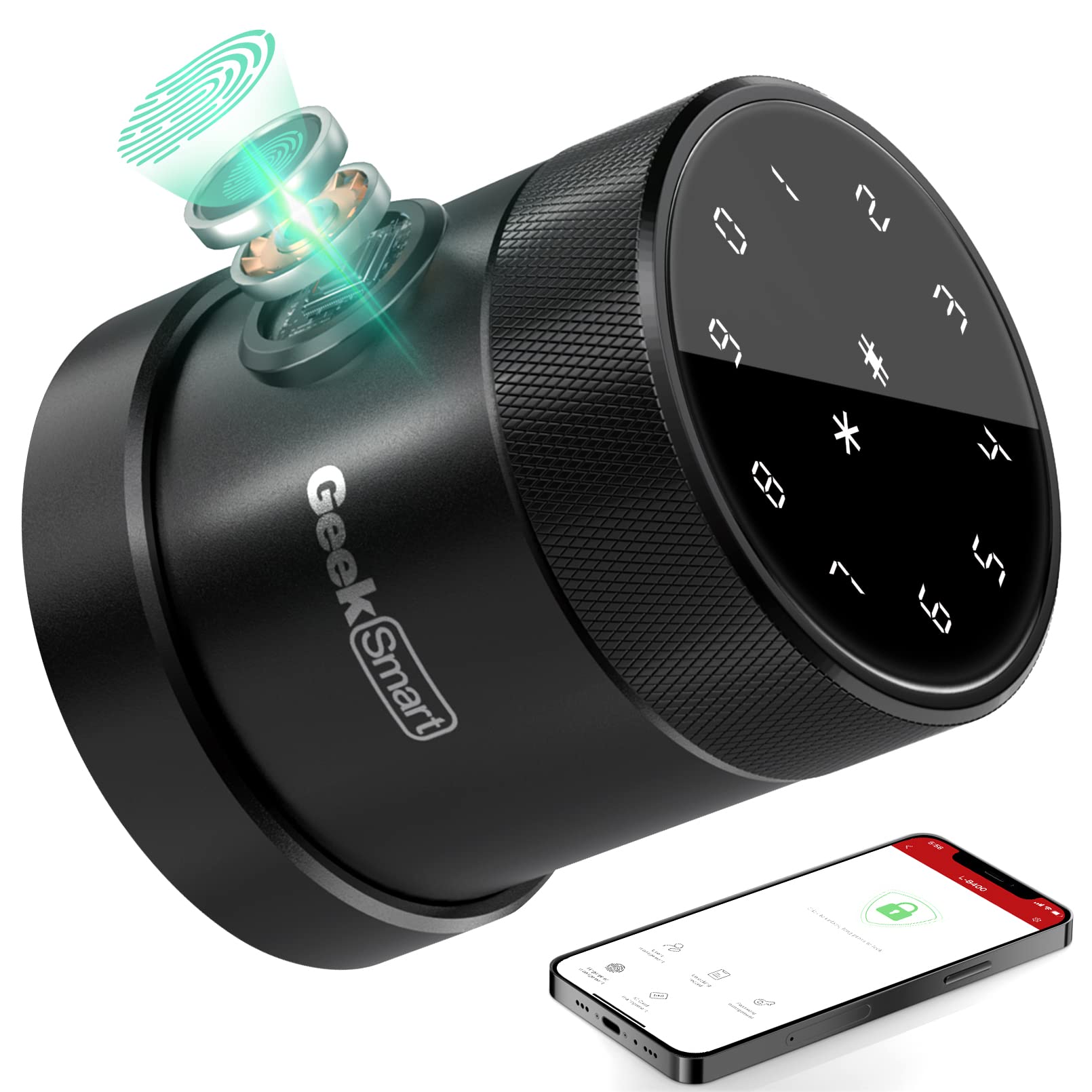
Image: Front view of the Geek Smart L-B400 Fingerprint Door Lock, showcasing its modern black and silver design.
Setup and Installation
The Geek Smart L-B400 is designed for quick and easy installation, typically within 15 minutes using only a screwdriver. Follow these steps to replace your existing lock with the smart lock.
1. Prepare Your Door
Ensure your door meets the required dimensions for installation. The lock is suitable for door thicknesses between 35mm and 54mm (1 1/8" to 2 1/8").

Image: Diagram showing door measurements required for installing the Geek Smart L-B400 lock, including thickness, backset, and bore hole diameter.
2. Install the Latch
Insert the deadlatch into the door edge. Ensure the latch direction matches your door's opening direction. Secure it with screws.
3. Assemble and Install the Exterior Panel
Connect the spindle and wiring to the exterior lock panel. Carefully feed the wiring through the door bore hole and align the spindle with the latch mechanism. Secure the exterior panel.
Video: Official installation guide for the Geek Smart L-B400 door lock, demonstrating step-by-step assembly and mounting.
4. Install the Interior Panel
Connect the wiring from the exterior panel to the interior panel. Ensure the battery compartment is correctly oriented (button on top, socket at the bottom). Insert 4x AA batteries (not included) and secure the interior panel with screws.

Image: A person installing the Geek Smart L-B400 lock using a screwdriver, highlighting the ease of replacement for existing locks.
5. Initial Setup with Geek Smart App
Download the Geek Smart app from your mobile app store. Enable Bluetooth on your device. Open the app, tap "Add Device," select "Smart Lock," then choose "L-B400." Follow the on-screen prompts to register your lock and set up the administrator.
Video: Tutorial on how to connect the Geek Smart L-B400 to the mobile application, guiding users through the device pairing process.
Operating Instructions
The Geek Smart L-B400 offers five convenient ways to unlock your door:
1. Fingerprint Unlock
Place your registered fingerprint on the sensor for instant access. The highly accurate sensor unlocks the door within 0.3 seconds and can store up to 120 unique fingerprints.

Image: Robotic hand demonstrating the fingerprint unlock feature on the Geek Smart L-B400, highlighting its speed and capacity.
2. Passcode Unlock
Enter your personalized passcode on the intuitive LED touchscreen keypad. The anti-peep code feature allows you to enter random digits before or after your actual code to prevent password disclosure.

Image: Close-up of the Geek Smart L-B400 keypad, illustrating the anti-peep code function with random digits surrounding the correct password.
3. RFID Card Unlock
Tap your registered RFID card on the lock's sensor for quick and secure entry.
4. Mobile Application Control
Use the Geek Smart app to unlock your door remotely, manage users, generate one-time passcodes for visitors, and view access logs. For remote control beyond Bluetooth range, a Geek Smart WiFi Gateway (sold separately) is required.

Image: A smartphone displaying the Geek Smart app interface, showing options for auto-lock, unlock record, one-time passcode access, and voice control integration with Alexa and Google Assistant.
5. Emergency Key Unlock
In case of battery depletion or electronic malfunction, use the provided mechanical emergency key to unlock the door. A micro-USB port is also available for emergency power supply.

Image: Infographic illustrating the five-in-one unlock methods for the Geek Smart L-B400: Fingerprint, App Bluetooth, Password, Keys, and Smart IC Cards.
Maintenance
To ensure optimal performance and longevity of your Geek Smart L-B400 door lock, regular maintenance is recommended:
- Battery Replacement: The lock uses 4x AA batteries. The app will provide low battery notifications. Replace batteries promptly to avoid being locked out.
- Emergency Power: In case of complete battery depletion, use a micro-USB power bank to temporarily power the lock and gain entry.
- Cleaning: Gently wipe the touchscreen keypad and fingerprint sensor with a soft, dry cloth to remove dust and smudges. Avoid abrasive cleaners.
- Firmware Updates: Check the Geek Smart app regularly for any available firmware updates to ensure your lock has the latest features and security enhancements.
Troubleshooting
If you encounter issues with your Geek Smart L-B400 lock, consider the following:
- Lock Not Responding: Check battery levels. If batteries are low or depleted, replace them or use emergency micro-USB power.
- Fingerprint Not Recognized: Ensure your finger is clean and dry. Try re-registering your fingerprint through the app.
- Passcode Entry Issues: Verify the correct passcode is being entered. Ensure the keypad is clean and responsive.
- App Connectivity Problems: Ensure Bluetooth is enabled on your phone and you are within range. If using remote unlock, verify your WiFi Gateway is properly connected and configured.
- Lock Binding/Sticking: Ensure the lock was installed correctly and is not overtightened, which can cause binding. Refer to the installation guide or contact customer support.
For further assistance, please refer to the "Warranty and Support" section.
Specifications
| Feature | Detail |
|---|---|
| Brand | Geek Smart |
| Model | 400 |
| Special Feature | Anti Lock, Fingerprint, Smart Lock, Wi-Fi |
| Lock Type | Biometric, Keypad |
| Material | Aluminum |
| Color | Black |
| Connectivity Protocol | Wi-Fi (with optional gateway) |
| Power Source | 4x AA Batteries (not included) |
| Item Weight | 2.97 pounds |
| Door Thickness | 1 1/8" ~ 2 1/8" (35-54mm) |
Warranty and Support
The Geek Smart L-B400 Fingerprint Door Lock comes with a 1-year warranty. For any problems or inquiries, please feel free to contact Geek Smart customer service.
Email: aftersales@geektechnology.com
You can also scan the QR code on the "Geek Smart Care+ For Free" card included in your package for more information.


