
Xiegu X6100
Contents
Xiegu X6100 HF Transceiver User Manual
Model: X6100
1. Introduction
The Xiegu X6100 is an ultra-portable High-Frequency (HF) transceiver designed for amateur radio enthusiasts. It utilizes Software-Defined Radio (SDR) architecture, offering advanced performance and a wide range of operational functions. Its compact design and integrated features make it suitable for both stationary and outdoor communication. This manual provides essential information for setting up, operating, and maintaining your X6100 transceiver.

Key features include:
- SDR Technology: Software-defined radio system for real-time signal processing and enhanced functionality.
- Adjustable Power Output: Capable of 5W, upgradeable to 10W for extended range.
- High-Resolution Display: 3.6-inch (4-inch) color LCD screen with 800x400 resolution for clear information display.
- Wireless Connectivity: Supports Bluetooth for external device control, including mouse and keyboard.
- Stable Clock Source: Built-in highly stable internal TCXO clock source.
2. Setup
2.1 Unpacking and Inspection
Carefully unpack all components from the box. Verify that all included items are present:
- Xiegu X6100 Transceiver
- Microphone
- Connection Cable
- Power Adapter
- User Manual (this document)
- Wrist Strap or similar accessories

2.2 Power Connection
The X6100 is powered by an internal Lithium-ion battery. For charging or extended operation, connect the provided power adapter to the DC IN port (9-15V) on the transceiver and then to a suitable power outlet.

2.3 Antenna Connection
Connect your HF antenna to the ANT connector on the transceiver. Ensure the connection is secure. The X6100 features a built-in automatic antenna tuner (ATU) to optimize antenna performance.
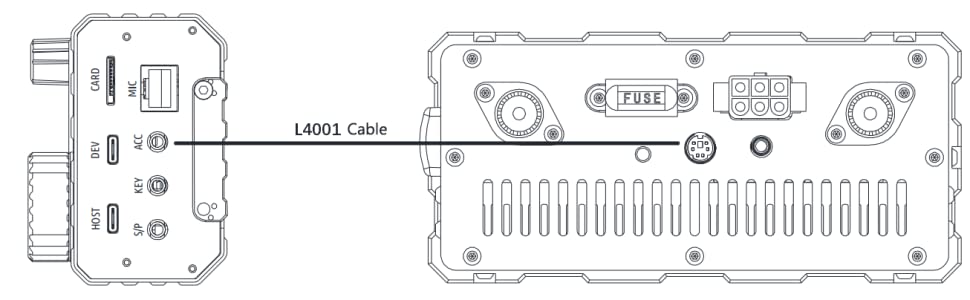
2.4 Microphone and Accessories
Connect the supplied microphone to the MIC port. Additional accessories, such as external speakers, headphones, or data interfaces, can be connected to the respective ports (e.g., S/P, ACC, DEV, HOST, CARD).

3. Operating Instructions
3.1 Powering On/Off
Press and hold the power button (usually labeled with a power symbol) to turn the transceiver on or off. The LCD screen will illuminate upon startup.
3.2 Display and Navigation
The 3.6-inch color LCD screen displays critical operating information, including frequency, mode, signal strength, and waterfall display. Use the rotary encoder and function buttons (GEN, APP, KEY, MSG, DFN, DFL) to navigate menus and adjust settings.

3.3 Mode Selection
The X6100 supports various modes, including SSB (Single Sideband), CW (Continuous Wave), AM (Amplitude Modulation), and FM (Frequency Modulation). Select the desired mode using the appropriate menu options.
3.4 Frequency Tuning
Rotate the main tuning knob to adjust the operating frequency. Fine-tuning can be achieved through menu settings or by using a dedicated fine-tuning control if available.
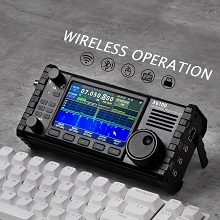
3.5 Wireless Operation (Bluetooth)
The X6100 supports Bluetooth connectivity, allowing for wireless control via compatible devices such as a mouse or keyboard. Refer to the system settings menu to enable and pair Bluetooth devices.
4. Maintenance
4.1 Cleaning
Keep the transceiver clean by wiping it with a soft, dry cloth. Avoid using abrasive cleaners or solvents, which can damage the casing or display. Ensure no dust or debris accumulates in the ports.
4.2 Battery Care
The internal Lithium-ion battery should be charged regularly, especially if the device is not used for extended periods. Avoid fully discharging the battery frequently to prolong its lifespan. Store the device in a cool, dry place when not in use.
4.3 Software Updates
Periodically check the manufacturer's website for available firmware updates. Keeping your X6100's software up-to-date ensures optimal performance and access to new features or bug fixes. Follow the provided instructions carefully when performing updates.
5. Troubleshooting
This section addresses common issues you might encounter with your Xiegu X6100 transceiver.
5.1 Device Does Not Power On
- Ensure the internal battery is charged. Connect the power adapter and allow it to charge for some time.
- Verify that the power adapter is correctly connected to both the transceiver and a working power outlet.
- If the device sometimes fails to start up, try a hard reset by holding the power button for an extended period (e.g., 10-15 seconds) or disconnecting and reconnecting the power source if possible.
5.2 No Signal Reception/Transmission
- Check all antenna connections for proper seating and integrity.
- Ensure the correct operating mode and frequency are selected.
- Verify that the antenna tuner (ATU) is engaged and has successfully tuned the antenna.
- Confirm that the squelch level is not set too high, which can block weak signals.
5.3 Display Issues
- If the display is dim, check the brightness settings in the system menu.
- If the display freezes or shows anomalies, try restarting the device.
5.4 Bluetooth Connectivity Problems
- Ensure Bluetooth is enabled in the X6100's system settings.
- Verify that the external device (mouse/keyboard) is in pairing mode.
- Move the external device closer to the X6100 to ensure it is within range.
6. Specifications
| Feature | Detail |
|---|---|
| Model Number | X6100 |
| Manufacturer | Xiegu |
| Brand | Radioddity |
| Power Output | 10 Watts (Max) |
| Display Type | 3.6-inch Color LCD (800x400 resolution) |
| Supported Radio Bands | HF/VHF |
| Tuner Technology | SSB (and other modes) |
| Connectivity Technology | Bluetooth, USB |
| Power Source | Battery-Powered (1 Lithium-ion battery included) |
| Voltage | 3.7 Volts |
| Material | Plastic |
| Water Resistance Level | Water-resistant |
| Package Dimensions | 26.6 x 21.3 x 14.7 cm |
| Weight | 1.71 kg |
7. Warranty
Specific warranty details for the Xiegu X6100 are typically provided at the point of purchase or within separate documentation included with the product. Please retain your proof of purchase for any warranty claims. For general return policies, refer to the retailer's terms and conditions. The product is sold by Radioddity Nederland, and their return policy typically allows for returns within 30 days.
8. Support
For technical assistance, troubleshooting beyond this manual, or inquiries regarding your Xiegu X6100, please contact the seller or manufacturer directly. The product is supplied by Radioddity Nederland. You can typically find support contact information on their official website or through the retailer where you purchased the device.
For further information, you may visit the Radioddity Brand Store.
Documents and downloads
Ask a question about this manual
Ask about setup, troubleshooting, compatibility, parts, safety, or missing instructions. Manuals+ will review the question and use this page’s manual context to help answer it.