IOGEAR Upstream 4K Game Capture Card (GUV302G)
User Manual
1. Product Overview
The IOGEAR Upstream 4K Game Capture Card (Model GUV302G) is a versatile device designed for capturing and streaming high-quality video and audio from gaming consoles, DSLRs, camcorders, and other HDMI sources. It features 4K 30Hz HDR recording capabilities, lag-free passthrough resolutions up to 4K 60Hz, 1440p 144Hz, and 1080p 240Hz, and an integrated party chat mixer for console streamers.

Image: Front view of the IOGEAR Upstream 4K Game Capture Card, showcasing its compact design and port layout.

Image: Overview of the GUV302G highlighting key features: Capture 4K Gameplay, 4K Passthrough Resolutions, Integrated Party Chat, and Plug-N-Play functionality.
2. Setup Guide
2.1 Package Contents
Verify that your package contains the following items:
- IOGEAR Upstream 4K Game Capture Card (GUV302G)
- USB-C to USB-A Cable
2.2 System Requirements
- Operating System: Windows 10/11, macOS, Linux (UVC-compatible, driver-free setup)
- Available USB-C or USB-A port (USB 3.0 recommended for optimal performance)
- HDMI compatible source device (e.g., game console, camcorder)
- HDMI compatible display (e.g., TV, monitor)
- Streaming/Recording Software (e.g., OBS Studio, Streamlabs OBS, XSplit)
2.3 Connection Instructions
- Connect your gaming console (e.g., Xbox Series X, PS5, Nintendo Switch) or other HDMI source to the HDMI IN port on the GUV302G using an HDMI cable.
- Connect your display (TV or monitor) to the HDMI OUT port on the GUV302G using another HDMI cable. This provides lag-free passthrough.
- Connect the GUV302G to your computer (PC or Mac) using the provided USB-C to USB-A cable. Plug the USB-C end into the capture card and the USB-A end into an available USB 3.0 port on your computer.
- For party chat functionality, connect your headset to the 3.5mm headset input and your controller's audio output to the 3.5mm controller audio input on the GUV302G.

Image: Diagram illustrating the various ports on the IOGEAR Upstream GUV302G, including HDMI Input, HDMI Output, USB-C, Headset Audio, and Control Party Chat Audio ports.

Image: A visual representation of a typical PC gaming capture setup using the GUV302G, connecting a gaming PC, monitor, headset, and host computer.
3. Operating Instructions
3.1 Capturing Gameplay
Once connected, the GUV302G will be recognized as a UVC (USB Video Class) device by your computer. Open your preferred streaming or recording software (e.g., OBS Studio, Streamlabs OBS).
- Add a new 'Video Capture Device' source.
- Select 'IOGEAR Upstream' or similar from the device list.
- Configure video resolution and frame rate settings within the software. The GUV302G supports capture up to 4K 30Hz, 1440p 60Hz, or 1080p 120Hz.
- Ensure audio input is also selected from the GUV302G for game audio and party chat.
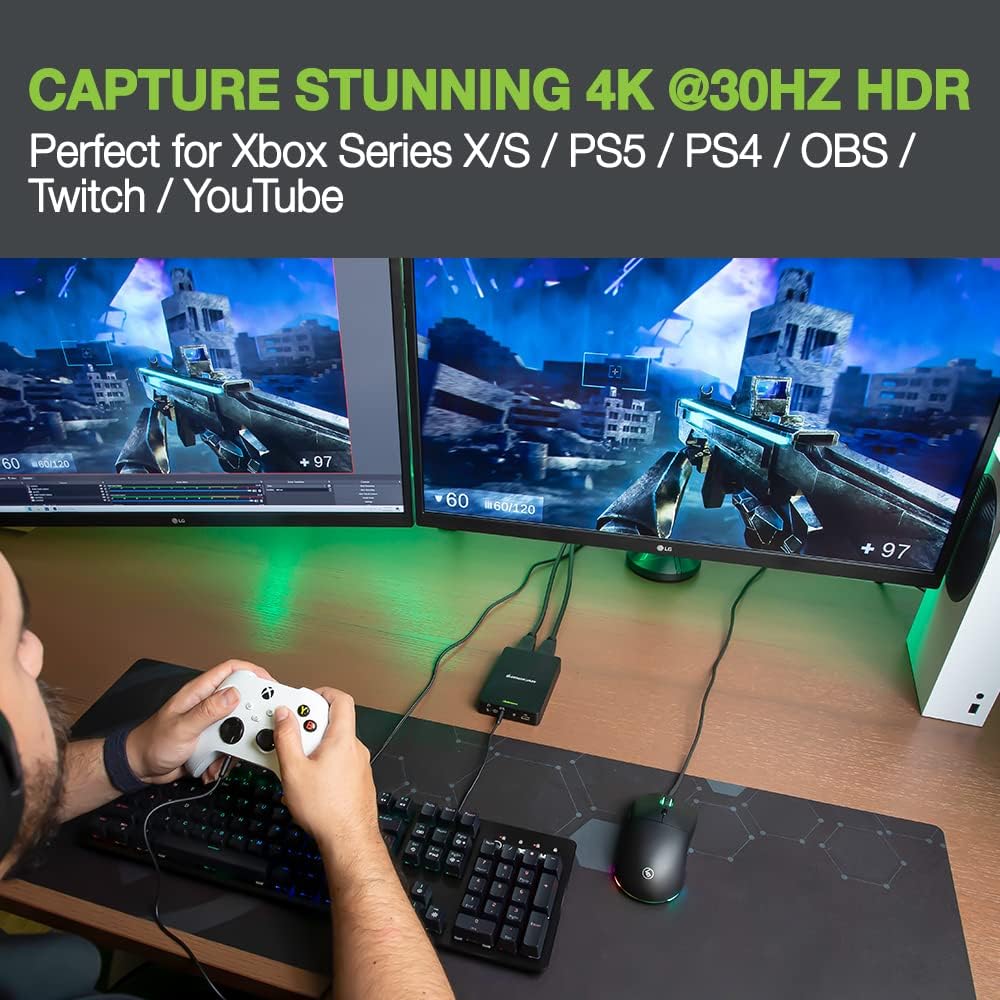
Image: A gamer playing on a console, with the IOGEAR Upstream capture card connected, demonstrating the ability to capture stunning 4K 30Hz HDR quality gameplay.
3.2 Passthrough Functionality
The GUV302G offers lag-free passthrough to your display, allowing you to play games at their native high resolutions and refresh rates while simultaneously capturing. Supported passthrough resolutions include:
- 4K at 60Hz
- 1440p at 144Hz
- 1080p at 240Hz

Image: A gamer wearing a headset, actively playing, with the IOGEAR Upstream GUV302G connected, illustrating the lag-free high-resolution passthrough capabilities.
3.3 Using the Party Chat Mixer
The built-in party chat mixer allows you to capture both your headset audio and in-game audio from your console without additional adapters or wires.
- Connect your gaming headset to the 'Headset Audio' port.
- Connect your console controller's audio output (if applicable) to the 'Control Party Chat Audio' port.
- The combined audio will be sent to your computer via the USB-C connection and can be managed within your streaming software.

Image: Close-up of the IOGEAR Upstream GUV302G with cables connected for headset and controller audio, demonstrating the built-in party chat mixer for consoles.
4. Maintenance
To ensure the longevity and optimal performance of your IOGEAR Upstream 4K Game Capture Card, follow these simple maintenance guidelines:
- Cleaning: Use a soft, dry cloth to wipe the exterior of the device. Avoid using liquid cleaners or abrasive materials.
- Storage: Store the device in a cool, dry place away from direct sunlight and extreme temperatures.
- Handling: Handle the device with care. Avoid dropping it or exposing it to excessive force.
- Ventilation: Ensure the device has adequate ventilation to prevent overheating during extended use.
5. Troubleshooting
If you encounter issues with your IOGEAR Upstream 4K Game Capture Card, please refer to the following common troubleshooting steps:
| Problem | Possible Solution |
|---|---|
| No video signal in streaming software |
|
| No audio or buzzing sound |
|
| Device not recognized by computer |
|
| Lag or dropped frames during capture |
|
6. Specifications
| Feature | Detail |
|---|---|
| Model Number | GUV302G |
| Hardware Platform | Gaming Console |
| Operating System Compatibility | Windows 10/11, macOS, Linux (UVC-compatible) |
| Item Weight | 13.3 ounces |
| Product Dimensions | 7.4 x 6.2 x 2.1 inches |
| Hardware Interface | 3.5mm Audio, HDMI, USB 3.0 Type C |
| Video Capture Resolution | 4K@30Hz (Capture), 1440p@60Hz, 1080p@120Hz |
| Passthrough Resolutions | 4K@60Hz, 1440p@144Hz, 1080p@240Hz |
| Recommended Uses | Gaming, Streaming, Video Conferencing, Video Recording, Webcam Upgrade |
7. Warranty and Support
The IOGEAR Upstream 4K Game Capture Card (GUV302G) comes with a 1 Year Limited Hardware Warranty. IOGEAR also provides Lifetime Technical Support for this product.
For detailed warranty information, additional instructions, or technical assistance, please refer to the official IOGEAR website or contact IOGEAR customer support directly. You may also find helpful resources in the Safety and Product resources documents provided with your purchase or available online.
IOGEAR Contact Information:
Visit www.iogear.com for support, drivers, and FAQs.


