Introduction
The GuliKit KK3 Pro Wireless Controller is a high-performance gaming controller designed for multi-platform compatibility. Featuring advanced Hall Effect joysticks and triggers, multiple vibration modes, and a high refresh rate, it offers a precise and immersive gaming experience. This manual provides comprehensive instructions for setting up, operating, maintaining, and troubleshooting your controller.

Image: The GuliKit KK3 Pro Wireless Controller shown with its included accessories, including the controller itself, two joystick caps, a Hyperlink adapter, and a USB-C charging cable.
Setup
Multi-Platform Compatibility
The GuliKit KK3 Pro controller supports a wide range of platforms, including Nintendo Switch, Switch OLED, Switch Lite, Steam Deck, Android, iOS, macOS, and Windows PCs. Connection methods vary by platform.
Initial Connection
To connect your controller for the first time, ensure it is sufficiently charged. The controller can be connected wirelessly via Bluetooth or wired via a USB-C cable.
- Wireless Connection: For most platforms, activate Bluetooth pairing mode on your device and on the controller (refer to the controller's specific pairing button/sequence, usually indicated by a blinking LED). Select "GuliKit KK3 Pro" from the list of available devices.
- Wired Connection: Connect the controller to your device using the provided USB-C cable. The controller will typically be recognized automatically.
- Hyperlink Adapter (for PC): For Windows PC users, the included "Hyperlink" adapter enables a 1000 Hz refresh rate for ultra-low latency gaming. Plug the adapter into a USB port on your PC, and the controller will connect wirelessly to it.

Image: A close-up of the GuliKit Hyperlink adapter, a small USB dongle designed to provide a 1000Hz wireless polling rate for the controller on PC.
Operating Instructions
Hall Effect Joysticks and Triggers
The KK3 Pro features electromagnetic Hall Effect joysticks and linear Hall Effect triggers. These components utilize magnetic fields for input, providing superior precision, eliminating stick drift, and offering a finer micro-control experience. The joysticks have adjustable tension.
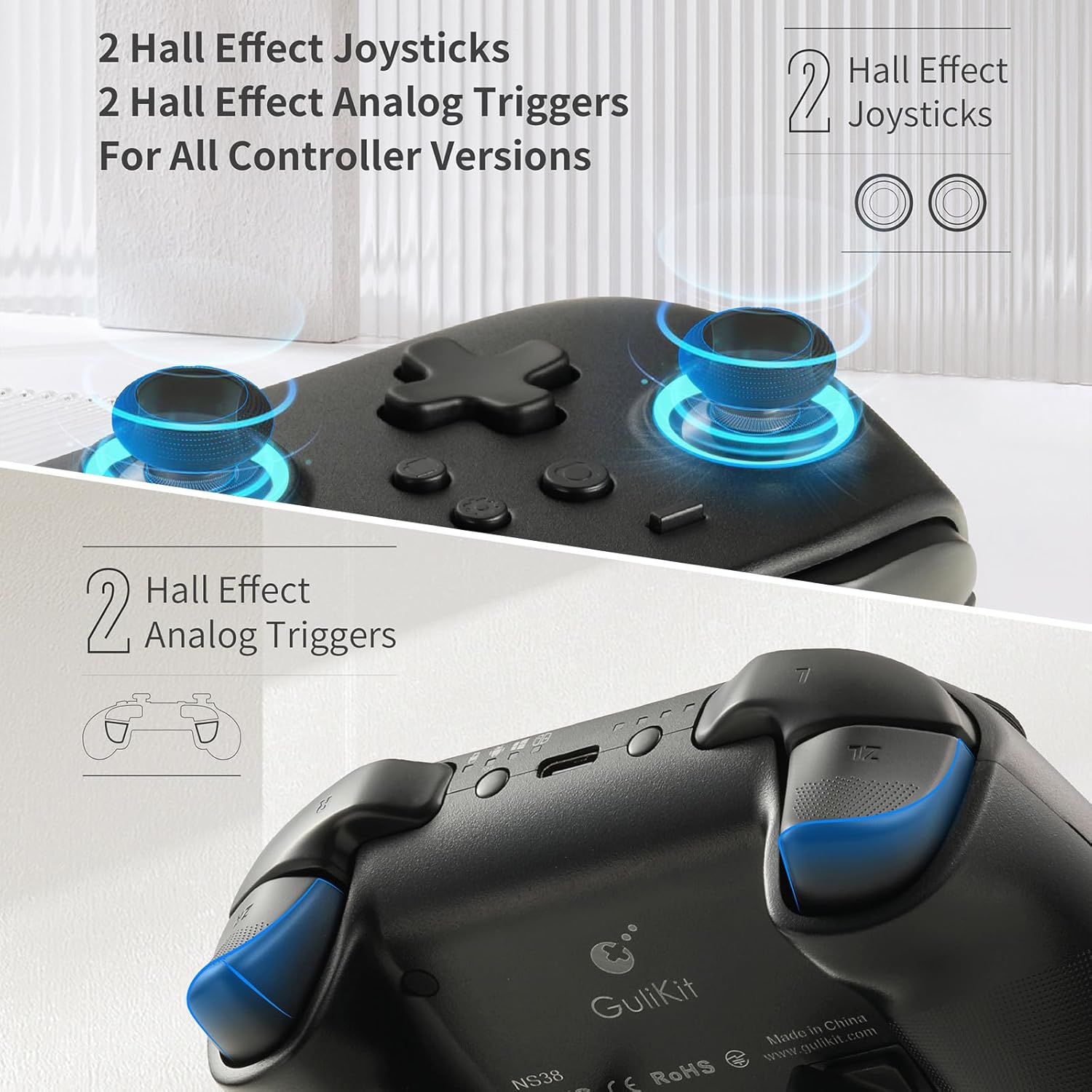
Image: Diagrams illustrating the Hall Effect joysticks and Hall Effect analog triggers, highlighting their internal magnetic sensing technology for precise input.
Tactile ABXY Buttons
The controller is equipped with new tactile ABXY buttons designed for enhanced reliability and hyper-responsive actuation. These buttons provide a satisfying click feedback and are interchangeable, allowing for easy adaptation to different game layouts, such as Xbox Game Pass titles.
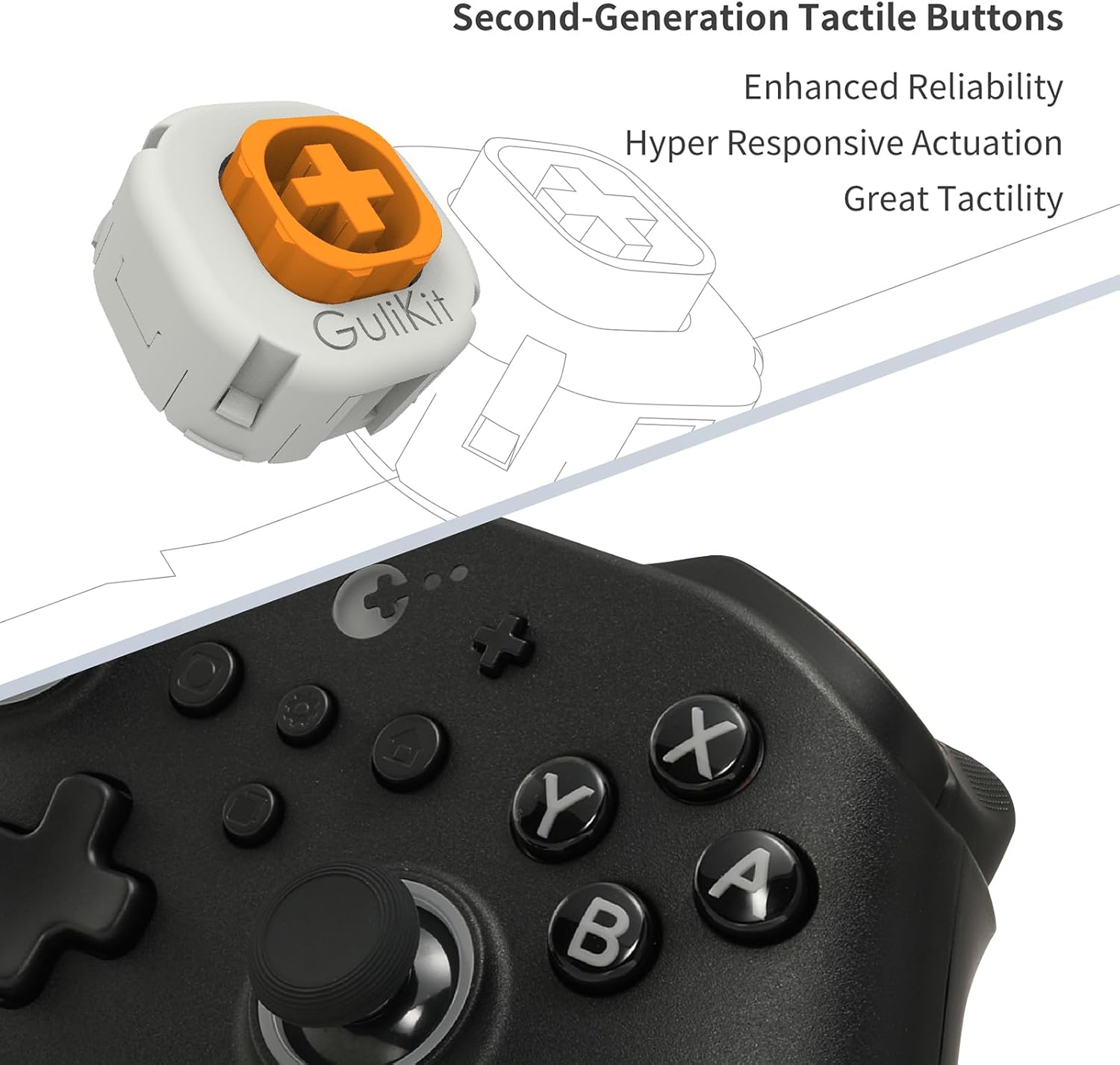
Image: A close-up view of the controller's ABXY buttons, emphasizing their tactile design and showing an exploded view of an individual button mechanism.
Vibration Modes
Experience rich haptic feedback with three distinct vibration modes and two strength settings:
- HD Rumble Mode: Provides nuanced and precise vibrations.
- Maglev Super Haptic Mode: Offers a strong, distinct haptic feedback.
- Rotor Vibration Mode: Delivers traditional rumble effects.
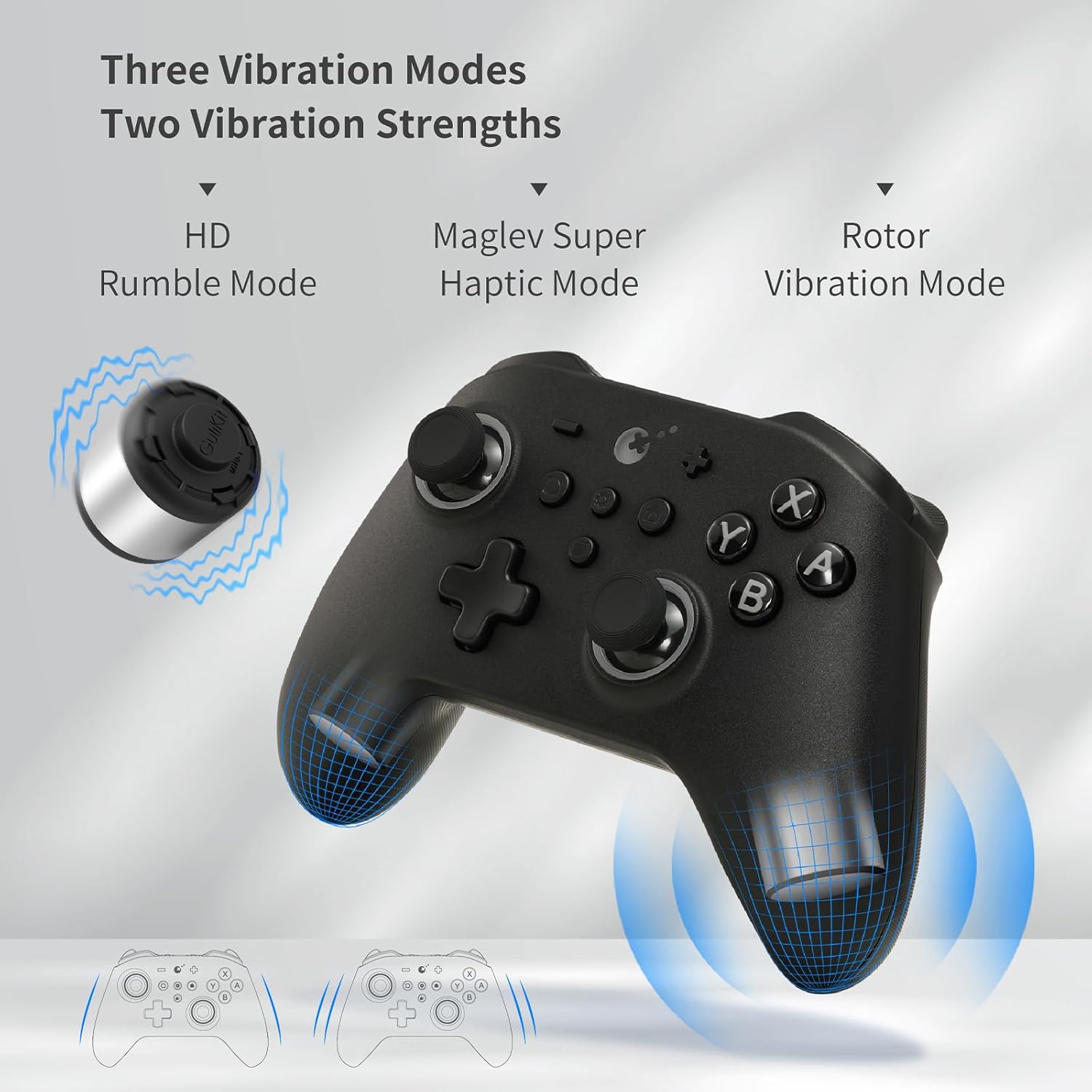
Image: An illustration of the controller highlighting the three different vibration modes: HD Rumble, Maglev Super Haptic, and Rotor Vibration, with visual representations of their effects.
Six-Axis Gyroscope
The integrated 6-axis gyroscope provides immersive motion control for compatible games. This feature enhances gameplay in titles like Legend of Zelda, Super Mario, Splatoon 2, Mario Kart 8 Deluxe, and Just Dance, and can also be utilized for aiming in FPS games on PC Windows.

Image: A gaming scene depicting a player using the GuliKit KK3 Pro controller, with blue arrows indicating the motion control capabilities provided by the six-axis gyroscope.
Additional Features
- Adjustable Star-Ring RGB Lights: Customize the RGB lighting around the joysticks for enhanced immersion and clear indication of function settings. Options include default steady on, joystick-activated flowing light, vibration-activated lighting, and off.

Image: A close-up of the controller's right joystick, showing the adjustable RGB lighting ring around its base and illustrating different lighting modes.
- Turbo/Auto-Turbo Function: Enable rapid firing for buttons.
- APG Button: The Auto-Pilot Gaming (APG) button allows recording and replaying up to 10 seconds of button inputs, useful for repetitive in-game actions.
- Anti-Friction Metal Stick Ring: The joysticks feature metal rings to ensure smoother control and reduce wear.

Image: A diagram illustrating the internal structure of the joystick, highlighting the anti-friction metal stick ring for smoother movement.
- GuliKit Custom "Gpower" CPU: The controller is powered by a custom GuliKit Gpower CPU, designed for high precision, multi-tasking, high speed, and low power consumption.

Image: An illustration showing the GuliKit custom "Gpower" CPU chip integrated within the controller, emphasizing its high performance and efficiency.
Maintenance
Battery Information
The GuliKit KK3 Pro controller is equipped with a 950mAh Li-Polymer battery. A full charge provides approximately 15 to 28 hours of gameplay, depending on the intensity and frequency of vibrations and other features used.
- Charging: Use the provided USB-C cable to charge the controller. Connect it to a USB power source (e.g., computer, wall adapter).
- Battery Life Indicator: The controller features an indicator to show battery status. Refer to the controller's LED lights for charging and low battery warnings.
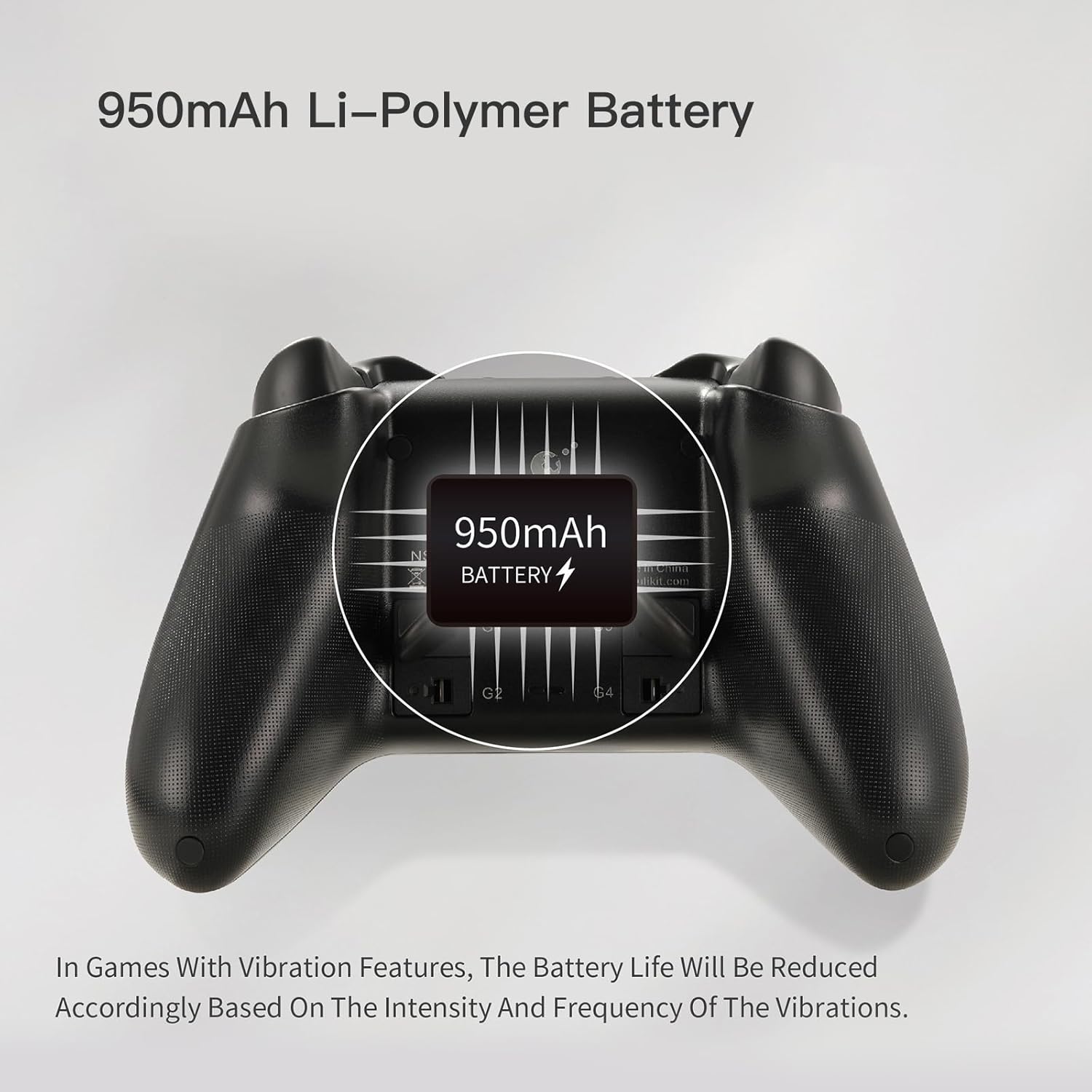
Image: An X-ray style view of the GuliKit KK3 Pro controller, highlighting the internal placement and capacity of its 950mAh Li-Polymer battery.
Cleaning and Storage
To ensure longevity, keep the controller clean and store it in a dry place away from extreme temperatures. Use a soft, dry cloth for cleaning. Avoid using harsh chemicals or abrasive materials.
Troubleshooting
- Controller Not Connecting:
- Ensure the controller is charged.
- Verify Bluetooth is enabled on your device and the controller is in pairing mode.
- For PC, try connecting with the Hyperlink adapter or directly via USB-C cable.
- Restart both the controller and the device you are trying to connect to.
- Button Squeaking/Grinding:
- While the new tactile buttons are designed to prevent this, if you experience any issues, ensure no debris is lodged around the buttons.
- If the issue persists, contact customer support.
- Joystick Drift:
- The Hall Effect joysticks are designed to prevent drift. If you experience any unintended input, try recalibrating the joysticks through the controller's settings (refer to the official GuliKit website for specific calibration procedures).
- Vibration Not Working:
- Check if vibration is enabled in the game settings and on the controller.
- Ensure the controller's battery is not critically low.
Specifications
| Feature | Detail |
|---|---|
| Brand | GuliKit |
| Model Name | KK3 Pro Controller |
| Model Number | NS38 |
| Color | Black |
| Connectivity Technology | TYP-C wired/wireless connection (Bluetooth) |
| Compatible Devices | Nintendo Switch, Switch OLED, Lite, Steam Deck, Android, iOS, macOS, Windows PC |
| Controller Type | Gamepad |
| Number of Buttons | 16 |
| Battery Composition | Lithium Metal |
| Battery Capacity | 950mAh |
| Polling Rate (with Hyperlink) | 1000 Hz (on PC-Windows) |
| Joysticks | Hall Effect, adjustable tension |
| Triggers | Linear Hall Effect |
| Gyroscope | 6-axis |
| Vibration | HD Rumble, Maglev Super Haptic, Rotor |
| Origin | China |
Warranty and Support
GuliKit is committed to providing high-quality gaming hardware. If you have any questions or encounter issues with your GuliKit KK3 Pro Wireless Controller, please do not hesitate to contact our customer service team.
- Customer Service: We aim to provide a satisfactory response within 24 hours. Please refer to the contact information provided with your product packaging or visit the official GuliKit website for support channels.
- Warranty: Information regarding product warranty terms and conditions can be found on the official GuliKit website or within the product documentation.


