
1. Introduction
The TP-Link EAP610-Outdoor is a high-performance Wi-Fi 6 access point designed to provide robust and reliable wireless connectivity in various environments, including outdoor and challenging indoor settings. With its advanced features like IP67 weatherproofing, Omada Mesh technology, and seamless integration with the Omada Software Defined Networking (SDN) platform, the EAP610-Outdoor delivers ultra-fast AX1800 dual-band Wi-Fi speeds and flexible deployment options.
This manual provides detailed instructions for the setup, operation, maintenance, and troubleshooting of your EAP610-Outdoor access point.

Figure 1: TP-Link EAP610-Outdoor Access Point
2. Key Features
- Ultra-Fast True Wi-Fi 6 Speeds: Designed with the latest Wi-Fi 6 technology (1024-QAM and Long OFDM Symbol), the EAP610-Outdoor increases dual-band Wi-Fi speeds up to 1800Mbps.
- Indoor/Outdoor Use: Durable IP67 weatherproof enclosure with dedicated high-gain antennas protects the access point from harsh external conditions and provides optimal outdoor wireless experiences. Its low-profile appearance also fits indoor settings.
- Wi-Fi Range Extender Mode Supported: Extend your existing wireless coverage by repeating the wireless signal. Can be set in standalone mode or Omada app.
- Integrated with Omada SDN: Omada's Software Defined Networking (SDN) platform integrates network devices including access points, switches, and gateways with multiple control options offered - Omada hardware controller, Omada software controller, or Omada cloud-based controller. Standalone mode also applies.
- Cloud Access & Omada Compatibility: Remote cloud access and Omada app enable centralized cloud management of the entire network from different websites - all controlled from a single interface anywhere, anytime.

Figure 2: IP67 Weatherproof Enclosure for Outdoor Environments

Figure 3: Easy Deployment by Omada Mesh
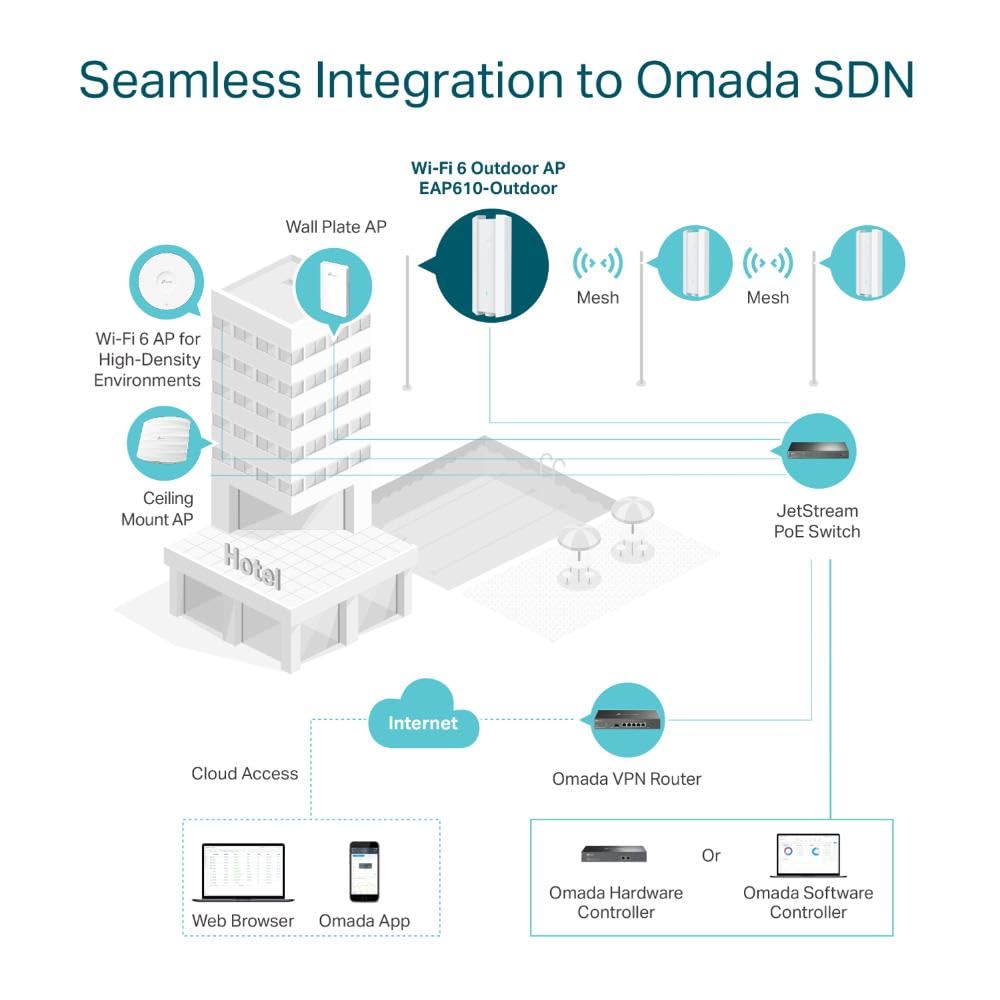
Figure 4: Seamless Integration to Omada SDN

Figure 5: Standalone Outdoor Wireless Extender

Figure 6: Multiple Application Scenarios
3. Package Contents
Verify that you have all the items listed below in your package:
- TP-Link EAP610-Outdoor Access Point
- Installation Guide
If any item is missing or damaged, please contact your reseller or distributor.
4. Setup and Installation
The EAP610-Outdoor can be mounted on a wall or pole. It is powered via Power over Ethernet (PoE+).
4.1 Physical Installation
Before mounting, ensure the chosen location provides optimal Wi-Fi coverage and is accessible for cabling.
- Mounting Location: Select a suitable location for installation, considering signal coverage and environmental factors.
- Secure Mounting: Use the provided mounting kit to securely attach the EAP610-Outdoor to a wall or pole. Follow the instructions in the included Installation Guide for specific steps.
4.2 Network Connection
The EAP610-Outdoor supports PoE+ for power and data transmission.
- Connect Ethernet Cable: Connect an Ethernet cable from a PoE+ switch or a PoE+ injector to the Ethernet port on the EAP610-Outdoor. Ensure the connection is secure and weatherproof.
- Power On: Once connected to a PoE+ source, the EAP610-Outdoor will power on automatically. The LED indicator will show its status.

Figure 7: EAP610-Outdoor Ethernet Port and Reset Button
5. Operating Modes
The EAP610-Outdoor can operate in two primary modes:
5.1 Standalone Mode
In standalone mode, the EAP610-Outdoor functions as an independent access point. You can configure it directly via its web management interface or through the Omada app.
- Web Interface: Connect a computer to the same network as the EAP610-Outdoor. Open a web browser and enter the default IP address (refer to the Installation Guide for details) to access the management page.
- Omada App: Download the TP-Link Omada app from your mobile app store. Follow the in-app instructions to discover and configure the EAP610-Outdoor.
5.2 Omada SDN Controller Mode
For centralized management of multiple Omada devices, integrate the EAP610-Outdoor with an Omada SDN Controller (hardware, software, or cloud-based).
- Discovery and Adoption: The Omada Controller will discover the EAP610-Outdoor on the network. You can then adopt it into the controller's management system.
- Centralized Configuration: Once adopted, all configurations, firmware updates, and monitoring can be performed from the Omada Controller's interface.
6. Maintenance
Regular maintenance ensures optimal performance and longevity of your EAP610-Outdoor.
- Firmware Updates: Periodically check the TP-Link official website for the latest firmware updates. Updating firmware can improve performance, add new features, and fix bugs.
- Cleaning: Gently wipe the exterior of the device with a soft, dry cloth. Do not use liquid cleaners or aerosols.
- Environmental Check: Although IP67 rated, ensure the mounting area remains free from excessive debris or obstructions that could impede signal or cause physical damage.
- Cable Inspection: Periodically inspect the Ethernet cable and its connection for any signs of wear or damage, especially in outdoor installations.
7. Troubleshooting
This section addresses common issues you might encounter with your EAP610-Outdoor.
- No Power/LED Off:
- Ensure the Ethernet cable is securely connected to a PoE+ source.
- Verify that the PoE+ switch or injector is powered on and functioning correctly.
- Try a different Ethernet cable.
- Cannot Access Management Interface:
- Ensure your computer is on the same network segment as the EAP610-Outdoor.
- Verify the IP address of the EAP610-Outdoor. If using DHCP, check your router's client list.
- Temporarily disable any firewall or antivirus software on your computer.
- Perform a factory reset (press and hold the reset button for about 10 seconds) and try accessing with default settings.
- Poor Wi-Fi Performance:
- Check for physical obstructions between the access point and client devices.
- Ensure the EAP610-Outdoor is mounted in an optimal location, away from sources of interference (e.g., microwaves, cordless phones).
- Adjust Wi-Fi channel settings to avoid interference from neighboring networks.
- Ensure client devices support Wi-Fi 6 for optimal performance.
- Omada Controller Cannot Discover EAP:
- Ensure the EAP and the controller are on the same Layer 2 network or that Layer 3 discovery is configured.
- Check firewall settings on the controller host.
- Ensure the EAP is not already adopted by another controller.
8. Technical Specifications
| Feature | Specification |
|---|---|
| Model | EAP610-Outdoor |
| Dimensions (L x W x H) | 28.04 x 10.65 x 5.68 cm |
| Item Weight | 810 g |
| Wireless Standard | 802.11ax (Wi-Fi 6) |
| Data Transfer Rate | Up to 1800 Mbps (1201 Mbps on 5 GHz, 574 Mbps on 2.4 GHz) |
| Frequency Band Class | Dual-Band |
| Antennas | Dedicated High-Gain Antennas |
| Ethernet Ports | 1x Gigabit Ethernet (RJ-45) supporting PoE+ |
| Power Supply | 802.3at PoE+ |
| Ingress Protection | IP67 Weatherproof Enclosure |
| Operating Temperature | Refer to product datasheet for specific range |
| Management | Omada SDN Controller (Hardware/Software/Cloud), Standalone Web UI, Omada App |
| Special Features | Remote Access, Mesh, Seamless Roaming, MU-MIMO, OFDMA |
9. Warranty and Technical Support
TP-Link provides a limited warranty for this product. For detailed warranty information, please refer to the warranty card included with your product or visit the official TP-Link website.
For technical support, firmware updates, and additional resources, please visit the TP-Link support website:
You can also contact TP-Link customer service for assistance with product setup, configuration, and troubleshooting.


