1. Introduction
Thank you for choosing the PUSOKEI Mini Slim MP3 Player. This device is designed for portable audio playback, offering HiFi lossless sound quality in a compact and lightweight form factor. It supports MicroSD card expansion up to 64GB, making it suitable for various activities such as entertainment, learning, and fitness. This manual provides detailed instructions to help you set up and operate your MP3 player effectively.
2. Safety Information
- Do not expose the device to extreme temperatures, direct sunlight, or high humidity.
- Avoid dropping or subjecting the device to strong impacts.
- Keep the device away from water and other liquids.
- Use only the provided charging cable or a certified equivalent to prevent damage.
- Do not attempt to disassemble or repair the device yourself. Contact customer support for assistance.
- Listen at moderate volume levels to protect your hearing.
3. Package Contents
- PUSOKEI Mini Slim MP3 Player
- USB Charging Cable
- Wired Earphones
- User Manual (this document)
4. Device Overview
The PUSOKEI Mini Slim MP3 Player features a compact design with intuitive controls and essential ports.
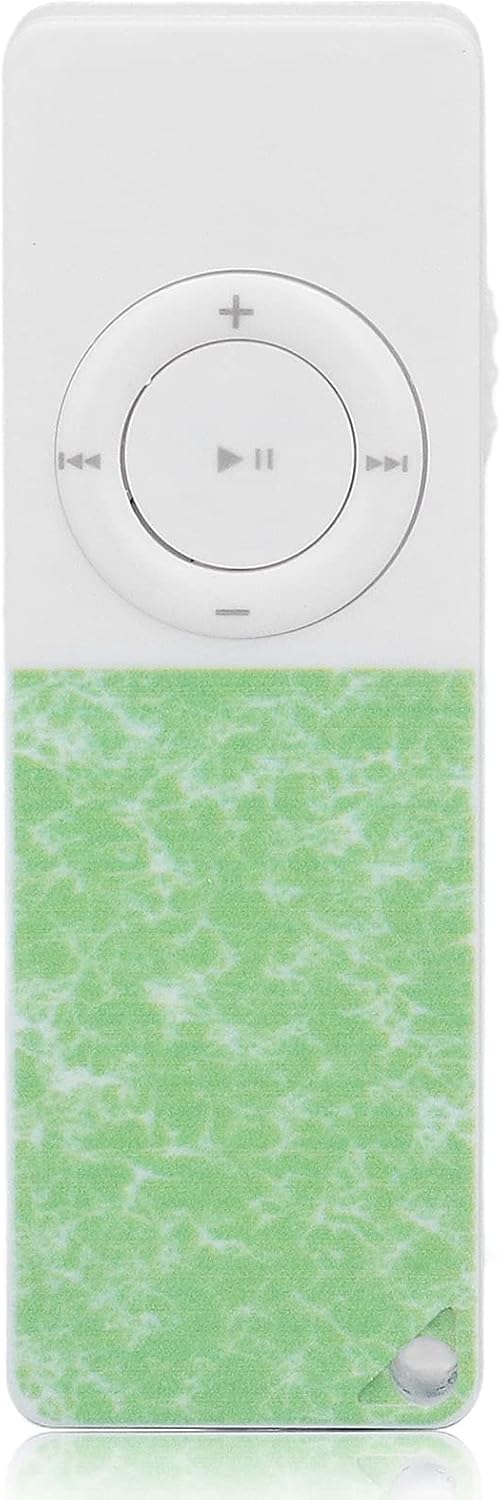
Figure 1: Front view of the MP3 Player, showing the control buttons and screen.

Figure 2: Side view of the MP3 Player, highlighting the USB-C charging port and MicroSD card slot.

Figure 3: Back view of the MP3 Player, showing the built-in speaker and clip.
Controls and Ports:
- Display Screen: Shows menus, track information, and settings.
- Navigation Buttons: Up, Down, Left (Previous), Right (Next), Center (Play/Pause/Confirm).
- Menu Button: Accesses options within current mode.
- Back Button: Returns to the previous screen or menu.
- Volume Buttons: Adjusts audio output level.
- Power On/Off Button: Turns the device on or off.
- 3.5mm Headphone Jack: For wired earphones.
- USB-C Port: For charging and data transfer.
- MicroSD Card Slot: For expandable storage (up to 64GB).
- Built-in Speaker: For external audio playback.
- Clip: For attaching the player to clothing or accessories.
5. Getting Started
5.1 Charging the Device
Before first use, fully charge the MP3 player. Connect the provided USB-C cable to the device's USB-C port and the other end to a USB power adapter (not included) or a computer's USB port. The battery indicator on the screen will show charging status.
5.2 Inserting a MicroSD Card
The device supports MicroSD cards up to 64GB for storing your music. A 64GB card is typically included.
- Locate the MicroSD card slot on the side of the player.
- Gently insert the MicroSD card into the slot with the gold contacts facing down until it clicks into place.
- To remove, push the card inward until it springs out.

Figure 4: Correct insertion of a MicroSD card.
5.3 Transferring Music Files
Connect the MP3 player to your computer using the USB-C cable. The device will appear as a removable disk. Drag and drop your MP3 files into the appropriate folders on the MicroSD card. Ensure your music files are in a compatible format (e.g., MP3).
6. Operating Instructions
6.1 Power On/Off
- To Power On: Press and hold the Power button for approximately 3 seconds until the screen lights up.
- To Power Off: Press and hold the Power button for approximately 3 seconds until the screen turns off.
6.2 Music Playback
From the main menu, select 'Music'. You can browse by 'Now playing', 'All songs', 'Artists', 'Albums', or 'Genres'.
- Play/Pause: Press the center button.
- Next Track: Press the Right navigation button.
- Previous Track: Press the Left navigation button.
- Volume Up/Down: Use the dedicated Volume buttons on the side.
- Shuffle Playback: While in music playback, press the Menu button (top-left) and select 'Repeat' then 'Shuffle'.
Video 1: How to Enable Shuffle Play (demonstrated on a similar MP3 player).
6.3 Bluetooth Connection
You can connect your MP3 player to Bluetooth headphones or speakers.
- From the main menu, select 'Bluetooth'.
- Ensure your Bluetooth device is in pairing mode.
- The MP3 player will scan for available devices. Select your device from the list to pair.
Video 2: How to pair Bluetooth (demonstrated on a similar MP3 player).
6.4 FM Radio
To use the FM radio function, ensure wired earphones are plugged into the 3.5mm jack, as they act as the antenna.
- From the main menu, select 'FM Radio'.
- The player will automatically scan for available stations.
- Use the Left/Right navigation buttons to fine-tune the frequency or press and hold to jump to the previous/next available station.
Video 3: How to use FM mode (demonstrated on a similar MP3 player).
6.5 Voice Recorder
The device includes a voice recorder function.
- From the main menu, select 'Recorder'.
- Follow the on-screen prompts to start, pause, save, or playback recordings.
6.6 Pedometer
Track your steps and activity with the built-in pedometer.
- From the main menu, select 'Pedometer'.
- Start the pedometer function and carry the device with you.
- View your step count and other activity data.
6.7 Stopwatch
Use the stopwatch for timing various activities.
- From the main menu, select 'Stopwatch'.
- Use the control buttons to start, pause, and reset the timer.
6.8 Browsing Files and Settings
The 'Folder' option allows you to browse files directly on the MicroSD card. The 'Settings' menu provides options to customize the device:
- Language: Change the display language.
- Display Settings: Adjust brightness, backlight time.
- Sleep Timer: Set a timer for automatic shutdown.
- Auto Shutdown: Configure automatic power off when idle.
- Date and Time: Set the current date and time.
- Format TF Card: Erase all data on the MicroSD card.
- Factory Settings: Reset the device to its original factory settings.
7. Maintenance and Care
- Clean the device with a soft, dry cloth. Do not use liquid cleaners.
- Store the MP3 player in a cool, dry place when not in use.
- Avoid exposing the device to strong magnetic fields.
8. Troubleshooting
- Device does not power on: Ensure the battery is charged. Connect to a power source and try again.
- No music playback: Verify that a MicroSD card is correctly inserted and contains compatible music files (e.g., MP3 format). Ensure the volume is not muted or too low.
- Cannot connect via Bluetooth: Ensure the MP3 player and the target Bluetooth device are both in pairing mode and within range. Try restarting both devices.
- FM Radio not working: Confirm that wired earphones are securely plugged into the 3.5mm jack, as they serve as the antenna.
- SD card not recognized or files not playing: Ensure the MicroSD card is formatted correctly (FAT32 is commonly supported). Some devices may have specific file formatting requirements; try reformatting the card on a computer if issues persist.
9. Specifications
| Feature | Detail |
|---|---|
| Brand | PUSOKEI |
| Model Number | PUSOKEIn*8tdco61615-13 |
| Memory Storage Capacity | 64 GB (expandable via MicroSD) |
| Connectivity Technology | USB, Bluetooth |
| Special Feature | Portable, Hi-Res Audio |
| Screen Size | 1.44 Inches |
| Display Technology | LCD |
| Supported Standards | MP3 |
| Item Weight | 1.44 ounces |
| Package Dimensions | 5 x 3 x 0.09 inches |
10. Warranty and Support
For warranty information and customer support, please refer to the documentation included with your purchase or contact PUSOKEI customer service directly. Keep your purchase receipt for warranty claims.


