
NEDIS WIFICDP30WT
Contents
Nedis Smartlife WIFICDP30WT Video Door Intercom User Manual
Model: WIFICDP30WT
1. Introduction
This manual provides detailed instructions for the installation, operation, and maintenance of your Nedis Smartlife WIFICDP30WT Video Door Intercom. Please read this manual thoroughly before using the device to ensure proper functionality and safety. Keep this manual for future reference.
2. Safety Information
Observe the following safety precautions to prevent damage to the device or injury to yourself:
- Do not expose the device to extreme temperatures, direct sunlight, or high humidity.
- Avoid dropping or subjecting the device to strong impacts.
- Do not attempt to disassemble, repair, or modify the device yourself. Refer all servicing to qualified personnel.
- Use only the specified power source and accessories.
- Keep the device away from children and pets.
- Ensure proper ventilation around the device during operation.
3. Package Contents
Verify that all items are present in the package:
- Nedis Smartlife WIFICDP30WT Video Door Intercom Unit
- Wall mounting bracket
- Installation materials (screws, wall plugs)
- USB charging cable
- Quick start guide
4. Product Overview
Familiarize yourself with the components of your video door intercom.

Figure 4.1: Front View. This image displays the front of the Nedis Smartlife WIFICDP30WT Video Door Intercom, showing the camera lens, motion sensor, and doorbell button with an illuminated ring.
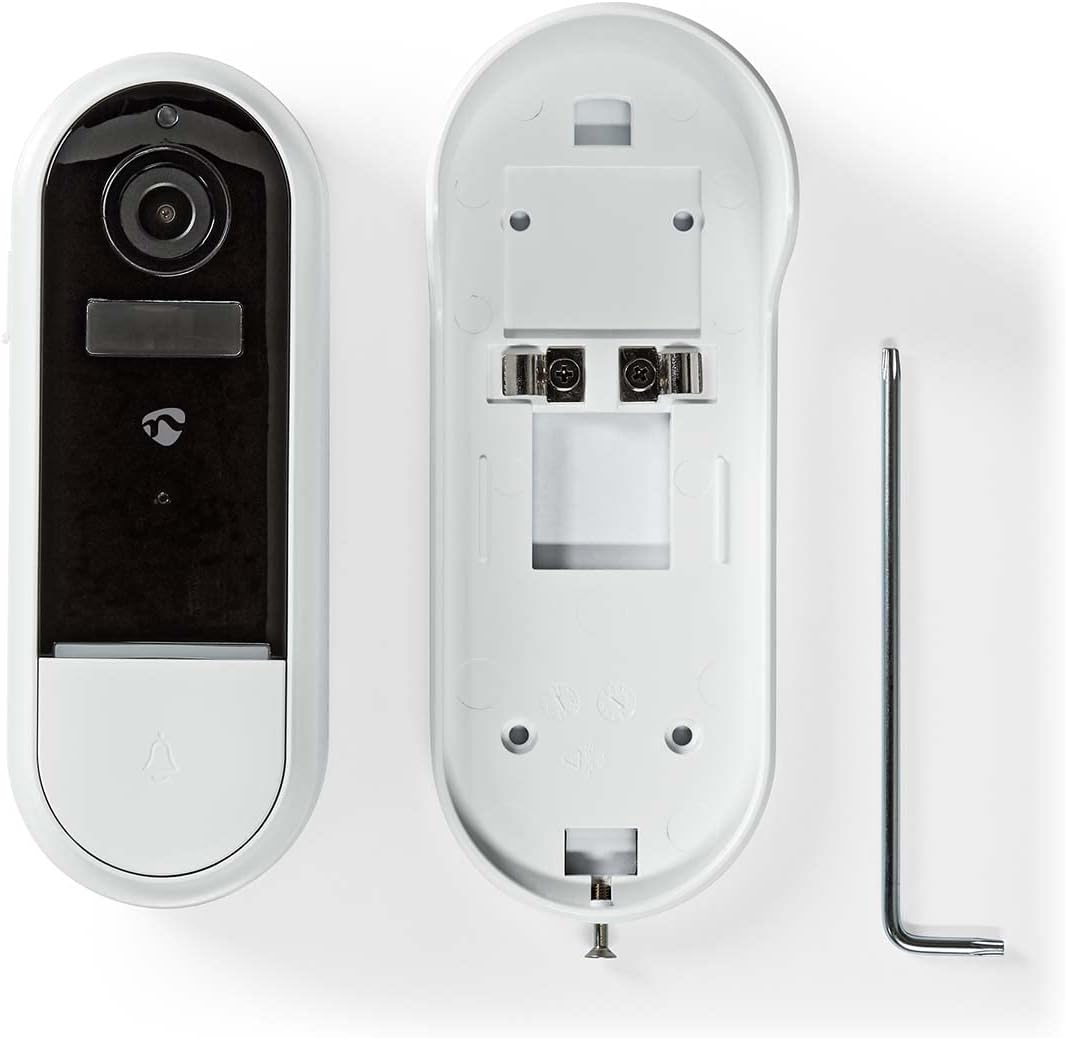
Figure 4.2: Rear View and Mounting. The rear view of the intercom unit is shown, alongside its wall mounting bracket and the included L-shaped installation tool. The mounting bracket features screw holes for secure attachment.
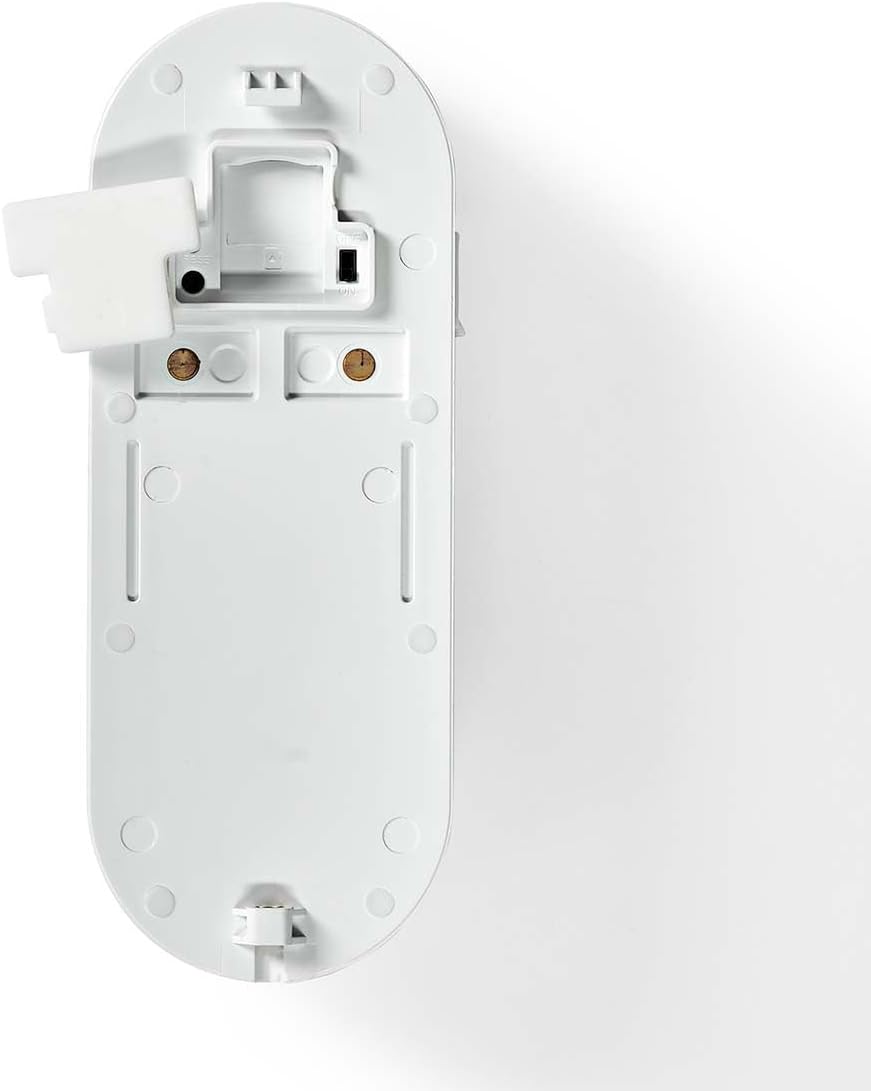
Figure 4.3: Internal Components. This image illustrates the internal components of the intercom with the back plate removed, revealing the wiring terminals for power connection and the battery compartment area.
5. Setup
5.1 Charging the Device
Before initial use, fully charge the video door intercom using the provided USB cable. Connect the USB cable to the device's charging port and a compatible USB power adapter (not included). The charging indicator will show the charging status.
5.2 App Installation and Pairing
- Download the 'Nedis Smartlife' app from your smartphone's app store (iOS or Android).
- Register or log in to your Smartlife account.
- Follow the in-app instructions to add a new device. Ensure your smartphone is connected to a 2.4 GHz Wi-Fi network during the pairing process.
- Power on the video door intercom. The device will enter pairing mode, indicated by a specific light pattern.
- Complete the pairing process as guided by the app.
5.3 Mounting the Intercom
- Choose a suitable location near your door, ensuring a clear view and good Wi-Fi signal.
- Use the wall mounting bracket as a template to mark the drilling points on the wall.
- Drill holes and insert the wall plugs.
- Secure the wall mounting bracket to the wall using the provided screws.
- Attach the video door intercom unit to the mounted bracket, ensuring it clicks securely into place.
- If applicable, connect any necessary wiring (e.g., for existing doorbell chime) before securing the unit.
6. Operating the Device
6.1 Answering Calls
When a visitor presses the doorbell button, you will receive a notification on your smartphone via the Nedis Smartlife app. Tap the notification to view the live video feed and communicate with the visitor.
6.2 Motion Detection
The intercom features a motion sensor. When motion is detected within its range, you will receive an alert on your smartphone. You can adjust motion detection sensitivity and notification settings within the app.
6.3 Video Recording and Storage
The device supports video recording. Recordings can be triggered by doorbell presses or motion detection. Video footage is typically stored on a microSD card (not included) or via cloud storage services (subscription may be required). Refer to the app for storage options and settings.
6.4 Two-Way Audio
Utilize the two-way audio feature through the app to speak with visitors at your door and hear their responses.
7. Maintenance
7.1 Cleaning
Wipe the device with a soft, dry cloth. Do not use abrasive cleaners, solvents, or chemical agents, as these may damage the surface.
7.2 Battery Management
As the device is battery-powered, monitor the battery level through the Smartlife app. Recharge the battery when indicated to ensure continuous operation. For optimal battery life, avoid fully discharging the battery frequently.
7.3 Firmware Updates
Periodically check the Nedis Smartlife app for available firmware updates. Keeping the device's firmware updated ensures optimal performance, security, and access to new features.
8. Troubleshooting
If you encounter issues with your video door intercom, refer to the following common problems and solutions:
| Problem | Possible Cause | Solution |
|---|---|---|
| Device does not power on | Low or depleted battery | Charge the device fully using the USB cable. |
| Cannot connect to Wi-Fi | Incorrect Wi-Fi password; Device too far from router; Only 5 GHz Wi-Fi network available | Verify Wi-Fi password. Move device closer to router. Ensure you are connecting to a 2.4 GHz Wi-Fi network. |
| No notifications on phone | App notifications disabled; Device offline; App not running in background | Check app notification settings. Ensure device is connected to Wi-Fi. Keep the app running or allow background activity. |
| Poor video quality | Weak Wi-Fi signal; Dirty camera lens | Improve Wi-Fi signal strength. Clean the camera lens with a soft cloth. |
| Two-way audio not working | Microphone/speaker blocked; App permissions not granted | Ensure nothing is obstructing the microphone or speaker. Grant microphone permissions to the Smartlife app in your phone settings. |
9. Specifications
| Feature | Detail |
|---|---|
| Brand | NEDIS |
| Model | WIFICDP30WT |
| Model Name | SmartLife |
| Power Source Type | Battery Powered |
| Batteries Required | Yes |
| Material Type | Plastic |
| Product Dimensions (L x W x H) | 5.7 x 14 x 4.1 cm |
| Weight | 340 g |
| Mounting Hardware Included | Wall bracket, Installation materials, USB cable, Quick start guide |
10. Warranty Information
Nedis products are covered by a warranty against defects in materials and workmanship. The specific warranty period and terms may vary by region and retailer. Please retain your proof of purchase for warranty claims. For detailed warranty information, refer to the documentation provided with your purchase or visit the official Nedis website.
11. Customer Support
If you require further assistance, have questions, or encounter issues not covered in this manual, please contact Nedis customer support or your retailer. Contact information can typically be found on the Nedis website or in your product packaging.
Documents and downloads
Ask a question about this manual
Ask about setup, troubleshooting, compatibility, parts, safety, or missing instructions. Manuals+ will review the question and use this page’s manual context to help answer it.